1. پراڊڪٽ ختمview
The Poly Voyager 4320 UC is a wireless stereo headset designed for professionals requiring seamless connectivity and productivity in various work environments. It features a noise-canceling boom microphone with Acoustic Fence technology, ensuring clear audio transmission by blocking background noise. The headset connects to PC/Mac via a BT700 USB-C Bluetooth adapter (with an included USB-C to USB-A adapter) and to mobile devices via Bluetooth 5.2. It offers up to 24 hours of talk time and includes a desktop charging stand for convenient power management. This model is Microsoft Teams certified and integrates with other communication platforms like Zoom.

Image 1.1: The Poly Voyager 4320 UC Wireless Headset shown on its included desktop charging stand. The headset features over-the-head stereo design with a flexible boom microphone.
2. اهم خاصيتون
- صاف آڊيو معيار: Features a noise-canceling dual microphone with Acoustic Fence technology to minimize background noise, ensuring your voice is heard clearly.
- لچڪدار ڪنيڪشن: Connects wirelessly to computers (PC/Mac) via the included BT700 USB-C Bluetooth adapter (with USB-C to USB-A adapter) and to mobile phones via Bluetooth 5.2.
- Extended Mobility: Offers a wireless range of up to 164 feet (50 meters) from your computer, allowing freedom of movement during calls.
- ڊگھي بيٽري زندگي: Provides up to 24 hours of talk time on a single charge. Can also be used as a wired headset via audio-over-USB mode.
- آرامده ڊيزائن: Equipped with an adjustable padded headband and memory foam ear cushions for comfortable extended wear.
- Dedicated Microsoft Teams Button: Instant access to the Microsoft Teams app for seamless collaboration. Also compatible with Zoom and other platforms.
- Desktop Charging Stand: Simplifies charging and provides a convenient storage solution.
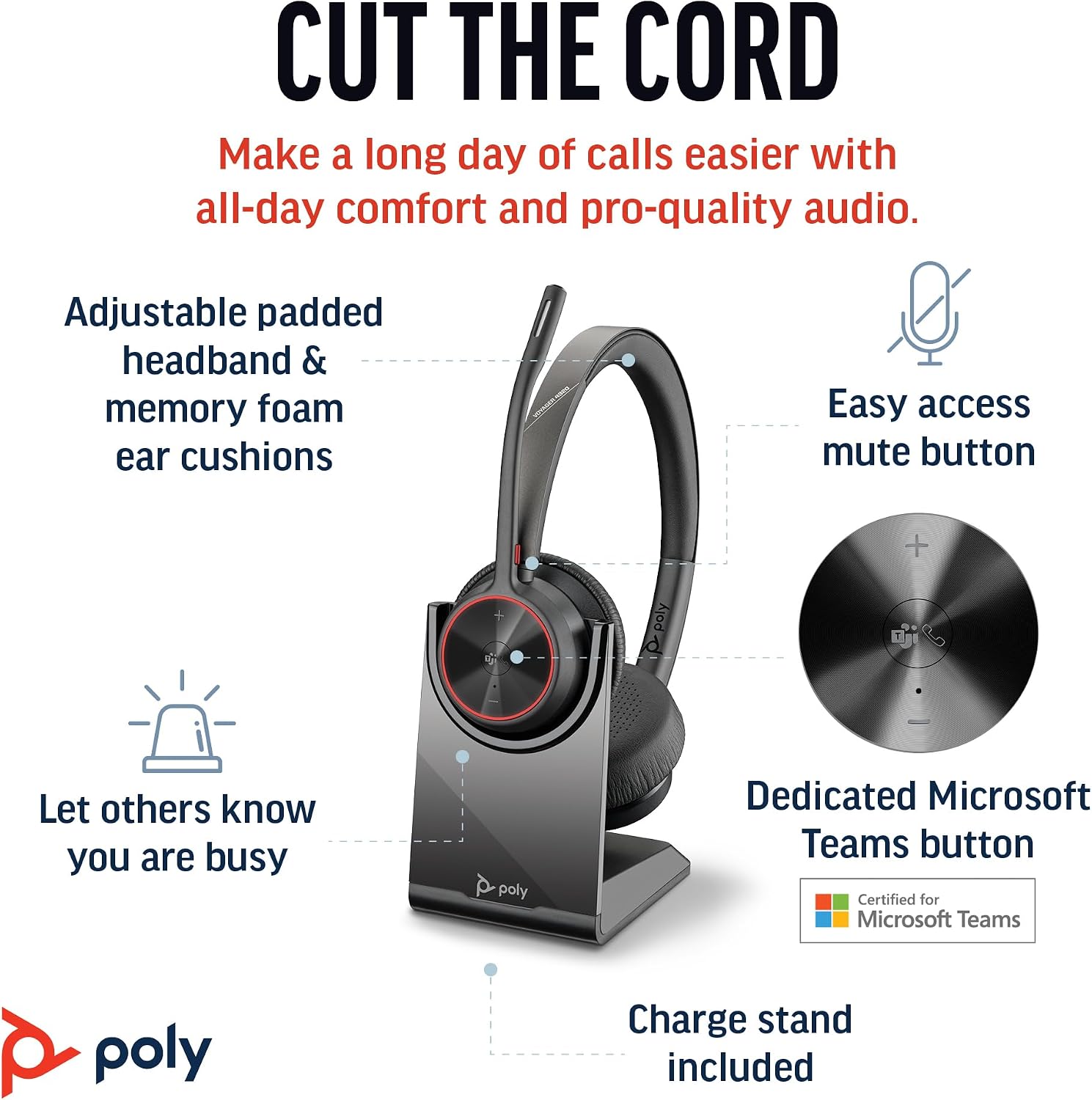
Image 2.1: The Poly Voyager 4320 UC Headset highlighting its adjustable padded headband, memory foam ear cushions, easy access mute button, dedicated Microsoft Teams button, and included charge stand.

Image 2.2: Illustration demonstrating the noise-canceling dual microphone with Acoustic Fence technology, which filters out background noise for clear communication.
3. سيٽ اپ گائيڊ
3.1 پيڪيج مواد
پڪ ڪريو ته سڀئي شيون توهان جي پيڪيج ۾ موجود آهن:
- پولي وائجر 4320 يو سي وائرليس هيڊ سيٽ
- ڊيسڪ ٽاپ چارجنگ اسٽينڊ
- BT700 USB-C Bluetooth Adapter
- USB-C کان USB-A اڊاپٽر
- USB چارجنگ ڪيبل
- Travel Pouch (may be included with some versions)
3.2 هيڊ سيٽ چارج ڪرڻ
Before first use, fully charge your headset. The headset can be charged using the included desktop charging stand or directly via the USB charging cable.
- چارجنگ اسٽينڊ استعمال ڪندي: Connect the USB charging cable to the charging stand and then to a powered USB port (e.g., computer, wall adapter). Place the headset onto the charging stand. The headset's LED indicator will show charging status.
- Direct USB Charging: Connect the USB charging cable directly to the headset's USB-C port and then to a powered USB port.
A full charge takes approximately 1.5 hours. The headset provides up to 24 hours of talk time and 47 hours of listening time.
3.3 ڊوائيسز سان ڳنڍڻ
The Voyager 4320 UC headset offers multiple connection options:
3.3.1 Connecting to PC/Mac (via USB Adapter)
- Insert the BT700 USB-C Bluetooth adapter into an available USB-C port on your computer. If your computer only has USB-A ports, use the included USB-C to USB-A adapter.
- اڊاپٽر جي ايل اي ڊي نيري چمڪي ويندي، جيڪا ظاهر ڪندي ته اهو هيڊ سيٽ جي ڳولا ڪري رهيو آهي.
- Power on your headset. The headset and adapter are pre-paired and should connect automatically. The adapter's LED will turn solid blue when connected.
- پنهنجي ڪمپيوٽر جي سائونڊ سيٽنگز ۽ ڪميونيڪيشن ايپليڪيشنز (مثال طور، مائڪروسافٽ ٽيمز، زوم) ۾ پنهنجي آڊيو ان پٽ ۽ آئوٽ پُٽ ڊيوائس طور پولي وائجر 4320 يو سي چونڊيو.
3.3.2 Connecting to Mobile Phone (via Bluetooth)
- With the headset powered on, press and hold the Bluetooth pairing button on the headset until the headset's LED flashes red and blue, indicating pairing mode.
- پنهنجي موبائل فون تي، بلوٽوٿ سيٽنگز ڏانهن وڃو ۽ بلوٽوٿ کي فعال ڪريو.
- Select "Poly Voyager 4320 UC" from the list of available devices.
- Once paired, the headset's LED will stop flashing and remain solid blue.

Image 3.1: Diagram illustrating the multiple connection options for the Poly Voyager 4320 UC headset, including connection to a PC/Mac via the USB-C BT700 Bluetooth adapter (with USB-A adapter option) and direct Bluetooth connection to a mobile device.
4. آپريٽنگ هدايتون
4.1 هيڊ سيٽ پائڻ
The headset can be worn with the microphone boom on either the right or left side. Rotate the boom up and over to align with the desired side. For optimal microphone performance, position the boom approximately two finger-widths from the corner of your mouth.
4.2 هيڊ سيٽ ڪنٽرول
- حجم مٿي/گهٽ (+/-): Adjusts listening volume.
- ڪال بٽڻ: ڪال کي جواب ڏيڻ يا ختم ڪرڻ لاءِ پريس ڪريو.
- گونگا بٽڻ: Located on the microphone boom. Press to mute/unmute your microphone. A dynamic mute alert will notify you if you speak while muted.
- Microsoft Teams Button: Dedicated button for instant access to the Microsoft Teams application.
- پاور بٽڻ: Slide to power on/off.
4.3 LED اشارا
The headset and USB adapter feature LED indicators to provide status information:
- هيڊ سيٽ ايل اي ڊي:
- Solid Blue: Connected/In call
- Flashing Red/Blue: Pairing mode
- سڪل ڳاڙهو: خاموش
- سولڊ امبر: چارج ڪرڻ
- چمڪندڙ ڳاڙهو: گھٽ بيٽري
- USB Adapter LED (BT700):
- Solid Blue: Connected/In call
- Flashing Blue: Searching for headset
- سڪل ڳاڙهو: خاموش
5. سار سنڀال
5.1 صفائي
To maintain the headset's performance and hygiene:
- ڪن جي کشن ۽ هيڊ بينڊ کي نرم، ڊي سان صاف ڪريوamp ڪپڙو. سخت ڪيميائي يا ٻرندڙ مواد استعمال ڪرڻ کان پاسو ڪريو.
- Do not immerse the headset in water or any liquids.
- Keep the charging contacts on the headset and stand clean and free of debris.
5.2 اسٽوريج
When not in use, store the headset on its charging stand or in the included travel pouch to protect it from dust and damage. Avoid storing in extreme temperatures.
6. مسئلا حل ڪرڻ
6.1 No Audio or Poor Audio Quality
- ڪنيڪشن چيڪ ڪريو: Ensure the headset is properly connected to your device (solid blue LED on headset and adapter).
- حجم جي سطح: Verify that headset, computer, and application volume levels are not muted or set too low.
- ڊفالٽ ڊيوائس: Confirm that the Poly Voyager 4320 UC is selected as the default playback and recording device in your computer's sound settings and communication software.
- حد: Ensure you are within the wireless range (up to 50 meters) of your connected device.
- مداخلت: ٻين وائرليس ڊوائيسز کان پري وڃو جيڪي مداخلت جو سبب بڻجي سگهن ٿا.
6.2 مائڪروفون ڪم نه ڪري رهيو آهي
- چيڪ ڪريو خاموش: Ensure the microphone is not muted (headset LED should not be solid red).
- مائڪروفون پوزيشن: Adjust the microphone boom to be two finger-widths from your mouth.
- ڊفالٽ ڊيوائس: Confirm the headset is selected as the default recording device in your computer's sound settings and communication software.
- سافٽ ويئر سيٽنگون: پنهنجي آپريٽنگ سسٽم ۾ مائڪروفون جي رازداري سيٽنگون چيڪ ڪريو.
6.3 Headset Not Pairing/Connecting
- پاور سائيڪل: Turn the headset off and on again.
- ٻيهر جوڙيو: Follow the pairing instructions in Section 3.3 to re-pair the headset with your device or USB adapter.
- Adapter Reset: If using the USB adapter, try unplugging and re-inserting it.
- Clear Device List: On your mobile device, forget the headset from the Bluetooth device list and attempt to pair again.
7. وضاحتون
| خاصيت | تفصيل |
|---|---|
| ماڊل نالو | Voyager 4320 Teams Version with Charge Stand, USB-C BT700 with USB-C to USB-A Adapter |
| رابطي ٽيڪنالاجي | وائرليس (بلوٽوٿ 5.2) |
| وائرلیس رينج | 50 ميٽر (164 فوٽ) تائين |
| ڳالهائڻ جو وقت | 24 ڪلاڪ تائين |
| ٻڌڻ جو وقت | 47 ڪلاڪ تائين |
| چارج ڪرڻ وقت | لڳ ڀڳ. مڪمل چارج لاء 1.5 ڪلاڪ |
| مائڪروفون | Noise-canceling dual mic with Acoustic Fence technology |
| مطابقت رکندڙ ڊوائيسز | سيل فون، ڊيسڪ ٽاپ، ليپ ٽاپ، ٽيبليٽ |
| ڪنٽرول قسم | ميڊيا ڪنٽرول، ٽچ |
| شيءِ جو وزن | 162 گرام (5.7 آونس) |
| پيداوار جي ماپ | 3.94 x 0.79 x 1.06 انچ |
| بيٽري جو قسم | 1 ليتيم آئن بيٽري (شامل) |
| يو پي سي | 017229196667، 196548548736 |
8. وارنٽي ۽ سپورٽ
For warranty information and technical support, please refer to the official Poly webسائيٽ تي وڃو يا انهن جي ڪسٽمر سروس سان رابطو ڪريو. وارنٽي دعوائن لاءِ خريداري جو ثبوت رکو.


