1. پراڊڪٽ ختمview
The Logitech Signature K650 is a full-size wireless ergonomic keyboard designed for all-day comfort with an integrated soft palm rest and quiet keys. The Logitech Lift Vertical Ergonomic Mouse promotes a more natural forearm posture with its 57-degree vertical angle, ideal for small to medium-sized hands. Both devices offer flexible connectivity options via Bluetooth Low Energy or the included Logi Bolt USB receiver.

Image: The Logitech Signature K650 wireless ergonomic keyboard and the Logitech Lift vertical ergonomic mouse.
2. دٻي ۾ ڇا آهي
- Logitech Signature K650 وائرليس ڪي بورڊ
- Logitech لفٽ عمودي Ergonomic ماؤس
- Logi Bolt USB وصول ڪندڙ
- 1 x AA battery (for mouse)
- 2 x AA batteries (for keyboard)
- استعمال ڪندڙ دستاويز

Image: The Logitech Lift mouse, a AA battery, and the Logi Bolt USB receiver, representing typical box contents.
3. سيٽ اپ گائيڊ
3.1. بيٽري لڳائڻ
- ڪي بورڊ: Open the battery compartment on the underside of the keyboard. Insert two AA batteries, ensuring correct polarity. Close the compartment.
- مائوس: Open the battery compartment on the underside of the mouse. Insert one AA battery, ensuring correct polarity. Close the compartment.
3.2. توهان جي ڊوائيسز کي ڳنڍڻ
You can connect your keyboard and mouse using either the Logi Bolt USB receiver or Bluetooth Low Energy.
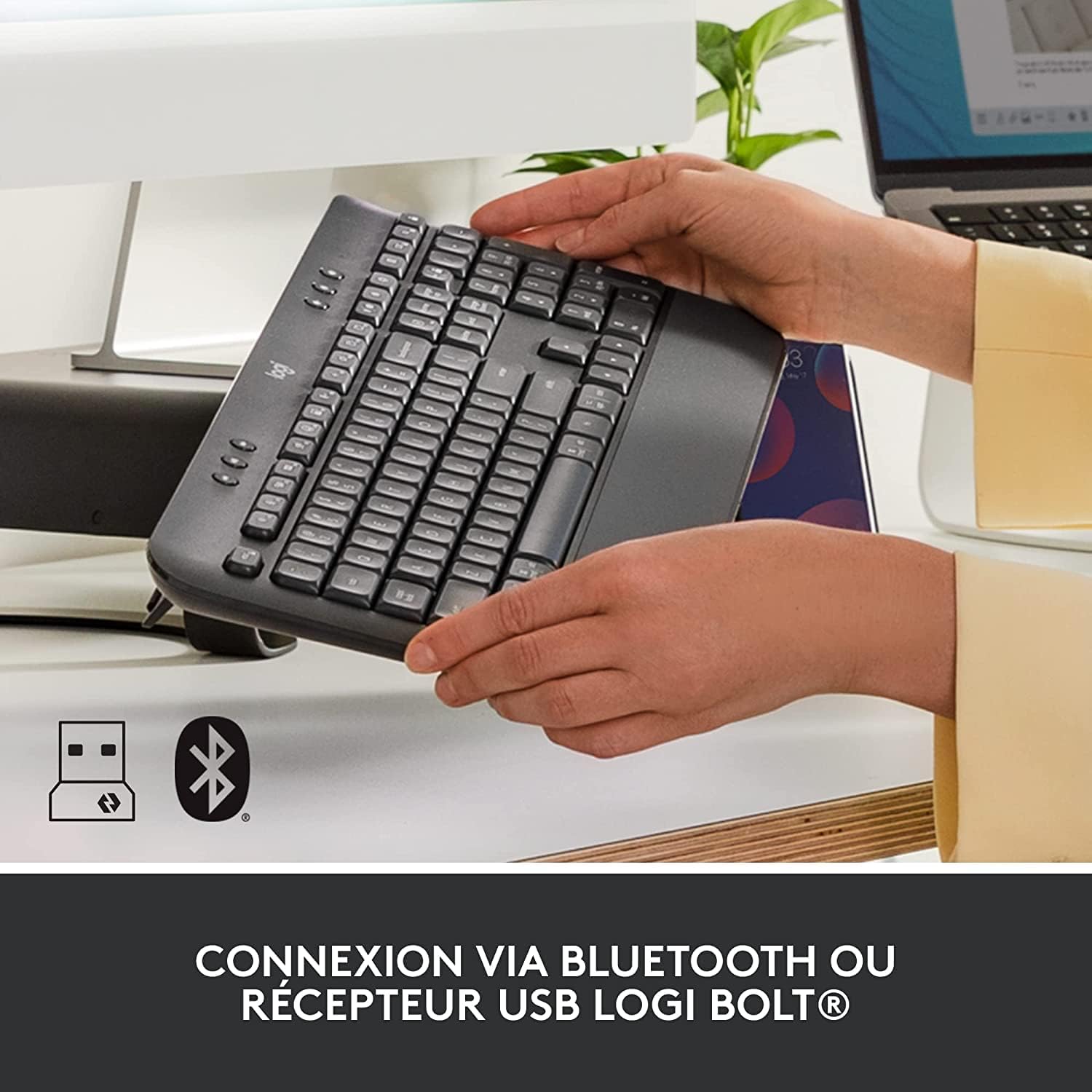
Image: The Logitech K650 keyboard with icons indicating USB and Bluetooth connectivity options.
Option A: Logi Bolt USB Receiver (Recommended for stable connection)
- Logi Bolt USB رسيور کي پنهنجي ڪمپيوٽر تي موجود USB پورٽ ۾ لڳايو.
- Turn on the keyboard and mouse using their respective power switches (located on the underside).
- The devices should automatically connect to the receiver. If not, press and hold the Easy-Switch button on the keyboard (F1, F2, or F3) or the channel button on the mouse (bottom) until the LED blinks rapidly, then follow on-screen prompts if any.
Option B: Bluetooth Low Energy
- ڪي بورڊ ۽ مائوس کي انهن جي لاڳاپيل پاور سوئچز استعمال ڪندي آن ڪريو.
- On the keyboard, press and hold one of the Easy-Switch keys (F1, F2, or F3) for 3 seconds until the LED above the key starts blinking rapidly. This indicates it's in pairing mode.
- On the mouse, press the channel button on the bottom until the LED starts blinking rapidly.
- پنهنجي ڪمپيوٽر تي، بلوٽوٿ سيٽنگون کوليو ۽ نوان ڊوائيسز ڳوليو.
- Select "Signature K650" and "Lift" from the list of available devices to pair.
- جوڙڻ واري عمل کي مڪمل ڪرڻ لاءِ ڪنهن به آن-اسڪرين هدايتن تي عمل ڪريو.
For multi-device pairing, repeat the Bluetooth pairing steps for each device you wish to connect, using a different Easy-Switch key (F1, F2, F3) on the keyboard and the channel button on the mouse to switch between paired devices.
4. توهان جي ڊوائيسز کي هلائڻ
4.1. Keyboard Features (Signature K650)
- Integrated Palm Rest: The soft, integrated palm rest provides comfortable support for your wrists during long typing sessions.
- خاموش چاٻيون: Designed for a familiar and pleasant typing experience with reduced noise.
- شارٽ ڪٽ ڪيز: Access common functions quickly with dedicated shortcut keys for mute/unmute, screen capture, web navigation, and more.

Image: The soft-touch palm rest of the Logitech Signature K650 keyboard.

Image: A hand demonstrating the use of the dedicated shortcut keys on the Logitech K650 keyboard.
4.2. Mouse Features (Lift Vertical Ergonomic Mouse)
- Ergonomic ڊيزائن: The 57-degree vertical angle promotes a natural handshake posture, reducing wrist strain and promoting a more natural forearm position.
- SmartWheel: Enjoy precise line-by-line scrolling or switch to super-fast free spin mode for long documents.
- حسب ضرورت بٽڻ: Program the side buttons and other controls using the Logi Options+ software for personalized shortcuts.
- خاموش ڪلڪون: Experience significantly reduced click noise for a quieter work environment.

Image: A hand comfortably gripping the Logitech Lift vertical ergonomic mouse, showcasing its natural 57-degree angle.
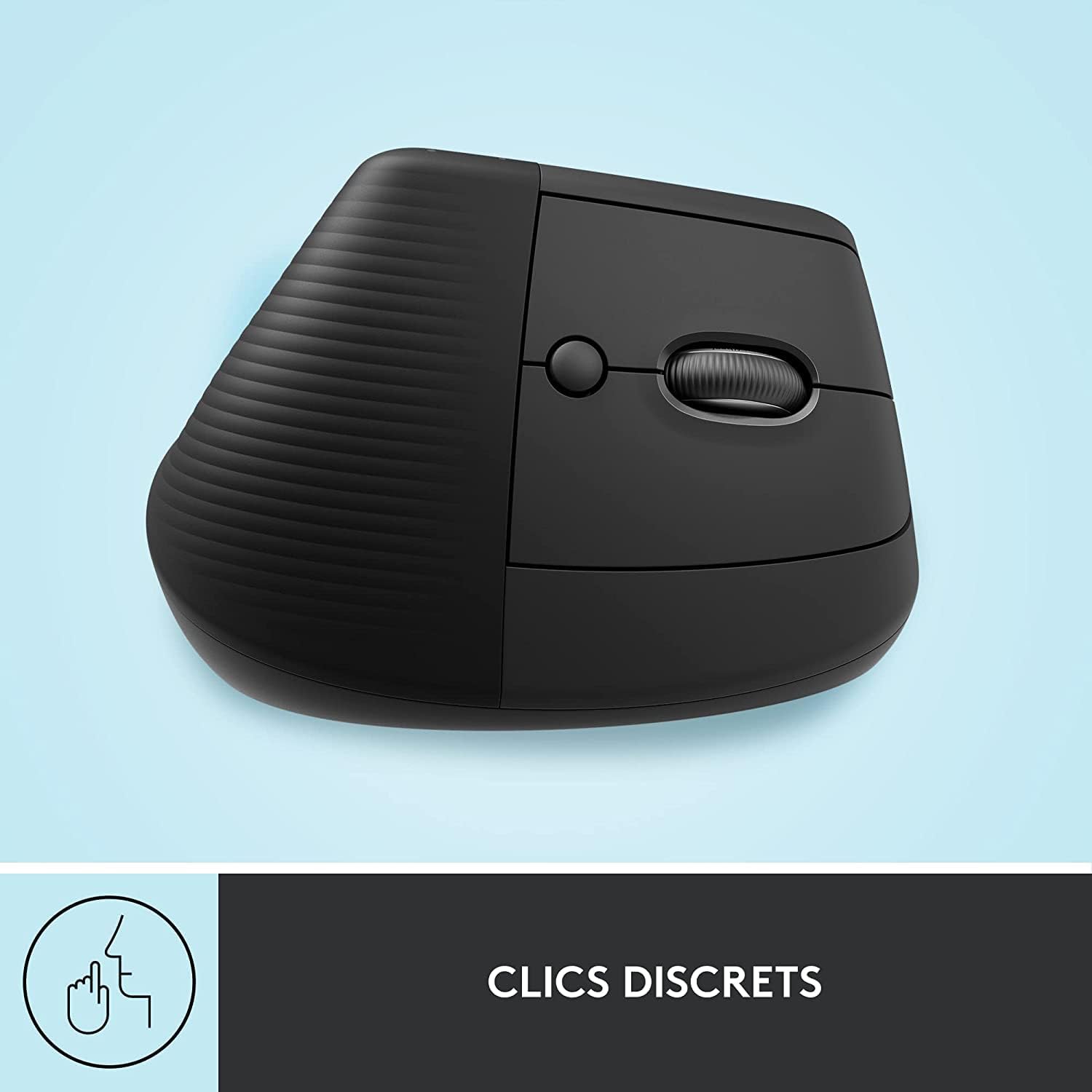
Image: The Logitech Lift mouse highlighting its quiet click feature.

Image: A detailed diagram illustrating the SmartWheel, customizable button, multi-device connectivity, and battery life of the Logitech Lift mouse.
4.3. Software (Logi Options+)
Download the Logi Options+ software from the official Logitech website to unlock the full potential of your devices. This software allows you to:
- Customize keyboard shortcut keys.
- Program mouse buttons and adjust pointer speed.
- گھڻن ڊوائيسز جي ڪنيڪشن کي منظم ڪريو.
- Receive software updates.
4.4. مطابقت
The Logitech Signature K650 Keyboard and Lift Mouse are compatible with multiple operating systems:
- ونڊوز
- macOS
- ڪروم او ايس
- iPadOS

Image: The Logitech K650 keyboard demonstrating compatibility with Windows, Apple (macOS/iPadOS), and Chrome OS.
5. سار سنڀال
5.1. بيٽري جي زندگي
- ڪي بورڊ: Up to 36 months (3 years) on two AA batteries.
- مائوس: Up to 24 months (2 years) on one AA battery.
Battery life may vary based on user and computing conditions. Replace batteries when the low battery indicator light illuminates.
5.2. صفائي
To clean your keyboard and mouse:
- ھڪڙو نرم ، لينٽ کان پاڪ ڪپڙو استعمال ڪريو.
- ضدي مٽيءَ لاءِ، ٿورو ڊيampڪپڙي کي پاڻي يا نرم، غير رگڙيندڙ صفائي واري محلول سان وينجن.
- ڊوائيسز تي سڌو سنئون مائع اسپري ڪرڻ کان پاسو ڪريو.
- The keyboard is spill-resistant, meaning it can withstand minor liquid spills, but it is not waterproof.

Image: A hand wiping down the Logitech K650 keyboard, demonstrating its spill resistance and ease of cleaning.
6. مسئلا حل ڪرڻ
6.1. ڪنيڪشن جا مسئلا
- ڪوبه تعلق: Ensure the devices are turned on and batteries are correctly installed and charged.
- وقفي وقفي سان ڳنڍڻ: Try moving the devices closer to the receiver or computer. Avoid placing them near other wireless devices that might cause interference.
- ٻيهر جوڙيو: If connection is lost, try re-pairing the devices as described in the
لاڳاپيل دستاويز - Signature K650 Keyboard + Lift Mouse

لاجيٽيڪ لفٽ عمودي ايرگونومڪ ماؤس: استعمال ڪندڙ دستي ۽ خاصيتون
لاجيٽيڪ لفٽ ورٽيڪل ايرگونومڪ ماؤس لاءِ هڪ جامع يوزر مينوئل. ان جي ايرگونومڪ ڊيزائن، ڪنيڪٽوٽي آپشنز (بلوٽوٿ، لوگي بولٽ)، اسمارٽ ويل ڪارڪردگي، لاجيٽيڪ آپشنز+ سافٽ ويئر، ۽ ان کي ونڊوز، ميڪ او ايس، ۽ iPadOS لاءِ ڪيئن سيٽ اپ ڪجي بابت سکو. معياري ۽ کاٻي هٿ وارن ٻنهي قسمن کي ڍڪي ٿو.
Logitech لفٽ عمودي ايرگونومڪ ماؤس استعمال ڪندڙ دستياب
لاجيٽيڪ لفٽ ورٽيڪل ايرگونومڪ ماؤس لاءِ يوزر مينوئل، سيٽ اپ، ڪنيڪٽيوٽي (بلوٽوٿ، لوگي بولٽ)، اسمارٽ ويل، ايرگونومڪ ڊيزائن، ۽ لاجيٽيڪ آپشنز+ سافٽ ويئر جهڙيون خاصيتون شامل آهن.
Logitech LIFT عمودي ايرگونومڪ ماؤس استعمال ڪندڙ گائيڊ ۽ سيٽ اپ
Logitech LIFT عمودي ايرگونومڪ ماؤس کي سيٽ اپ ڪرڻ، ڳنڍڻ ۽ استعمال ڪرڻ لاءِ جامع گائيڊ. ان جي خاصيتن جهڙوڪ SmartWheel، Easy-Switch، ۽ Logitech Flow بابت سکو.
Logitech K650 Signature Wireless Keyboard with Wrist Rest User Guide
A comprehensive guide to setting up and using the Logitech K650 Signature Wireless Keyboard with Wrist Rest, including Bluetooth and Logi Bolt pairing, keyboard functions, and software customization.
Logitech MX Ergo S سيٽ اپ گائيڊ | ايرگونومڪ ٽريڪ بال ماؤس
Set up and connect your Logitech MX Ergo S ergonomic trackball mouse. Discover features like adjustable angle, precision scroll wheel, easy-switch, and Logitech Flow technology for seamless multi-device productivity. Includes Bluetooth and Logi Bolt setup instructions.
Logitech MX Keys Mini Keyboard & Lift Mouse: User Manual and Guide
User guide and setup instructions for Logitech MX Keys Mini for Mac wireless keyboard and Logitech Lift Vertical Ergonomic Mouse for Mac. Covers features, connectivity (Bluetooth, USB receiver, Logi Bolt), software installation (Logitech Options, Options+), Logitech Flow, battery management, and smart backlighting.