1. پراڊڪٽ ختمview
The Otovoda B-T50 Dash Cam is a comprehensive front and rear camera system designed to enhance driving safety and provide reliable evidence in case of incidents. It features high-resolution recording, Wi-Fi connectivity for easy access, advanced night vision, and a 24-hour parking monitor.

Figure 1: Otovoda B-T50 Dash Cam components and features.

Figure 2: Key features of the Otovoda B-T50 Dash Cam.
2. پيڪيج مواد
پڪ ڪريو ته سڀئي شيون توهان جي پيڪيج ۾ موجود آهن:
- Otovoda B-T50 Dash Cam (Main Unit)
- پوئين ڪئميرا
- سکشن کپ مائونٽ
- Car Charger (Type-C)
- ريئر ڪئميرا ڪيبل
- USB ڪيبل
- 64GB SD ڪارڊ
- استعمال ڪندڙ دستي
- Cable Clips / 3M Tape
- SIM Ejector Tool (for SD card removal)

شڪل 3: شامل لوازمات ۽ جزا.
3. سيٽ اپ ۽ تنصيب
3.1 ايس ڊي ڪارڊ داخل ڪرڻ
The dash cam supports Micro SD cards up to 256GB (a 64GB card is included). Ensure the card is Class 10, U3 or higher for optimal performance.
- Locate the SD card slot on the side of the main dash cam unit.
- مائڪرو ايس ڊي ڪارڊ داخل ڪريو سون جي رابطن کي ڪئميرا جي پوئين پاسي سان منهن ڏيندي جيستائين اهو جاءِ تي ڪلڪ نه ڪري.
- ڪڍڻ لاءِ، ڪارڊ کي نرميءَ سان اندر دٻايو جيستائين اهو ٻاهر نه اچي.

Figure 4: SD card insertion.
3.2 ڊيش ڪيم کي لڳائڻ
Mount the main unit on your car's windshield using the provided suction cup mount. Choose a location that does not obstruct your view رستي جو.
- Clean the windshield surface where you intend to mount the camera.
- Attach the suction cup mount to the dash cam unit.
- سکشن ڪپ کي ونڊ شيلڊ تي مضبوطيءَ سان دٻايو ۽ ان کي محفوظ ڪرڻ لاءِ ليور کي ڦيرايو.
- صاف کي يقيني بڻائڻ لاءِ ڪئميرا جي زاويه کي ترتيب ڏيو view اڳيان روڊ جو.

Figure 5: Dash cam mounted on windshield.

Figure 6: Suction cup mounting steps.
3.3 پوئين ڪئميرا کي ڳنڍڻ
The rear camera provides a 1080P recording of the rear view. It can be mounted inside the rear window or externally near the license plate.
- Connect the rear camera cable to the rear camera unit.
- Route the cable neatly along the vehicle's interior trim to the main dash cam unit.
- Plug the other end of the rear camera cable into the designated port on the main dash cam.
- Secure the rear camera in your desired location using the provided 3M tape or screws.

Figure 7: Dual channel recording setup.

Figure 8: Rear camera design.
3.4 پاور ڪنيڪشن
Connect the dash cam to your vehicle's power supply using the provided car charger.
- Plug the Type-C end of the car charger into the dash cam's power port.
- ڪار چارجر جي ٻئي ڇيڙي کي پنهنجي گاڏي جي سگريٽ لائٽر ساڪٽ ۾ لڳايو.
- گاڏي جي اگنيشن آن ٿيڻ تي ڊيش ڪيم خودڪار طريقي سان آن ٿيندو ۽ رڪارڊنگ شروع ڪندو.

Figure 9: Type-C power port.
4. آپريٽنگ هدايتون
4.1 بنيادي رڪارڊنگ
Once powered on, the dash cam will automatically start recording. The 3-inch screen will display the live view from the front and rear cameras.

Figure 10: Dash cam 3-inch display.
4.2 وائي فائي ۽ ايپ ڪنٽرول
The built-in Wi-Fi allows you to connect your smartphone to the dash cam via the free Viidure APP (available for Android and iOS). This enables real-time viewing, video playback, downloading, and sharing.
- Download and install the "Viidure" app from your device's app store.
- Turn on Wi-Fi on your dash cam (refer to the camera's menu settings).
- پنهنجي اسمارٽ فون تي، ڊيش ڪيم جي وائي فائي نيٽ ورڪ سان ڳنڍيو (SSID ۽ پاسورڊ عام طور تي ڊيش ڪيم اسڪرين تي ڏيکاريا ويندا آهن).
- Open the Viidure app to access live view, recorded videos, and settings.
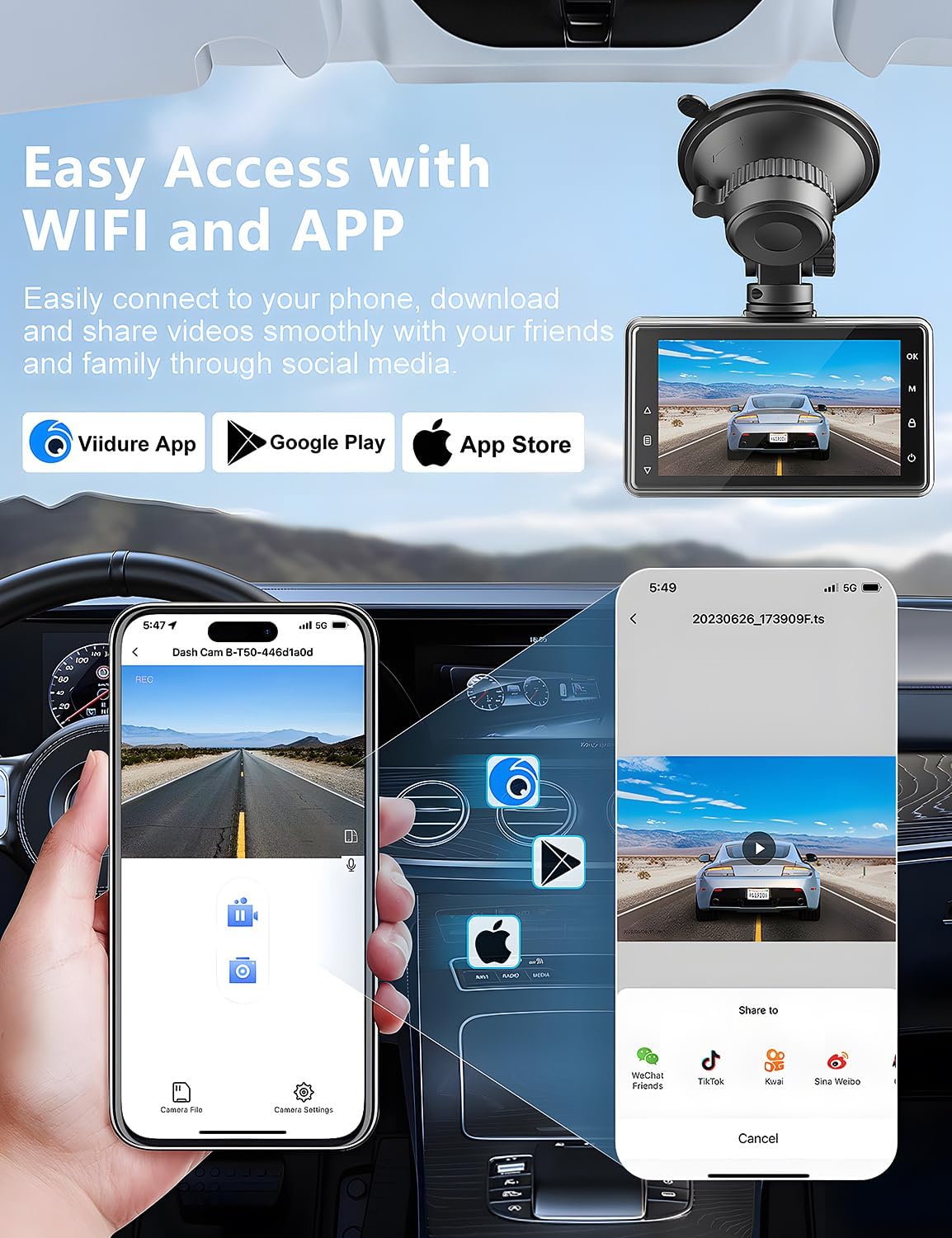
Figure 11: Wi-Fi connectivity and app control.

Figure 12: Sharing videos via Wi-Fi.
4.3 G-Sensor (Emergency Lock)
The built-in G-Sensor automatically detects sudden shakes or collisions. When triggered, it locks the current video footage to prevent it from being overwritten by loop recording, ensuring critical evidence is preserved.

Figure 13: G-Sensor feature.

Figure 14: G-Sensor icon.
4.4 لوپ رڪارڊنگ
The dash cam continuously records video in a loop. When the memory card is full, the oldest unlocked video files are automatically overwritten to make space for new recordings. This ensures uninterrupted recording.

Figure 15: Loop Recording icon.
4.5 Parking Monitor & Motion Detection
When enabled, the parking monitor function detects collisions or motion around your parked vehicle. If an event is detected, the dash cam will automatically turn on and record a short video, providing 24/7 surveillance. For continuous 24-hour monitoring, a hardwire kit (not included) is required to connect the dash cam directly to the car's battery.

Figure 16: 24-hour parking monitor.

Figure 17: Parking monitor icon.
Figure 18: Motion detection in parking mode.
4.6 سپر نائيٽ ويزن
The dash cam is equipped with an F1.8 aperture lens and WDR (Wide Dynamic Range) technology, enhancing its ability to capture clear and detailed footage in low-light conditions, including license plates at night.

Figure 19: Super Night Vision capabilities.

Figure 20: Night vision clarity for license plates.
5. سار سنڀال
5.1 SD ڪارڊ انتظام
Regularly format the SD card to ensure optimal performance and prevent data corruption. Formatting can be done through the dash cam's menu settings or via the Viidure app.
- It is recommended to format the SD card once a month.
- Always back up important videos before formatting.
5.2 صفائي
Keep the camera lenses and screen clean for clear recordings and display.
- Use a soft, lint-free cloth to wipe the lenses and screen.
- گھڻائي صاف ڪندڙ يا محلول استعمال ڪرڻ کان پاسو ڪريو.
5.3 ماحولياتي خيالات
The dash cam is designed for automotive use but extreme temperatures can affect its performance and longevity.
- Avoid prolonged exposure to direct sunlight in extremely hot climates when the vehicle is parked.
- If the camera is exposed to extreme heat, allow it to cool down before operation.
6. مسئلا حل ڪرڻ
If you encounter issues with your Otovoda B-T50 Dash Cam, refer to the following common problems and solutions:
| مسئلو | ممڪن سبب | حل |
|---|---|---|
| Dash cam turns on and off repeatedly. | Unstable power connection; faulty power cable; internal issue. |
|
| Rear camera is not recognized or not working. | Loose connection; damaged cable; faulty rear camera. |
|
| Suction cup mount does not stay attached to the windshield. | Dirty windshield; improper application; worn suction cup. |
|
| Viidure app is slow or unresponsive. | App cache; outdated app version; phone's Wi-Fi interference. |
|
| Slow video download to phone. | وڏو file size; Wi-Fi interference; phone processing speed. |
|

Figure 21: Settings and troubleshooting.
7. وضاحتون
| خاصيت | تفصيل |
|---|---|
| ماڊل نالو | بي ٽي 50 |
| پيداوار جي ماپ | 0.59 x 3.15 x 1.77 انچ |
| شيءِ جو وزن | 1.1 پائونڊ |
| وڊيو ڪيپچر ريزوليوشن | Front: 2.5K (1440P), Rear: 1080P |
| سامهون واري ڪئميرا جو زاويه | 170° وائڊ اينگل |
| پوئين ڪئميرا جو زاويه | 140° وائڊ اينگل |
| ڏيکاريو | 3 انچ اسڪرين |
| رابطي ٽيڪنالاجي | وائرليس (وائي فائي) |
| خاص خاصيتون | Built-In WiFi/Smart APP Control, Parking Monitor, Super Night Vision, G-Sensor, Loop Recording, WDR |
| ميموري ڪارڊ سپورٽ | 256GB تائين (64GB شامل آهي) |
| پاور پورٽ | ٽائپ-سي |
| چڙهڻ جو قسم | Windshield Mount, License Plate Mount |
| گاڏين جي سروس جو قسم | مينيو، بس، ڪار، ٽرڪ |
8. وارنٽي ۽ سپورٽ
Otovoda is committed to providing high-quality products and excellent customer service.
- وارنٽي: The Otovoda B-T50 Dash Cam comes with an extendable 2-year repair warranty.
- واپسي: Full refunds are available within 30 days of purchase.
- ٽيڪنيڪل سپورٽ: For any questions, missing accessories, or technical assistance, please contact our support team. We aim to respond within 24 hours.
- رابطو اي ميل: dashcam@bestservices.vip

Figure 22: Otovoda Brand Logo.


