تعارف
This manual provides essential instructions for setting up, operating, maintaining, and troubleshooting your new Tesla 65-inch 4K UHD Smart TV (Model 65E635SUS). Please read this manual thoroughly before using the television to ensure proper operation and to maximize your viewتجربو. مستقبل جي حوالي لاءِ هي دستياب رکو.
اهم حفاظتي ڄاڻ: Always follow basic safety precautions when using this product to reduce the risk of fire, electric shock, and injury. Do not attempt to service this product yourself. Refer all servicing to qualified service personnel.
1. سيٽ اپ
1.1 Unpacking and Contents Check
احتياط سان ٽي وي کي ان جي پيڪنگ مان هٽايو. پڪ ڪريو ته سڀئي اجزا موجود آهن:
- Tesla 65-inch 4K UHD Smart TV
- ريموٽ ڪنٽرول
- ريموٽ ڪنٽرول لاءِ AAA بيٽريون
- ٽي وي اسٽينڊ (2 ٽڪرا)
- ٽي وي اسٽينڊ لاءِ اسڪرو
- پاور ڪنڊ
- استعمال ڪندڙ جو دستياب (ھي دستاويز)

تصوير 1.1: سامهون view of the Tesla 65-inch Smart TV with its stand.
1.2 ٽي وي اسٽينڊ کي ڳنڍڻ
- اسڪرين جي نقصان کي روڪڻ لاءِ ٽي وي جو منهن نرم، فليٽ مٿاڇري تي هيٺ رکو.
- هر اسٽينڊ پيس کي ٽي وي جي تري ۾ لاڳاپيل سلاٽ سان ترتيب ڏيو.
- هر اسٽينڊ پيس کي ڏنل اسڪرو سان محفوظ ڪريو. پڪ ڪريو ته اهي مضبوطيءَ سان مضبوط ڪيا ويا آهن.

تصوير 1.2: ريئر view of the TV, illustrating the stand attachment points.
نوٽ: If you plan to wall-mount the TV, refer to the wall-mount kit instructions (sold separately) and skip this step. Ensure proper ventilation when wall-mounting.
1.3 ڳنڍڻ واري طاقت
پاور ڪنڊ کي ٽي وي جي پاور ان پٽ سان ۽ پوءِ وال آئوٽليٽ سان ڳنڍيو. ٽي وي اسٽينڊ بائي موڊ ۾ داخل ٿيندو.
1.4 شروعاتي سيٽ اپ
پهرين پاور آن ٿيڻ تي، ٽي وي توهان کي شروعاتي سيٽ اپ جي عمل ذريعي رهنمائي ڪندو:
- ٻولي جي چونڊ: پنھنجي پسند جي Chooseولي چونڊيو.
- نيٽ ورڪ ڪنيڪشن: وائرڊ ڪنيڪشن لاءِ پنهنجي وائي فائي نيٽ ورڪ سان ڳنڍيو يا ايٿرنيٽ ڪيبل استعمال ڪريو.
- گوگل اڪائونٽ سائن ان: Sign in with your Google account to access Google Play Store, Google Assistant, and other Android TV features.
- چينل اسڪين: Scan for available TV channels if you are using an antenna or cable connection.
- رازداري سيٽنگون: Review ۽ رازداري سيٽنگون ترتيب ڏيو جيئن مرضي.
2. آپريٽنگ هدايتون
2.1 ريموٽ ڪنٽرول اوورview
The provided remote control allows you to navigate the TV's features. Insert the AAA batteries into the remote control before use.

Image 2.1: Bluetooth remote control for the Tesla Smart TV.
- پاور بٽڻ: ٽي وي کي آن يا آف ڪري ٿو (اسٽينڊ بائي موڊ).
- نيويگيشن پيڊ (مٿي/هيٺ/کاٻي/ساڄي/ٺيڪ): مينيو کي نيويگيٽ ڪري ٿو ۽ شيون چونڊي ٿو.
- پوئتي بٽڻ: پوئين اسڪرين ڏانهن واپسي.
- هوم بٽڻ: Android ٽي وي هوم اسڪرين تائين رسائي حاصل ڪري ٿو.
- حجم مٿي / ھيٺ: حجم جي سطح کي ترتيب ڏئي ٿو.
- گونگا بٽڻ: آواز کي خاموش يا بند ڪري ٿو.
- گوگل اسسٽنٽ بٽڻ: آواز ڪنٽرول کي چالو ڪري ٿو.
- ايپ شارٽ ڪٽ بٽڻ: مشهور اسٽريمنگ سروسز تائين سڌو رسائي (مثال طور، نيٽ فلڪس، يوٽيوب).
2.2 Android TV 11 Interface Navigation
The Android TV 11 interface provides access to apps, settings, and content. Use the navigation pad on your remote to move through the home screen.
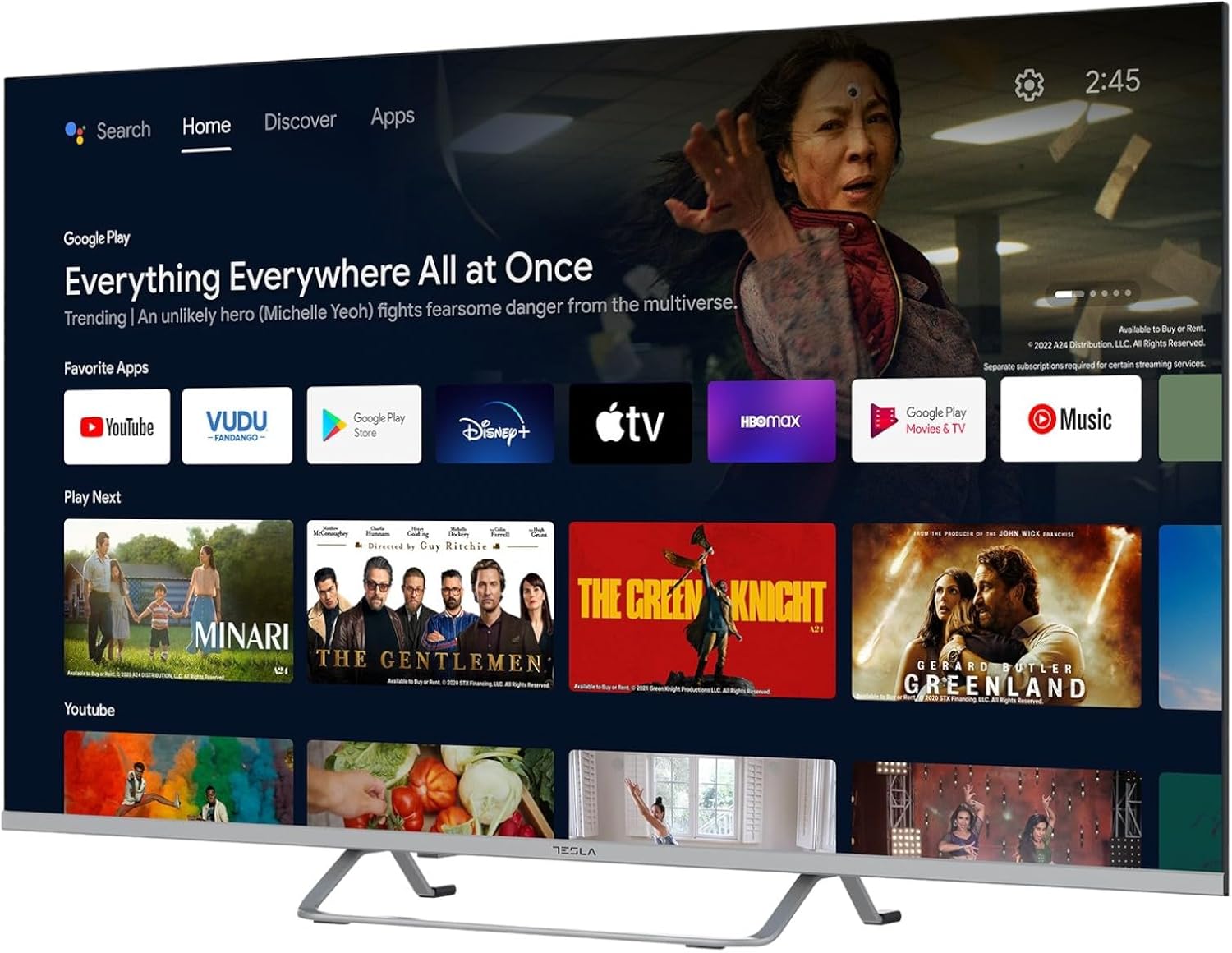
Image 2.2: The Android TV 11 home screen, displaying various applications and content suggestions.
- گھر جي اسڪرين: تجويز ڪيل مواد، انسٽال ٿيل ايپس، ۽ ان پٽ ذريعن کي ڏيکاري ٿو.
- Apps Section: سڀني نصب ٿيل ايپليڪيشنن تائين رسائي حاصل ڪريو.
- سيٽنگون: Configure TV settings, network, accounts, and device preferences.
2.3 گوگل اسسٽنٽ استعمال ڪندي
Press the Google Assistant button on your remote and speak into the microphone to control your TV, search for content, get information, and more.
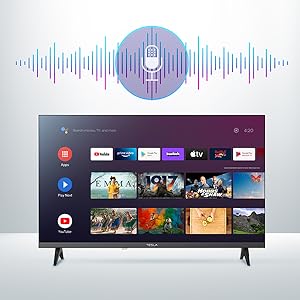
Image 2.3: Visual representation of Google Assistant activation on the TV screen.
Exampحڪمن جا ٽڪرا:
- "نيٽ فلڪس کوليو"
- "ڳولھيو ايڪشن فلمون"
- "موسم ڪيئن آهي؟"
- "Turn up the volume"
2.4 Chromecast بلٽ ان
Use Chromecast built-in to cast content from your compatible smartphone, tablet, or computer directly to your TV. Ensure your device is connected to the same Wi-Fi network as the TV.

Image 2.4: A smartphone casting content to the TV via Chromecast.
2.5 ٻاهرين ڊوائيسز کي ڳنڍڻ
توهان جو ٽي وي ڪيترن ئي ڪنيڪٽيويٽي آپشن پيش ڪري ٿو:
- HDMI پورٽس (x4): بلو ري پليئرز، گيم ڪنسولز، سيٽ ٽاپ باڪس وغيره کي ڳنڍيو.
- USB پورٽس (x2): Connect USB drives for media playback or external keyboards/mice.
- Ethernet (LAN): وائرڊ انٽرنيٽ ڪنيڪشن لاءِ.
- وائي فائي: وائرليس انٽرنيٽ ڪنيڪشن لاءِ.
- بلوٽوٿ: Connect wireless headphones, speakers, or other Bluetooth devices.

تصوير 2.5: سائڊ پروfile of the TV, highlighting accessible ports.
2.6 تصوير ۽ آواز سيٽنگون
Access the TV's settings menu to customize picture and sound options.
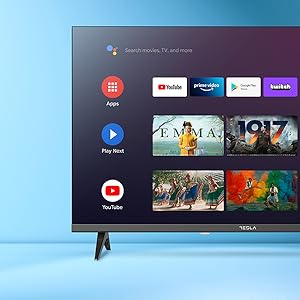
تصوير 2.6: اڳوڻيample of the TV's settings menu for customization.
- تصوير جا طريقا: Select from Standard, Vivid, Sport, Movie, Game, or User (custom) modes. Adjust brightness, contrast, color, and sharpness.
- HDR10: The TV supports HDR10 for enhanced contrast and color with compatible content.
- آواز جا طريقا: Choose from Standard, Music, Movie, Sport, or User (custom) modes. Use the equalizer to fine-tune audio frequencies.
- ڳالهائيندڙ: The TV features 2 x 12W speakers.
3. سار سنڀال
3.1 ٽي وي صاف ڪرڻ
- اسڪرين: نرم، لِنٽ کان پاڪ ڪپڙي سان اسڪرين کي نرميءَ سان صاف ڪريو. ضدي نشانن لاءِ، هلڪو ڊيampڪپڙي کي پاڻي يا خاص اسڪرين ڪلينر سان ڍڪيو. ڪڏهن به ڪلينر کي سڌو سنئون اسڪرين تي نه اسپري ڪريو.
- جسم: Wipe the TV body with a soft, dry cloth. Avoid using abrasive cleaners or solvents.
- صفائي ڪرڻ کان اڳ هميشه ٽي وي کي پاور آئوٽليٽ مان ڪڍي ڇڏيو.
3.2 سافٽ ويئر اپڊيٽ
Your Tesla Smart TV may receive software updates to improve performance and add new features. Ensure your TV is connected to the internet to receive these updates automatically or check for them manually in the settings menu.
4. مسئلا حل ڪرڻ
سپورٽ سان رابطو ڪرڻ کان اڳ، عام مسئلن لاءِ هيٺيان حل آزمايو:
| مسئلو | ممڪن حل |
|---|---|
| طاقت نه آهي | Check if the power cord is securely connected to the TV and the wall outlet. Ensure the outlet is working. |
| تصوير ناهي، پر آواز موجود آهي. | Ensure the correct input source is selected. Check cable connections to external devices. Try restarting the TV. |
| آواز ڪونهي، پر تصوير موجود آهي. | Check the volume level and ensure the TV is not muted. Verify audio settings and external speaker connections if applicable. |
| ريموٽ ڪنٽرول ڪم نه ڪري رهيو آهي | Replace the batteries. Ensure there are no obstructions between the remote and the TV. Re-pair the Bluetooth remote if necessary (refer to TV settings). |
| نيٽ ورڪ ڪنيڪشن جا مسئلا | پنهنجو روٽر ۽ موڊيم ٻيهر شروع ڪريو. وائي فائي پاسورڊ چيڪ ڪريو. جيڪڏهن ممڪن هجي ته وائرڊ ايٿرنيٽ ڪنيڪشن آزمايو. |
| ايپس سست يا ڪريش ٿي رهيون آهن | غير استعمال ٿيل ايپس بند ڪريو. ايپ ڪيش صاف ڪريو (سيٽنگون > ايپس > [ايپ جو نالو] > ڪيش صاف ڪريو). ٽي وي ٻيهر شروع ڪريو. |
5. وضاحتون
| خاصيت | تفصيل |
|---|---|
| برانڊ | TESLA |
| ماڊل نمبر | 65E635SUS |
| اسڪرين جي ماپ | 65 انچ (165 سينٽي) |
| ڊسپلي ٽيڪنالاجي | ايل اي ڊي |
| قرارداد | 4K (3840 x 2160) |
| ريفريش جي شرح | 60 هز |
| آپريٽنگ سسٽم | Android ٽي وي 11 |
| خاص خاصيتون | High Dynamic Range (HDR10), Google Play, Chromecast Built-in, Google Assistant, Personalized Surround Sound |
| رابطي | Wi-Fi, Bluetooth, Ethernet (LAN) |
| HDMI بندرگاهن | 4 |
| USB بندرگاهن | 2 |
| آڊيو آئوٽ | 2 x 12W اسپيڪر |
| پيداوار جا طول و عرض (اسٽينڊ سان) | 25D x 25W x 144.5H cm (approximate) |
6. وارنٽي ۽ سپورٽ
For warranty information, please refer to the warranty card included with your product or visit the official Tesla webسائيٽ. وارنٽي دعوائن لاءِ خريداري جو ثبوت رکو.
For technical support or service inquiries, please contact Tesla customer service through their official channels. Contact details can typically be found on the manufacturer's webسائيٽ يا پيداوار جي پيڪنگنگ ۾.


