1. تعارف
This manual provides detailed instructions for the setup, operation, and maintenance of your KiiBoom Phantom 81 V2 Mechanical Gaming Keyboard. Please read this manual thoroughly before using the product to ensure optimal performance and longevity.

Image: The KiiBoom Phantom 81 V2 Mechanical Gaming Keyboard, showcasing its transparent design and RGB backlighting.
2. پيڪيج مواد
پڪ ڪريو ته سڀئي شيون پيڪيج ۾ موجود آهن:
- KiiBoom Phantom 81 V2 Mechanical Gaming Keyboard
- USB ڪيبل
- ڪيپ ڪيپيندڙ
- سوئچ پلر (اڪثر ڪري ڪي ڪيپ پلر سان گڏ ٿيل)
- اضافي سوئچ (عام طور تي 2)
3. اهم خاصيتون
The KiiBoom Phantom 81 V2 keyboard incorporates several advanced features:
- 75٪ لي آئوٽ: Compact design retaining essential keys.
- Transparent Acrylic Frame: Durable and aesthetically unique.
- گيسڪٽ ماؤنٽ ڊيزائن: Enhances typing feel and sound.
- PC Mounting Plate: Optimized for flexibility and sound profile.
- Full-key Hot-swappable PCB: سولڊرنگ کان سواءِ آسان سوئچ مٽائڻ جي اجازت ڏئي ٿو.
- South-facing RGB LEDs: Provides vibrant backlighting with reduced glare.
- ٽرپل موڊ ڪنيڪٽوٽي: Supports Type-C Wired, Bluetooth 5.0, and 2.4GHz wireless connections.
- Rechargeable بيٽري: 4000mAh capacity for extended wireless use.
- مطابقت: Fully compatible with Mac and Windows operating systems.

تصوير: هڪ اوورview graphic highlighting the KiiBoom Phantom 81 V2's main features including 75% layout, tri-mode, hot-swappable, gasket-mounted, PC plate, plate-mounted stabilizers, south-facing RGB, and acrylic design.

Image: A detailed exploded diagram illustrating the internal gasket structure of the KiiBoom Phantom 81 V2 keyboard, showing components like the metal knob, acrylic top case, switches, PC plate, sandwich cotton, switch pad, PCB, acrylic bottom case, metal nameplate, and keyboard pads.

Image: A close-up of the KiiBoom Phantom 81 V2 keyboard highlighting its transparent acrylic case and PC keycaps with an ASA profile، شوڪasing the clear design.
4. سيٽ اپ
4.1 شروعاتي چارجنگ
Before first use, connect the keyboard to a USB power source using the provided USB-C cable. The keyboard will charge automatically. A full charge is recommended for optimal battery life.
4.2 ڪنيڪٽوٽي موڊس
The Phantom 81 V2 supports three connection modes:
- Type-C Wired Mode: Connect the USB-C cable directly to your computer. Switch the mode selector on the back of the keyboard to "USB".
- بلوٽوٿ 5.0 موڊ:
- Switch the mode selector on the back of the keyboard to "BT".
- دٻايو fn+1, fn+2، يا fn+3 to select a Bluetooth profile. The indicator light will flash, indicating pairing mode.
- On your device (computer, tablet, smartphone), search for Bluetooth devices and select "KiiBoom Phantom 81".
- هڪ ڀيرو ڳنڍيل، اشاري جي روشني چمڪائڻ بند ٿي ويندي.
- 2.4GHz وائرليس موڊ:
- Switch the mode selector on the back of the keyboard to "2.4G".
- 2.4GHz USB رسيور کي پنهنجي ڪمپيوٽر تي موجود USB پورٽ ۾ داخل ڪريو.
- دٻايو fn+4. The keyboard will automatically connect to the receiver. The indicator light will stop flashing once connected.

Image: A close-up of the KiiBoom Phantom 81 V2's side, showing the USB-C port and the physical switches for selecting between USB, Win/Mac, Bluetooth, and 2.4G wireless modes.
4.3 آپريٽنگ سسٽم مطابقت
The keyboard is compatible with both Windows and macOS. Use the dedicated switch on the back of the keyboard to select the appropriate operating system mode (WIN/MAC) for optimal key mapping.

Image: A visual representation of the KiiBoom Phantom 81 V2 keyboard being used with various operating systems, including macOS, Windows, and Android, indicating broad compatibility.
5. آپريٽنگ هدايتون
5.1 آر جي بي بيڪ لائيٽنگ ڪنٽرول
The Phantom 81 V2 features south-facing RGB LEDs for customizable backlighting. Use the following key combinations to adjust the lighting effects:
- ايف اين + \ |: Toggle Backlight Mode
- Fn + DEL: Toggle Backlight Direction
- Fn + ↑: روشني +
- Fn + ↓: Brightness -
- Fn + →: Speed +
- Fn + ←: Speed -

Image: A diagram illustrating the key combinations for controlling the south-facing RGB backlights on the KiiBoom Phantom 81 V2 keyboard, including mode, direction, brightness, and speed adjustments.
5.2 Surrounding Sidelights Control
The keyboard also features customizable sidelights. Use the following key combinations to adjust them:
- Fn + P: Toggle Sidelight Mode
- Fn+B: Toggle Sidelight Color
- Fn + X: Sidelight Brightness +
- Fn+Z: Sidelight Brightness -
- Fn + V: Sidelight Speed +
- Fn + C: Sidelight Speed -

Image: A diagram illustrating the key combinations for controlling the surrounding sidelights on the KiiBoom Phantom 81 V2 keyboard, including mode, color, brightness, and speed adjustments.
5.3 ملٽي فنڪشنل نوب
The knob located on the top right of the keyboard provides quick access to media controls and can be customized:
- Rotate clockwise: Volume +
- Rotate counter-clockwise: Volume -
- پريس: خاموش / چالو
- Long Press: Customizable Functions (refer to software for configuration)

Image: A close-up of the KiiBoom Phantom 81 V2's multifunctional knob, detailing its functions for volume control, mute, and customizable options.
5.4 Checking Battery Power
موجوده بيٽري جي سطح کي جانچڻ لاءِ، دٻايو Fn + Backspace. The indicator lights will display the approximate battery percentage.

Image: A diagram showing how to check the battery power of the KiiBoom Phantom 81 V2 keyboard by pressing Fn+Backspace, with visual indicators for 20%, 50%, and 100% charge levels.
5.5 گرم مٽائڻ وارا سوئچ
The Phantom 81 V2 features a full-key hot-swappable PCB, allowing you to change mechanical switches without soldering. This keyboard is compatible with both 3-pin and 5-pin mechanical switches.
- گهربل ڪي ڪيپ کي احتياط سان هٽائڻ لاءِ مهيا ڪيل ڪي ڪيپ پلر استعمال ڪريو.
- Use the provided switch puller to gently grasp the switch from its top and bottom clips. Pull straight up to remove the switch from the PCB.
- نئين سوئچ جي پنن کي پي سي بي تي سوراخن سان ترتيب ڏيو. پڪ ڪريو ته پن سڌو آهن ته جيئن موڙ کان بچي سگهجي.
- نئين سوئچ کي مضبوطيءَ سان جاءِ تي دٻايو جيستائين اهو ڪلڪ نه ڪري.
- ڪي ڪيپ ٻيهر ڳنڍيو.

تصوير: هڪ ويجهو تصوير view of the KiiBoom Phantom 81 V2 keyboard with a keycap and switch removed, demonstrating the hot-swappable PCB plate compatible with 3-pin or 5-pin mechanical switches.

Image: A hand using a switch puller tool to remove a switch from the KiiBoom Phantom 81 V2 keyboard, illustrating the hot-swappable feature.
Different switch types offer varying typing experiences:
- KiiBoom Pink Switch: Linear type, Actuation Force: 38±15gf, Bottom Force: 42±15gf, Total Travel: 3.80±0.2mm, Pre Travel: 1.6±0.4mm.
- KiiBoom Purple Switch: Linear type, Actuation Force: 45±15gf, Bottom Force: 55±15gf, Total Travel: 3.80±0.2mm, Pre Travel: 1.6±0.4mm.
- KiiBoom Crystal Switch: Linear type, Actuation Force: 55±15gf, Bottom Force: 60±15gf, Total Travel: 3.60±0.2mm, Pre Travel: 1.6±0.4mm.

Image: A close-up of KiiBoom Purple Switches, illustrating their transparent design.

Image: A close-up of KiiBoom Pink Switches, illustrating their transparent design.

Image: A close-up of KiiBoom Crystal Switches, illustrating their transparent design.
5.6 سافٽ ويئر ڪسٽمائيزيشن
Advanced customization for key remapping, macro creation, and lighting effects can be achieved through the dedicated KiiBoom software. Please visit the official KiiBoom website to download the latest software version for your keyboard model.
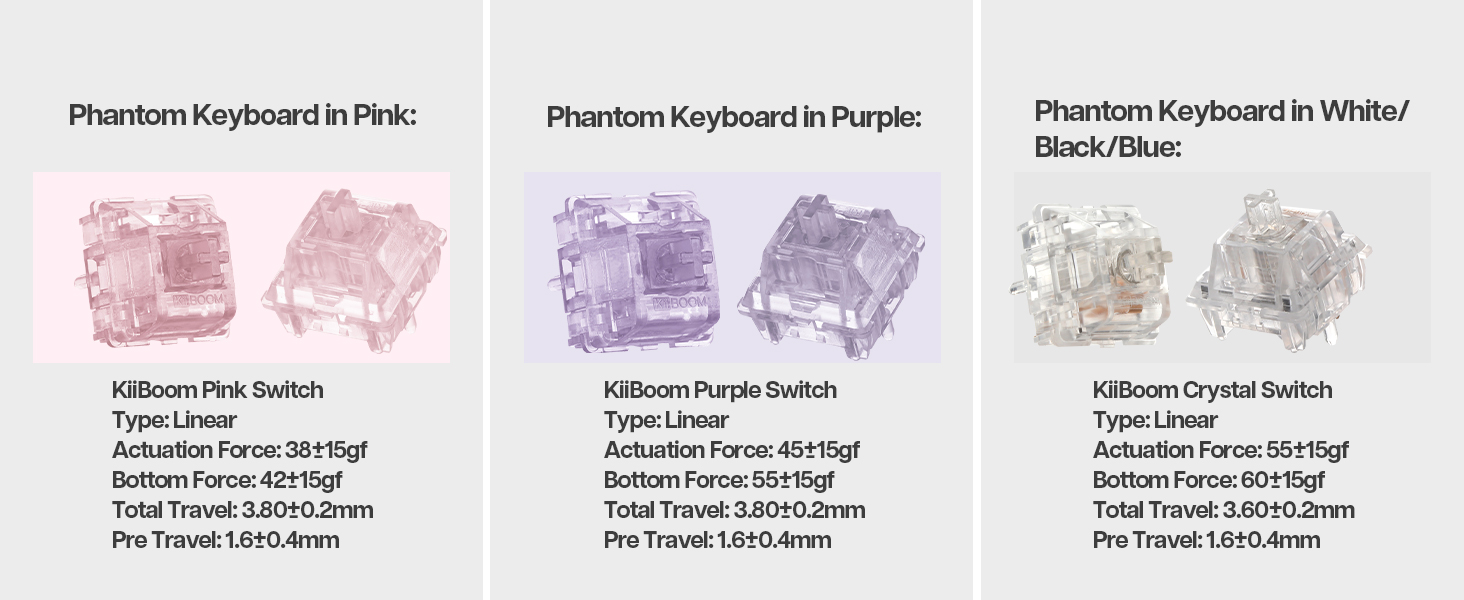
Image: A laptop screen displaying the KiiBoom software interface for customizing key settings, lighting, and other functions of the Phantom 81 V2 keyboard.
6. سار سنڀال
6.1 صفائي
- ڪي ڪيپ: ڪي ڪيپ ڪڍڻ لاءِ ڪي ڪيپ ڪڍڻ واري کي استعمال ڪريو. انهن کي هلڪي صابڻ واري محلول ۽ نرم ڪپڙي سان صاف ڪريو. پڪ ڪريو ته اهي ٻيهر ڳنڍڻ کان اڳ مڪمل طور تي سڪي وڃن.
- ڪي بورڊ باڊي: نرم، لِنٽ کان پاڪ ڪپڙو استعمال ڪريو، ٿورو ڊيampened with water or a mild cleaning solution, to wipe the acrylic body. Avoid abrasive materials or harsh chemicals.
- ڪنجين جي وچ ۾: سوئچز جي وچ مان مٽي ۽ ملبہ هٽائڻ لاءِ دٻيل هوا استعمال ڪريو.
6.2 عام سنڀال
- Avoid exposing the keyboard to extreme temperatures, direct sunlight, or high humidity.
- Do not spill liquids on the keyboard. If a spill occurs, immediately disconnect power and allow it to dry completely before attempting to use it again.
- Handle with care to prevent drops or impacts that could damage the transparent acrylic.
7. مسئلا حل ڪرڻ
| مسئلو | ممڪن حل |
|---|---|
| ڪي بورڊ وائرليس موڊ ۾ جواب نه ڏئي رهيو آهي. |
|
| آر جي بي لائيٽنگ ڪم نه ڪري رهي آهي يا غلط آهي. |
|
| چاٻيون رجسٽر نه ٿيڻ يا ٻٽي ٽائيپ ٿيڻ. |
|
| بيٽري جلدي ختم ٿئي ٿي. |
|
8. وضاحتون
| خاصيت | تفصيل |
|---|---|
| ماڊل | Phantom 81 V2 |
| ترتيب | 75% |
| رابطي | 2.4Ghz وائرليس، بلوٽوٿ 5.0، USB-C وائرڊ |
| بيٽري جي گنجائش | 4000mAh (V2 version) |
| پٺڀرائي | ڏکڻ طرف مُنهن ڪندڙ آر جي بي |
| گرم مٽائڻ وارو | Yes, compatible with 3-pin/5-pin mechanical switches |
| ڪيس جو مواد | اکري |
| پليٽ مواد | Polycarbonate (PC) |
| شيءِ جو وزن | 4.53 پائونڊ (تقريبن 2.05 ڪلوگرام) |
| پيڪيج جي ماپ | 16.61 x 10.91 x 2.91 انچ |
| مطابقت رکندڙ ڊوائيسز | گيمنگ ڪنسول، ليپ ٽاپ، پي سي، اسمارٽ فون، ٽيبليٽ |
9. وارنٽي ۽ سپورٽ
For warranty information and technical support, please refer to the official KiiBoom webسائيٽ تي وڃو يا سڌو سنئون انهن جي ڪسٽمر سروس سان رابطو ڪريو. ڪنهن به وارنٽي دعوائن لاءِ خريداري جو ثبوت رکو.
Official KiiBoom Webسائيٽ: KiiBoom Store on Amazon (for general brand information and potential support links).


