1. تعارف ۽ اوورview
This manual provides detailed instructions for the setup, operation, maintenance, and troubleshooting of your AOC 16T3EA 15.6-inch USB-C Ultra-Slim Portable Monitor. Designed for enhanced productivity and entertainment on the go, this monitor offers Full HD 1920x1080 resolution with an IPS panel for wide viewing angles and consistent colors.
Its ultra-slim design and single USB-C cable connectivity make it an ideal companion for laptops, PCs, and other compatible devices, ensuring a seamless dual-screen experience wherever you are.
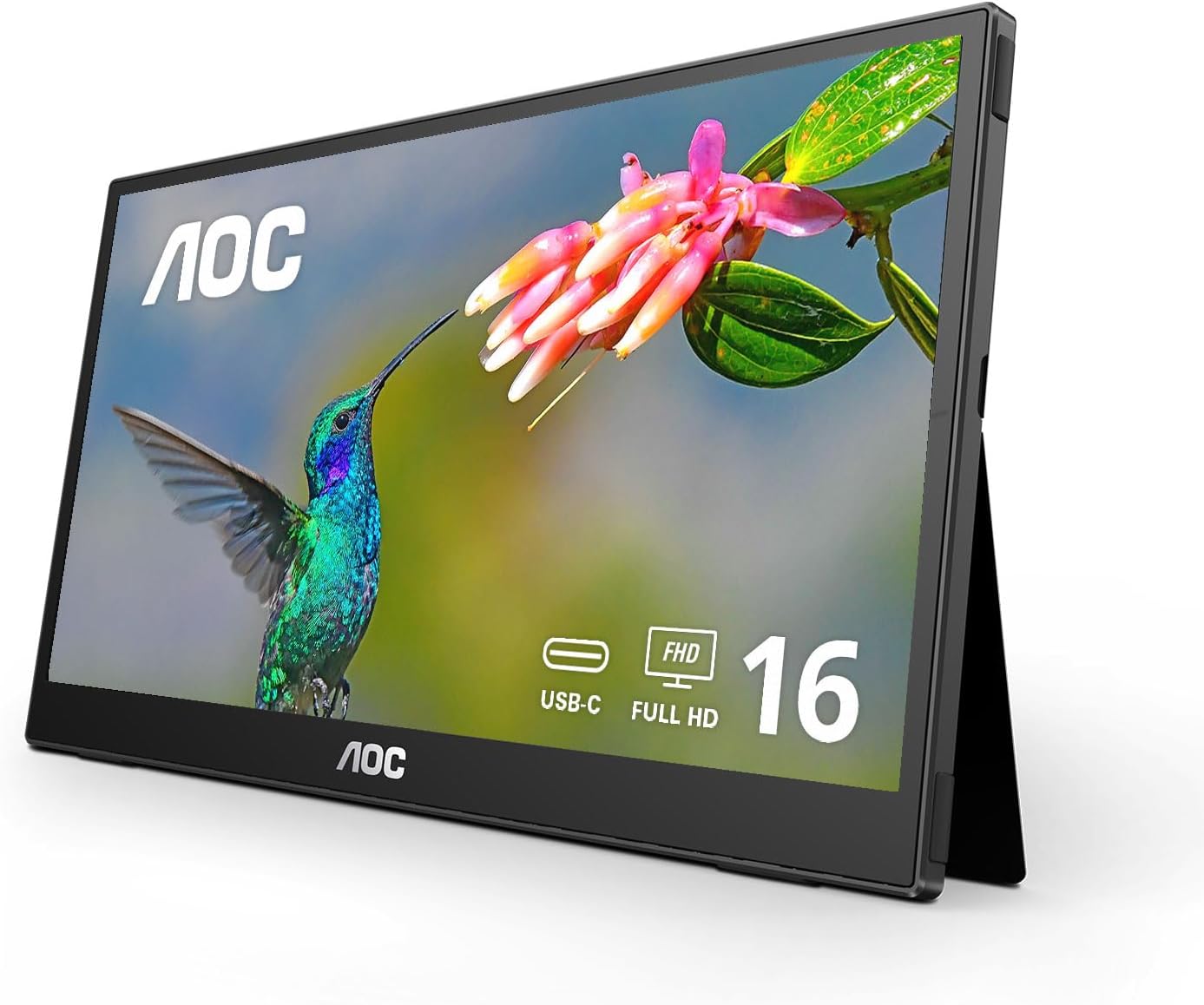
Figure 1.1: The AOC 16T3EA portable monitor, showcasing its sleek design and integrated kickstand.
2. دٻي ۾ ڇا آهي
Please verify that all items listed below are present in your product packaging:
- AOC 16T3EA Portable Monitor
- USB-C Cable (for power and signal)
- کڻڻ وارو ٿلهو
- استعمال ڪندڙ جو دستياب (ھي دستاويز)
Note: This monitor is designed for single-cable USB-C connectivity for both power and video signal (USB-C DP Alt Mode required).
3. سيٽ اپ جون هدايتون
3.1 مانيٽر کي ڳنڍڻ
The AOC 16T3EA monitor utilizes a single USB-C cable for both power and video signal, simplifying your setup. Ensure your device (laptop, PC, etc.) supports USB-C DisplayPort Alternate Mode (DP Alt Mode) for full functionality.
- Connect one end of the provided USB-C cable to the USB-C port on your AOC 16T3EA monitor.
- Connect the other end of the USB-C cable to a compatible USB-C port on your source device (laptop, PC, etc.).
- The monitor should automatically detect the signal and power on. If not, press the power button located on the side of the monitor.
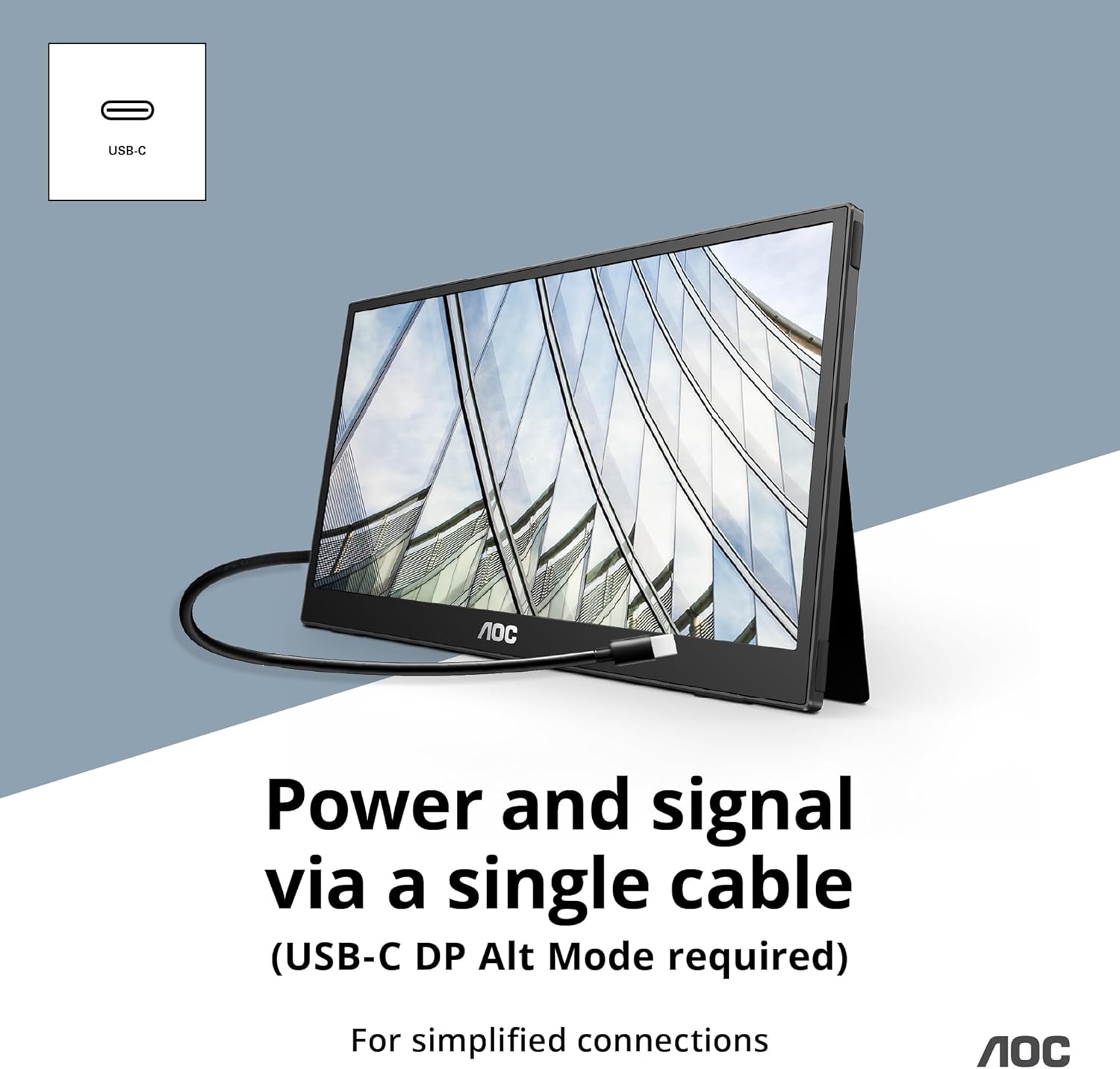
Figure 3.1: Connecting the monitor using a single USB-C cable for power and signal.
3.2 Using the Built-in Kickstands
The monitor features dual built-in kickstands, allowing for flexible positioning in both landscape and portrait orientations.
- نظارو موڊ: Extend the kickstands from the back of the monitor to prop it up horizontally.
- پورٽريٽ موڊ: Rotate the monitor 90 degrees and extend the kickstands to support it vertically.

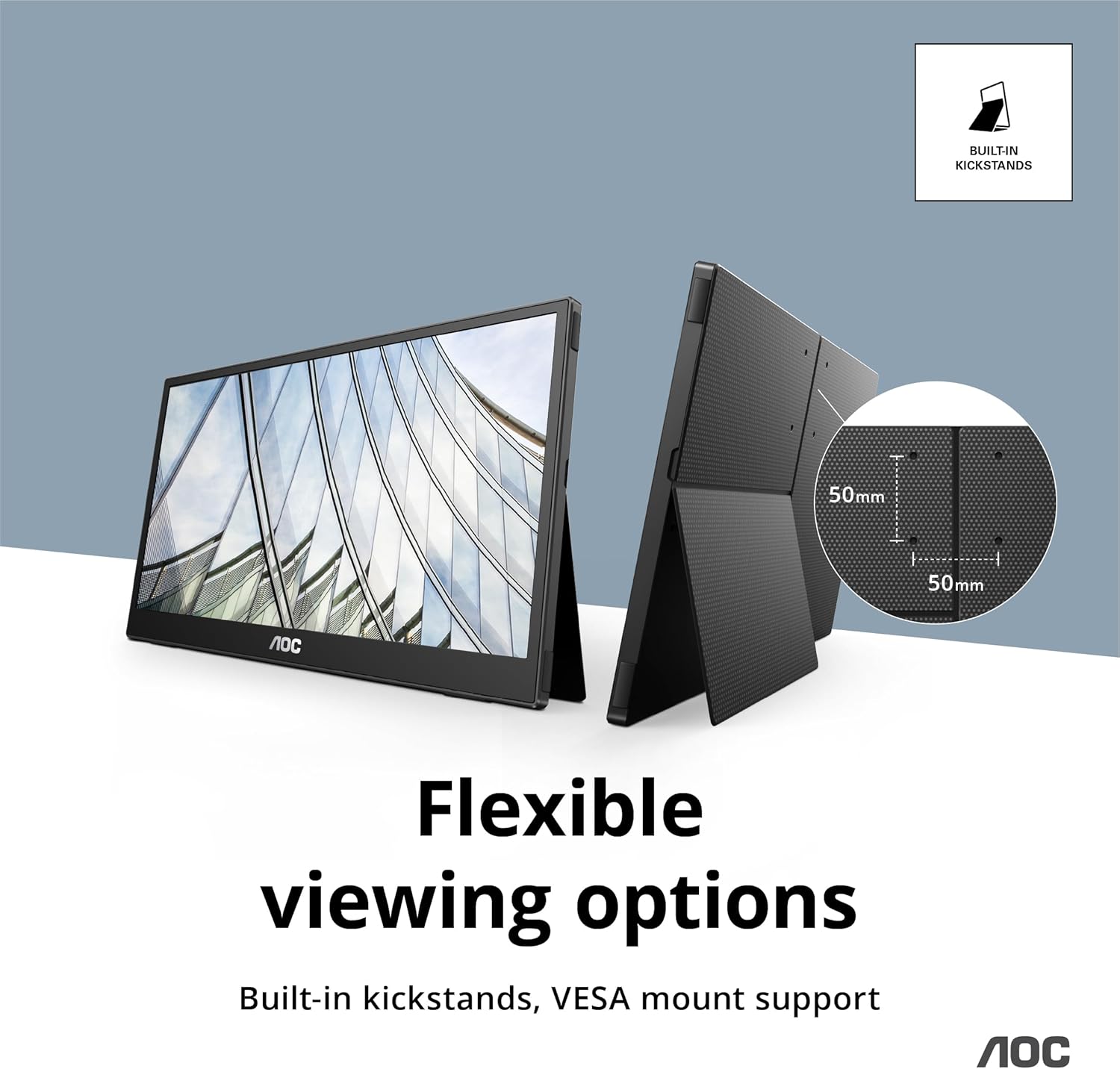
Figure 3.2: The monitor can be easily positioned in portrait mode (left) or landscape mode using its integrated kickstands (right).
3.3 VESA Mount Support
For more permanent installations, the monitor supports VESA mounting (50x50 mm). This allows you to attach it to compatible monitor arms or wall mounts (sold separately).

Figure 3.3: Detail of the 50x50mm VESA mount pattern on the rear of the monitor.
4. آپريٽنگ هدايتون
4.1 بنيادي آپريشن
Once connected, your AOC 16T3EA monitor should function as an extended or duplicated display for your source device. You can adjust display settings (e.g., resolution, orientation) through your computer's operating system display settings.

Figure 4.1: The AOC 16T3EA seamlessly integrates as a second screen for enhanced productivity.
4.2 آن اسڪرين ڊسپلي (OSD) مينيو
The monitor features an On-Screen Display (OSD) menu for adjusting various settings such as brightness, contrast, color temperature, and input source. Access the OSD menu using the buttons located on the side or bottom of the monitor. Refer to the quick start guide for specific button functions.
4.3 IPS Panel and Flicker-Free Technology
The IPS panel ensures consistent colors and wide viewing angles (178°/178°), making it suitable for sharing content or viewing from various positions. Additionally, AOC's Flicker-Free technology uses a Direct Current (DC) backlight system to reduce screen flickering, providing a more comfortable viewing experience and minimizing eye strain during prolonged use.

Figure 4.2: The IPS panel ensures consistent color reproduction and wide viewing angles.
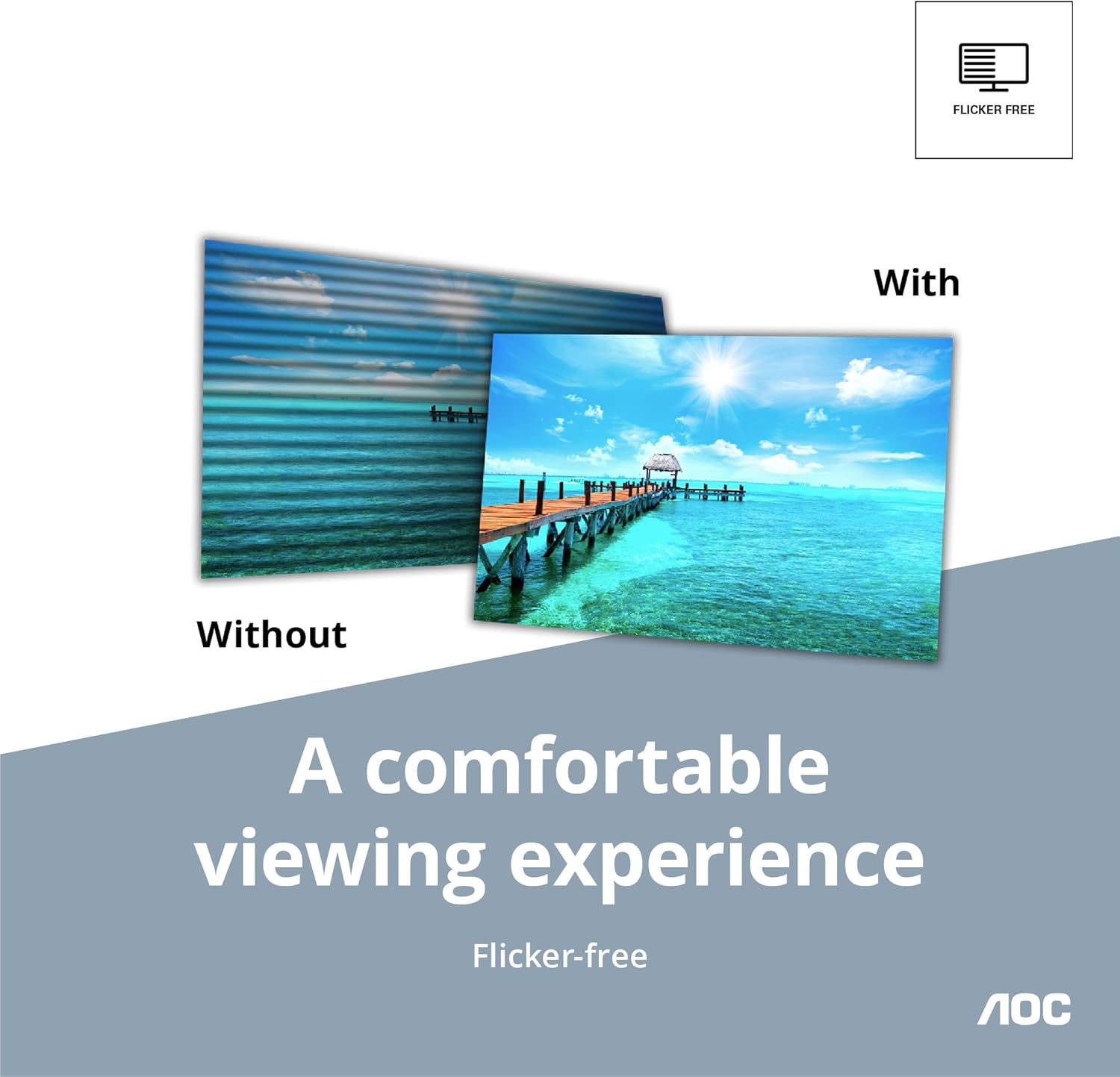
Figure 4.3: Visual representation of the benefit of Flicker-Free technology for eye comfort.
5. سار سنڀال
5.1 مانيٽر جي صفائي
- هميشه صاف ڪرڻ کان اڳ مانيٽر کي انپلگ ڪريو.
- نرم، لِنٽ کان خالي ڪپڙو استعمال ڪريو ٿورڙو ڊيampپاڻي يا غير رگڙيندڙ اسڪرين ڪلينر سان صاف ڪيو وڃي.
- صاف ڪندڙ کي سڌو سنئون اسڪرين تي نه اسپري ڪريو.
- سخت ڪيميڪلز، محلولن، يا رگڙيندڙ مواد استعمال ڪرڻ کان پاسو ڪريو.
5.2 اسٽوريج ۽ پورٽيبلٽي
When not in use or during travel, store the monitor in its included carrying bag to protect it from scratches and impacts. Its ultra-slim profile makes it easy to pack.

Figure 5.1: The included carrying bag provides protection for the monitor during transport.
6. مسئلا حل ڪرڻ
If you encounter issues with your AOC 16T3EA monitor, please refer to the following common troubleshooting steps:
| مسئلو | ممڪن سبب | حل |
|---|---|---|
| No signal / Display not turning on |
|
|
| تصوير ڌنڌلي يا بگڙيل آهي. |
|
|
| فلڪرز جي نگراني ڪريو |
|
|
If the problem persists after trying these steps, please refer to the Warranty and Support section for further assistance.
7. وضاحتون
| خاصيت | تفصيل |
|---|---|
| اسڪرين جي ماپ | 15.6 انچ |
| پينل جو قسم | آئي پي ايس |
| قرارداد | Full HD 1920x1080 Pixels |
| اسپيڪٽ ريشو | 16:9 |
| Viewزاويه | 178°/178° (H/V) |
| رابطي | USB-C (DisplayPort Alternate Mode) |
| تعمير ٿيل خاصيتون | Dual Kickstands, VESA Mount (50x50 mm) |
| خاص خاصيتون | Flicker-Free Technology, Ultra-Slim Design |
| شيءِ جو وزن | 1 پائونڊ |
| پيداوار جي ماپ (LxWxH) | 0.49 x 14.32 x 9.03 انچ |
| رنگ | ڪارو |
| ماڊل نمبر | 16T3EA |
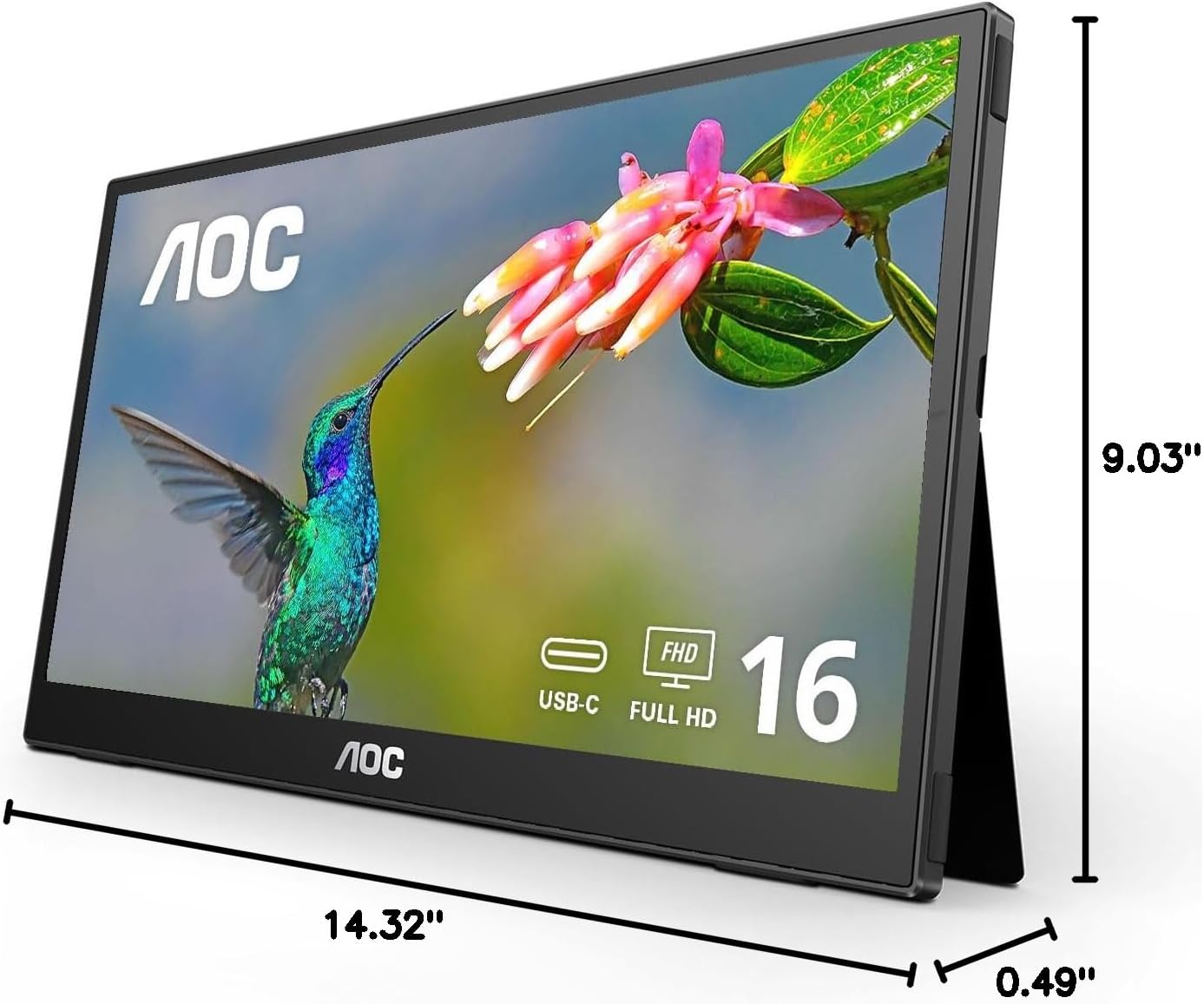
Figure 7.1: Key dimensions of the AOC 16T3EA portable monitor.
8. وارنٽي ۽ سپورٽ
8.1 وارنٽي ڄاڻ
All AOC monitors sold within the US are covered by a generous three-year warranty and a 90-day replacement program. If your monitor malfunctions at any time during the first three months from the original date of purchase, AOC will provide a replacement monitor within 72 hours.

Figure 8.1: Summary of AOC's warranty and replacement policy.
8.2 ڪسٽمر سپورٽ
For technical support, warranty claims, or further assistance, please visit the official AOC support website or contact their customer service. Refer to the AOC webسڀ کان وڌيڪ جديد رابطي جي معلومات ۽ سپورٽ وسيلن لاءِ سائيٽ.
9. سرڪاري پراڊڪٽ وڊيوز
No official product videos from the seller were found in the provided data for this model. Please check the product page or manufacturer's webڪنهن به موجود وڊيو وسيلن لاءِ سائيٽ.


