1. تعارف
The EPOMAKER x LEOBOG Hi75 is an aluminum alloy wired mechanical keyboard barebones kit designed for customization and high performance. It features a 75% layout with 81 keys, a gasket-mounted structure for enhanced typing feel, and a programmable mode-switching knob. This kit allows users to personalize their typing experience by choosing and installing their preferred switches and keycaps.
اهم خاصيتون:
- Aluminum Alloy Build: Durable and premium chassis.
- 75٪ لي آئوٽ: Compact yet functional with 81 keys.
- گيسڪٽ تي لڳل جوڙجڪ: Minimizes cavity sound and enhances typing feel.
- Mode-Switching Knob: Intuitive control for work/gaming modes, volume, and lighting.
- Full Key Hot-Swap Capability: Compatible with most 3/5-pin switches for easy customization.
- Advanced Gaming-Grade Chip: Ensures rapid and responsive keystroke registration.
- آر جي بي بيڪ لائيٽنگ: Equipped with approximately 16 million colors, 17 lighting modes, and 10 music rhythm lighting effects.
- وائرڊ ڪنيڪشن: قابل اعتماد USB-C ڪنيڪشن.
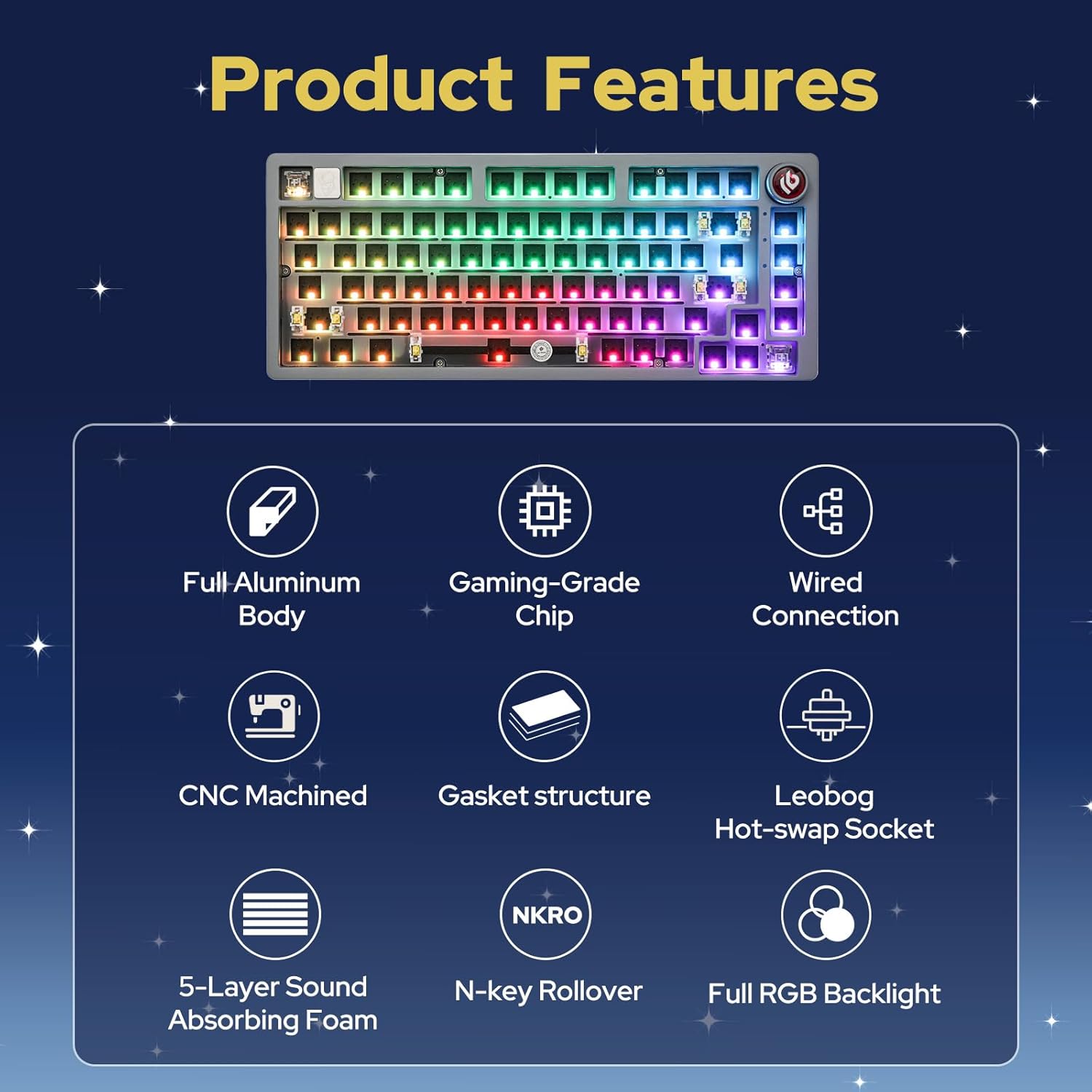
2. سيٽ اپ ۽ اسيمبلي
This section guides you through the initial setup and assembly of your Hi75 barebones keyboard kit.
2.1 پيڪيج مواد
- EPOMAKER x LEOBOG Hi75 Barebones Keyboard Kit
- USB-سي ڪيبل
- ڪيپ ڪيپيندڙ
- مٽائڻ وارو
- استعمال ڪندڙ دستي
- Additional Keycaps (e.g., for Mac compatibility)
- Additional Switches (sampلي)

2.2 Installing Switches
- Align the pins of your chosen 3-pin or 5-pin mechanical switch with the hot-swap socket on the PCB.
- Gently press the switch down until it clicks into place. Ensure the pins are straight to avoid bending.
- سڀني گهربل ڪنجين لاءِ ورجايو.

Note: Use caution when inserting switches to prevent bending the pins. If a switch is not registering, remove it and check for bent pins.
2.3 Installing Keycaps
- Place your desired keycap over the installed switch stem.
- Press down firmly until the keycap is securely attached.
- Repeat for all keys.
Video 1: Demonstration of installing keycaps on a mechanical keyboard. This process is similar for the Hi75 kit.
2.4 ڪي بورڊ کي ڳنڍڻ
The Hi75 supports wired connectivity via USB-C.
- Connect the provided USB-C cable to the port on the keyboard.
- ڪيبل جي ٻئي پڇاڙي کي توهان جي ڪمپيوٽر تي موجود USB پورٽ سان ڳنڍيو.
- ڪيبورڊ کي توهان جي آپريٽنگ سسٽم طرفان خودڪار طريقي سان سڃاڻڻ گهرجي.

Video 2: Unboxing and initial setup of the HI75 Gaming Keyboard Kit by EPOMAKER.
3. آپريٽنگ هدايتون
3.1 موڊ-سوئچنگ نوب
The innovative knob on the Hi75 allows for quick transitions between different modes and controls:
- مختصر پريس: Mute/unmute the device.
- گھڙي جي طرف گھمايو: Increase volume or adjust lighting/mode settings.
- گھڙيال جي مخالف طرف گھمايو: Decrease volume or adjust lighting/mode settings.
- موڊ مٽائڻ: Pressing the knob can switch between Work Mode (constant RGB glow) and Gaming Mode (dynamic RGB flashing).

3.2 آر بي جي بائيٽ لائٽنگ
The Hi75 features full RGB backlighting with multiple effects. Use the knob or specific key combinations (refer to the included manual for detailed shortcuts) to cycle through 17 lighting modes and 10 music rhythm lighting effects.

3.3 OLED Screen Customization
The integrated OLED screen can display various information such as date, battery level, time, connection mode, keyboard system, pictures, or GIFs. Refer to the included manual for specific key combinations to navigate and customize the OLED screen content.
Video 3: A demonstration of a 75% keyboard kit with a custom screen, similar to the OLED screen functionality on the Hi75.
3.4 سافٽ ويئر ڪسٽمائيزيشن
The Hi75 supports proprietary software for advanced customization of key assignments, macros, and lighting effects. This software is typically available for Windows operating systems. Please visit the official EPOMAKER webسافٽ ويئر ڊائون لوڊ ۽ هدايتن لاءِ سائيٽ.

4. سار سنڀال
مناسب سار سنڀال توهان جي ڪيبورڊ جي ڊگهي عمر ۽ بهترين ڪارڪردگي کي يقيني بڻائي ٿي.
4.1 صفائي
- ڪي ڪيپ: Use the provided keycap puller to remove keycaps. Clean them with a mild soap solution and a soft cloth, then air dry completely before reattaching.
- سوئچ: Use compressed air to remove dust and debris from around the switches. Avoid spraying directly into the switch mechanism.
- ڪيس: Wipe the aluminum alloy case with a soft, damp ڪپڙو. گھڙڻ وارا صاف ڪندڙ کان پاسو ڪريو جيڪي ختم کي نقصان پهچائي سگھن ٿا.
4.2 اسٽوريج
When not in use, store the keyboard in a dry, dust-free environment. The included dust cover can help protect the keyboard from dust accumulation.
5. مسئلا حل ڪرڻ
If you encounter any issues with your Hi75 keyboard, refer to the following common solutions:
- ڪي بورڊ سڃاڻي نه سگهيو:
- پڪ ڪريو ته USB-C ڪيبل ڪيبورڊ ۽ ڪمپيوٽر ٻنهي سان محفوظ طور تي ڳنڍيل آهي.
- توهان جي ڪمپيوٽر تي هڪ مختلف USB پورٽ جي ڪوشش ڪريو.
- جيڪڏهن موجود هجي ته مختلف USB-C ڪيبل سان ٽيسٽ ڪريو.
- چاٻيون جواب نه ڏئي رهيون آهن:
- Remove the keycap and switch for the non-responsive key.
- Check if the switch pins are bent. Gently straighten them with tweezers if necessary.
- Reinsert the switch firmly. If the issue persists, try replacing the switch with a spare.
- Ensure the keyboard is in the correct operating mode (e.g., Windows mode if using a Windows PC). Refer to the manual for mode switching shortcuts (e.g., Fn + W for Windows mode).
- آر جي بي لائيٽنگ جا مسئلا:
- Check the keyboard's manual for RGB lighting control shortcuts.
- Ensure the keyboard software is installed and updated for advanced lighting customization.
6. وضاحتون
| پيداوار جي ماپ | 12.99 x 5.51 x 1.77 انچ |
| شيءِ جو وزن | 2.86 پائونڊ |
| ٺاهيندڙ | EPOMAKER |
| شيون ماڊل نمبر | هاءِ 75 |
| رابطي ٽيڪنالاجي | USB-C |
| ڪي بورڊ جي وضاحت | گيمنگ |
| خاص خاصيتون | Backlit, Gasket-mounted, Hot-Swappable, NKRO, Wired |
| ڪي بورڊ Backlighting | آر جي بي |
| مطابقت رکندڙ ڊوائيسز | PC |
7. وارنٽي ۽ سپورٽ
For detailed warranty information and technical support, please refer to the official EPOMAKER webسائيٽ تي وڃو يا سڌو سنئون انهن جي ڪسٽمر سروس سان رابطو ڪريو. وارنٽي دعوائن لاءِ خريداري جو ثبوت رکو.
- سرڪاري Webسائيٽ: www.epomaker.com
- ڪسٽمر سروس: ڏانهن رجوع ڪريو webرابطي جي تفصيل لاءِ سائيٽ.


