تعارف
ڪلوview N6 is a versatile bi-directional NDI converter designed to support both HDMI input (for encoding) and loop output (for decoding). It is compatible with both NDI high bandwidth and NDI HX2/3 protocols, allowing it to process NDI sources from various cameras, software, or devices. This manual provides essential information for setting up, operating, maintaining, and troubleshooting your N6 converter, ensuring you can leverage its full capabilities for low-latency, high-quality video transmission.
دٻي ۾ ڇا آهي
مھرباني ڪري پنھنجي پيڪيج جي مواد کي چيڪ ڪريو ته جيئن پڪ ڪري سگھجي ته سڀئي شيون موجود آھن:
- 1 x Kiloview N6 HD HDMI/NDI Bi-Directional Converter
- 1 x پاور سپلائي
- 1 x ٿڌي جوتا جبل
- 1 x تڪڙو شروع ھدايت
پيداوار ختمview
ڪلوview N6 features a compact design with powerful functionalities. Below are key aspects of the device's physical layout and core features.

شڪل 1: سامهون view ڪلو جوview N6, showing the integrated 1.14-inch LCD screen which displays real-time status information such as CPU usage, memory, temperature, firmware version, and tally status. Navigation buttons are located on either side of the screen.

شڪل 2: ريڙهه view ڪلو جوview N6, illustrating the various connectivity ports. From left to right, these include the NDI/PoE Ethernet port, HDMI IN, HDMI OUT, 3.5mm audio LINE IN/OUT, DC 12V power input, and Tally light indicator.
اهم خاصيتون:
- Bi-Directional NDI Conversion: Supports both NDI High Bandwidth and NDI HX 2/3 for encoding HDMI signals into NDI streams and decoding NDI streams to HDMI output.
- Integrated LCD Display: A 1.14-inch LCD screen with touch buttons provides real-time monitoring of connectivity, IP address, CPU, memory, resolution, temperature, and tally status.
- لچڪدار پاور جا اختيار: Supports Power over Ethernet (PoE) for single-cable power and data, as well as wide DC input (5V to 18V) for power via USB or camera battery.
- Audio and Intercom Support: Features 3.5mm analog audio line in/out and embedded audio. Supports up to 4-channel audio encoding and voice intercom with Kiloview انٽرڪام سرور.
- PTZ ڪنٽرول: Enables control of PTZ cameras over the network.
- ڪمپيڪٽ ۽ مضبوط ڊيزائن: Durable construction suitable for various production environments.
سيٽ اپ ڪريو
Follow these steps to set up your Kiloview N6 converter:
- پاور Connectنيو:
- If using PoE, connect an Ethernet cable from a PoE-enabled switch or injector to the NDI/PoE port on the N6.
- Alternatively, connect the provided power supply to the DC 12V input port. The N6 supports a wide DC input range from 5V to 18V.
- Connect Video Source (for Encoding):
- Connect an HDMI cable from your video source (e.g., camera, computer) to the HDMI اندر port on the N6.
- Connect Video Display (for Decoding/Loop Output):
- کان هڪ HDMI ڪيبل ڳنڍيو HDMI ٻاهر port on the N6 to your display monitor or recording device.
- نيٽ ورڪ سان نيو:
- Connect an Ethernet cable from the NDI/PoE port on the N6 to your network switch or router. This is essential for NDI transmission and control.
- آڊيو ڳنڍيو (اختياري):
- If using external audio, connect a 3.5mm audio cable to the لائن اندر / ٻاهر port as needed.
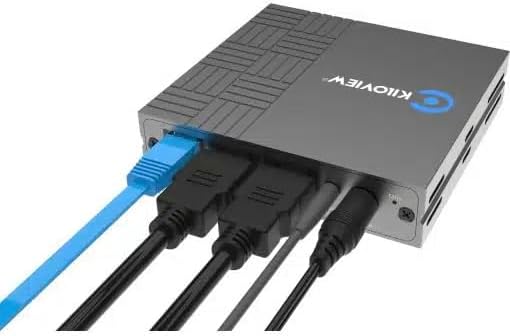
شڪل 3: Example of the Kiloview N6 with power, HDMI input, HDMI output, and Ethernet cables connected, demonstrating a typical setup configuration.
آپريٽنگ هدايتون
ڪلوview N6 can operate in two primary modes: Encoding and Decoding. The working mode can be switched via the device's web يو.
1. تائين رسائي Web UI:
- Ensure the N6 is connected to the same network as your computer.
- Use the LCD screen to find the device's IP address.
- کوليو a web browser on your computer and enter the IP address of the N6.
- Log in using the default credentials (refer to the Quick Start Guide for details).
2. Encoding Mode:
In encoding mode, the N6 converts an HDMI video signal into an NDI stream.
- کان web UI, select "Encoder" as the working mode.
- Ensure your HDMI video source is connected to the HDMI اندر بندرگاهه.
- Configure NDI stream settings such as resolution, frame rate, and bitrate as required.
- The NDI stream will now be discoverable by NDI-compatible software and hardware on your network.
3. Decoding Mode:
In decoding mode, the N6 receives an NDI stream from the network and outputs it via HDMI.
- کان web UI, select "Decoder" as the working mode.
- The N6 will automatically detect available NDI sources on the network. Select the desired NDI source from the list.
- The decoded video will be output through the HDMI ٻاهر port to your connected display.
4. LCD Screen and Touch Buttons:
The front LCD screen provides quick access to device status and basic settings. Use the touch buttons (left and right arrows) to navigate through menus and the 'O' button to confirm selections.
- اسٽيٽس ڊسپلي: View CPU, memory, temperature, IP address, and firmware version.
- Tally Status: The LCD screen also acts as a large tally light, indicating program (red) or preview (green) status in an NDI workflow.
5. Audio and Intercom:
- The N6 supports embedded audio from the HDMI source/output.
- For external audio, connect devices to the 3.5mm LINE IN/OUT port.
- For intercom functionality, connect to a Kiloview Intercom server and configure settings via the web يو.
6. PTZ Control:
The N6 supports PTZ control over the network. Refer to the detailed online manual or web UI for specific PTZ camera integration and control protocols.
سار سنڀال
Proper maintenance ensures the longevity and optimal performance of your Kiloview N6 converter.
- صفائي: ڊوائيس جي ٻاهرين حصي کي صاف ڪرڻ لاءِ نرم، سڪل ڪپڙو استعمال ڪريو. مائع صاف ڪندڙ يا ايروسول استعمال نه ڪريو.
- وينٽيليشن: پڪ ڪريو ته ڊوائيس کي وڌيڪ گرم ٿيڻ کان روڪڻ لاءِ سٺي هوادار علائقي ۾ رکيو ويو آهي. وينٽيليشن جي سوراخن کي بند نه ڪريو.
- فرم ويئر اپڊيٽس: Regularly check the Kiloview سرڪاري webفرم ويئر اپڊيٽس لاءِ سائيٽ. فرم ويئر کي اپڊيٽ رکڻ سان ڪارڪردگي بهتر ٿي سگهي ٿي، نوان فيچر شامل ڪري سگهجن ٿا، ۽ بگ درست ڪري سگهجن ٿا.
- اسٽوريج: جڏهن گهڻي عرصي تائين استعمال ۾ نه هجي، ته ڊوائيس کي سڌي سج جي روشني ۽ انتهائي گرمي پد کان پري ٿڌي، سڪل جاءِ تي رکو.
- ڪيبل جو انتظام: پڪ ڪريو ته سڀئي ڪيبل محفوظ طريقي سان ڳنڍيل آهن ۽ دٻاءُ هيٺ نه آهن ته جيئن بندرگاهن يا ڪيبلن کي نقصان نه پهچي.
مشڪلاتون
If you encounter issues with your Kiloview N6, refer to the table below for common problems and their solutions.
| مسئلو | ممڪن سبب | حل |
|---|---|---|
| No power indication on LCD. | بجلي جي فراهمي يا ناقص ڪنيڪشن ناهي. | Check power adapter connection or PoE connection. Ensure power source is active. |
| No NDI stream detected (Encoding mode). | Incorrect network configuration; HDMI input issue; NDI settings. | Verify network cable connection. Check if HDMI source is active and connected to HDMI IN. Confirm NDI settings in web UI. Ensure firewall is not blocking NDI traffic. |
| No video output (Decoding mode). | No NDI source selected; HDMI output issue; display problem. | Ensure an NDI source is selected in the web UI. Check HDMI cable connection to display. Verify display input. |
| ڊوائيس جو گرم ٿيڻ. | Poor ventilation; high ambient temperature. | Ensure adequate airflow around the device. Move to a cooler environment if necessary. |
| رسائي نه ٿو ڪري سگھجي web يو. | Incorrect IP address; network connectivity issue; firewall. | Verify IP address from LCD. Check network cable. Ensure computer is on the same subnet. Temporarily disable firewall. |
وضاحتون
Technical specifications for the Kiloview N6 HD HDMI/NDI Bi-Directional Converter:
| خاصيت | تفصيل |
|---|---|
| ماڊل نمبر | N6 |
| برانڊ | ڪلوview |
| وڊيو ان پٽ | 1x HDMI |
| وڊيو آئوٽ | 1x HDMI (Loop Out / Decoding Output) |
| نيٽورڪ انٽرنيٽ | 1x RJ45 Ethernet (NDI/PoE) |
| آڊيو انٽرفيس | 3.5mm Line In/Out |
| Supported NDI Protocols | NDI High Bandwidth, NDI HX2/3 |
| پاور ان پٽ | DC 5V-18V, PoE (Power over Ethernet) |
| ڏيکاريو | 1.14-inch LCD screen with touch buttons |
| طول و عرض | 7.44 x 6.18 x 3.27 انچ (پيڪيج طول و عرض) |
| وزن | 1.41 پائونڊ |
| مطابقت رکندڙ ڊوائيسز | Monitors, Projectors, Cameras |
| مخصوص استعمال | Video conferences, PTZ control, IP-based post production |
وارنٽي ۽ سپورٽ
ڪلوview products are designed for reliability and performance. For specific warranty terms and conditions, please refer to the warranty card included with your product or visit the official Kiloview website. For technical support, firmware updates, or additional resources, please visit the Kiloview support portal or contact their customer service team.
ٺاهيندڙ: ڪلوview
تاريخ پهرين دستياب: نومبر 12، 2024


