1. تعارف
This manual provides detailed instructions for the installation, operation, and maintenance of your Xprinter XP-370B Thermal Barcode Sticker Printer. Please read this manual thoroughly before using the printer to ensure proper functionality and to prevent damage.
2. حفاظت جي ڄاڻ
- پرنٽر کي هميشه گرائونڊ ٿيل پاور آئوٽليٽ سان ڳنڍيو.
- پرنٽر کي پاڻي يا تيز نمي جي سامهون نه رکو.
- پرنٽر کي سڌي سج جي روشني ۾ يا گرمي جي ذريعن جي ويجهو رکڻ کان پاسو ڪريو.
- Use only Xprinter approved accessories and power adapters.
- پرنٽر کي ٻارن کان پري رکو.
- پرنٽر کي پاڻ ڌار ڪرڻ يا مرمت ڪرڻ جي ڪوشش نه ڪريو. مدد لاءِ قابل سروس اهلڪارن سان رابطو ڪريو.
3. پيڪيج مواد
پڪ ڪريو ته سڀئي شيون پيڪيج ۾ موجود آهن:
- Xprinter XP-370B Thermal Barcode Sticker Printer
- پاور اڊاپٽر
- USB ڪيبل
- جلدي شروع ڪرڻ جي ھدايت (جيڪڏهن شامل هجي)
4. پراڊڪٽ ختمview
The Xprinter XP-370B is a compact and efficient thermal printer designed for barcode and sticker printing. It features high-speed printing capabilities and supports various connectivity options.

شڪل 4.1: سامهون-ساڄي view of the Xprinter XP-370B Thermal Barcode Sticker Printer.

شڪل 4.2: پاسي view illustrating the power button and top cover key for accessing the media compartment.
5. سيٽ اپ
5.1 Unpacking ۽ لڳائڻ
- ان جي پيڪنگنگ مان پرنٽر کي احتياط سان هٽايو.
- پرنٽر کي هڪ مستحڪم، فليٽ مٿاڇري تي رکو جتي مناسب وينٽيليشن هجي.
- Ensure there is enough space around the printer for cable connections and media loading.
5.2 پرنٽر کي ڳنڍڻ
- Connect the power adapter to the printer's power port and then plug it into a power outlet.
- Connect the printer to your computer using the provided USB cable. The printer also supports Serial, Ethernet, and Bluetooth connectivity options depending on the model.
- Turn on the printer using the power button located on the side (refer to Figure 4.2).
5.3 Loading Print Media
- Press the top cover key (refer to Figure 4.2) to open the printer's top cover.
- Place the roll of thermal labels into the media compartment. The maximum label diameter supported is 100mm.
- Adjust the paper guide to fit the width of your labels securely.
- Pull a small length of labels past the print head.
- Close the top cover until it clicks into place.
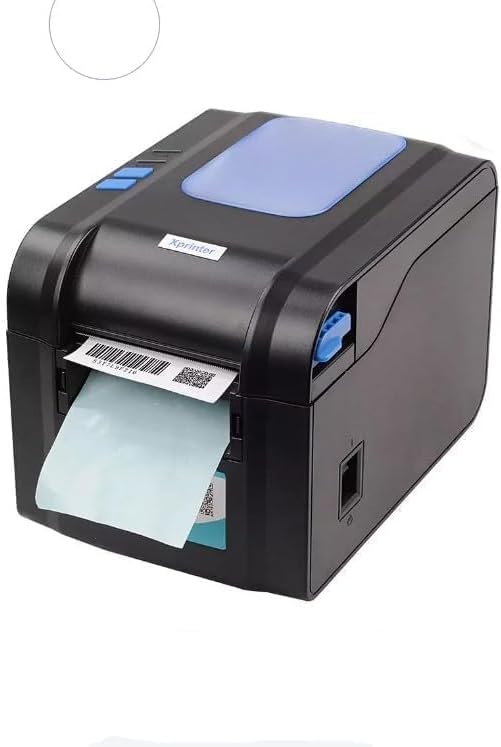
Figure 5.3: The printer demonstrating a label being fed out after printing.
5.4 ڊرائيور لڳائڻ
- For Windows systems, insert the driver CD (if provided) or download the latest drivers from the official Xprinter webسائيٽ. انسٽاليشن لاءِ اسڪرين تي ڏنل هدايتن تي عمل ڪريو.
- For Android and iOS devices, download the appropriate printing application from your device's app store.
6. آپريٽنگ هدايتون
6.1 بنيادي پرنٽنگ
- پڪ ڪريو ته پرنٽر آن آهي ۽ توهان جي ڊوائيس سان ڳنڍيل آهي.
- اهو دستاويز يا ايپليڪيشن کوليو جنهن مان توهان پرنٽ ڪرڻ چاهيو ٿا.
- Select the Xprinter XP-370B from your list of available printers.
- Adjust print settings such as label size, orientation, and density as needed.
- Initiate the print command. The printer will begin printing at speeds up to 152mm/s.
7. سار سنڀال
7.1 پرنٽر جي صفائي
- صاف ڪرڻ کان اڳ پرنٽر کي بند ڪريو ۽ ان پلگ ڪريو.
- نرم، لِنٽ کان خالي ڪپڙو استعمال ڪريو ڊيampened with isopropyl alcohol to gently clean the print head.
- Clean the exterior of the printer with a soft, dry cloth.
- استعمال نه ڪريو abrasive cleaners يا solvents.
8. مسئلا حل ڪرڻ
- پرنٽر جواب نه ڏئي رهيو آهي: Check power connection, USB/Serial/Ethernet/Bluetooth connection, and ensure drivers are correctly installed.
- خراب پرنٽ معيار: Clean the print head, ensure correct media type is used, and check print density settings.
- پيپر جام: Open the top cover, carefully remove any jammed labels, and re-load the media correctly.
- Labels not feeding: Ensure labels are loaded correctly and the paper guide is adjusted properly. Check for any obstructions.
9. وضاحتون
| خاصيت | تفصيل |
|---|---|
| برانڊ | ايڪسپرنٽر |
| ماڊل نمبر | ايڪس پي-370 بي |
| پرنٽر ٽيڪنالاجي | حرارتي |
| رابطي ٽيڪنالاجي | USB, Serial, Bluetooth, Ethernet (options vary) |
| وڌ ۾ وڌ پرنٽ جي رفتار | 152 mm/s تائين |
| وڌ ۾ وڌ ميڊيا سائيز | 4 x 6 انچ |
| Maximum Label Diameter | 100 ملي ميٽر |
| پرنٽ ميڊيا | ليبلز |
| پرنٽر آئوٽ | مونوڪروم |
| شيون طول و عرض (D x W x H) | 15D x 7W x 10H سينٽي ميٽر |
| شيءِ جو وزن | 300 جي |
| سپورٽ ٿيل آپريٽنگ سسٽم | ونڊوز، اينڊرائيڊ، آئي او ايس |
10. وارنٽي ۽ سپورٽ
For warranty information and technical support, please refer to the documentation provided with your purchase or visit the official Xprinter webسائيٽ. وارنٽي دعوائن لاءِ خريداري جي ثبوت طور پنهنجي خريداري جي رسيد رکو.


