1. تعارف
The JSAUX HB1201S 12-in-1 RGB Docking Station is designed to expand the connectivity and enhance the gaming experience for handheld consoles such as the Steam Deck (OLED), ROG Ally, and Legion Go. This manual provides detailed instructions for setting up, operating, and maintaining your docking station.
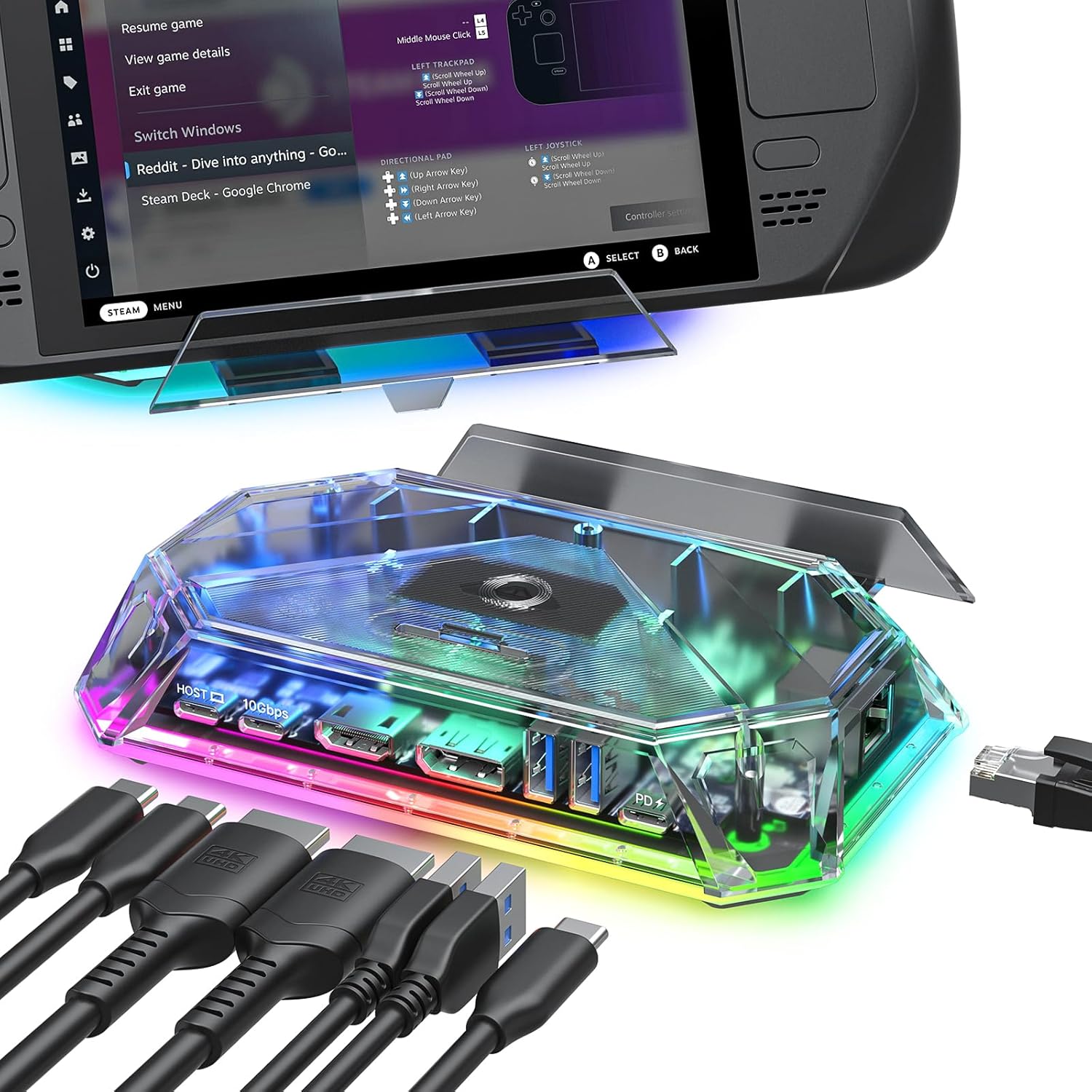
The JSAUX HB1201S RGB Docking Station connected to a Steam Deck, illustrating its compact design and multiple ports for peripheral connections.
2. پيڪيج مواد
- JSAUX HB1201S 12-in-1 RGB Docking Station
- USB-C to USB-C Host Cable
- استعمال ڪندڙ دستور / دستاويز
3. پراڊڪٽ جون خاصيتون ختمview
The JSAUX HB1201S offers a comprehensive set of ports and features to enhance your handheld gaming experience:

هڪ ڌماڪو ٿيو view diagram highlighting all 12 ports of the docking station, including HDMI, DisplayPort, USB-C PD, USB-A, USB-C data, Gigabit Ethernet, 3.5mm audio, SD, and TF card slots.
پورٽ جون وضاحتون:
- 1x HDMI 2.1: Supports 4K@120Hz output with VRR, ALLM, and HDR.
- 1x DisplayPort 1.4: Supports 4K@120Hz output.
- 2x USB A 3.2: Provides 10Gbps data transfer speed.
- 1x USB C 3.2: Provides 10Gbps data transfer speed (no video output).
- 1x Gigabit Ethernet: Offers 1Gbps wired network connectivity.
- 1x USB C PD 3.0: Supports up to 100W power delivery for charging.
- 1x 3.5 ايم ايم آڊيو جڪ: هيڊفونز يا اسپيڪرز ۾ آڊيو آئوٽ پُٽ لاءِ.
- 1x TF Card Slot: Supports 480Mbps data transfer.
- 1x SD Card Slot: Supports 480Mbps data transfer.
- 1x USB A 2.0: Provides 480Mbps data transfer speed.
اضافي خاصيتون:
- 6 آر بي جي روشني جا طريقا: Customizable lighting effects with a top-mounted touch switch and OpenRGB software compatibility.
- واپس وٺڻ واري اسٽينڊ: Integrated stand for holding your handheld device.
4. سيٽ اپ جون هدايتون
- پاور Connectنيو: Plug a compatible USB-C Power Delivery (PD) adapter (not included) into the USB C PD port on the docking station. Ensure the power adapter provides sufficient wattage (up to 100W supported) for your handheld device and connected peripherals.
- ميزبان ڊوائيس ڳنڍيو: Use the provided USB-C to USB-C host cable to connect your handheld gaming device (e.g., Steam Deck, ROG Ally, Legion Go) to the 'HOST' USB-C port on the docking station.
- Connect External Display(s):
- For single display: Connect an HDMI cable from the docking station's HDMI port to your monitor or TV, or a DisplayPort cable from the docking station's DisplayPort to your monitor.
- For dual displays: Connect one monitor via HDMI and another via DisplayPort. Note that dual-screen support maxes out at 4K@60Hz or 2K@120Hz.
- پردي سان ڳنڍڻ: Plug in your USB devices such as keyboards, mice, game controllers, or external storage drives into the available USB A 3.2, USB C 3.2, or USB A 2.0 ports.
- نيٽ ورڪ ڳنڍيو (اختياري): For a stable wired internet connection, connect an Ethernet cable from your router or modem to the Gigabit Ethernet port on the docking station.
- ميموري ڪارڊ داخل ڪريو (اختياري): If using, insert SD or TF cards into their respective slots. It is recommended to insert memory cards before gaming and avoid unplugging them during active use. Simultaneous reading of SD and TF cards is not supported.
- آڊيو ڪنيڪشن (اختياري): آڊيو آئوٽ پُٽ لاءِ هيڊفون يا اسپيڪر کي 3.5 ايم ايم آڊيو جيڪ سان ڳنڍيو.
5. آپريٽنگ هدايتون
5.1 ڊسپلي آئوٽ
The docking station supports high-resolution video output to external displays. Connect your monitor or TV using either the HDMI or DisplayPort. The upgraded HDMI technology supports Variable Refresh Rate (VRR), Auto Low Latency Mode (ALLM), and HDR for an optimized visual experience.
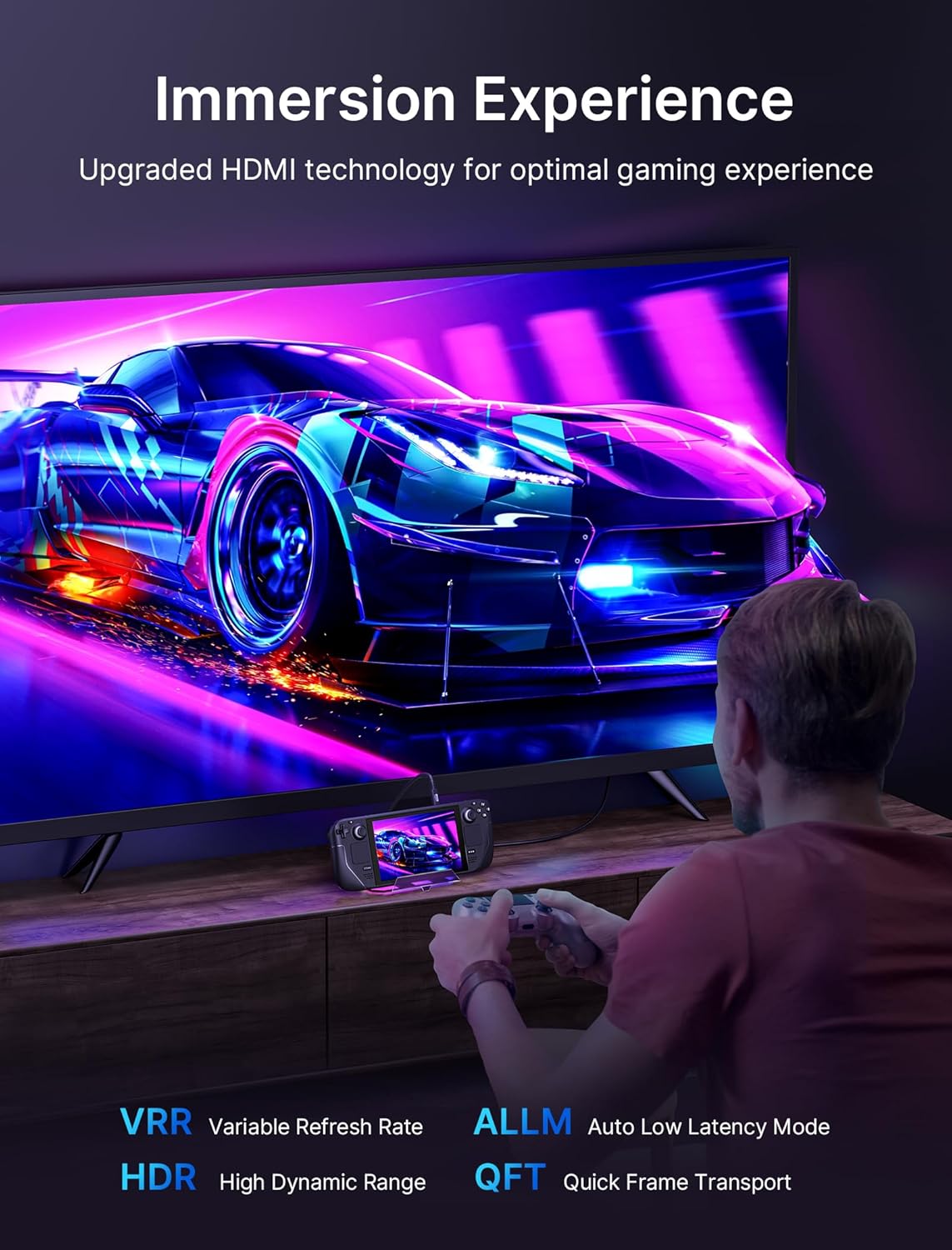
A user playing a game on a large television, with their Steam Deck connected to the docking station, demonstrating the enhanced visual experience provided by VRR, ALLM, and HDR technologies.
Dual Screen Display:
- ونڊوز: Supports both mirror (A-AA, A-BB) and extend (A-BC) modes.
- MAC OS: Supports mirror mode (A-AA, A-BB).
The maximum resolution for dual-screen output is 4K@60Hz or 2K@120Hz.

A Steam Deck connected to two external monitors, illustrating the dual-screen display capability of the docking station using both HDMI and DisplayPort outputs at 4K@120Hz.
5.2 آر جي بي لائيٽنگ ڪنٽرول
The docking station features six dynamic RGB lighting modes. Use the top-mounted touch switch to cycle through the modes or turn the lighting on/off. For custom lighting control, the dock is compatible with OpenRGB software when connected via the USB-C upstream port.

Visual representation of the six dynamic RGB lighting modes: Direct, Breathing, Rainbow Wave, Spectrum Cycle, Race Cycle, and Stacking, with a note about the touch switch and OpenRGB compatibility.
5.3 ڊيٽا جي منتقلي ۽ چارجنگ
Utilize the USB A 3.2 and USB C 3.2 ports for high-speed data transfers up to 10Gbps. The USB A 2.0 port, SD card slot, and TF card slot support data transfer at 480Mbps. The USB C PD 3.0 port delivers up to 100W of power to charge your connected handheld device and other compatible electronics.
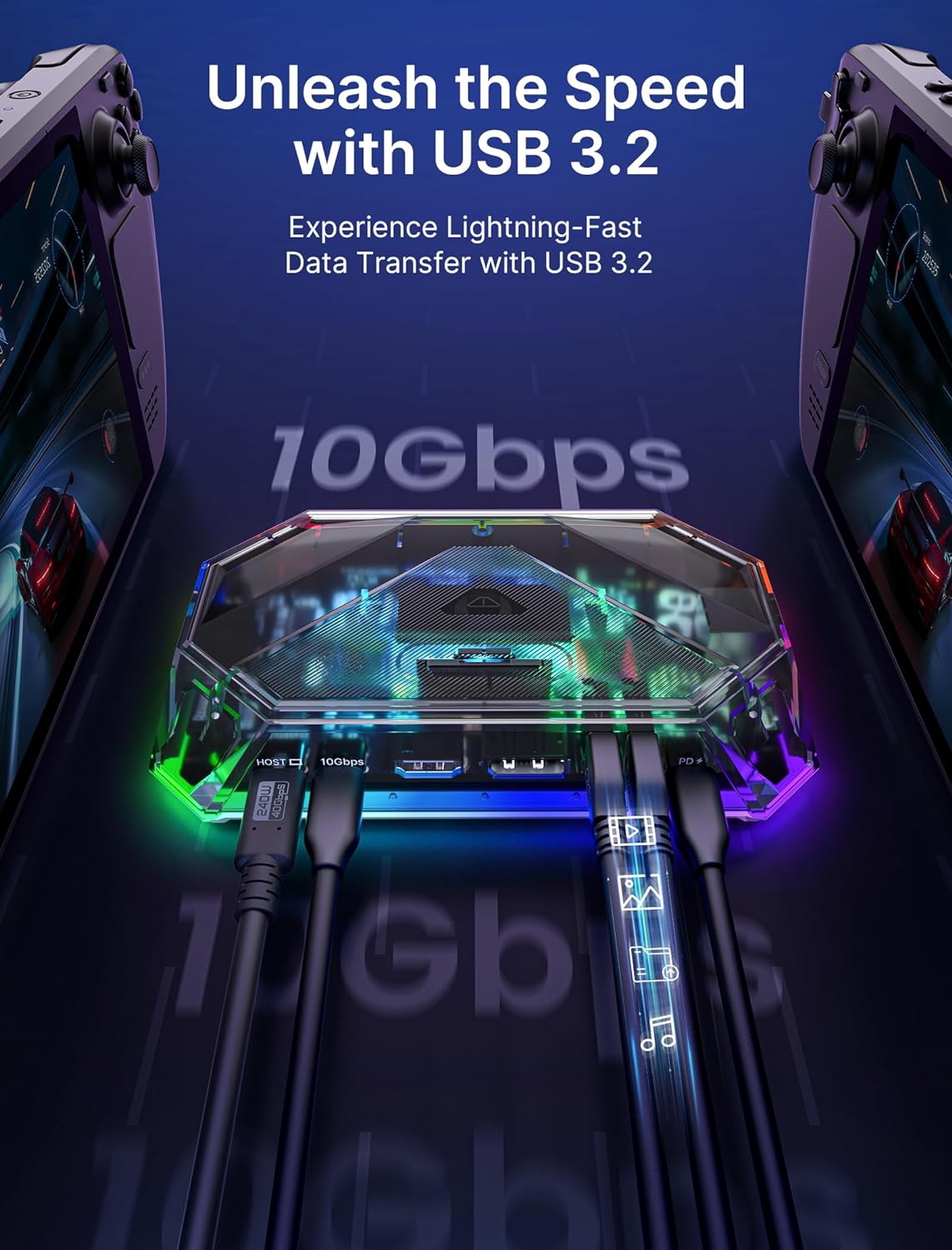
The USB 3.2 ports of the docking station with cables connected, illustrating the high-speed 10Gbps data transfer capability.
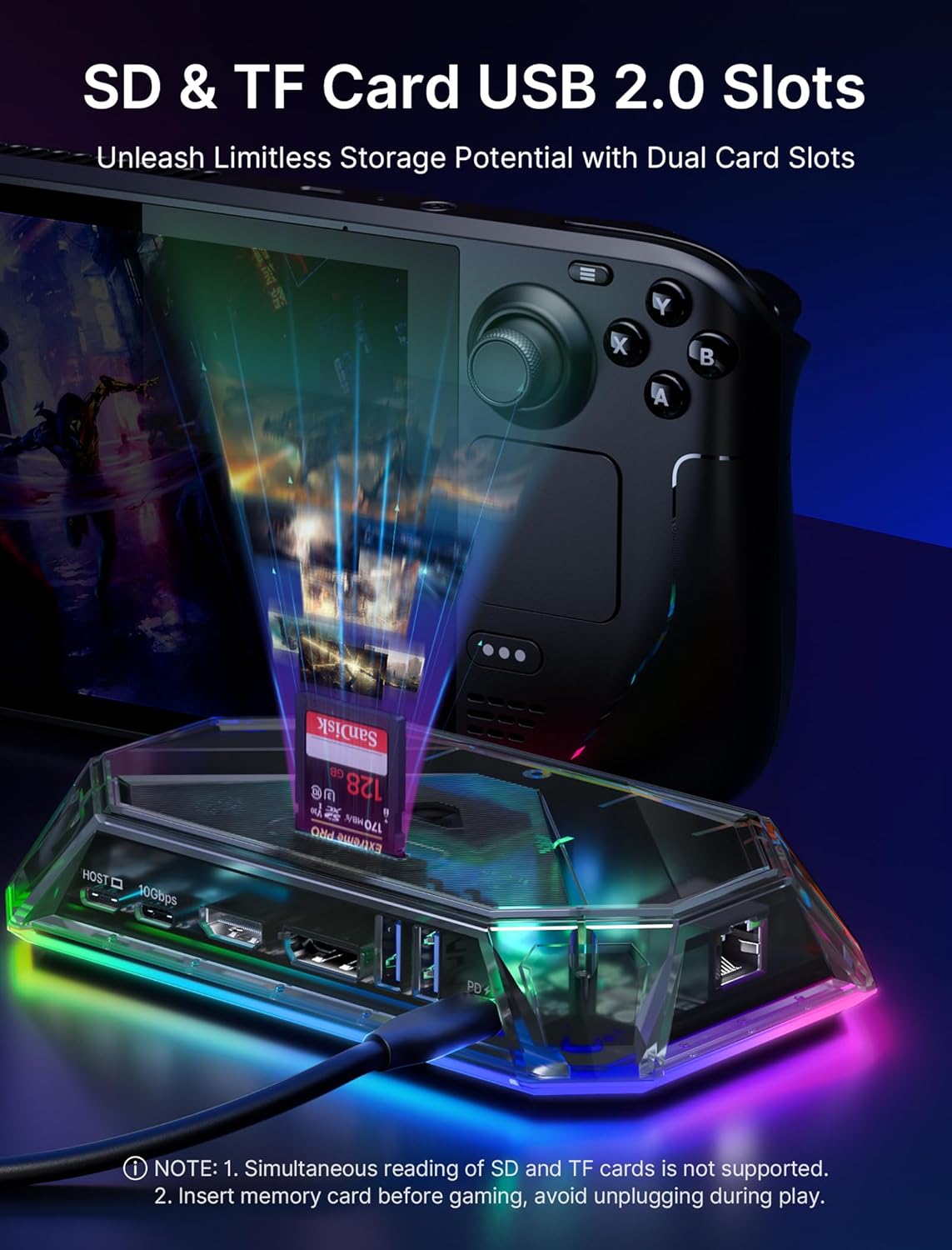
هڪ بند اپ view of the SD and TF card slots on the docking station, showing memory cards inserted, emphasizing the dual card slot functionality.
6. مطابقت
The JSAUX HB1201S RGB Docking Station is compatible with a wide range of handheld gaming consoles and other devices, including:
- Valve Steam Deck
- Steam Deck OLED
- ASUS ROG اتحادي
- ASUS ROG Ally X
- لينووو ليجن گو
- MSI ڪلو
- OneXPlayer
- AYANEO Slide
- iPad, iPad Pro, iPhone
- Razer Edge
- Logitech G Cloud
- Other USB-C enabled phones and tablets
Note: Not compatible with Nintendo Switch.

An ASUS ROG Ally handheld console connected to the docking station, highlighting its compatibility and support for 30W Turbo mode for optimal performance.
7. سار سنڀال
To ensure the longevity and optimal performance of your JSAUX HB1201S Docking Station, follow these maintenance guidelines:
- Keep the device clean by wiping it with a soft, dry cloth. Avoid abrasive cleaners or solvents.
- Protect the docking station from extreme temperatures, direct sunlight, and moisture.
- ڊوائيس کي مضبوط اثرن لاءِ ڇڏڻ يا تابع ڪرڻ کان پاسو ڪريو.
- آپريشن دوران ڊوائيس جي چوڌاري مناسب وينٽيليشن کي يقيني بڻايو وڃي.
8. مسئلا حل ڪرڻ
If you encounter issues with your docking station, refer to the following common solutions:
- ڪابه ڊسپلي آئوٽ پٽ ناهي:
- Ensure all cables (USB-C host, HDMI/DisplayPort) are securely connected.
- Verify that the external display is set to the correct input source.
- Check if your handheld device's display settings are configured for external output.
- Ensure the docking station is receiving adequate power from a compatible PD charger.
- سست ڊيٽا منتقلي:
- Confirm that you are using the USB 3.2 ports for high-speed devices.
- Ensure your connected device and cable support USB 3.2 speeds.
- چارج جا مسئلا:
- Verify that your USB-C PD power adapter meets the wattage requirements of your handheld device.
- Ensure the power cable is securely connected to both the adapter and the docking station.
- آر بي جي روشني ڪم نه ڪندي:
- Press the top-mounted touch switch to activate or cycle through lighting modes.
- پڪ ڪريو ته ڊاکنگ اسٽيشن آن آهي.
- نيٽ ورڪ ڪنيڪشن جا مسئلا:
- ڊاک ۽ پنهنجي روٽر/موڊيم ٻنهي سان ايٿرنيٽ ڪيبل ڪنيڪشن چيڪ ڪريو.
- Verify network settings on your handheld device.
9. وضاحتون
| خاصيت | تفصيل |
|---|---|
| ماڊل نمبر | HB1201S |
| پيداوار جي ماپ | 5.91 x 3.62 x 1.11 انچ (15.01 x 9.19 x 2.82 سينٽي) |
| شيءِ جو وزن | 15.1 آونس (0.43 ڪلوگرام) |
| ھارڊويئر انٽرفيس | USB قسم سي |
| ڪل USB بندرگاهن | 12 |
| ڪل HDMI بندرگاهن | 1 |
| واتtagاي (پي ڊي) | 100W |
| مطابقت رکندڙ ڊوائيسز | Valve Steam Deck, Deck OLED, ASUS ROG Ally, Ally X, Lenovo Legion Go, MSI Claw, OneXPlayer, AYANEO Slide, iPad, iPad Pro, iPhone, Razer Edge, Logitech G Cloud, other phones |
10. سرڪاري پراڊڪٽ وڊيو
This video provides a visual guide to the JSAUX 12-in-1 RGB Docking Station, showcasing its various ports, RGB lighting, and how it connects to handheld gaming devices and external displays.
11. وارنٽي ۽ سپورٽ
JSAUX products come with a standard warranty. For detailed warranty information, product support, or technical assistance, please visit the official JSAUX webسائيٽ تي وڃو يا انهن جي ڪسٽمر سروس سان رابطو ڪريو. وارنٽي دعوائن لاءِ پنهنجي خريداري جي رسيد رکو.
JSAUX Official Webسائيٽ: www.jsaux.com


