1. تعارف
The EPOMAKER TH40 is a compact 40% layout mechanical keyboard designed for efficiency and portability. It features tri-mode connectivity (Bluetooth, 2.4GHz wireless, and USB-C), VIA programmability, hot-swappable switches, and dynamic RGB lighting. This manual provides detailed instructions for setting up, operating, and maintaining your keyboard.

Image: The EPOMAKER TH40 keyboard showcasinان جي ڪمپيڪٽ ڊيزائن ۽ آر جي بي بيڪ لائيٽنگ جي ڪري.
2. دٻي ۾ ڇا آهي
پڪ ڪريو ته سڀئي شيون پيڪيج ۾ موجود آهن:
- EPOMAKER TH40 ميڪيڪل ڪي بورڊ
- ڪيپ ڪيپيندڙ
- USB ڪيبل (USB-C کان USB-A تائين)
- استعمال ڪندڙ جو دستياب (ھي دستاويز)
3. پراڊڪٽ ختمview
The EPOMAKER TH40 features an ultra-compact 40% layout, optimizing desk space while retaining essential functionality through programmable layers. Its gasket-mount design and pre-lubed switches contribute to a comfortable and satisfying typing experience.

تصوير: مٿانview of EPOMAKER TH40 key features including hot-swappable, VIA programming, south-facing RGB, N-Key Rollover, split spacebar, and tri-mode wireless.

Image: The keyboard held in hand, emphasizing its portable 40% layout and light weight of 0.44kg.

Image: Diagram showing the ultra-compact dimensions of the keyboard: 19cm length, 7cm width, and 2cm height.
4. سيٽ اپ
4.1. ڪنيڪٽيوٽي موڊس
The TH40 supports three connection modes: USB-C wired, 2.4GHz wireless, and Bluetooth. Use the switch located on the top edge of the keyboard to select your desired mode.

Image: The connectivity switch and USB-C port located on the side of the keyboard.
4.1.1. USB-C وائرڊ ڪنيڪشن
- مهيا ڪيل USB-C ڪيبل کي ڪيبورڊ جي USB-C پورٽ سان ڳنڍيو.
- ڪيبل جي ٻئي ڇيڙي کي پنهنجي ڪمپيوٽر جي USB پورٽ سان ڳنڍيو.
- Ensure the mode switch on the keyboard is set to 'USB'.
- ڪيبورڊ خودڪار طريقي سان توهان جي سسٽم طرفان سڃاڻي ويندو.
4.1.2. 2.4GHz وائرليس ڪنيڪشن
- Locate the 2.4GHz USB receiver (dongle) included in the package.
- USB رسيور کي توهان جي ڪمپيوٽر تي موجود USB پورٽ ۾ پلگ ان ڪريو.
- ڪي بورڊ تي موڊ سوئچ کي '2.4G' تي سيٽ ڪريو.
- ڪيبورڊ پاڻمرادو ڳنڍجي ويندو.
Video: Demonstration of the EPOMAKER TH40's portable design and wireless connectivity options.
4.1.3. بلوٽوٽ ڪنيڪشن
- ڪي بورڊ تي موڊ سوئچ کي 'BT' تي سيٽ ڪريو.
- دٻايو ۽ رکو FN + A, FN + S، يا FN + ڊي بلوٽوٿ ڊيوائس 1، 2، يا 3 لاءِ پيئرنگ موڊ ۾ داخل ٿيڻ لاءِ 3-5 سيڪنڊن لاءِ. اشاري جي روشني تيزي سان چمڪي ويندي.
- On your device (computer, tablet, smartphone), open Bluetooth settings and search for 'EPOMAKER TH40'.
- Select the keyboard to pair. The indicator light will stop flashing once connected.
- جوڙيل بلوٽوٿ ڊوائيسز جي وچ ۾ سوئچ ڪرڻ لاءِ، دٻايو FN + A, FN + S، يا FN + ڊي مختصر طور.

Image: Visual representation of the keyboard's tri-mode wireless capabilities, connecting to laptops, smartphones, and tablets via USB-C, 2.4GHz, and Bluetooth.
4.2. اشارو بتيون
The keyboard features indicator lights for various statuses:
- Caps Lock اشارو: Lights up when Caps Lock is active.
- Win Lock اشارو: Lights up when the Windows key is locked.
- Connectivity Indicator: Flashes during Bluetooth pairing and indicates connection status.

Image: Close-up of the indicator lights on the keyboard for Caps Lock, Win Lock, and connectivity status.
5. آپريٽنگ هدايتون
5.1. VIA Programmability
The EPOMAKER TH40 is fully programmable using VIA software, allowing you to customize key assignments, macros, and lighting effects across multiple layers. This is crucial for adapting the 40% layout to your specific workflow.
- Download the appropriate JSON file for your TH40 (USB or 2.4G) from the EPOMAKER webسائيٽ.
- Access the VIA configurator online (usevia.app) or download the desktop application.
- Load the JSON definition file into VIA.
- Connect your keyboard via USB-C or 2.4GHz wireless.
- Use the VIA interface to remap keys, create macros, and adjust lighting. Changes are applied in real-time.
Video: A guide on how to use the VIA software for customizing the EPOMAKER TH40 keyboard.

Image: Screenshot of the VIA software interface, demonstrating the layout and customization options for the TH40.
5.2. Key Functions and Layers
The TH40 utilizes a split spacebar with an FN key in the center, allowing for efficient access to multiple layers of key functions without extensive finger travel. There are four switchable layers, three of which are programmable via VIA.

Image: The innovative split spacebar design with the FN key positioned between the two spacebar segments, enhancing ergonomic typing.
5.3. آر جي بي لائيٽنگ ڪنٽرول
The keyboard features dynamic RGB backlighting with south-facing LEDs. You can control various aspects of the lighting directly from the keyboard:
- ايف اين + داخل ڪريو: Toggle RGB backlight On/Off.
- ايف اين + زي: Cycle through different RGB lighting effects.
- ايف اين + اين/ايڇ: Adjust brightness (N for decrease, H for increase).
- ايف اين + بي/ايم: Adjust hue (B for decrease, M for increase).

Image: Diagram illustrating the FN key combinations for controlling RGB backlight brightness, color, and effects.
5.4. بيٽري چيڪ
موجوده بيٽري جي سطح کي جانچڻ لاءِ، دٻايو FN + Left Spacebar. The RGB lighting will indicate the battery status.

Image: Illustration of pressing FN + Left Spacebar to check the keyboard's battery level.
5.5. N-Key Rollover (NKRO)
The TH40 supports full N-Key Rollover, ensuring that every keystroke is registered accurately, even when multiple keys are pressed simultaneously. This feature is beneficial for fast typists and gamers.

Image: Visual highlighting of the N-Key Rollover and anti-ghosting capabilities for accurate and fast typing.
5.6. ميڪ ۽ ونڊوز مطابقت
To switch between Windows and Mac layouts, press FN + ساڄي شفٽ.

Image: Iconographic representation of switching between Mac and Windows operating system compatibility using FN + Right Shift.
6. سار سنڀال
6.1. صفائي
Regularly clean your keyboard to ensure optimal performance. Use a soft brush or compressed air to remove dust and debris from between the keycaps. For stubborn dirt, gently wipe the keycaps with a damp ڪپڙو.
6.2. گرم مٽائڻ وارا سوئچ
The TH40 features hot-swappable sockets, allowing you to change switches without soldering. Use the provided switch puller to carefully remove switches. Ensure replacement switches are compatible (3-pin or 5-pin).
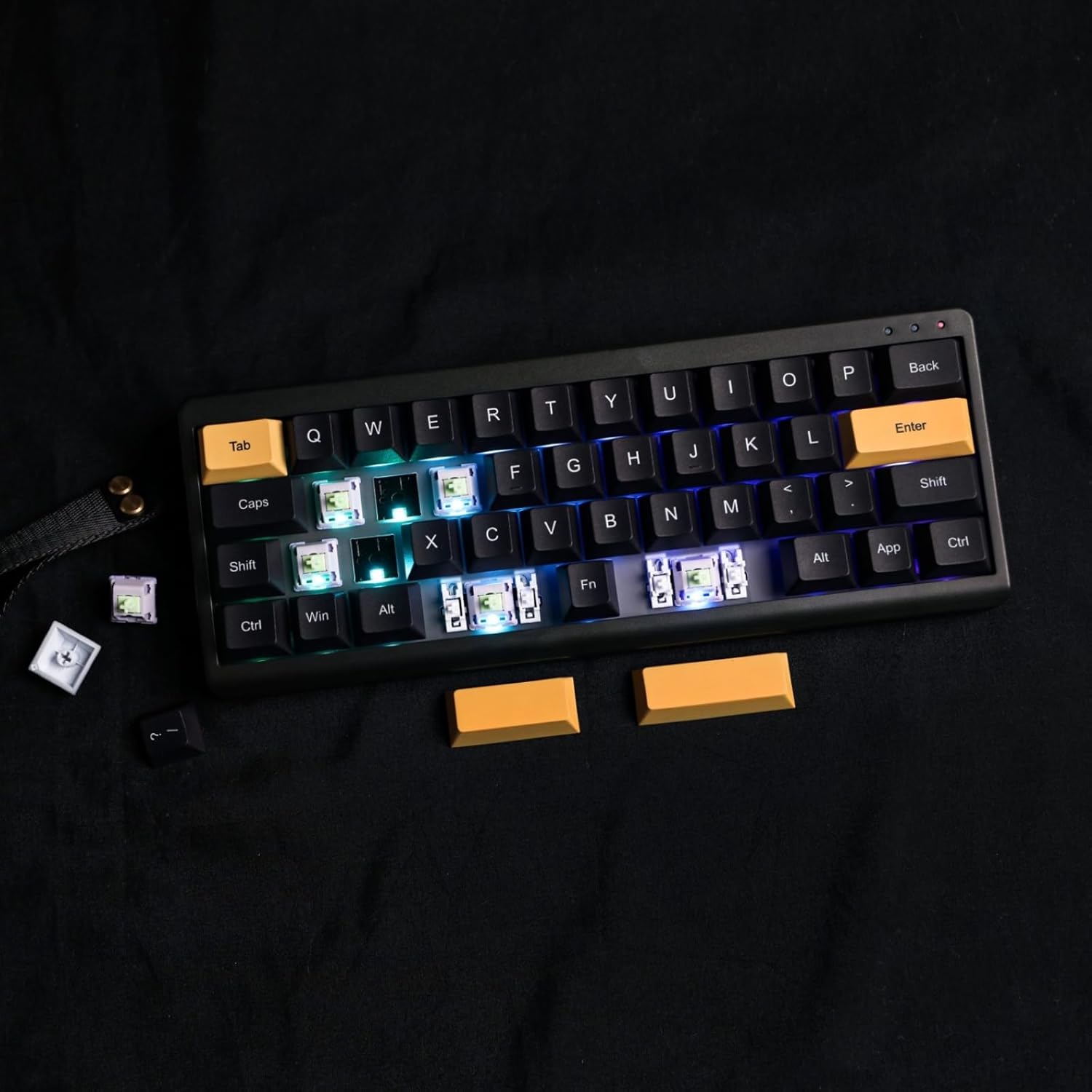
Image: Demonstration of removing a switch from the keyboard using a switch puller, highlighting the hot-swappable feature.

تصوير: ويجهو تصوير view of the keyboard's south-facing LEDs and pre-lubed switches, indicating the quality of components and ease of customization.
7. مسئلا حل ڪرڻ
- ڪي بورڊ ڳنڍجي نه رهيو آهي: Ensure the mode switch is set correctly (USB, 2.4G, or BT). For wireless modes, check battery level and ensure the receiver is properly plugged in or Bluetooth is paired.
- چاٻيون جواب نه ڏئي رهيون آهن: Check if the keyboard is properly connected. If using VIA, ensure the correct layer is active and key assignments are as expected.
- آر جي بي لائيٽنگ جا مسئلا: Use FN key combinations to cycle effects, adjust brightness, and hue. If issues persist, check VIA software settings.
- VIA سافٽ ويئر ڪيبورڊ نه ڳولي رهيو آهي: Ensure the keyboard is connected via USB-C and the correct JSON file is loaded in VIA.
8. وضاحتون
| خاصيت | تفصيل |
|---|---|
| ماڊل نمبر | TH40 |
| ترتيب | 40٪ (44 ڪيز) |
| رابطي | Bluetooth (5.0), 2.4GHz Wireless, USB-C Wired |
| سوئچ جو قسم | Hot-swappable (3-pin/5-pin) |
| پٺڀرائي | آر جي بي (ڏکڻ طرف منهن ڪندڙ ايل اي ڊي) |
| پروگرام جي صلاحيت | وي آءِ اي سافٽ ويئر |
| بيٽري جي گنجائش | 3000 mAh ليتيم آئن |
| طول و عرض (L x W x H) | 10.16 x 3.82 x 1.38 انچ (25.8 x 9.7 x 3.5 سينٽي) |
| شيءِ جو وزن | 1.76 پائونڊ (0.8 ڪلوگرام) |
| مطابقت رکندڙ ڊوائيسز | ليپ ٽاپ، پي سي، اسمارٽ فون، ٽيبليٽ |
9. وارنٽي ۽ سپورٽ
وارنٽي جي معلومات، ٽيڪنيڪل سپورٽ، يا وڌيڪ مدد لاءِ، مھرباني ڪري سرڪاري EPOMAKER جو دورو ڪريو. webسائيٽ تي وڃو يا انهن جي ڪسٽمر سروس سان رابطو ڪريو. وارنٽي دعوائن لاءِ پنهنجي خريداري جي رسيد رکو.


