1. تعارف
Thank you for choosing the ATTACK SHARK X85 Gasket Mechanical Keyboard. This manual provides detailed instructions on how to set up, operate, and maintain your new keyboard. Please read this manual thoroughly before use to ensure optimal performance and longevity of your device.

The ATTACK SHARK X85 Gasket Mechanical Keyboard, featuring a compact 75% layout with a multi-function knob.
2. پيڪيج مواد
مھرباني ڪري تصديق ڪريو ته ھيٺ ڏنل سڀ شيون توھان جي پيڪيج ۾ شامل آھن:
- ATTACK SHARK X85 Gasket Mechanical Keyboard
- USB-C کان USB-A ڪيبل
- 2.4 GHz وائرليس وصول ڪندڙ
- Keycap and Switch Puller Tool
- Additional Keycaps (Purple accent keycaps)
- استعمال ڪندڙ جو دستياب (ھي دستاويز)
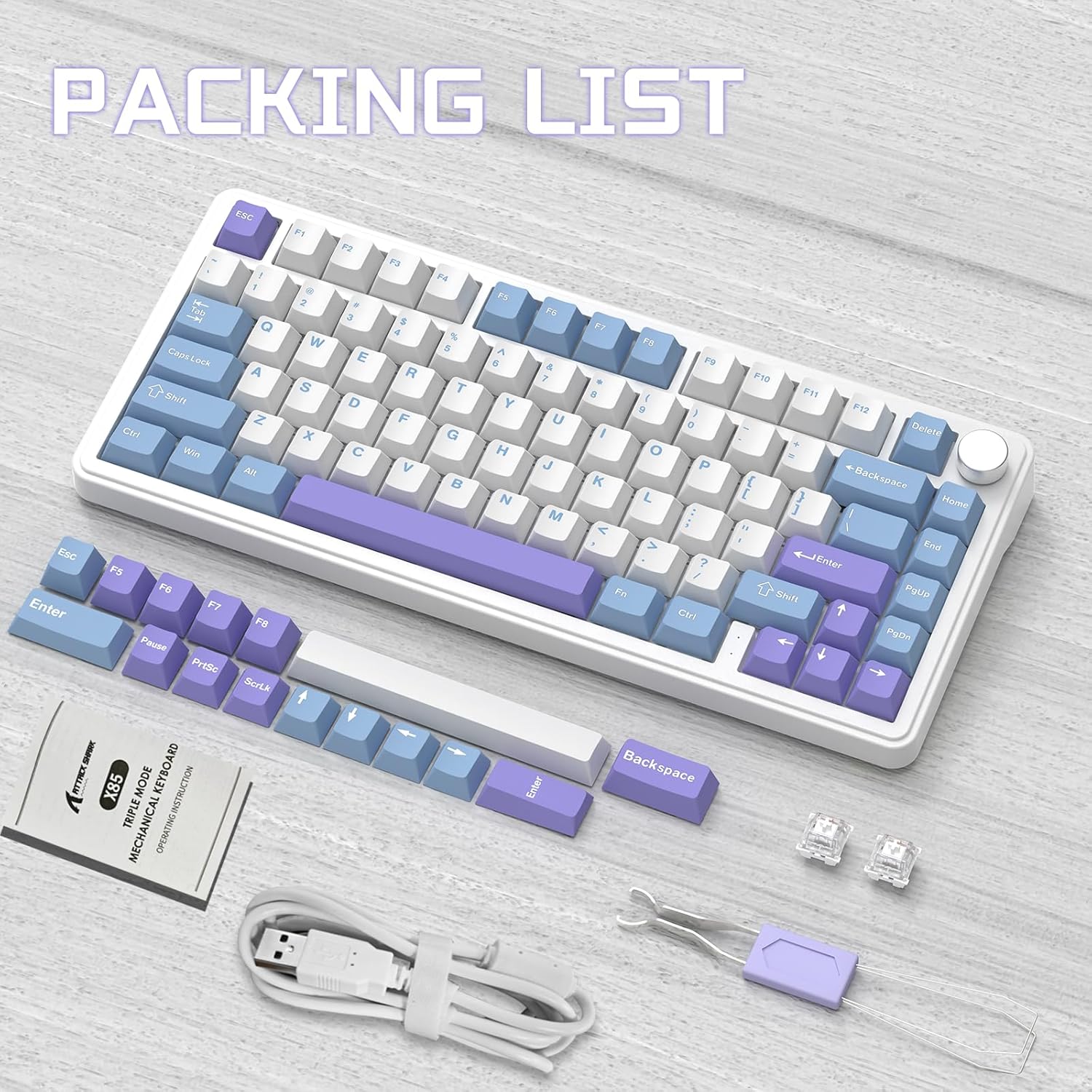
Contents of the ATTACK SHARK X85 keyboard package, including the keyboard, cables, tools, and extra keycaps.
3. پراڊڪٽ ختمview
3.1 اهم خاصيتون
- 75٪ ڪمپيڪٽ لي آئوٽ: 81-key design maximizing desk space.
- ٽرائي موڊ ڪنيڪٽوٽي: بلوٽوٿ 5.0، 2.4 GHz وائرليس، ۽ USB-C وائرڊ ڪنيڪشن کي سپورٽ ڪري ٿو.
- گيسڪٽ ماؤنٽ ڊيزائن: Five-layer sound and shock-absorbing internal padding (PORON foam, IXPE switch pad, PET sound enhancement pad, bottom silicone pad) for a soft, flexible typing feel.
- گرم مٽائي سگھڻ وارا سوئچ: Compatible with most 3-pin mechanical switches for easy customization.
- ملٽي فنڪشن نوب: Controls computer volume and keyboard backlight settings.
- پي بي ٽي ڪي ڪيپس: Durable, wear-resistant keycaps with thick walls.
- آر جي بي بيڪ لائيٽنگ: 19 RGB modes, 7 monochrome modes, and full-color backlight with adjustable speed and intensity. Customizable via software.
- 5000mAh بيٽري: High-capacity battery for extended wireless use with auto-sleep power saving.
- 100٪ مخالف گھوسٽنگ: Ensures all key presses are registered accurately during fast typing or gaming.
- وسيع مطابقت: Fully compatible with Windows and Mac operating systems.
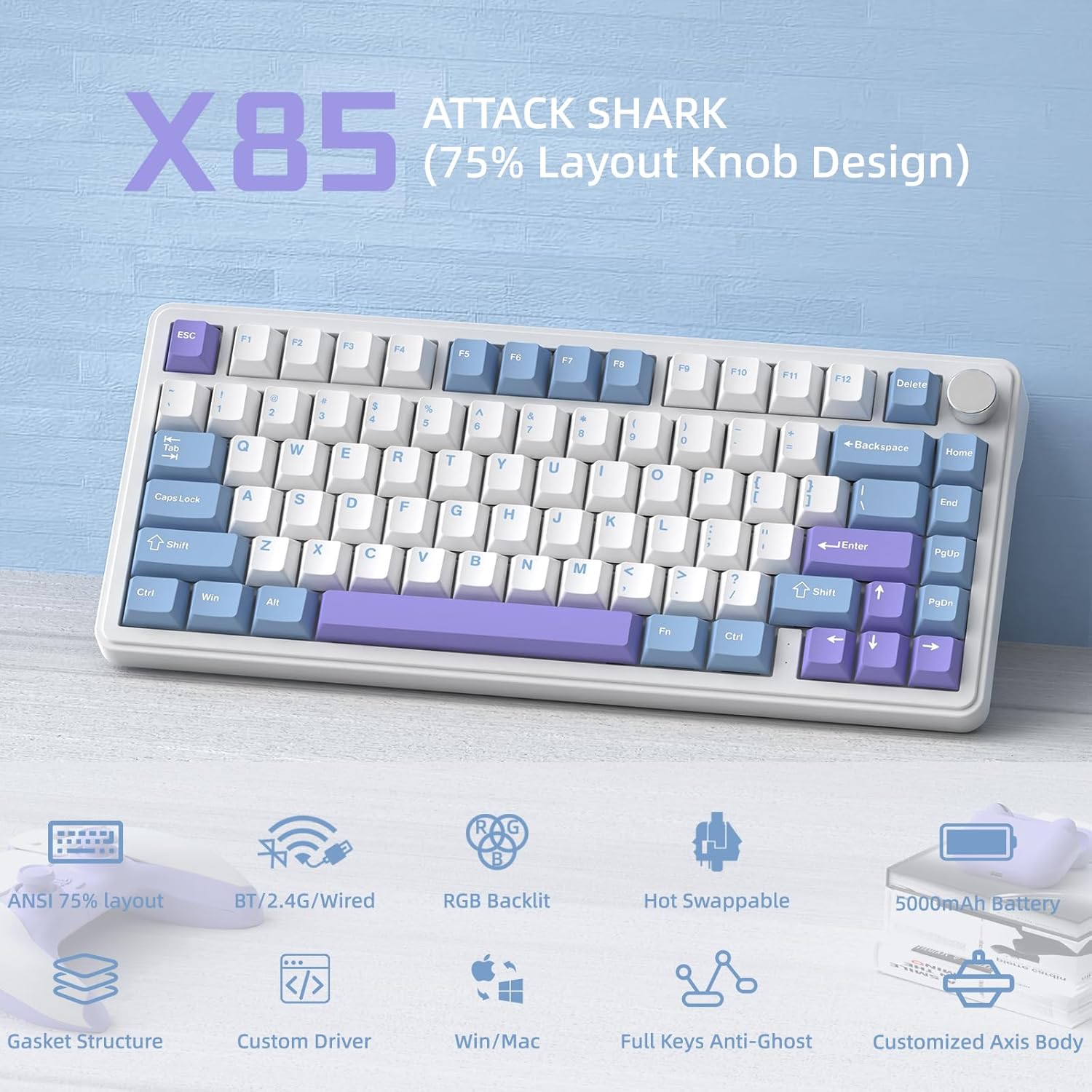
هڪ اوورview of the ATTACK SHARK X85's key features, including its 75% layout, tri-mode connectivity, RGB lighting, and hot-swappable design.
3.2 Internal Structure (Gasket Mount)
The X85 features an advanced gasket mount design with multiple layers for enhanced acoustics and typing feel:
- ڪَنوَ
- PBT Keycaps
- مٿو ڍڪڻ
- سوئچ
- PC Horizontal Slotted Positioning Plate
- PORON Quilted Cotton
- IXPE Switch Pad
- PET Sound Enhancement Pad
- سنگل ڪي سلاٽ ٿيل پي سي بي
- Switch Seat Silencer Bottom Cotton
- سلائيون پيڊ
- هيottيان ڪيس

Diagram illustrating the five-layer padding and gasket mount structure of the X85 keyboard, showing its various internal components.
4. سيٽ اپ
4.1 Tri-Mode Connection
The ATTACK SHARK X85 keyboard supports three connection modes: Bluetooth, 2.4 GHz wireless, and USB-C wired. The connection mode can be easily switched using the toggle switch on the back of the keyboard.

Visual guide for connecting the ATTACK SHARK X85 keyboard via Bluetooth, 2.4G wireless, and USB-C wired modes.
4.1.1 بلوٽوٿ ڪنيڪشن
- Toggle the switch on the back of the keyboard to the "BT" position.
- ڊگهو پريس Fn + Q, Fn + W، يا Fn + E for more than three seconds until the corresponding key's backlight flashes rapidly. This indicates pairing mode.
- On your device (computer, tablet, or smartphone), enable Bluetooth and search for "ATTACK SHARK X85".
- Select the keyboard to connect. Once connected, the key's backlight will stop flashing and remain solid.
- You can pair up to three Bluetooth devices and switch between them by pressing Fn + Q, Fn + W، يا Fn + E.
4.1.2 2.4 GHz Wireless Connection
- Locate the 2.4 GHz wireless receiver (dongle) in the package.
- Toggle the switch on the back of the keyboard to the "2.4G" position.
- Plug the 2.4 GHz wireless receiver into an available USB port on your computer.
- The keyboard should automatically connect. If not, ensure the receiver is properly inserted and the keyboard is in 2.4G mode.
4.1.3 USB-C وائرڊ ڪنيڪشن
- Toggle the switch on the back of the keyboard to the "Line" (wired) position.
- مهيا ڪيل USB-C ڪيبل جي هڪ پڇاڙي کي ڪيبورڊ جي USB-C پورٽ سان ڳنڍيو.
- Connect the other end of the USB-A cable to an available USB port on your computer.
- The keyboard will be recognized as a standard USB keyboard and is ready for use.
4.2 آپريٽنگ سسٽم مطابقت
The ATTACK SHARK X85 keyboard is fully compatible with both Windows and Mac operating systems. Use the toggle switch on the back of the keyboard to select between "Win" and "Mac" modes for optimal key mapping.
5. آپريٽنگ هدايتون
5.1 Multi-Function Rotary Knob
The knob on the top right of the keyboard serves multiple functions, controlling both volume and backlight settings.

Instructions for using the multi-function rotary knob to control lighting and sound settings on the X85 keyboard.
- مٽائڻ جا طريقا: Press and hold the knob for more than three seconds to switch between Light Mode and Sound Mode.
- روشني موڊ:
- Press once to cycle through different backlight modes.
- Turn left to decrease backlight brightness.
- Turn right to increase backlight brightness.
- آواز جو موڊ:
- Press once to play/mute audio.
- Turn left to decrease volume.
- Turn right to increase volume.
5.2 آر جي بي بيڪ لائيٽنگ ڪسٽمائيزيشن
The X85 keyboard offers extensive RGB lighting options. You can adjust settings directly on the keyboard or through the dedicated software.
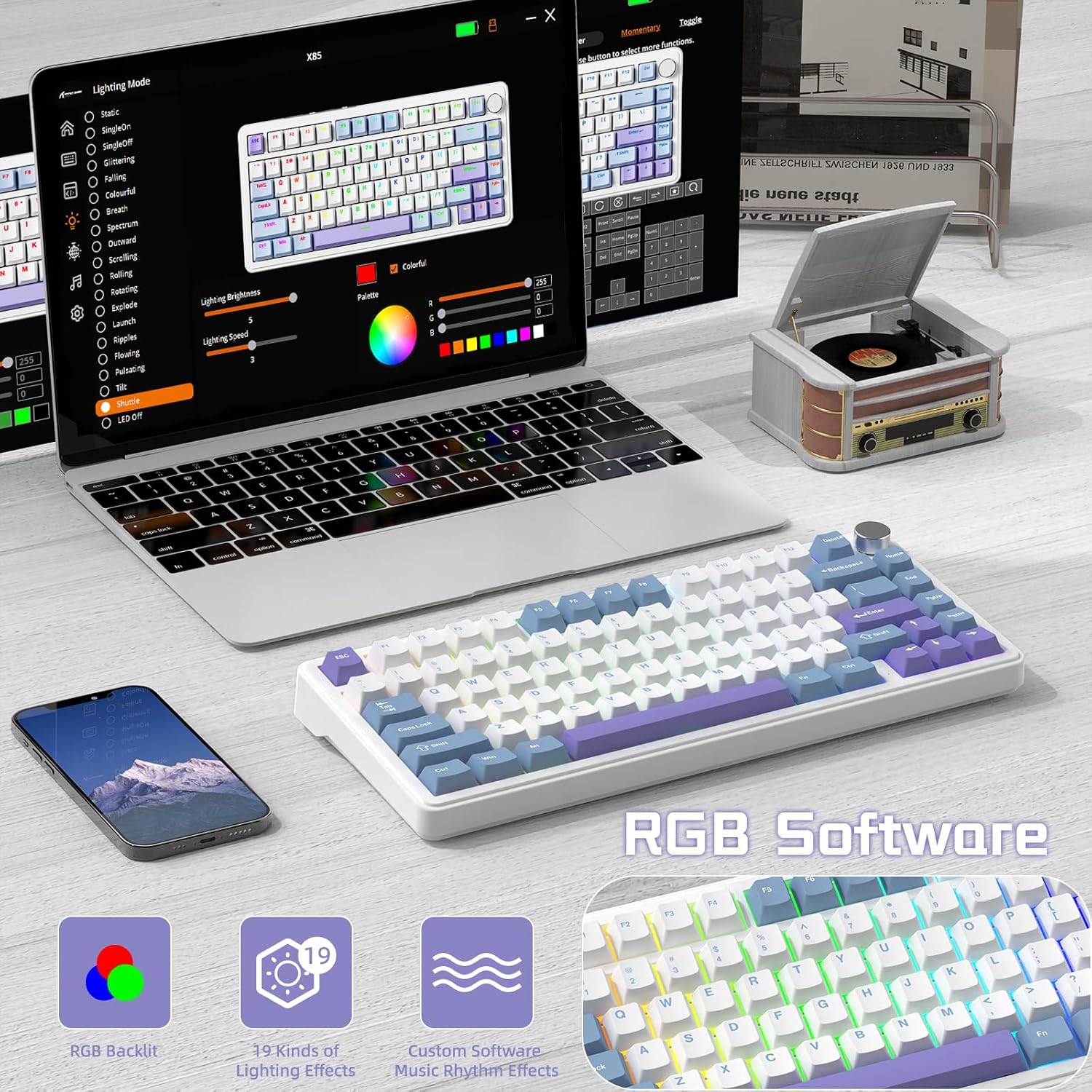
The software interface for customizing RGB lighting and other settings on the ATTACK SHARK X85 keyboard.
- On-Keyboard Controls:
- Use the knob in Light Mode to cycle modes and adjust brightness.
- Refer to the keyboard's quick function keys (usually Fn combinations) for additional lighting effects and speed adjustments.
- سافٽ ويئر حسب ضرورت:
- Download the official ATTACK SHARK software from the manufacturer's webسائيٽ.
- The software allows for advanced customization of RGB effects, colors, speed, and brightness. It may also offer key remapping and macro creation.
- Note: The software may default to Chinese. Please navigate to settings within the software to change the language to English if needed.
5.3 گرم مٽائڻ وارا سوئچ
The X85 features a hot-swappable PCB, allowing you to easily change mechanical switches without soldering. This enables customization of your typing experience.

Demonstration of the hot-swappable feature of the X85 keyboard, showing how switches can be easily removed and replaced.
- ڪي ڪيپ هٽايو: Use the keycap puller tool to gently remove the desired keycap.
- سوئچ هٽايو: Use the switch puller tool to grasp the top and bottom clips of the switch and gently pull it straight up.
- نئون سوئچ داخل ڪريو: نئين 3-پن ميڪينڪل سوئچ جي پنن کي پي سي بي تي سوراخن سان ترتيب ڏيو. سوئچ کي نرميءَ سان سڌو هيٺ دٻايو جيستائين اهو جاءِ تي ڪلڪ نه ڪري. پڪ ڪريو ته پن مڙيل نه آهن.
- ڪي ڪيپ تبديل ڪريو: ڪي ڪيپ کي واپس نئين سوئچ اسٽيم تي رکو.
The X85 supports 3-pin mechanical switches. Ensure the replacement switches are compatible to avoid damage.
5.4 100% Anti-Ghosting
The keyboard features 100% anti-ghosting, meaning all simultaneous key presses are registered accurately, which is crucial for fast-paced gaming and typing.
6. سار سنڀال
6.1 توهان جي ڪي بورڊ کي صاف ڪرڻ
- صفائي ڪرڻ کان اڳ ڪيبورڊ کي ڪمپيوٽر کان ڌار ڪريو.
- ڪي ڪيپس جي وچ مان مٽي ۽ ملبہ اُڏائڻ لاءِ دٻيل هوا جو ڪين استعمال ڪريو.
- For surface cleaning, gently wipe the keycaps and chassis with a soft, slightly damp، لِنٽ کان پاڪ ڪپڙو. گهڻي نمي کان پاسو ڪريو.
- سخت ڪيميڪل، رگڙيندڙ صاف ڪندڙ، يا محلول استعمال نه ڪريو.
6.2 بيٽري جي سنڀال
The X85 keyboard is equipped with a 5000mAh high-capacity battery. To maximize battery life and performance:

Battery life estimates for the ATTACK SHARK X85 keyboard: 35 hours with backlight on, 75 hours with backlight off.
- پهرين استعمال کان اڳ ڪيبورڊ کي مڪمل طور تي چارج ڪريو.
- When the battery is low, connect the USB-C cable to charge.
- The keyboard features an auto-sleep power saving technology to conserve battery when idle.
- ڪيبورڊ کي انتهائي گرمي پد تي بي نقاب ڪرڻ کان پاسو ڪريو.
7. مسئلا حل ڪرڻ
| مسئلو | ممڪن حل |
|---|---|
| ڪي بورڊ بلوٽوٿ ذريعي ڳنڍي نه رهيو آهي. |
|
| 2.4 GHz wireless connection is unstable or not working. |
|
| ڪيز جواب نه ڏئي رهيون آهن يا غلط ٽائيپ ڪري رهيون آهن. |
|
| RGB backlighting is not working or behaving unexpectedly. |
|
| Multi-function knob is not responding. |
|
8. وضاحتون
| خاصيت | تفصيل |
|---|---|
| برانڊ | شارڪ تي حملو |
| ماڊل | X85 |
| ترتيب | 75٪ (81-ڪي) |
| رابطي | بلوٽوٿ 5.0، 2.4 GHz وائرليس، USB-C وائرڊ |
| بيٽري جي گنجائش | 5000mAh |
| ڪي ڪيپ مواد | PBT (Polybutylene Terephthalate) |
| سوئچ جو قسم | Hot-swappable (supports 3-pin mechanical switches) |
| پٺڀرائي | RGB (19 modes, 7 monochrome, full color) |
| مخالف گھوسٽنگ | 100٪ اينٽي گھوسٽنگ |
| مطابقت | ونڊوز، ميڪ |
| شيءِ جو وزن | 1.03 ڪلو |
| پيڪيج جي ماپ | 35.6 x 18.6 x 4.9 سينٽي |
9. وارنٽي ۽ سپورٽ
The ATTACK SHARK X85 Gasket Mechanical Keyboard comes with a standard manufacturer's warranty. Please refer to the warranty card included in your package or visit the official ATTACK SHARK webتفصيلي وارنٽي شرطن ۽ ضابطن لاءِ سائيٽ.
For technical support, troubleshooting assistance, or any inquiries regarding your product, please contact ATTACK SHARK customer service through their official webسائيٽ يا توهان جي خريداري سان مهيا ڪيل رابطي جي معلومات.