تعارف
This manual provides detailed instructions for the setup, operation, and maintenance of your ATTACK SHARK X11 Lightweight Wireless Gaming Mouse. Please read this manual thoroughly before using the product to ensure optimal performance and longevity.
پيداوار ختمview
اجزاء
- ATTACK SHARK X11 Wireless Gaming Mouse
- آر بي جي چارج وارو ڊاک
- USB-سي ڪيبل
- 2.4G USB وصول ڪندڙ
اهم خاصيتون
- ٽرائي موڊ ڪنيڪشن: Supports 2.4G wireless, Bluetooth, and USB-C wired connections.
- PAW3311 Optical Sensor: High-performance sensor with up to 22000 DPI.
- RGB Backlight Charging Dock: Convenient charging with customizable RGB lighting.
- الٽرا لائيٽ ڊيزائن: Weighs approximately 62g for comfortable extended use.
- HUYU Switch & TTC Encoder: Ensures precise clicks and long lifespan (20 million clicks).
- 5 پروگراميبل بٽڻ: Customizable via dedicated software.
پيداوار جو خاڪو
Refer to the diagrams below for an overview of the mouse components and features.

Image: The ATTACK SHARK X11 Wireless Gaming Mouse shown with its RGB charging dock and USB receiver. The mouse is black with a blue LED indicator. The charging dock has an RGB light strip at its base.

تصوير: هڪ ڌماڪو ٿيو view of the ATTACK SHARK X11 mouse, detailing its internal components including the lightweight material case, engineering curved keys, PCB, lithium battery, TTC encoder, HUYU white spots, PAW3311 sensors, and mouse bottom case.
سيٽ اپ ڪريو
مائوس کي چارج ڪرڻ
Before first use, fully charge the mouse using the provided USB-C cable and RGB charging dock.
- Connect the USB-C cable to the charging dock and a power source (e.g., computer USB port, USB wall adapter).
- Place the mouse onto the charging dock, ensuring the magnetic contacts align. The RGB lighting on the dock will indicate charging status.
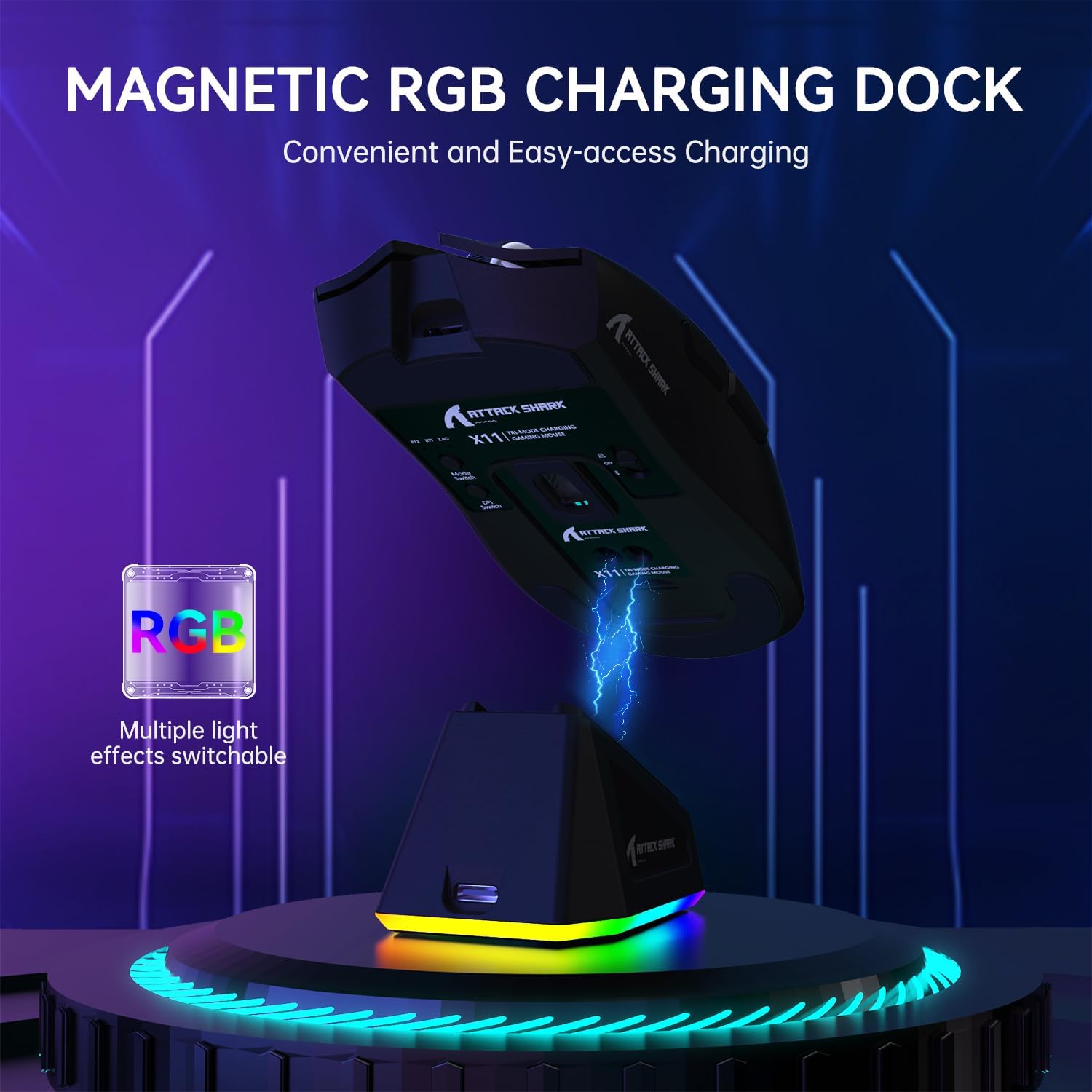
Image: The ATTACK SHARK X11 mouse magnetically attached to its RGB charging dock, illustrating the charging process.
ماؤس کي نڻ
The ATTACK SHARK X11 offers three connection modes: 2.4G Wireless, Bluetooth, and USB-C Wired.
2.4G وائرليس ڪنيڪشن
- Locate the 2.4G USB receiver at the bottom of the mouse.
- USB رسيور کي توهان جي ڪمپيوٽر تي موجود USB پورٽ ۾ پلگ ان ڪريو.
- Switch the mode button on the bottom of the mouse to the 2.4G position.
- The mouse should automatically connect. If not, refer to the troubleshooting section.
بلوٽوٿ ڪنيڪشن
- Switch the mode button on the bottom of the mouse to the Bluetooth (BT) position.
- پنهنجي ڪمپيوٽر يا ڊوائس تي، بلوٽوٿ کي فعال ڪريو ۽ نوان ڊوائيسز ڳوليو.
- Select "ATTACK SHARK X11" from the list of available devices to pair.
- For multiple Bluetooth devices (BT1/BT2/BT3), short press the BT switching key on the mouse to cycle through channels. Press and hold for 3 seconds to enter pairing mode for a new device.
USB-C وائرڊ ڪنيڪشن
- Connect the USB-C cable directly from the mouse to a USB port on your computer.
- The mouse will automatically switch to wired mode and function as a plug-and-play device.

Image: The ATTACK SHARK X11 mouse connected wirelessly to a laptop via its 2.4GHz USB receiver, demonstrating tri-mode connectivity options.
آپريٽنگ هدايتون
ڊي پي آءِ ايڊجسٽمينٽ
The mouse features 6 adjustable DPI settings (800-1600-2400-3200-5000-22000). The DPI button is located on the bottom of the mouse. Each DPI setting is indicated by a different color light inside the mouse.
پروگراميبل بٽڻ
The ATTACK SHARK X11 has 5 programmable buttons. To customize these buttons, DPI settings, polling rate, LOD, shortcuts, and macros, download and install the official driver software from the ATTACK SHARK webسائيٽ.

Image: A screenshot of the ATTACK SHARK X11 mouse software interface, showing options for button settings, DPI adjustment, light settings, and polling rate, with a visual representation of the mouse and its programmable buttons.
آر جي بي بيڪ لائيٽ ڪسٽمائيزيشن
The RGB backlight on the charging dock can be customized. Refer to the driver software for detailed options or use the physical button on the dock (if available) to cycle through effects.
سار سنڀال
صفائي
To clean the mouse, use a soft, dry cloth. For stubborn dirt, a slightly damp هلڪي صابڻ سان ڪپڙو استعمال ڪري سگهجي ٿو، انهي ڳالهه کي يقيني بڻائڻ لاءِ ته ڪو به مائع مائوس ۾ داخل نه ٿئي. رگڙيندڙ صاف ڪندڙن يا محلولن کان پاسو ڪريو.
ذخيرو
جڏهن وڌايل عرصي تائين استعمال ۾ نه هجي ته مائوس کي سڌي سج جي روشني ۽ انتهائي گرمي پد کان پري ٿڌي، سڪل جاءِ تي رکو.
بيٽري جي سنڀال
To prolong battery life, avoid fully discharging the mouse frequently. Charge it regularly, especially if it will be stored for a long time.
مشڪلاتون
| مسئلو | ممڪن سبب | حل |
|---|---|---|
| مائوس جواب نه ڏئي رهيو آهي | Low battery; Incorrect connection mode; USB receiver not plugged in; Bluetooth not paired. | Charge the mouse; Ensure correct mode (2.4G/BT/Wired) is selected; Re-plug USB receiver; Re-pair Bluetooth. |
| دير يا بي ترتيب حرڪت | Interference; Dirty sensor; Surface issues. | Move closer to receiver/device; Clean optical sensor; Use on a clean, non-reflective mouse pad. |
| Software not detecting mouse | Driver not installed correctly; Compatibility issues. | Reinstall driver software; Ensure mouse is connected via wired or 2.4G mode (Bluetooth may not be supported by software); Check compatibility (Windows XP/VISTA/7/8/10/MAC). |
وضاحتون
- ماڊل: ATTACK SHARK X11
- ڪنيڪشن جا طريقا: 2.4G وائرليس، بلوٽوٿ 5.2، USB-C وائرڊ
- سينسر: PAW3311 آپٽيڪل سينسر
- DPI: 800-1600-2400-3200-5000-22000 (Adjustable)
- ٽريڪنگ اسپيڊ: 300 آئي پي ايس
- جواب جي شرح: 1000Hz
- تيزي: 35 جي
- سوئچ: HUYU Switch
- Click Lifespan: 20 ملين ڪلڪون
- بٽڻ: 5 پروگراميبل بٽڻ
- وزن: تقريبن 62 گرام
- مطابقت: Windows XP / VISTA / 7 / 8 / 10 / MAC
- پيڪيج جي ماپ: 7.01 x 4.53 x 2.05 انچ
وارنٽي ۽ سپورٽ
For warranty information and technical support, please visit the official ATTACK SHARK webسائيٽ تي وڃو يا انهن جي ڪسٽمر سروس سان رابطو ڪريو. وارنٽي دعوائن لاءِ پنهنجي خريداري جي رسيد رکو.
سرڪاري Webسائيٽ: ATTACK SHARK Store on Amazon
اضافي وسيلا
مهيا ڪيل ڊيٽا ۾ وڪرو ڪندڙ جي ڪا به سرڪاري پراڊڪٽ وڊيو موجود ناهي.


