1. تعارف
The Microsoft Surface Pro 10 is a versatile 2-in-1 device designed to adapt to various work styles, offering the functionality of both a tablet and a laptop. It features an Intel Core Ultra 5 processor, providing robust performance for daily tasks and advanced applications. This manual provides essential information to help you set up, operate, and maintain your device, ensuring optimal performance and longevity.
2. دٻي ۾ ڇا آهي
Carefully unpack your Surface Pro 10 and ensure all items are present. The standard package includes:
- Microsoft Surface Pro 10 Device
- پاور سپلائي يونٽ
- Microsoft Surface Pro Keyboard
- Microsoft Surface Pro Slim Pen
- تڪڙو شروع ھدايت
- حفاظت ۽ وارنٽي دستاويز
3. ڊوائيس اوورview
Familiarize yourself with the physical components of your Surface Pro 10.

شڪل 3.1: سامهون view of the Surface Pro 10 with the keyboard attached, showcasinڊسپلي ۽ ڪي بورڊ لي آئوٽ.

شڪل 3.2: پاسي view of the Surface Pro 10 in laptop configuration, highlighting the adjustable kickstand and connected keyboard.
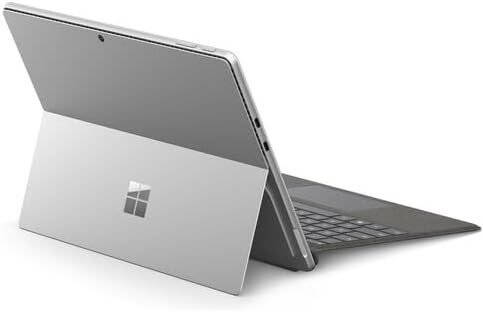
شڪل 3.3: ريڙهه view of the Surface Pro 10 with the kickstand deployed, revealing the device's sleek design and the iconic Microsoft logo.
اهم اجزاء:
- 13-inch PixelSense Flow Display: High-resolution touchscreen for vibrant visuals and touch interaction.
- سامهون واري ڪئميرا: For video calls and facial recognition (Windows Hello).
- پوئين پاسي واري ڪئميرا: تصويرون ۽ وڊيوز ڪڍڻ لاءِ.
- پاور بٽڻ: پاسي تي واقع، ڊوائيس کي آن/آف ڪرڻ يا ان کي سمهڻ لاءِ استعمال ڪيو ويندو آهي.
- حجم بٽڻ: Located on the side, for adjusting audio levels.
- USB-C بندرگاهن: For charging, data transfer, and connecting external displays or accessories.
- مٿاڇري ڪنيڪٽ پورٽ: For charging and connecting to Surface Dock accessories.
- ڪيڪ اسٽينڊ: Integrated into the back, allows for multiple viewing angles.
- مائڪروفون: For voice commands and audio recording.
4. سيٽ اپ
4.1 شروعاتي چارجنگ
- Connect the power supply to the Surface Connect port or one of the USB-C ports on your Surface Pro 10.
- بجلي جي فراهمي کي ھڪڙي ديوار ۾ مٽايو.
- Allow the device to charge for at least 30 minutes before first use, or until the battery indicator shows sufficient charge.
4.2 پاور آن/آف
- پاور آن ڪرڻ: پاور بٽڻ کي دٻايو ۽ رکو جيستائين Microsoft جو لوگو اسڪرين تي ظاهر نه ٿئي.
- پاور آف ڪرڻ: From the Windows desktop, select شروع > طاقت > بند ڪريو. Alternatively, press and hold the Power button for a few seconds, then slide down to shut down.
- سمهڻ لاءِ: Briefly press the Power button. Press it again to wake the device.
4.3 شروعاتي ونڊوز سيٽ اپ
Upon first power-on, you will be guided through the Windows 11 setup process. Follow the on-screen prompts to:
- پنھنجي ٻولي ۽ علائقو چونڊيو.
- وائي فائي نيٽ ورڪ سان ڳنڍيو.
- لائسنس جون شرطون قبول ڪريو.
- پنهنجي Microsoft اڪائونٽ سان سائن ان ڪريو يا هڪ نئون ٺاهيو.
- Set up Windows Hello (facial recognition or fingerprint, if available).
- رازداري سيٽنگون ترتيب ڏيو.
4.4 Attaching the Surface Pro Keyboard
Align the magnetic connector on the keyboard with the corresponding port at the bottom edge of your Surface Pro 10. The keyboard will snap into place magnetically. You can adjust the keyboard to lie flat or tilt it slightly for a more ergonomic typing experience.
4.5 Pairing the Surface Pro Slim Pen
The Surface Pro Slim Pen typically pairs automatically when first used with your Surface Pro 10. If not, follow these steps:
- ڏانهن وڃو شروع > سيٽنگون > Bluetooth ۽ ڊوائيسز > ڊوائيس شامل ڪريو > بلوٽوٿ.
- Press and hold the top button on your Slim Pen for 5-7 seconds until the LED light flashes white.
- Select your Surface Slim Pen from the list of available devices and follow any on-screen prompts.
5. Operating Your Surface Pro 10
5.1 Switching Between Tablet and Laptop Modes
- ليپ ٽاپ موڊ: Attach the Surface Pro Keyboard and adjust the kickstand for a traditional laptop experience.
- ٽيبليٽ موڊ: Detach the keyboard or fold it back completely. Windows will automatically switch to Tablet Mode, optimizing the interface for touch input.
5.2 ٽچ اسڪرين استعمال ڪندي
The PixelSense Flow Display supports multi-touch gestures:
- ٽيپ ڪريو: ڪا شيءِ چونڊيو يا ڪا ايپ کوليو.
- ٽيپ ڪريو ۽ جهلو: Access context menus (right-click equivalent).
- زوم ڪرڻ لاءِ پنچ ڪريو: تصويرن کي زوم ان يا آئوٽ ڪريو ۽ web صفحا.
- Swipe from Edges: Access quick settings, notifications, or switch between apps.
5.3 Using the Surface Pro Slim Pen
The Slim Pen allows for precise input and creative tasks:
- لکڻ/ ڊرائنگ: Use the pen directly on the screen in compatible apps like Microsoft Whiteboard or OneNote.
- چونڊ: Tap with the pen to select items.
- صاف ڪندڙ: Use the eraser button on the pen to erase digital ink.
- مٿي بٽڻ: Customizable for quick access to apps like OneNote or screenshots.
5.4 Basic Windows 11 Navigation
- شروع مينيو: Access apps, settings, and power options.
- ٽاسڪ بار: Pin frequently used apps and view کليل ايپليڪيشنون.
- ايڪشن سينٽر: Swipe in from the right edge (or click the icon) for quick settings and notifications.
- وجيٽس Swipe in from the left edge (or click the icon) for personalized information.
6. سار سنڀال
6.1 توهان جي ڊوائيس کي صاف ڪرڻ
- نرم، لِنٽ کان خالي ڪپڙو استعمال ڪريو ٿورڙو ڊيampened with water or an approved screen cleaner to wipe the display.
- For the body of the device and keyboard, use a soft, dry cloth.
- Avoid harsh chemicals, abrasive cleaners, or excessive moisture.
6.2 بيٽري جي سنڀال
- بيٽري کي بار بار مڪمل طور تي چارج ڪرڻ کان پاسو ڪريو.
- جڏهن گهڻي عرصي تائين استعمال ۾ نه هجي ته ڊوائيس کي ٿڌي، سڪل جاءِ تي رکو.
- Use only the official Microsoft power supply or certified compatible chargers.
6.3 سافٽ ويئر اپڊيٽ
Regularly check for and install Windows updates to ensure your device has the latest security patches, features, and performance improvements. Go to شروع > سيٽنگون > ونڊوز اپڊيٽ.
7. مسئلا حل ڪرڻ
7.1 ڊوائيس آن نه ٿي رهيو آهي
- Ensure the device is charged. Connect the power supply and wait a few minutes before attempting to power on.
- Perform a force restart: Press and hold the Power button for 15-20 seconds, then release and press it again briefly to turn on.
7.2 اسڪرين جا مسئلا (ڊسپلي نه هجڻ، ٽمٽار ٿيڻ)
- ڊوائيس ٻيهر شروع ڪريو.
- Ensure display drivers are up to date via Windows Update.
- If connected to an external display, try disconnecting it.
7.3 Wi-Fi or Bluetooth Connectivity Problems
- Check if Wi-Fi or Bluetooth is enabled in Quick Settings or Windows Settings.
- Restart your Surface Pro 10 and your router/modem.
- Forget the network/device and try reconnecting.
- Update network drivers via Windows Update.
7.4 Performance Issues (Slowdowns, Freezes)
- پس منظر ۾ هلندڙ غير ضروري ايپليڪيشنون بند ڪريو.
- Check for and install all available Windows updates.
- Run a disk cleanup and optimize drives.
- ڪافي مفت اسٽوريج جي جاءِ کي يقيني بڻايو.
8. وضاحتون
The following table outlines the key technical specifications for the Microsoft Surface Pro 10 (Intel Core Ultra 5, 16GB RAM, 256GB SSD) model:
| خاصيت | تفصيل |
|---|---|
| ماڊل نالو | Surface Pro 10 (ZEA-00001) |
| اسٽينڊنگ اسڪرين ڊسپلي سائيز | 13 انچ |
| اسڪرين جي قرارداد | 2880 x 1920 پکسلز |
| وڌ ۾ وڌ اسڪرين ريزوليوشن | 2880x1920 |
| پروسيسر | 1.4 GHz Intel Core Ultra 5 |
| هارڊ ڊرائيو | 256 GB SSD |
| رام ميموري انسٽال ٿيل سائيز | 16 GB DDR5 رام |
| آپريٽنگ سسٽم | ونڊوز 11 پرو |
| Chipset Brand | Intel |
| گرافڪس ڪارڊ جي وضاحت | ضم ٿيل |
| وائرليس جو قسم | 802.11ax |
| رنگ | پلاٽينم |
| پيداوار جي ماپ | 11.3 x 8.2 x 0.4 انچ |
| بيٽريون | 1 ليتيم آئن بيٽري (شامل) |
9. وارنٽي ۽ سپورٽ
Your Microsoft Surface Pro 10 comes with a limited hardware warranty. For detailed warranty information, please refer to the documentation included with your device or visit the official Microsoft Support website. For technical assistance, troubleshooting guides, and driver downloads, please visit support.microsoft.com/surface.


