1. تعارف
The Keychron M6 is a versatile wireless gaming optical mouse designed for optimal performance and comfort. It features tri-mode connectivity (2.4 GHz, Bluetooth 5.1, and USB wired), a high-precision PixArt 3395 sensor, and an ergonomic lightweight design. This manual provides detailed instructions for setting up, operating, maintaining, and troubleshooting your Keychron M6 mouse.

Image 1.1: Keychron M6 Wireless Gaming Optical Mouse with its included USB-C and USB-A receivers, showcasinان جي ڪمپيڪٽ ۽ ايرگونومڪ ڊيزائن جي ڪري.
2. پيڪيج مواد
Verify that all items are present in your Keychron M6 package:
- 1x Keychron M6 Wireless Mouse
- 1x ٽائپ-سي کان ٽائپ-سي ڪيبل
- 1x ٽائپ-اي کان ٽائپ-سي اڊاپٽر
- وصول ڪندڙ لاءِ 1x ايڪسٽينشن اڊاپٽر
- 1x Type-C 2.4 GHz Receiver
- 1x قسم-A 2.4 GHz وصول ڪندڙ
- 1x استعمال ڪندڙ دستياب

Image 2.1: Visual representation of the Keychron M6 mouse and its complete set of accessories, including various cables and receivers.
3. سيٽ اپ
3.1 مائوس کي چارج ڪرڻ
The Keychron M6 mouse is equipped with a built-in Lithium Polymer battery. Connect the mouse to a USB power source using the provided Type-C cable to charge. A full charge provides up to 80 hours of continuous use.
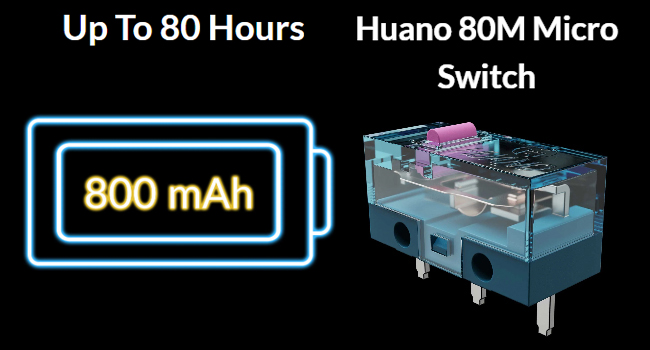
Image 3.1: Illustration highlighting the Keychron M6's battery life of up to 80 hours and its 800 mAh battery capacity.
3.2 مائوس کي ڳنڍڻ
The Keychron M6 supports three connection modes: 2.4 GHz wireless, Bluetooth 5.1, and USB wired.
2.4 GHz وائرليس ڪنيڪشن
- Locate the 2.4 GHz receiver (either Type-C or Type-A) from the package.
- وصول ڪندڙ کي توهان جي ڪمپيوٽر تي موجود USB پورٽ ۾ پلگ ان ڪريو.
- Switch the mode selector on the bottom of the mouse to 'G' (Gaming/2.4G mode).
- مائوس خودڪار طريقي سان وصول ڪندڙ سان ڳنڍيندو.
بلوٽوٽ 5.1 ڪنيڪشن
- Switch the mode selector on the bottom of the mouse to 'B' (Bluetooth mode).
- پنهنجي ڪمپيوٽر تي، بلوٽوٿ سيٽنگون کوليو ۽ نوان ڊوائيسز ڳوليو.
- Select 'Keychron M6' from the list of available devices to pair.
USB وائرڊ ڪنيڪشن
- Connect the Type-C end of the provided cable to the mouse and the other end to your computer's USB port.
- مائوس وائرڊ موڊ ۾ ڪم ڪندو ۽ هڪ ئي وقت چارج ٿيندو.

Image 3.2: The included 2.4 GHz receivers (Type-C and Type-A) and a table detailing report rate light indicators, polling rates, and available modes.
4. آپريٽنگ هدايتون
4.1 ڊي پي آئي ايڊجسٽمينٽ
The Keychron M6 features a PixArt 3395 sensor with up to 26,000 DPI. You can adjust the DPI settings directly on the mouse using the dedicated DPI button located on the bottom. Press the DPI button to cycle through preset DPI levels.
4.2 پولنگ ريٽ ايڊجسٽمينٽ
The polling rate can be adjusted to optimize responsiveness. Press the Report Rate button on the bottom of the mouse to switch between 125 Hz (White LED), 500 Hz (Blue LED), and 1000 Hz (Red LED) in 2.4 GHz / Wired mode.

Image 4.1: The underside of the Keychron M6 mouse, showing the DPI and Report Rate adjustment buttons, allowing for hardware-level configuration without software.
4.3 Scrolling Functions
The M6 mouse includes both a main scroll wheel and a thumb wheel, offering multiple ways to navigate.
- Main Scroll Wheel: Provides vertical scrolling and can also be tilted for horizontal scrolling.
- انگوٺي جو ڦيٿو: Located on the side, this wheel offers additional scrolling functionality, typically for horizontal navigation or custom macros.
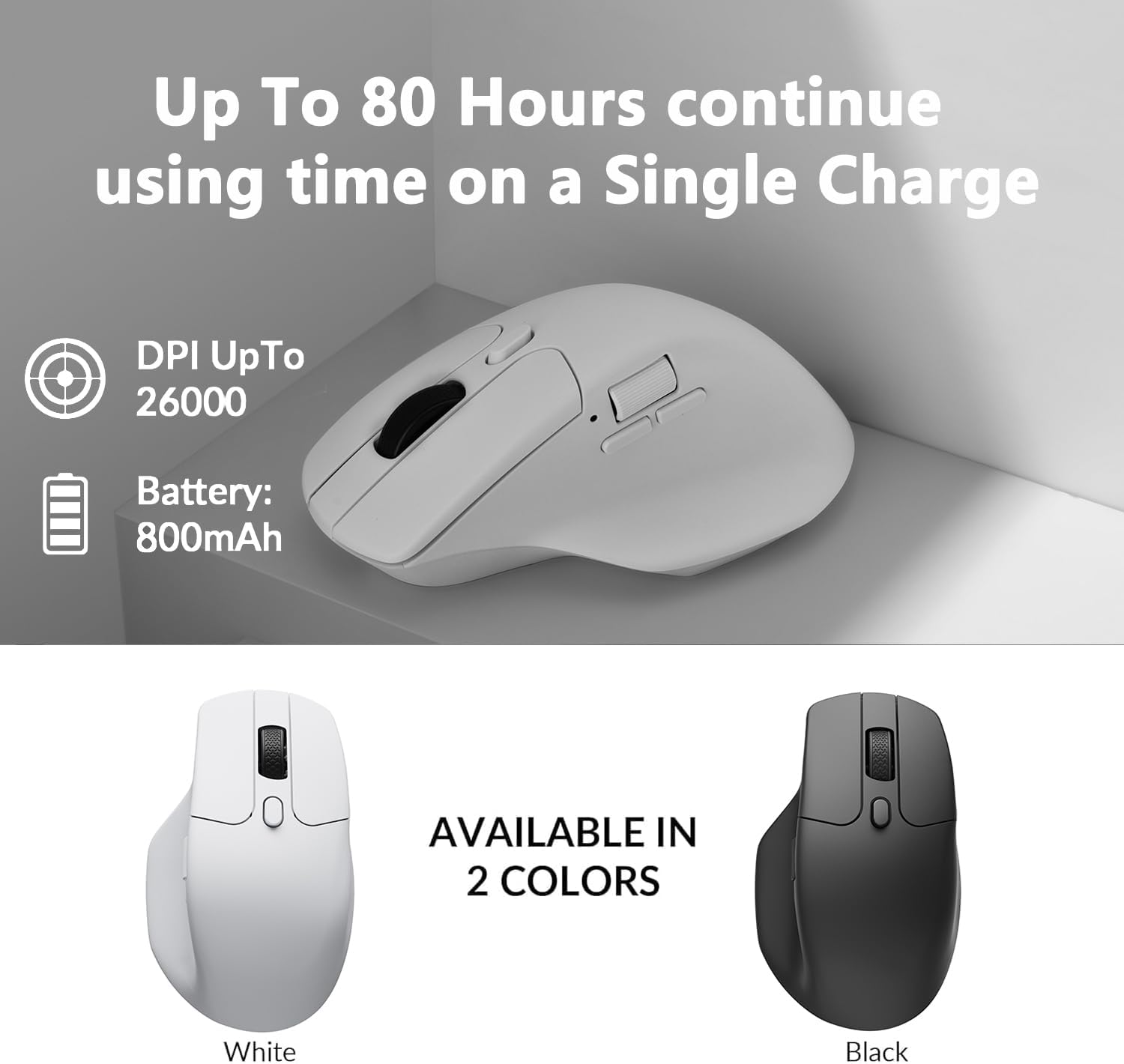
Image 4.2: The Keychron M6 mouse, illustrating the multi-directional functionality of the main scroll wheel for both vertical and horizontal scrolling.
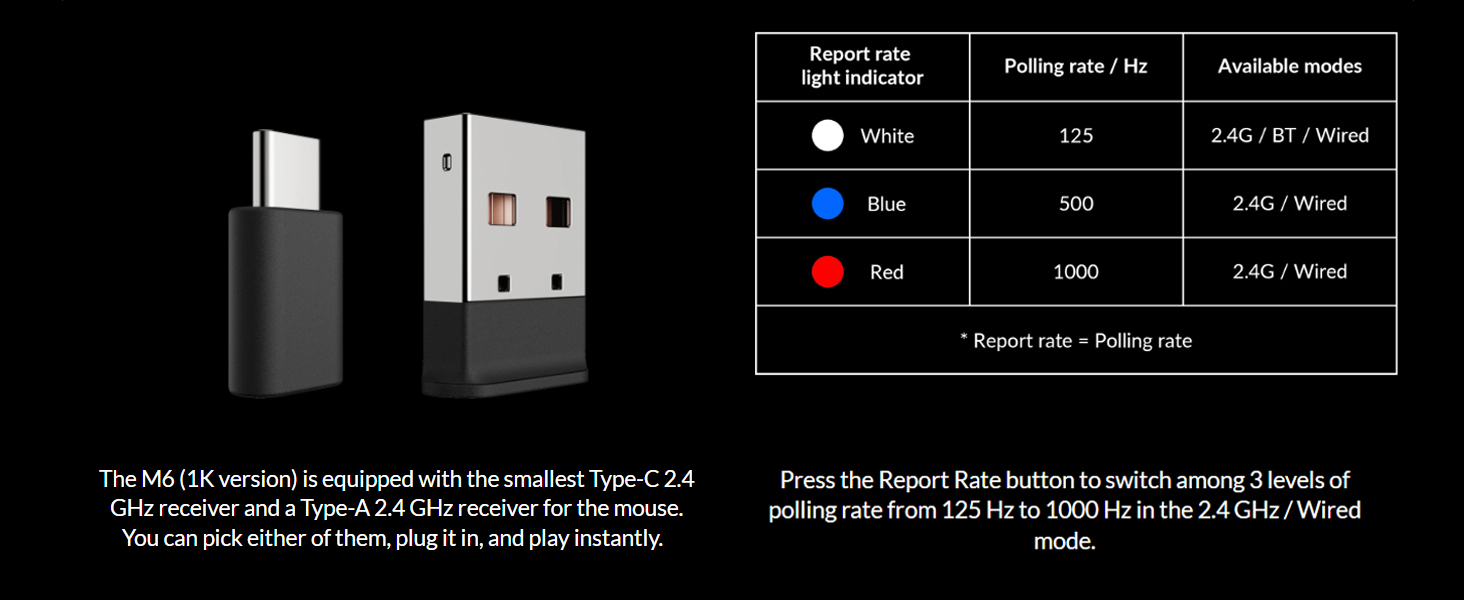
Image 4.3: A close-up of the Keychron M6 mouse, showing the thumb wheel and its directional movement for enhanced navigation.
5. Keychron Engine Software
The Keychron Engine software provides extensive customization options for your M6 mouse. This software allows you to:
- Modify key assignments and set shortcuts.
- Customize RGB lighting effects (if applicable).
- Create and assign dedicated macros.
- Adjust professional settings such as Lift-Off Distance (LOD), polling rate, and DPI.
سرڪاري Keychron جو دورو ڪريو website to download the latest version of the Keychron Engine software.

Image 5.1: The Keychron Engine software interface, demonstrating the various personalization options available for the M6 wireless mouse.
6. سار سنڀال
6.1 صفائي
To maintain optimal performance and appearance, regularly clean your mouse. Use a soft, dry, lint-free cloth to wipe the surface. For stubborn dirt, slightly dampڪپڙو پاڻي سان ڍڪيو. سخت ڪيميڪل يا رگڙيندڙ مواد استعمال ڪرڻ کان پاسو ڪريو.
6.2 بيٽري جي سنڀال
To prolong battery life, avoid fully discharging the mouse frequently. Charge the mouse when the battery indicator shows low power. Store the mouse in a cool, dry place when not in use for extended periods.
7. مسئلا حل ڪرڻ
7.1 ڪنيڪٽيويٽي جا مسئلا
- 2.4 GHz: Ensure the USB receiver is securely plugged in and the mouse is in 'G' mode. Try a different USB port.
- بلوٽوٿ: Ensure the mouse is in 'B' mode and discoverable. Remove previous pairings on your device and re-pair.
- وائرس: Check the USB-C cable connection to both the mouse and the computer.
7.2 Unresponsive Mouse
- بيٽري جي سطح چيڪ ڪريو ۽ ضروري هجي ته چارج ڪريو.
- Ensure the optical sensor on the bottom is clean and unobstructed.
- توھان جي ڪمپيوٽر کي ٻيهر شروع ڪرڻ جي ڪوشش ڪريو.
7.3 Software Not Detecting Mouse
- Ensure the mouse is connected via USB wired mode when using the Keychron Engine software for initial setup or firmware updates.
- Verify that you have the latest version of the Keychron Engine software installed.
8. وضاحتون
| خاصيت | تفصيل |
|---|---|
| ماڊل نمبر | M6-A3-Mouse |
| رابطي | 2.4 GHz Wireless, Bluetooth 5.1, USB Wired |
| سينسر | PixArt 3395 آپٽيڪل سينسر |
| ڊي پي آئي | 26,000 DPI تائين |
| آئي پي ايس | 650 IPS تائين |
| پولنگ جي شرح | 125 هز ، 500 هز ، 1000 هز |
| شيءِ جو وزن | 78 گرام (2.75 اونس) |
| بيٽري | 800 mAh Lithium Polymer (Up to 80 hours) |
| پيداوار جي ماپ | 4.8 x 2.95 x 1.97 انچ (122.5 x 75.4 x 50.0 ملي ميٽر) |
| مائڪرو سوئچ | Huano 80M Micro Switch |

Image 8.1: Technical drawing illustrating the precise dimensions of the Keychron M6 mouse.
9. وارنٽي ۽ سپورٽ
Keychron products are designed for durability and performance. For warranty information, please refer to the warranty card included in your product packaging or visit the official Keychron website. If you encounter any issues or require technical assistance, please contact Keychron customer support through their official webسائيٽ يا توهان جي پراڊڪٽ دستاويزن ۾ ڏنل رابطي جي معلومات.


