1. تعارف
This manual provides comprehensive instructions for the setup, operation, maintenance, and troubleshooting of your Logitech Ergo M575S Wireless Trackball Mouse. Designed for comfort and precision, the ERGO M575S minimizes movement and maximizes comfort with its sculpted ergonomic shape and thumb control. It offers smooth, precise tracking and is compatible with both PC and Mac systems.
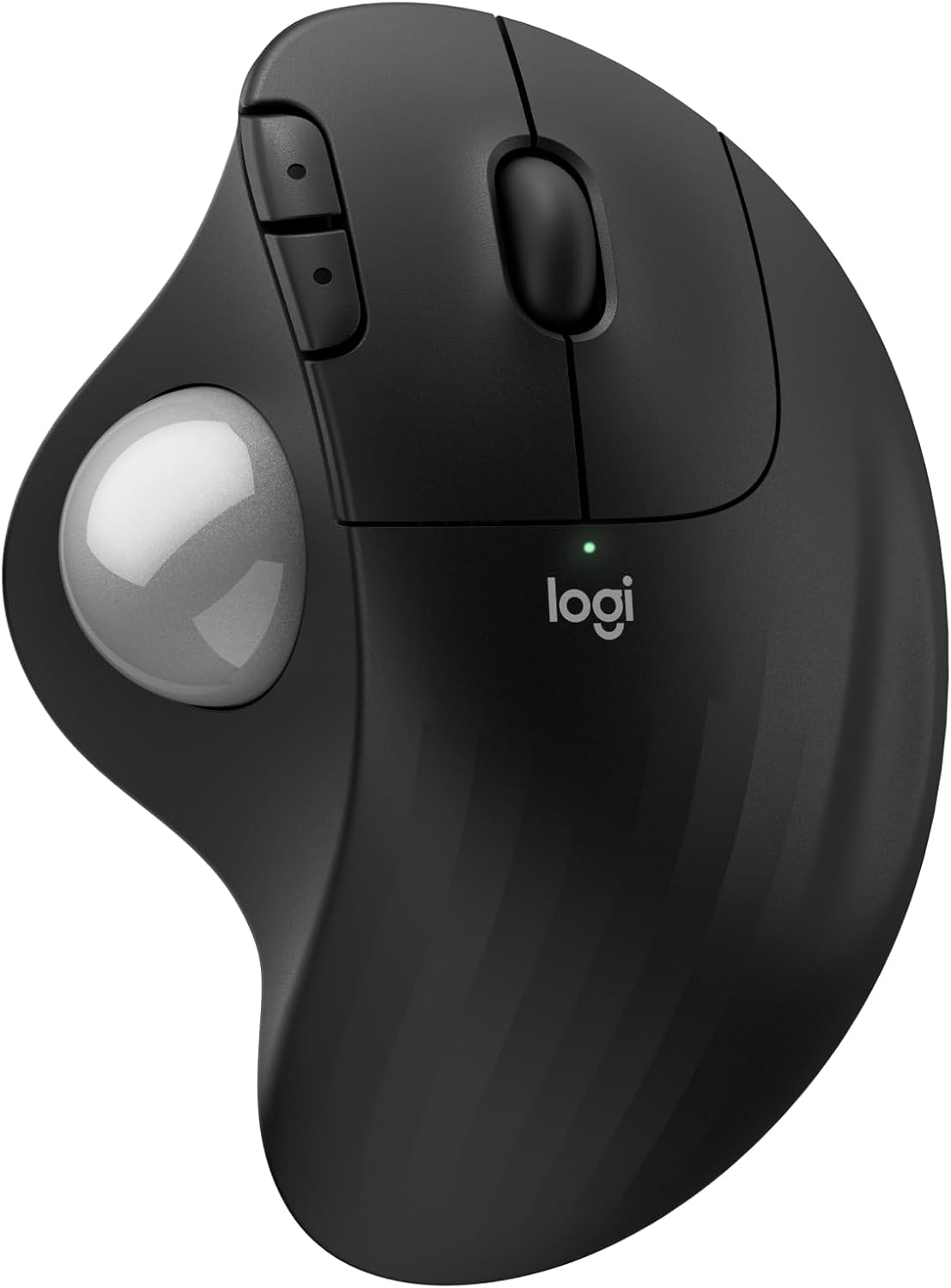
تصوير: مٿي view of the Logitech Ergo M575S Wireless Trackball Mouse, highlighting its ergonomic design and trackball.
Key features include 25% less muscle strain in the forearm compared to traditional mice, an improved forearm posture, customizable buttons via the Logi Options+ App, and long battery life. The mouse is also made with certified post-consumer recycled plastic, contributing to a lighter environmental footprint.
2. سيٽ اپ
2.1. بيٽري لڳائڻ
The Logitech Ergo M575S uses one AA battery. To install or replace the battery:
- مائوس جي هيٺئين پاسي واري بيٽري جي ڪمري کي ڳولھيو.
- بيٽري جو ڍڪ کوليو.
- AA بيٽري داخل ڪريو، صحيح پولارٽي (+/-) کي يقيني بڻائي.
- بيٽري جي ڍڪ کي محفوظ طور تي بند ڪريو.

تصوير: انڊرسائيڊ view of the mouse, illustrating the battery compartment and the slot for the Logi Bolt USB receiver.
2.2. ڪنيڪشن جا اختيار
The ERGO M575S offers two ways to connect to your computer:
- Logi Bolt USB وصول ڪندڙ: Plug the included Logi Bolt USB receiver into an available USB port on your computer. The mouse should connect automatically.
- بلوٽوٿ:
- Turn on the mouse using the power switch on the underside.
- Press and hold the Easy-Switch button (usually on the underside or side) until the LED indicator starts blinking rapidly, indicating pairing mode.
- On your computer, go to Bluetooth settings and select "Logitech ERGO M575S" from the list of available devices to pair.
For optimal performance and customization, download and install the Logi Options+ App from the official Logitech website. This software allows you to personalize button functions, adjust cursor speed, and create application-specific settings.
3. مائوس هلائڻ
3.1. بنيادي ڪم
- کاٻي ڪلڪ ڪريو: شيون چونڊڻ ۽ سافٽ ويئر سان لهه وچڙ ڪرڻ لاءِ پرائمري بٽڻ.
- ساڄي ڪلڪ ڪريو: حوالي جي مينيو ۽ اضافي اختيارن لاءِ ثانوي بٽڻ.
- اسڪرول ويل: Scroll up and down through documents and web صفحا. اسڪرول ويل وچين ڪلڪ بٽڻ طور پڻ ڪم ڪري ٿو.
- ٽريڪ بال: Use your thumb to control the cursor movement on the screen. This eliminates the need to move the entire mouse, reducing arm and wrist strain.

Image: A hand demonstrating the smooth, effortless thumb control of the trackball for precise tracking.
3.2. حسب ضرورت بٽڻ
The ERGO M575S features additional buttons that can be customized using the Logi Options+ App. These typically include forward and back buttons located near the thumb trackball.
- اڳتي/پوئتي بٽڻ: By default, these navigate forward and backward in web برائوزر يا file ڳولا ڪندڙ
- حسب ضرورت: Through the Logi Options+ App, you can reassign these buttons to perform various functions, such as media controls, application switching, or custom keystrokes, enhancing your workflow efficiency.

Image: A laptop displaying the Logi Options+ App interface, demonstrating how to customize the mouse buttons for personalized use.
4. سار سنڀال
4.1. Cleaning the Trackball
Over time, dust and debris can accumulate around the trackball, affecting its smooth operation. Regular cleaning is recommended.
- Gently push the trackball from the underside of the mouse to pop it out.
- ٽريڪ بال کي صاف ڪرڻ لاءِ نرم، لِنٽ فري ڪپڙو استعمال ڪريو.
- Use a cotton swab or compressed air to clean the three small support bearings inside the trackball cavity. Ensure no debris remains.
- Place the trackball back into its socket, ensuring it clicks into place.
نوٽ: Avoid using harsh chemicals or abrasive materials, as these can damage the trackball or the mouse surface.
4.2. عام صفائي
Wipe the exterior of the mouse with a soft, damp cloth as needed to keep it clean.
5. مسئلا حل ڪرڻ
5.1. ڪنيڪٽيويٽي جا مسئلا
- مائوس جواب نه ڏئي رهيو آهي:
- چيڪ ڪريو ته مائوس آن آهي يا نه.
- پڪ ڪريو ته بيٽري صحيح طرح سان نصب ٿيل آهي ۽ ڪافي چارج آهي. جيڪڏهن ضروري هجي ته تبديل ڪريو.
- If using the USB receiver, try plugging it into a different USB port.
- If using Bluetooth, ensure Bluetooth is enabled on your computer and the mouse is paired. Try re-pairing the device.
- وقفي وقفي سان ڳنڍڻ:
- Move the mouse closer to the USB receiver or your computer (for Bluetooth) to reduce interference.
- Avoid placing the receiver near other electrical devices that might cause interference.
5.2. ٽريڪنگ جا مسئلا
- Erratic or no cursor movement:
- Clean the trackball and its internal support bearings as described in the Maintenance section.
- Ensure the trackball is properly seated in its socket.
- Check the surface the mouse is on; while trackballs are less sensitive to surfaces, extreme conditions might affect performance.
5.3. Button/Scroll Wheel Issues
- جواب نه ڏيڻ وارا بٽڻ:
- Verify that the Logi Options+ App is not causing conflicts with custom settings. Try resetting button assignments to default.
- Reinstall the Logi Options+ App if issues persist.
- Scroll wheel not working:
- Ensure no debris is lodged around the scroll wheel.
6. وضاحتون
| خاصيت | تفصيل |
|---|---|
| برانڊ | Logitech |
| ماڊل نمبر | 910-007392 |
| رابطي ٽيڪنالاجي | بلوٽوٿ، يو ايس بي (لوجي بولٽ رسيور) |
| تحريڪ جي سڃاڻپ ٽيڪنالاجي | بصري |
| ڊي پي آءِ رينج | 400-2000 DPI (Adjustable via Logi Options+ App) |
| بيٽري جي زندگي | Up to 18 months (with AA battery) |
| آپريٽنگ سسٽم مطابقت | ونڊوز، macOS |
| شيءِ جو وزن | 7.4 اونس |
| طول و عرض | 5.51 x 4.17 x 1.93 انچ (پيڪيج طول و عرض) |
| مواد | Plastic parts made with certified post-consumer recycled plastic (Graphite: 52%, Off-White: 21%) |
7. وارنٽي ۽ سپورٽ
For detailed warranty information regarding your Logitech Ergo M575S Wireless Trackball Mouse, please refer to the warranty card included with your product or visit the official Logitech support webسائيٽ.
Logitech provides customer support for product inquiries, technical assistance, and warranty claims.
- آن لائن سپورٽ: گهمڻ support.logi.com اڪثر پڇيا ويندڙ سوالن، مسئلن جي حل جي رهنمائي، ۽ ڊرائيور ڊائون لوڊ لاءِ.
- رابطي جي حمايت: Information on contacting Logitech customer service via phone or chat can be found on their support webسائيٽ.


