تعارف
Thank you for choosing the Ourlife WiFi Extender. This device is designed to expand your existing Wi-Fi network coverage, eliminate dead spots, and provide a stable, high-speed internet connection throughout your home or office. With a data transfer rate of up to 300Mbps on the 2.4GHz band, it is ideal for streaming, online gaming, and general internet use. This manual provides detailed instructions for setup, operation, and troubleshooting.
حفاظت جي ڄاڻ
- ڊوائيس کي پاڻي يا نمي کي ظاهر نه ڪريو.
- ڊوائيس کي الڳ ڪرڻ يا مرمت ڪرڻ جي ڪوشش نه ڪريو.
- Use only the power adapter provided or recommended by the manufacturer.
- ڊوائيس کي گرمي جي ذريعن ۽ سڌي سج جي روشني کان پري رکو.
- وڌيڪ گرم ٿيڻ کان بچڻ لاءِ ڊوائيس جي چوڌاري مناسب وائيٽليشن کي يقيني بڻايو وڃي.
پيڪيج مواد
مھرباني ڪري پيڪيج جي مواد کي احتياط سان چيڪ ڪريو. جيڪڏھن ڪا شيءِ غائب يا خراب آھي، پنھنجي پرچون ڪندڙ سان رابطو ڪريو.
- Ourlife WiFi Extender (repeater body)
- استعمال ڪندڙ دستي
پيداوار ختمview
اوurlife WiFi Extender features a compact design with four high-gain external antennas for enhanced signal penetration and coverage. It includes an Ethernet port for wired connections.
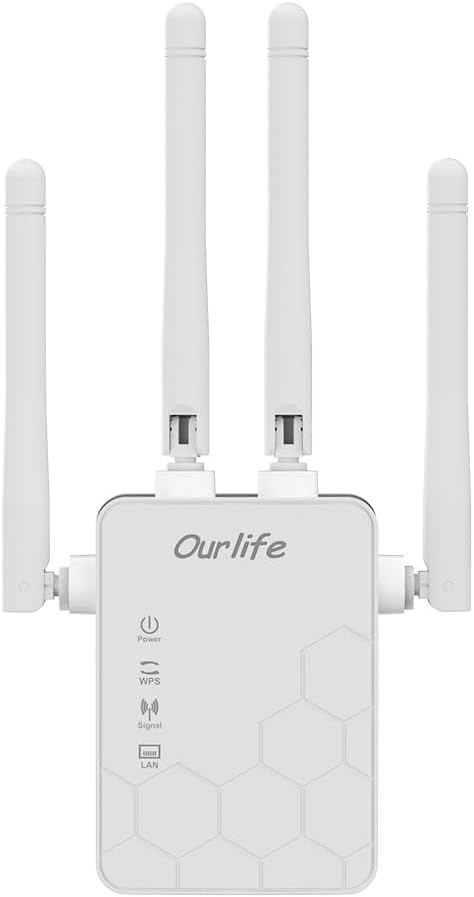
تصوير: سامهون view او جوurlife WiFi Extender, showing the Ourlife logo, power indicator, WPS button, signal strength indicator, and LAN port indicator. Four external antennas are visible.
اهم اجزاء:
- پاور اشارو: روشني وڌي ٿي جڏهن ڊوائيس هلندي آهي.
- WPS بٽڻ: Used for quick, one-button setup with compatible routers.
- اشارو اشارو: Shows the strength of the Wi-Fi signal received from the main router.
- LAN پورٽ: An Ethernet port for connecting wired devices or for setting up the extender in Access Point (AP) mode.
- خارجي اينٽينا: Four adjustable antennas to optimize signal reception and transmission.

تصوير: پاسي view او جوurlife WiFi Extender with dimensions. The device measures approximately 17.2cm/6.8in in height, 5.4cm/2.1in in width, and 3.3cm/1.3in in depth.
سيٽ اپ ڪريو
اوurlife WiFi Extender offers two primary setup methods: WPS (Wi-Fi Protected Setup) for quick connection, and manual setup via a web برائوزر.
Method 1: WPS Setup (Recommended for quick setup)
- پاور آن: او کي لڳايوurlife WiFi Extender into an electrical outlet near your main Wi-Fi router. Wait for the Power indicator to light up.
- ايڪسٽينڊر تي WPS دٻايو: Press the WPS button on the Ourlife WiFi Extender. The WPS indicator light will start blinking.
- روٽر تي WPS دٻايو: Within 2 minutes, press the WPS button on your main Wi-Fi router.
- ڪنيڪشن جو انتظار ڪريو: The WPS indicator on the extender will stop blinking and remain solid when the connection is established. The Signal indicator will also light up, indicating a successful connection.
- منتقلي وڌائڻ وارو: Once connected, unplug the extender and move it to a location halfway between your router and the Wi-Fi dead zone. Ensure the Signal indicator shows a strong signal (usually green or multiple bars) for optimal performance.

Image: Visual representation of the four simple setup steps: 1. Unbox, 2. Plug it in, 3. Press the button (WPS), 4. And Pair (with router).
Method 2: Manual Setup via Web برائوزر
- پاور آن: او کي لڳايوurlife WiFi Extender into an electrical outlet near your computer or mobile device.
- ايڪسٽينڊر جي وائي فائي سان ڳنڍيو: On your computer or mobile device, connect to the Wi-Fi network named "Ourlife_Extender" (or similar, check the label on the device). No password is required for the initial connection.
- کليل Web برائوزر: کوليو a web browser (e.g., Chrome, Firefox, Safari) and enter the default IP address or domain name (e.g., 192.168.10.1 or reapeter.net) into the address bar. Refer to the device label or included mini-manual for the exact address.
- لاگ ان: ڊفالٽ يوزر نالو ۽ پاسورڊ داخل ڪريو (عام طور تي منتظم/ منتظم).
- موڊ چونڊيو: Choose "Repeater Mode" or "AP Mode" based on your needs.
- ريپيٽر موڊ: Extends your existing Wi-Fi network wirelessly.
- اي پي موڊ (رسائي پوائنٽ): Converts a wired internet connection into a wireless Wi-Fi hotspot. Connect an Ethernet cable from your router to the extender's LAN port.
- نيٽ ورڪ ترتيب ڏيو:
- For Repeater Mode: Select your main Wi-Fi network from the list, enter its password, and choose whether to keep the same SSID or create a new one for the extended network.
- For AP Mode: Set a new SSID (network name) and password for the Wi-Fi hotspot.
- سيٽنگون لاڳو ڪريو: Save the settings and wait for the extender to restart.
- منتقلي وڌائڻ وارو: Once configured, unplug and relocate the extender to an optimal position.
آپريٽنگ
After successful setup, the Ourlife WiFi Extender will operate automatically. The Signal indicator will provide visual feedback on the connection quality.
ڪنيڪشن ڊوائيسز:
- وائرليس ڊوائيسز: Connect your smartphones, tablets, laptops, and other Wi-Fi enabled devices to the extended Wi-Fi network (the SSID you configured during setup).
- Wired Devices (via LAN Port): If you are using the extender in Repeater mode, you can connect a wired device (e.g., desktop PC, smart TV, game console) to the extender's LAN port using an Ethernet cable to provide it with network access.
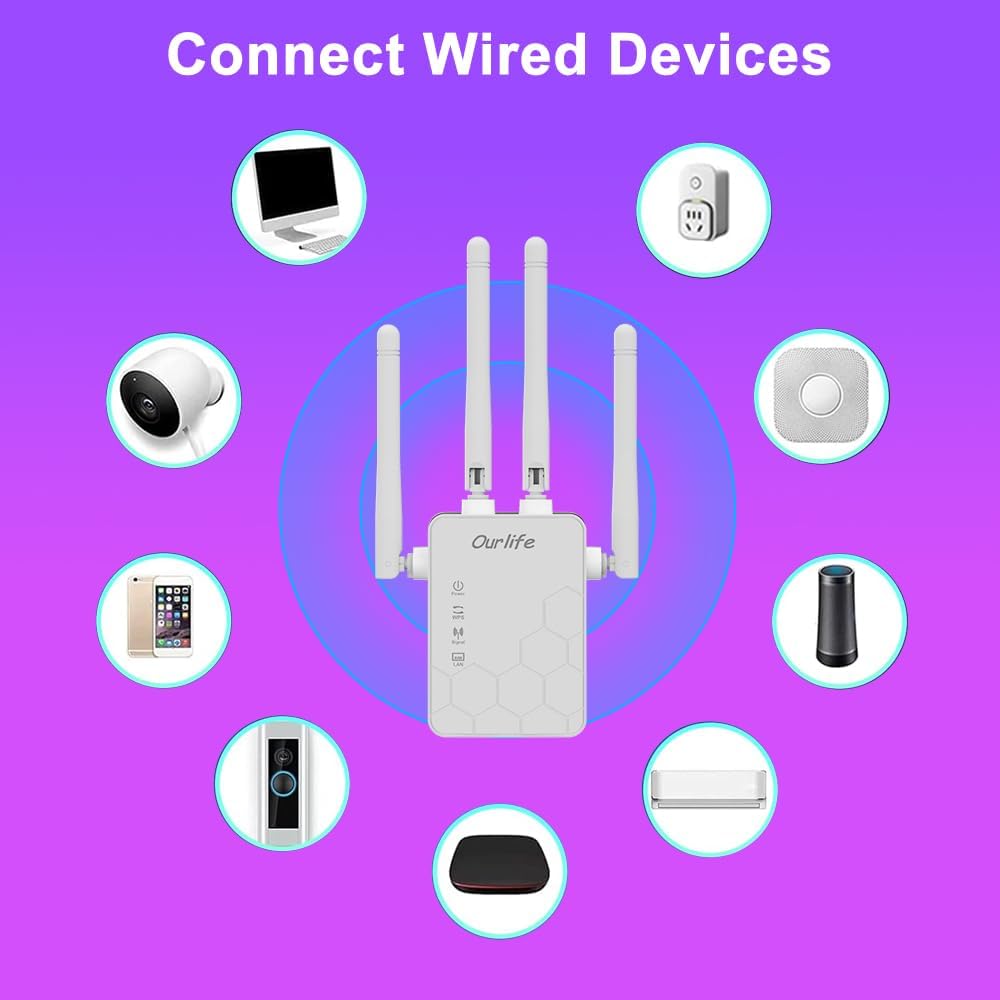
Image: Diagram showing various wired and wireless devices (e.g., desktop computer, smart plug, smart speaker, air conditioner, smart doorbell, security camera, smartphone) that can connect to the Ourlife WiFi Extender.

Image: The Ourlife WiFi Extender plugged into a wall outlet, with an Ethernet cable connected to its LAN port, illustrating its capability to provide a wired connection.
سار سنڀال
Regular maintenance helps ensure the longevity and optimal performance of your Ourlife WiFi Extender.
- صفائي: ڊوائيس کي صاف ڪرڻ لاءِ نرم، سڪل ڪپڙو استعمال ڪريو. مائع صاف ڪندڙ يا ايروسول استعمال نه ڪريو.
- فرم ويئر اپڊيٽس: وقتي طور تي ٺاهيندڙ جي چيڪ ڪريو website for firmware updates. Updating firmware can improve performance, add features, and fix bugs.
- ٻيهر شروع ڪندي: If you experience network issues, try restarting the extender by unplugging it from the power outlet for 10 seconds and then plugging it back in.
- بهترين جڳهه: Ensure the extender is placed in an open area, away from large metal objects, concrete walls, and other electronic devices that may cause interference.
مشڪلاتون
If you encounter issues with your Ourlife WiFi Extender, refer to the following common problems and solutions:
| مسئلو | ممڪن حل |
|---|---|
| ايڪسٽينڊر آن نه ٿي رهيو آهي. | پڪ ڪريو ته ايڪسٽينڊر محفوظ طور تي ڪم ڪندڙ برقي آئوٽليٽ ۾ لڳل آهي. هڪ مختلف آئوٽليٽ آزمايو. |
| Cannot connect to the extender's Wi-Fi for setup. | Ensure you are connecting to the correct default SSID (e.g., "Ourlife_Extender"). Try restarting the extender and your device. |
| WPS setup fails. | Ensure your router supports WPS. Press the WPS button on both devices within the 2-minute window. Try manual setup if WPS continues to fail. |
| No internet access after connecting to the extended network. | Check if your main router has internet access. Relocate the extender closer to your main router to ensure a strong signal (check Signal indicator). Reconfigure the extender. |
| وڌايل نيٽ ورڪ تي سست رفتار. | Relocate the extender to an optimal position where the Signal indicator shows a strong connection to the main router. Avoid placing it near interference sources. Ensure your main router is providing good speeds. |
| Forgot login password for web انتظامي صفحو. | Perform a factory reset on the extender (usually by pressing and holding a reset button for 5-10 seconds). This will revert all settings to default, including the login credentials. |
وضاحتون
| خاصيت | تفصيل |
|---|---|
| برانڊ | Ourlife |
| ماڊل | Ourlife WiFi Extender 300Mbps |
| ASIN | B0D7HB4DBC |
| ڊيٽا جي منتقلي جي شرح | 300 Megabits Per Second (2.4GHz) |
| اينٽينا | 4 High-Gain External Antennas |
| Ethernet پورٽ | 1 x LAN پورٽ |
| رنگ | اڇو |
| رابطي | Wireless-N (802.11n/g/b) |
| سيڪيورٽي پروٽوڪول | Supports Wireless Security (WPA/WPA2) |
| طول و عرض (تقريبن) | 17.2cm (H) x 5.4cm (W) x 3.3cm (D) |
وارنٽي ۽ سپورٽ
For warranty information and technical support, please refer to the documentation included with your purchase or visit the official Ourlife website. You can also contact Ourlife customer service directly for assistance with product setup, troubleshooting, or warranty claims.
Ourlife Store Link: Visit the Ourlife Store on Amazon


