1. پراڊڪٽ ختمview
The DOOGEE T40 is an advanced Android 14 tablet designed for both entertainment and productivity. It features a high-resolution 2.5K display, a powerful Octa-Core processor, and extensive storage capabilities, making it suitable for a wide range of applications from gaming to professional tasks.

شڪل 1.1: اڳيان ۽ پوئين view of the DOOGEE T40 Tablet, highlighting its sleek design and camera module.
اهم خاصيتون:
- ڏيکاريو: 11-inch 2.5K IPS Ultra Clear Display (2560x1600 resolution) for vibrant visuals.
- ڪارڪردگي: Helio G99 Octa-Core Processor (6nm process technology) for smooth multitasking and gaming.
- ياداشت ۽ ذخيرو: Up to 20GB RAM (8GB physical + 12GB virtual) and 512GB internal storage, expandable up to 2TB via microSD.
- بيٽري: 8580mAh large battery with 18W fast charging and reverse charging capability.
- رابطي: Dual SIM 4G LTE, Dual-band Wi-Fi (2.4G/5G), Bluetooth 5.0.
- آپريٽنگ سسٽم: Android 14 for enhanced productivity and entertainment.
- آڊيو: Immersive Quad Speakers for rich sound.
- ڪئميرا: 16MP Main Camera and 8MP Front Camera.
وڊيو 1.1: هڪ اوورview of the DOOGEE T40 Tablet, showcasing its design, display, and key features.
2. دٻي ۾ ڇا آهي
سيٽ اپ سان اڳتي وڌڻ کان اڳ پڪ ڪريو ته سڀئي شيون پيڪيج ۾ موجود آهن.
- T40 Tablet x1
- ٽائپ-سي USB ڪيبل x1
- چارجر x1
- Tool for take card x1 (SIM Ejector Tool)
- Anti-explosion film x1 (Pre-applied screen protector)
- پيڪنگ باڪس x1
- Manual x1 (This document)
3. وضاحتون
| خاصيت | تفصيل |
|---|---|
| برانڊ | DOOGEEE |
| ماڊل نالو | تي40 |
| آپريٽنگ سسٽم | Android 14 |
| اسڪرين جي ماپ | 10.95 انچ |
| اسڪرين جي قرارداد | 2560 x 1600 پکسلز (2.5K) |
| پروسيسر | MediaTek Helio G99 Octa-Core |
| رام | 20 جي بي (8 جي بي فزيڪل + 12 جي بي ورچوئل) |
| اندروني اسٽوريج | 512 جي بي |
| وسعت وارو اسٽوريج | مائڪرو ايس ڊي ڪارڊ ذريعي 2 ٽي بي تائين |
| بيٽري جي گنجائش | 8580mAh |
| چارج ڪرڻ | 18W Fast Charging, Reverse Charging |
| رابطي | Dual SIM 4G LTE, Wi-Fi 2.4G/5G, Bluetooth 5.0 |
| ڪيمرا | 16MP Main, 8MP Front |
| طول و عرض (LxWxH) | 10.09 x 6.61 x 0.3 انچ |
| شيءِ جو وزن | 2.49 پائونڊ |
4. سيٽ اپ
4.1. شروعاتي چارج
Before first use, fully charge your DOOGEE T40 tablet using the provided Type-C USB cable and charger. Connect the charger to the tablet's USB-C port and plug it into a power outlet. The battery indicator on the screen will show charging progress.

Figure 4.1: Illustration of the tablet's 8580mAh battery and 18W fast charging capability.
4.2. پاور آن/آف
- پاور آن ڪرڻ: Press and hold the Power button (located on the side) until the DOOGEE logo appears.
- پاور آف ڪرڻ: پاور بٽڻ کي دٻايو ۽ رکو جيستائين پاور آپشن مينيو ظاهر نه ٿئي، پوءِ "پاور آف" چونڊيو.
- ٻيهر شروع ڪرڻ لاء: پاور آپشن مينيو مان، "ٻيهر شروع ڪريو" چونڊيو.
4.3. سم ڪارڊ ۽ مائڪرو ايس ڊي ڪارڊ جي انسٽاليشن
The DOOGEE T40 supports Dual SIM 4G LTE and MicroSD card expansion.
- ٽيبليٽ جي پاسي تي سم ڪارڊ ٽري ڳوليو.
- Insert the provided SIM ejector tool into the small hole next to the tray and gently push until the tray pops out.
- پنهنجا نانو-سم ڪارڊ ۽/يا مائڪرو ايس ڊي ڪارڊ ٽري تي مقرر ڪيل سلاٽ ۾ رکو، صحيح رخ کي يقيني بڻائي.
- احتياط سان ٽري کي ٽيبليٽ ۾ واپس دٻايو جيستائين اهو جاءِ تي ڪلڪ نه ڪري.

Figure 4.2: Close-up of the Dual SIM and TF (MicroSD) card slot on the DOOGEE T40 Tablet.
4.4. نيٽ ورڪ ڪنيڪشن
- وائي فائي: ڏانهن وڃو سيٽنگون > نيٽ ورڪ ۽ انٽرنيٽ > وائي فائي، وائي فائي آن ڪريو، پنھنجو گهربل نيٽ ورڪ چونڊيو، ۽ جيڪڏھن ضرورت پوي ته پاسورڊ داخل ڪريو.
- موبائل ڊيٽا: Ensure your SIM card is installed correctly. Go to سيٽنگون > نيٽ ورڪ ۽ انٽرنيٽ > موبائل نيٽ ورڪ and enable mobile data.
5. آپريٽنگ هدايتون
5.1. Android 14 تي نيويگيٽ ڪرڻ
The DOOGEE T40 runs on Android 14, offering an intuitive user experience.
- گھر جي اسڪرين: مختلف گهر اسڪرينن تائين رسائي حاصل ڪرڻ لاءِ کاٻي يا ساڄي طرف سوائپ ڪريو.
- ايپ ڊراور: سڀني انسٽال ٿيل ايپليڪيشنن تائين رسائي حاصل ڪرڻ لاءِ اسڪرين جي تري کان مٿي سوائپ ڪريو.
- نوٽيفڪيشن ۽ تڪڙا سيٽنگون: اسڪرين جي مٿئين پاسي کان ھيٺ سوائپ ڪريو view نوٽيفڪيشن ۽ تڪڙا سيٽنگون ٽوگل (وائي فائي، بلوٽوٿ، وغيره).
- تازو ائپس: Swipe up from the bottom and hold, then release to see recently used applications.
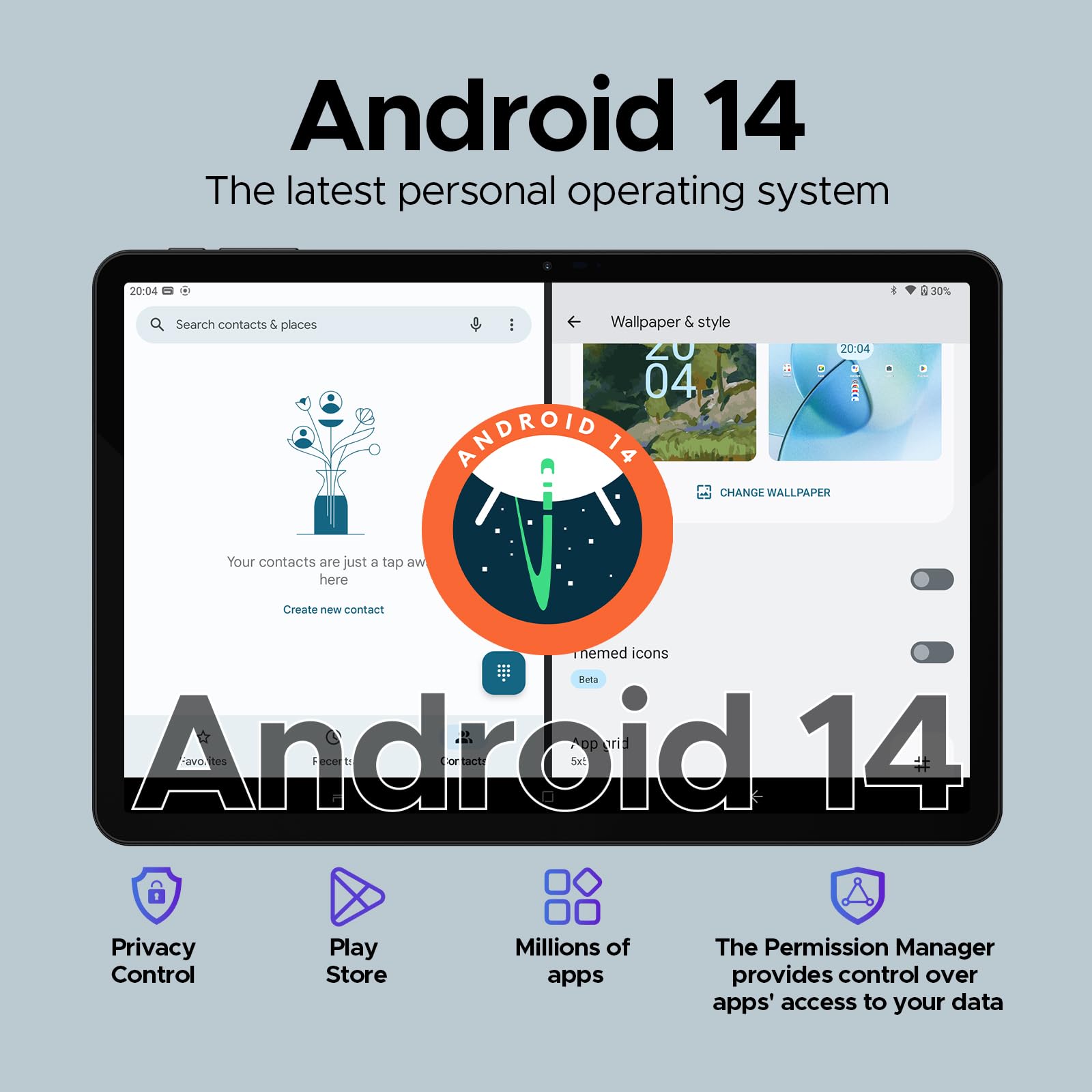
Figure 5.1: Visual representation of the Android 14 operating system interface on the DOOGEE T40.
5.2. فيس ان لاڪ
For quick and secure access, configure Face Unlock:
- ڏانهن وڃو سيٽنگون > سيڪيورٽي ۽ رازداري > ڊوائيس ان لاڪ > فيس ان لاڪ.
- پنهنجي منهن کي رجسٽر ڪرڻ لاءِ اسڪرين تي ڏنل هدايتن تي عمل ڪريو.
5.3. Split-Screen Functionality
Multitask efficiently by using two apps simultaneously:
- Open the first app you want to use.
- Swipe up from the bottom and hold to access recent apps.
- Tap the app icon at the top of the first app's card, then select "Split screen".
- Choose the second app from your recent apps or app drawer to fill the other half of the screen.
5.4. OTG (On-The-Go) Functionality
The DOOGEE T40 supports OTG, allowing you to connect USB devices like flash drives, keyboards, or mice directly to the tablet using a compatible OTG adapter (not included).
It also supports reverse charging, allowing the tablet to act as a power bank for other devices. Connect your device to the tablet's USB-C port using a compatible cable.
6. سار سنڀال
6.1. بيٽري جي سنڀال
- انتهائي گرمي پد کان پاسو ڪريو، ڇاڪاڻ ته اهي بيٽري جي زندگي کي گهٽائي سگهن ٿا.
- ٽيبليٽ سان گڏ ڏنل اصل چارجر ۽ ڪيبل صرف استعمال ڪريو.
- بيٽري جي بهترين ڊگهي عمر لاءِ، بيٽري کي بار بار مڪمل طور تي ختم ڪرڻ يا ان کي ڊگهي عرصي تائين 100٪ تي رکڻ کان پاسو ڪريو.
6.2. صفائي
- ٽيبليٽ جي اسڪرين ۽ باڊي کي صاف ڪرڻ لاءِ نرم، لِنٽ فري ڪپڙو استعمال ڪريو.
- ضدي داغن لاءِ، ٿورو ڊيampڪپڙي کي پاڻي يا اسڪرين ڪلينر سان ڌوئڻ ڏيو. سخت ڪيميڪلز کان پاسو ڪريو.
6.3. سافٽ ويئر اپڊيٽ
بهترين ڪارڪردگي، سيڪيورٽي، ۽ نون خاصيتن تائين رسائي کي يقيني بڻائڻ لاءِ باقاعدي طور تي سافٽ ويئر اپڊيٽس جي جانچ ڪريو ۽ انسٽال ڪريو.
- ڏانهن وڃو سيٽنگون> سسٽم> سسٽم اپڊيٽ.
- Follow the on-screen prompts to download and install any available updates. Ensure your tablet is sufficiently charged or connected to power during updates.
7. مسئلا حل ڪرڻ
| مسئلو | ممڪن حل |
|---|---|
| ٽيبليٽ آن نٿو ٿئي. | پڪ ڪريو ته بيٽري چارج ٿيل آهي. چارجر کي ڳنڍيو ۽ ٻيهر پاور آن ڪرڻ جي ڪوشش ڪرڻ کان اڳ ڪجھ منٽ انتظار ڪريو. جيڪڏهن جواب نه ملي ته، پاور بٽڻ کي 10-15 سيڪنڊن لاءِ دٻايو ۽ دٻايو ته جيئن زبردستي ٻيهر شروع ٿئي. |
| وائي فائي ڪنيڪشن جا مسئلا. | ٽيبليٽ ۽ پنهنجي وائي فائي روٽر کي ٻيهر شروع ڪريو. وائي فائي سيٽنگز ۾ نيٽ ورڪ کي وساريو ۽ ٻيهر ڳنڍيو. پڪ ڪريو ته توهان وائي فائي سگنل جي حد اندر آهيو. |
| ايپس ڪريش ٿي رهيون آهن يا منجمد ٿي رهيون آهن. | مسئلو واري ايپ لاءِ ڪيش ۽ ڊيٽا صاف ڪريو (سيٽنگون > ايپس > [ايپ جو نالو] > اسٽوريج ۽ ڪيش). گوگل پلي اسٽور تان ايپ کي اپڊيٽ ڪريو. جيڪڏهن مسئلو برقرار رهي ته، ايپ کي انسٽال ڪريو ۽ ٻيهر انسٽال ڪريو. |
| سست ڪارڪردگي. | Close unused background apps. Clear cache regularly. Consider uninstalling rarely used apps. Ensure sufficient free storage space. Restart the tablet periodically. |
| سم ڪارڊ نه مليو. | Ensure the SIM card is correctly inserted into the tray. Restart the tablet. Verify that the SIM card is active with your mobile carrier. |
8. وارنٽي ۽ سپورٽ
The DOOGEE T40 Tablet comes with a 2 سال وارنٽي, as stated in the product features. For any technical assistance or warranty claims, please contact the seller directly.
وڪرو ڪندڙ: Tablet flagship store
DOOGEE provides lifetime technical support and full 24/7 customer service for their products.
For further assistance, refer to the official DOOGEE webسائيٽ تي وڃو يا انهن جي ڪسٽمر سپورٽ چينلز سان رابطو ڪريو.


