1. تعارف
Thank you for choosing the Spigen ArcDock 6-in-1 Laptop Stand Hub. This versatile device combines an ergonomic laptop stand with a powerful docking station, providing essential connectivity and a comfortable workspace. This manual will guide you through the setup, operation, and maintenance of your new ArcDock.
2. پراڊڪٽ ختمview
The Spigen ArcDock is designed to enhance your productivity and comfort with its integrated 6-in-1 hub and adjustable stand features. It supports a wide range of laptops up to 15.6 inches.

اهم خاصيتون:
- 6-ان-1 ڪنيڪشن: Includes USB-A 3.0, USB-C 3.0, PD 100W, and 4K 60Hz HDMI.
- پاور پهچائڻ: Up to 100W Power Delivery for fast charging your laptop.
- هاء ريزوليوشن ڊسپلي: Supports 4K at 60Hz via HDMI.
- يونيورسل مطابقت: Works with MacBook Pro, MacBook Air, Dell, HP, Surface, Lenovo, and other laptops up to 15.6 inches.
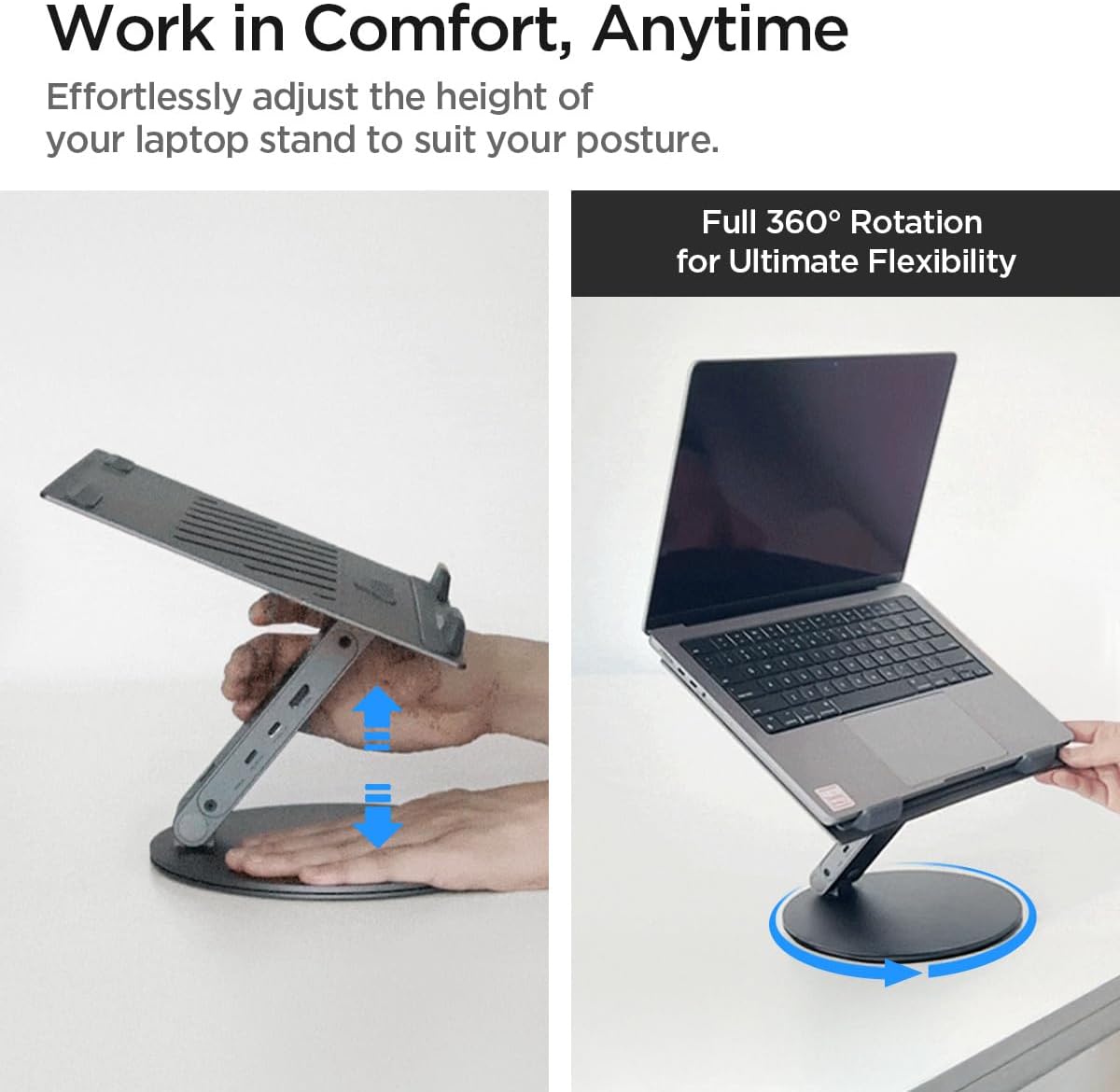
- Adjustable & Rotatable: Features adjustable height and a 360-degree rotating base for optimal viewing angles.
- بهتر هوا جو وهڪرو: Designed to improve airflow and prevent overheating.
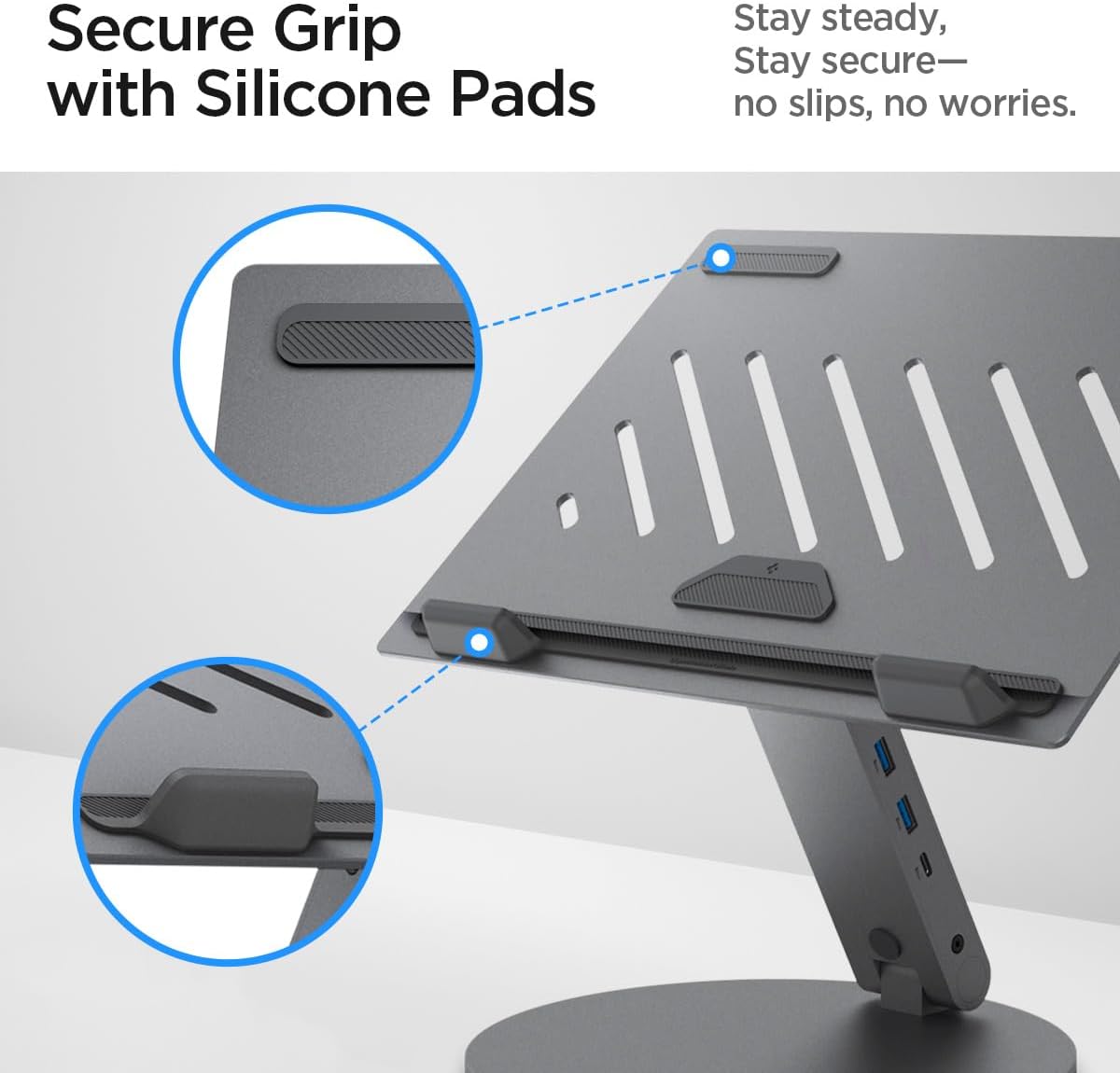
- محفوظ گرفت: Equipped with silicone pads for stability and scratch protection.
3. سيٽ اپ گائيڊ
3.1. انباڪسنگ ۽ اجزاء
Carefully remove all components from the packaging. You should find the Spigen ArcDock Laptop Stand Hub, a USB-C to USB-C cable, and a power adapter.
3.2. پاور ڪنيڪشن
- Connect the provided power adapter to the 'Power' input port on the ArcDock.
- Plug the power adapter into a wall outlet. The power LED on the ArcDock will illuminate.
3.3. توهان جي ليپ ٽاپ سان ڳنڍڻ
- Use the included USB-C to USB-C cable to connect the 'USB-C (Host connection)' port on the ArcDock to a compatible USB-C port on your laptop.
- Ensure your laptop's USB-C port supports Power Delivery and video output for full functionality.
3.4. ٻاهرين ڊسپلي کي ڳنڍڻ
The ArcDock supports up to two external displays via HDMI and DisplayPort.
- For HDMI display, connect an HDMI cable from your monitor to the 'HDMI 2.1' port on the ArcDock.
- For DisplayPort display, connect a DisplayPort cable from your monitor to the 'DisplayPort' port on the ArcDock.
- Adjust your laptop's display settings (e.g., Extend, Mirror) as needed.
3.5. USB پيري فيرلز کي ڳنڍڻ
Connect your USB-A and USB-C peripherals (e.g., mouse, keyboard, external hard drives) to the available USB-A 3.0 and USB-C 3.0 ports on the ArcDock.

4. آپريٽنگ هدايتون
4.1. ڊسپلي ڪارڪردگي
Once connected, your laptop should automatically detect the external displays. You can configure display settings (e.g., resolution, orientation, extended or mirrored desktop) through your operating system's display settings.
- HDMI2.1: 4K@60Hz ريزوليوشن تائين سپورٽ ڪري ٿو.
- ڊسپلي پورٽ: 4K@60Hz ريزوليوشن تائين سپورٽ ڪري ٿو.
4.2. بجلي پهچائڻ (PD)
The ArcDock provides up to 100W Power Delivery through its dedicated USB-C PD port, allowing you to charge your laptop while using the hub's other features. Ensure your laptop supports USB-C PD for this function.
4.3. ڊيٽا جي منتقلي
The USB-A 3.0 and USB-C 3.0 ports offer high-speed data transfer for connected devices like external hard drives, USB flash drives, and other peripherals.
5. Adjustments and Ergonomics
The ArcDock is designed for ergonomic comfort and flexibility.
5.1. اونچائي جي ترتيب
Gently lift or lower the laptop platform to your desired height. The stand is designed to hold its position securely once adjusted.
5.2. 360-ڊگري گردش
The base of the ArcDock allows for a full 360-degree rotation, enabling you to easily share your screen or adjust your viewپوري اسٽينڊ کي حرڪت ڏيڻ کان سواءِ زاويه کي تبديل ڪريو.
6. سنڀال ۽ سار سنڀال
To ensure the longevity and optimal performance of your Spigen ArcDock, follow these care instructions:
- صفائي: Use a soft, dry cloth to wipe down the surface of the stand. Avoid abrasive cleaners or solvents.
- اسٽوريج: When not in use, store the ArcDock in a cool, dry place.
- اوور لوڊ ڪرڻ کان پاسو ڪريو: Do not place items heavier than the recommended weight limit on the stand.
- سلڪون پيڊ: The silicone pads provide a secure grip. Keep them clean and free from dust or debris to maintain their effectiveness.

7. مسئلا حل ڪرڻ
If you encounter any issues with your Spigen ArcDock, please refer to the following common solutions:
- ٻاهرين مانيٽر تي ڪابه ڊسپلي ناهي:
- Ensure the USB-C host connection cable is securely plugged into both the ArcDock and your laptop.
- Verify that your laptop's USB-C port supports video output (DisplayPort Alt Mode).
- Check the display cable connections (HDMI/DisplayPort) to the ArcDock and the monitor.
- Confirm the external monitor is powered on and set to the correct input source.
- For some graphics cards that only support 3 monitors, you may need to turn off the host screen.
- macOS does not support MST (Multi-Stream Transport); external monitors will display the same content.
- ليپ ٽاپ چارج نه ٿي رهيو آهي:
- Ensure the power adapter is correctly connected to the ArcDock and a working power outlet.
- Verify that your laptop's USB-C port supports Power Delivery (PD).
- USB Devices Not Recognized or Slow Data Transfer:
- Ensure USB devices are properly connected to the ArcDock's USB ports.
- Try connecting the device directly to your laptop to rule out device-specific issues.
- Disconnect and reconnect the ArcDock from your laptop.
8. ٽيڪنيڪل وضاحتون
| برانڊ | اسپيگن |
| ماڊل نمبر | AMP08885 |
| رنگ | خلائي گرين |
| مواد | المونيم |
| پيداوار جي ماپ | 29.6 x 21.7 x 4 سينٽي |
| شيءِ جو وزن | 1.33 ڪلو |
| مطابقت رکندڙ ڊوائيسز | MacBook Pro, MacBook Air, Dell, HP, Surface, Lenovo (up to 15.6" Laptops) |
| خاص خاصيتون | Foldable, Adjustable Height, 360 Rotating Base |
| USB-A بندرگاهن | 2x USB-A 3.0 |
| USB-C بندرگاهن | 1x USB-C (Host connection), 1x USB-C (PD 100W) |
| HDMI آئوٽ | 1x HDMI 2.1 (4K@60Hz) |
| ڊسپلي پورٽ آئوٽ | 1x DisplayPort (4K@60Hz) |
9. وارنٽي ۽ سپورٽ
For warranty information and customer support, please refer to the documentation included with your product packaging or visit the official Spigen webسائيٽ. وارنٽي جي دعوي لاء توهان جي خريداري جي رسيد رکو.


