1. پراڊڪٽ ختمview
The Cable Matters 20Gbps USB-C Switch (Model 201343) allows you to share a single USB-C or Thunderbolt 4 monitor or docking station between up to three computers. This device supports high-speed data transfer, video resolutions up to 8K@30Hz on Windows, and 4K@60Hz on macOS, along with 140W Power Delivery charging for the active device. It is designed to streamline your workspace by enabling seamless switching between multiple host devices.

Image: The Cable Matters 20Gbps USB-C Switch, a compact silver device with three input ports and a pigtail output cable, shown alongside its remote control.
اهم خاصيتون:
- 20 Gbps Data Transfer: Supports high-speed data transfer for demanding applications.
- 8K وڊيو ريزوليوشن: Up to 8K@30Hz on Windows, 4K@60Hz on macOS.
- 140W پاور پهچائڻ: Provides fast charging to the active connected laptop.
- 3-in-1-Out Switching: Connects up to three computers to one USB-C peripheral.
- آر ايف ريموٽ ڪنٽرول: Conveniently switch between devices without additional software.
2. سيٽ اپ ۽ تنصيب
Follow these steps to set up your Cable Matters 20Gbps USB-C Switch.
پيڪيج مواد:
- 1 x Cable Matters 20Gbps USB-C Switch (Model 201343) with 1.6ft Pigtail Cable
- 3 x USB4 20Gbps Cables (3.3ft)
- 1 x آر ايف ريموٽ ڪنٽرول
- 2 x Hook-and-Loop Pads
- 1 x Contact Card
- 1 x باڪس

Image: A visual representation of all items included in the product package, including the switch, three USB4 cables, remote control, and documentation.
ڪنيڪشن جون هدايتون:
- Connect the Switch to your Peripheral: Connect the pigtail cable from the USB-C Switch to your USB-C or Thunderbolt 4 monitor or docking station.
- ڪمپيوٽرن کي ڳنڍيو: Use the included USB4 20Gbps cables to connect each of your three computers to the input ports (labeled 1, 2, 3) on the USB-C Switch.
- بجلي پهچائڻ (اختياري): If your monitor or docking station provides Power Delivery, the switch will pass up to 140W of power to the currently active computer. Ensure your peripheral is connected to a power source.
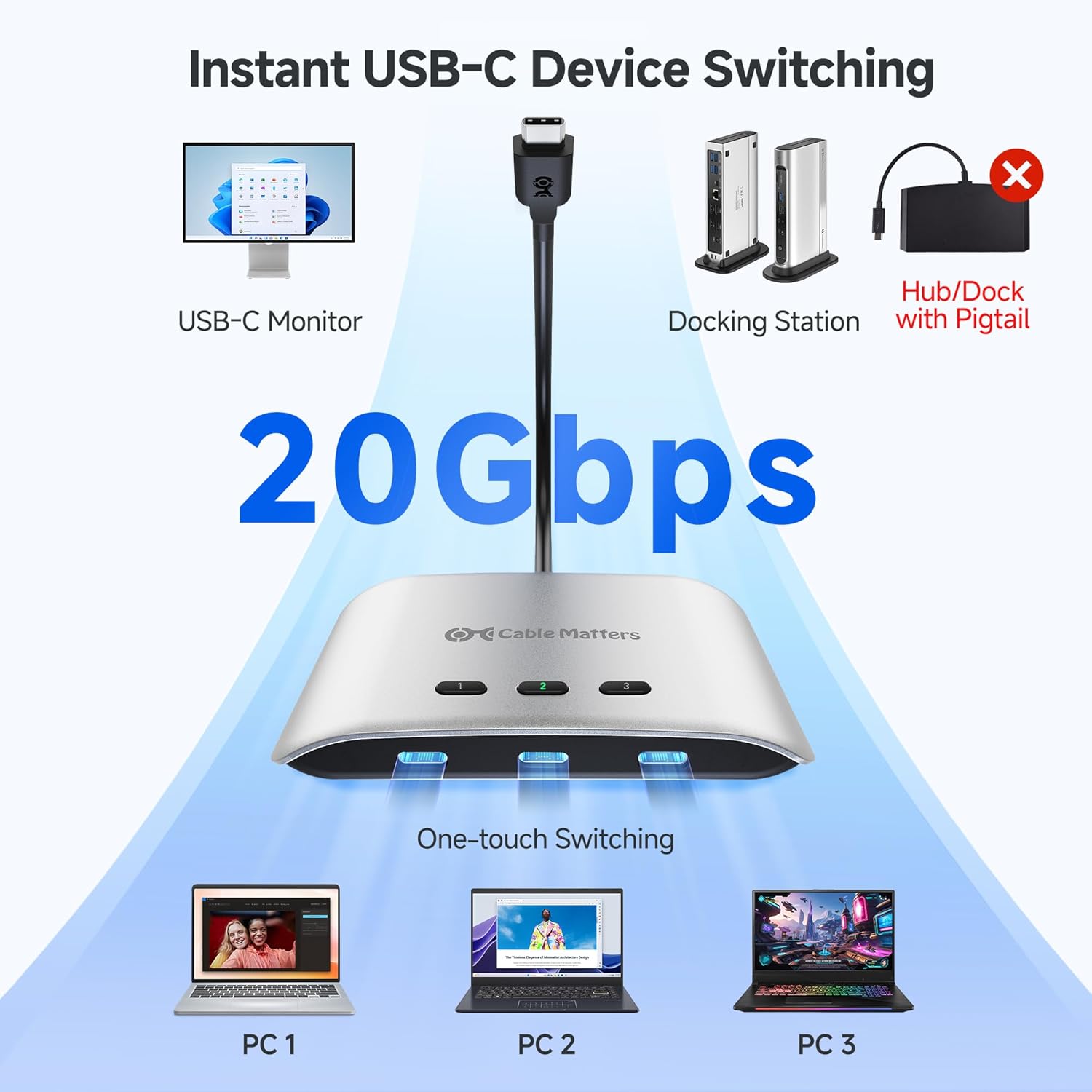
Image: A diagram illustrating the connection flow: three PCs connect to the USB-C switch, which then connects to a USB-C monitor or docking station, enabling one-touch switching.
اهم مطابقت جا نوٽس:
- استعمال ڪريو only the included USB4 20 Gbps cables. Do not use Thunderbolt 3/4/5 cables as this may cause compatibility issues.
- The switch works with USB4 and Thunderbolt 4 docks. However, its 20 Gbps bandwidth (compared to 40 Gbps for most docks) may limit the number of displays or the maximum resolution/refresh rate.
- macOS only supports one external display through this switch.
- Avoid USB-C docks with built-in pigtail/captive cables to prevent compatibility issues.

Image: A comparison diagram showing that Windows/Linux (11th Gen CPU or higher) supports dual 4K@60Hz expansion via a docking station, while macOS supports only one monitor expansion (4K@60Hz).

Image: A diagram illustrating that when using a Thunderbolt 3 device (monitor, laptop, or dock) with the switch, only one external display is supported, and output is limited to 4K@60Hz with a Thunderbolt 3 dock.
3. سوئچ هلائڻ
The USB-C Switch offers both manual and remote control options for switching between connected computers.
دستي سوئچنگ:
Press the numbered buttons (1, 2, or 3) on the top of the switch to select the desired computer. The corresponding LED indicator will illuminate.
آر ايف ريموٽ ڪنٽرول:
Use the included RF remote control for convenient switching from a distance.
- Press buttons 1, 2, or 3 on the remote to select the corresponding computer.
- The 'Next' button cycles through the connected computers sequentially.
Pairing a New Remote:
To pair a new remote, connect the switch to a computer. Press and hold the 'Pair' button on the remote for 5 seconds until the LED on the switch stops flashing.

تصوير: هڪ ويجهو تصوير view of the USB-C switch connected to a monitor, with the remote control shown in the foreground, indicating how to pair a new remote by pressing and holding the 'Pair' button.
Power Delivery Functionality:
The switch supports up to 140W Power Delivery. Note that only the currently selected (active) computer receives charging power. Other connected devices will not charge simultaneously.
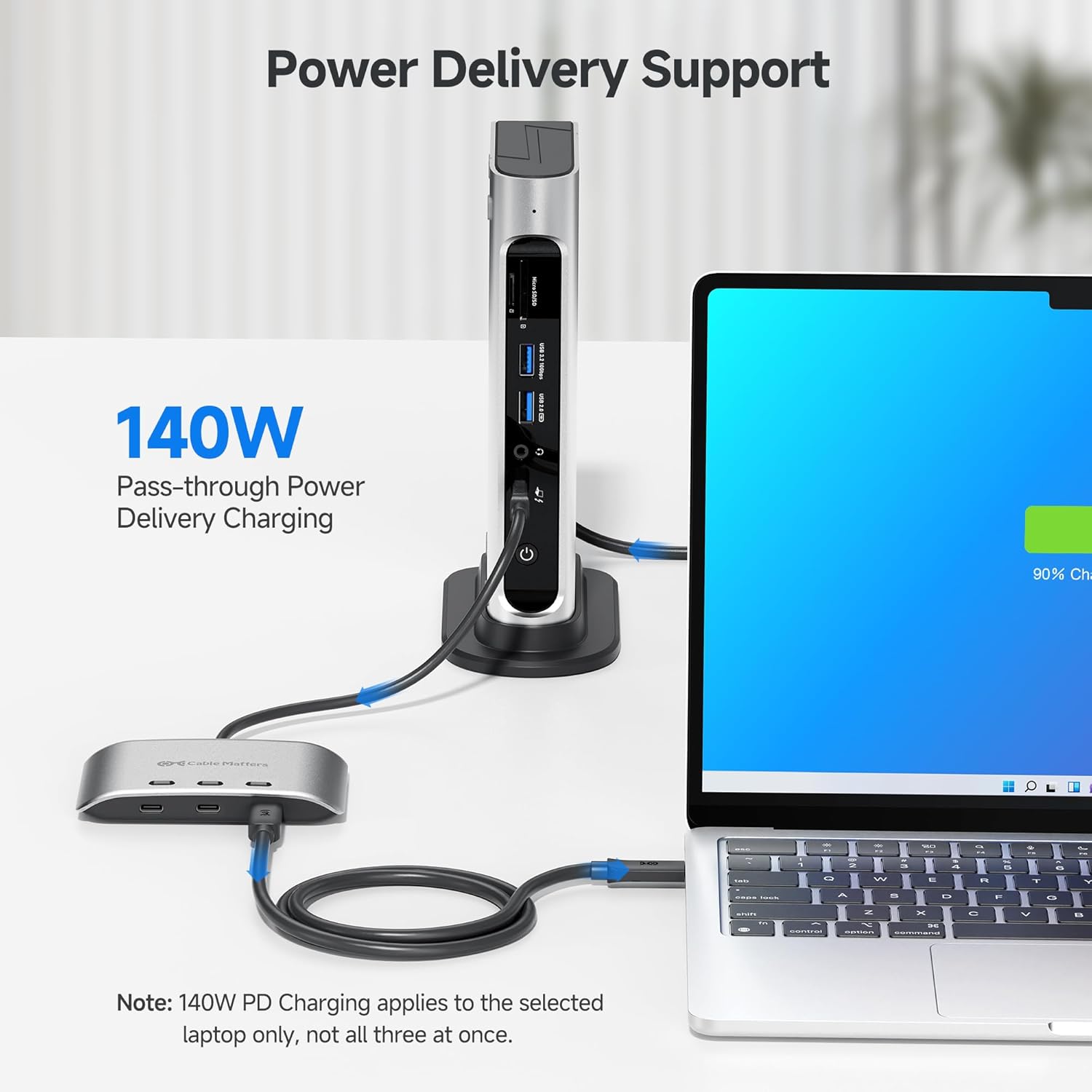
Image: A laptop connected to a docking station via the USB-C switch, showing the laptop charging with a 90% charge indicator, highlighting the 140W pass-through Power Delivery feature.
4. سار سنڀال
To ensure optimal performance and longevity of your USB-C Switch, follow these maintenance guidelines:
- ڊوائيس کي ٿڌي، سڪل جاءِ تي رکو، سڌي سج جي روشني ۽ انتهائي گرمي پد کان پري.
- Clean the exterior with a soft, dry cloth. Avoid using liquid cleaners or abrasive materials.
- پڪ ڪريو ته سڀئي ڪيبل محفوظ طور تي ڳنڍيل آهن ته جيئن سگنل جي نقصان يا وقفي وقفي سان مسئلن کي روڪي سگهجي.
- Do not attempt to disassemble or repair the device yourself. Refer to qualified service personnel if needed.
5. مسئلا حل ڪرڻ
If you encounter issues with your USB-C Switch, refer to the following common problems and solutions:
No Display or Intermittent Video:
- ڪيبل چيڪ: Ensure you are using the included USB4 20Gbps cables. Verify all connections are secure.
- مطابقت: Confirm your monitor and computer support the selected resolution and refresh rate. Remember macOS supports only one external display.
- بينڊوڊٿ جي حد: If using a docking station, the switch's 20Gbps bandwidth may limit the number of displays or maximum resolution compared to a direct 40Gbps connection.
- پاور سائيڪل: Disconnect and reconnect all cables, then restart your computers and monitor.
No Data Transfer or Peripheral Functionality:
- Active Port: Ensure the correct input port is selected on the switch.
- ڪيبل سالميت: Inspect USB4 cables for damage.
- Docking Station Type: Avoid USB-C docks with built-in pigtail/captive cables, as these can cause compatibility issues.
بي چارجنگ:
- Active Computer: Only the currently selected computer receives Power Delivery. Ensure the desired computer is active.
- طاقت جو ذريعو: Verify your monitor or docking station is properly powered and capable of providing Power Delivery.
RF Remote Not Working:
- بيٽري: جيڪڏهن ضروري هجي ته ريموٽ ڪنٽرول جي بيٽري چيڪ ڪريو ۽ تبديل ڪريو.
- جوڙڻ: Re-pair the remote control with the switch as described in the 'Operating the Switch' section.
Video: An official product video demonstrating the features and functionality of the Cable Matters 20Gbps USB-C Switch, including its ability to switch between multiple computers, support high resolutions, and provide power delivery.
6. وضاحتون
| خاصيت | تفصيل |
|---|---|
| ماڊل نمبر | 201343 |
| ڊيٽا جي منتقلي جي شرح | 20 Gbps تائين |
| Video Resolution (Windows) | Up to 8K@30Hz / 5K@60Hz / 4K@144Hz |
| Video Resolution (macOS) | Up to 4K@60Hz (single external display) |
| پاور پهچائڻ | Up to 140W (to active device) |
| ڪنيڪٽر جو قسم | USB-C |
| سوئچ جو قسم | مضبوط حالت |
| آپريشن موڊ | ON-NONE-ON |
| مواد | ٽامي (اندروني جزا) |
| پيڪيج جي ماپ | 6.77 x 5.59 x 1.61 انچ |
| شيءِ جو وزن | 12.7 اونس |
7. وارنٽي ۽ سپورٽ
وارنٽي ڄاڻ:
Cable Matters products typically come with a limited warranty. Please refer to the warranty card included in your product packaging or visit the official Cable Matters webتوهان جي علائقي لاءِ مخصوص تفصيلي وارنٽي شرطن ۽ ضابطن لاءِ سائيٽ.
ڪسٽمر سپورٽ:
For technical assistance, troubleshooting, or product inquiries, please contact Cable Matters customer support through their official webسائيٽ يا توهان جي پراڊڪٽ دستاويزن ۾ ڏنل رابطي جي معلومات.
توھان پڻ دورو ڪري سگھو ٿا Amazon تي ڪيبل ميٽرز اسٽور اضافي پراڊڪٽ جي معلومات ۽ وسيلن لاءِ.


