1. تعارف
This manual provides essential information for setting up, operating, and maintaining your Acer CB242Y G monitor. Please read this manual thoroughly before using the product to ensure proper functionality and safety.
The Acer CB242Y G is a 23.8-inch Full HD (1920 x 1080) IPS monitor designed for a clear and vibrant viewing experience. It features a frameless design, a high refresh rate of up to 120Hz via HDMI/DisplayPort, and 75Hz via VGA, with a rapid 1ms Visual Response Boost (VRB) or 4ms Gray-to-Gray (GTG) response time. The monitor also includes Adaptive Sync technology for smooth visuals and an adjustable stand for ergonomic comfort.
2. حفاظت جي ڄاڻ
مانيٽر کي نقصان کان بچائڻ ۽ ذاتي حفاظت کي يقيني بڻائڻ لاءِ هيٺ ڏنل حفاظتي احتياطن تي عمل ڪريو:
- مانيٽر کي هڪ مستحڪم، سطحي سطح تي رکو.
- وينٽيليشن جي افتتاح کي نه روڪيو.
- صرف ايسر پاران مهيا ڪيل پاور اڊاپٽر ۽ ڪيبل استعمال ڪريو.
- مانيٽر کي پاڻي، نمي ۽ انتهائي گرمي پد کان پري رکو.
- پاڻ مانيٽر جي سروس ڪرڻ جي ڪوشش نه ڪريو. سڀني سروسنگ کي قابل اهلڪارن جي حوالي ڪريو.
- صفائي ڪرڻ کان اڳ پاور ڪيبل کي آئوٽ ليٽ کان ڌار ڪريو.
3. پيڪيج مواد
پڪ ڪريو ته سڀئي شيون توهان جي پيڪيج ۾ موجود آهن:
- Acer CB242Y G Monitor
- مانيٽر اسٽينڊ (بنياد ۽ گردن)
- پاور ڪيبل
- HDMI ڪيبل
- استعمال ڪندڙ جو دستياب (ھي دستاويز)
4. سيٽ اپ
4.1 مانيٽر اسٽينڊ کي گڏ ڪرڻ
- پيڪنگ مان مانيٽر ۽ اسٽينڊ جي حصن کي احتياط سان هٽايو.
- Attach the stand neck to the monitor panel. Ensure it clicks securely into place or is fastened with screws if applicable (refer to specific model instructions for screw details).
- Attach the stand base to the stand neck. Tighten the thumb screw or screws at the bottom of the base to secure it.
- گڏ ٿيل مانيٽر کي هڪ مستحڪم، هموار مٿاڇري تي رکو.
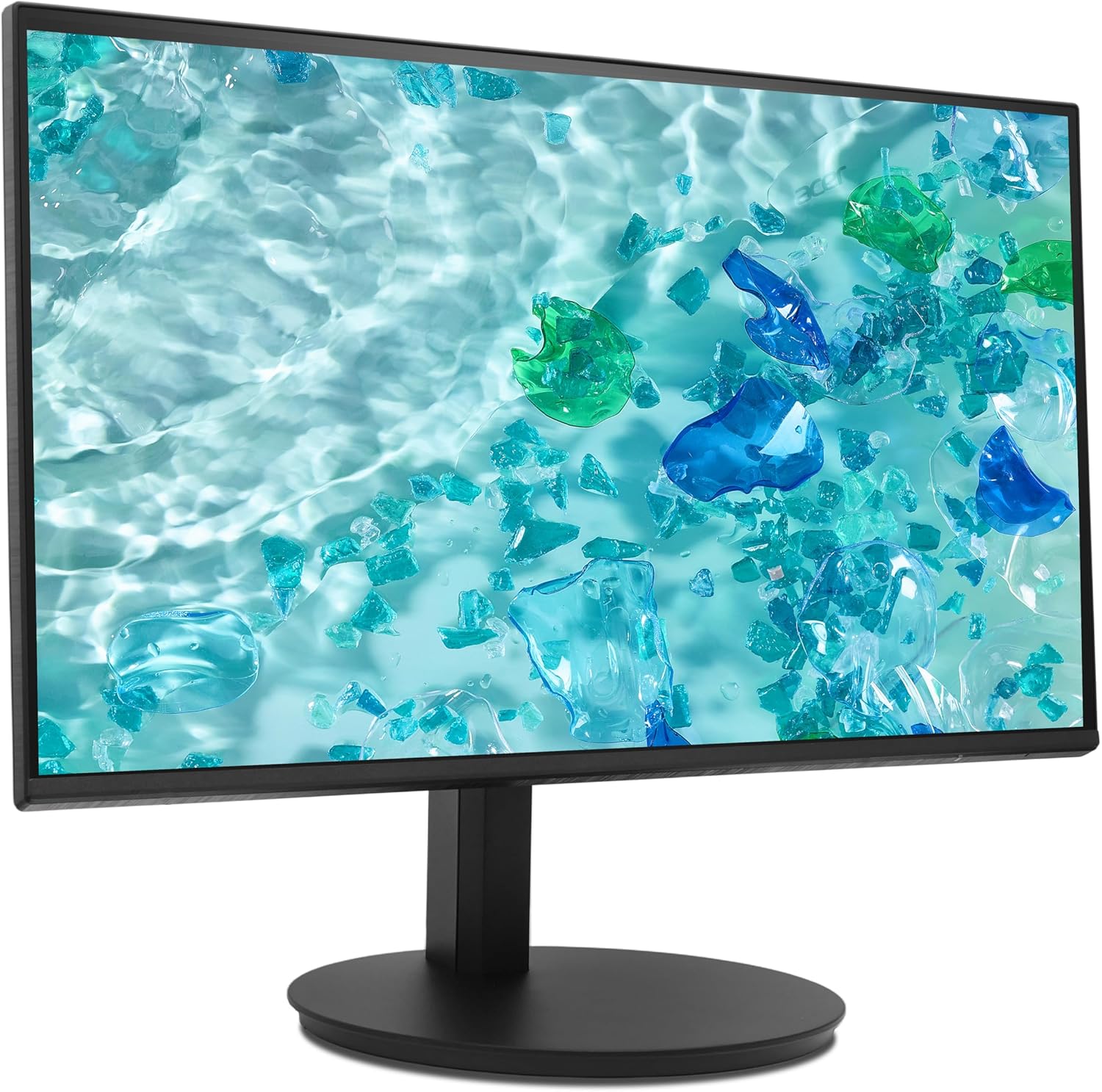
Figure 1: Assembled Acer CB242Y G Monitor. This image shows the monitor from an angled front perspective, highlighting its frameless design and the sturdy stand.
4.2 ڳنڍيندڙ ڪيبل
ضروري ڪيبلز کي مانيٽر ۽ پنهنجي ڪمپيوٽر سان ڳنڍيو:
- پاور ڪيبل: Connect one end of the power cable to the monitor's power input and the other end to a power outlet.
- وڊيو ڪيبل:
- HDMI: Connect the provided HDMI cable from your computer's HDMI output to the monitor's HDMI input.
- VGA: If using VGA, connect a VGA cable from your computer's VGA output to the monitor's VGA input.
- ڊسپلي پورٽ (DP): If using DisplayPort, connect a DisplayPort cable from your computer's DP output to the monitor's DP input. (Note: DP cable not included, but supported by monitor).

شڪل 2: پوئتي view of the monitor. This image displays the back of the monitor, clearly showing the various input ports including HDMI and VGA, and the power input.
4.3 VESA Wall Mounting
The monitor supports VESA 100 x 100 mm mounting. To mount the monitor on a wall or an alternative stand:
- Remove the stand neck from the monitor panel.
- Attach the VESA-compatible wall mount or arm to the four screw holes on the back of the monitor.
- Ensure the mounting screws are of appropriate length and type to avoid damaging internal components.
5. آپريٽنگ هدايتون
5.1 پاور آن/آف
مانيٽر کي آن يا آف ڪرڻ لاءِ ان تي موجود پاور بٽڻ کي دٻايو. جڏهن مانيٽر آن هوندو ته پاور انڊيڪيٽر لائيٽ روشن ٿيندي.
5.2 آن اسڪرين ڊسپلي (OSD) مينيو
او ايس ڊي مينيو توهان کي مختلف مانيٽر سيٽنگز کي ترتيب ڏيڻ جي اجازت ڏئي ٿو. مينيو کي نيويگيٽ ڪرڻ لاءِ ڪنٽرول بٽڻ (عام طور تي مانيٽر جي پوئين يا هيٺئين ساڄي پاسي واقع هوندا آهن) استعمال ڪريو.
- Press a control button to activate the OSD menu.
- Use the navigation buttons (up/down/left/right) to move through menu options.
- Press the select button to enter a sub-menu or confirm a selection.
- Press the exit button to go back or close the OSD menu.
5.3 ڊسپلي سيٽنگز کي ترتيب ڏيڻ
اهم سيٽنگون جيڪي توهان OSD مينيو ذريعي ترتيب ڏئي سگهو ٿا انهن ۾ شامل آهن:
- چمڪ/ برعڪس: روشني ۽ اونداهي علائقن جي وچ ۾ مجموعي روشني ۽ فرق کي ترتيب ڏيو.
- رنگ سيٽنگون: رنگ جي گرمي پد، گاما، ۽ انفرادي آر بي جي سطحن کي تبديل ڪريو.
- ان پٽ جو ذريعو: Manually select between HDMI, VGA, or DisplayPort inputs.
- ريفريش جي شرح: The monitor automatically detects the optimal refresh rate. Ensure your graphics card settings are configured correctly to utilize the maximum 120Hz (HDMI/DP) or 75Hz (VGA).
- موافقت واري هم وقت سازي: Enable or disable Adaptive Sync to synchronize the monitor's refresh rate with your graphics card's frame rate, reducing screen tearing and stuttering. This feature is a VESA open standard.
- بليو لائيٽ فلٽر: Activate this feature to reduce blue light emissions, which can help reduce eye strain during prolonged use.
5.4 ايرگونومڪ ترتيبون
مانيٽر اسٽينڊ مختلف ergonomic ترتيبن جي اجازت ڏئي ٿو:
- اونچائي جي ترتيب: بهترين حاصل ڪرڻ لاءِ مانيٽر کي مٿي يا هيٺ ڪريو viewاونچائي.
- جھلڻ: Adjust the screen's vertical angle (forward/backward) for comfortable viewing.
- گھمڻ: مانيٽر کي ان جي بنياد تي افقي طور تي گھمايو.
- محور: لينڊ اسڪيپ ۽ پورٽريٽ اورينٽيشن جي وچ ۾ سوئچ ڪرڻ لاءِ اسڪرين کي 90 درجا گھمايو.

شڪل 3: پاسي view of the monitor. This image illustrates the monitor's profile, demonstrating its slim design and the range of motion for height and tilt adjustments.
6. سار سنڀال
پنهنجي مانيٽر جي ڊگهي عمر ۽ بهترين ڪارڪردگي کي يقيني بڻائڻ لاءِ، انهن سار سنڀال جي هدايتن تي عمل ڪريو:
- اسڪرين جي صفائي: نرم، لِنٽ فري ڪپڙي سان اسڪرين کي نرميءَ سان صاف ڪريو. ضدي نشانن لاءِ، ڊيampڪپڙي کي پاڻي يا غير رگڙندڙ اسڪرين ڪلينر سان ٿورو ڇڪيو. اسڪرين تي سڌو سنئون ڪلينر اسپري نه ڪريو.
- سي جي صفائيasing: مانيٽر کي صاف ڪرڻ لاءِ نرم، سڪل ڪپڙو استعمال ڪريو casinج. مضبوط ڊٽرجنٽ يا رگڙيندڙ صاف ڪندڙ استعمال ڪرڻ کان پاسو ڪريو.
- وينٽيليشن: Ensure the ventilation openings on the monitor are not obstructed to prevent overheating.
- بجلي بند: صاف ڪرڻ کان اڳ يا جيڪڏهن اهو ڊگهي عرصي تائين استعمال نه ڪيو ويندو ته مانيٽر کي هميشه بند ڪريو ۽ ان کي پاور آئوٽليٽ مان ان پلگ ڪريو.
7. مسئلا حل ڪرڻ
جيڪڏهن توهان کي پنهنجي مانيٽر سان مسئلا درپيش اچن ٿا، ته هيٺ ڏنل عام مسئلن ۽ حلن جو حوالو ڏيو:
| مسئلو | ممڪن حل |
|---|---|
| اسڪرين تي ڪوبه تصوير نه آهي |
|
| تصوير ڌنڌلي يا بگڙيل آهي. |
|
| اسڪرين جو ڦاٽڻ يا هٻڪڻ |
|
| ڪمپيوٽر مانيٽر نه ڳولي سگهيو |
|
8. وضاحتون
| ماڊل نالو | CB242Y G |
| اسڪرين جي ماپ | 23.8 انچ (60 سينٽي) |
| پينل جو قسم | IPS with LED backlight |
| قرارداد | 1920 x 1080 (مڪمل HD) |
| اسپيڪٽ ريشو | 16:9 |
| ريفريش جي شرح | 120 Hz (HDMI/DP), 75 Hz (VGA) |
| جوابي وقت | 1 ms (VRB), 4 ms (GTG) |
| مقابلي جي نسبت | 2000:1 |
| مٿاڇري جو علاج | مٽي |
| رابطي | HDMI 1.4, VGA, DisplayPort |
| خاص خاصيتون | Adaptive Sync, Blue Light Filter, Height Adjustment, Pivot, Swivel, Tilt |
| VESA جبل مطابقت | 100 x 100 ملي ميٽر |
| بجلي جو استعمال (ايس ڊي آر) | 9.0 ڊبليو |
| توانائي جي ڪارڪردگي ڪلاس (SDR) | B |

Figure 4: Energy label for the Acer CB242Y G monitor, showing its energy efficiency class B and power consumption of 9 kWh/1000h.
تفصيلي پراڊڪٽ جي معلومات لاءِ، ڏسو EPREL product database.
9. وارنٽي ۽ سپورٽ
Acer provides comprehensive support for its products. For the Acer CB242Y G monitor, the following support terms apply:
- گھٽ ۾ گھٽ گارنٽي ٿيل پراڊڪٽ سپورٽ: 7 سال
- Minimum Availability of Spare Parts: 7 سال
- سافٽ ويئر ۽ فرم ويئر اپڊيٽ: گھٽ ۾ گھٽ 8 سال
For technical assistance, warranty claims, or further inquiries, please visit the official Acer support website or contact your local Acer service center. Contact information can typically be found on the Acer webسائيٽ تي يا توهان جي پراڊڪٽ جي پيڪنگنگ ۾.