1. تعارف ۽ اوورview
The SVANTTO Android Barcode Scanner PDA is a robust and versatile mobile computer designed for efficient data collection and management in various professional environments. This device integrates advanced barcode scanning capabilities with the functionality of a modern Android smartphone, providing a comprehensive solution for inventory management, point-of-sale, logistics, and more. Available with either Android 11 or Android 13, it offers enhanced security, performance, and user experience.

Figure 1.1: SVANTTO Android Barcode Scanner PDA with charging dock and handheld view. This image illustrates the device's compact design and its compatibility with a dedicated charging cradle.
2. مصنوعات جون خاصيتون
- Advanced Android System:
- Android 13 (IPDA063): Offers enhanced security, smarter memory management, advanced permission controls, optimized battery life, and an intuitive user interface.
- Android 11 (061): Provides enhanced security, improved privacy controls, and seamless multitasking capabilities.

Figure 2.1: Visual representation of the advanced features of the Android 13 operating system, highlighting security, multitasking, and energy efficiency.
- High-Performance CPU: Equipped with the Mediatek MT8781V/CA 8-Core CPU, delivering significant boosts in speed and efficiency for faster app launches and smoother multitasking.

Figure 2.2: Diagram illustrating the superior performance of the MT8781V CPU compared to other standard processors, indicating faster loading times and task execution.
- Robust Scanning Engine: Integrates the Zebra SE4710 scanner engine, providing exceptional scanning performance for 1D/2D barcodes and QR codes. Features two scan buttons for user convenience.

Figure 2.3: Image demonstrating the Zebra SE4710 scanner engine in action, accurately reading different types of barcodes and QR codes on a package.
- ياداشت ۽ ذخيرو: Features 4GB RAM and 64GB ROM flash memory, enabling quick processing and ample storage for applications and data.

Figure 2.4: Graphic illustrating the extensive 4GB RAM and 64GB ROM storage capacity, symbolizing limitless data storage for user applications and files.
- پتلي ۽ پورٽبل ڊيزائن: Weighs approximately 285g, designed for comfortable one-handed use and prolonged operation without fatigue.
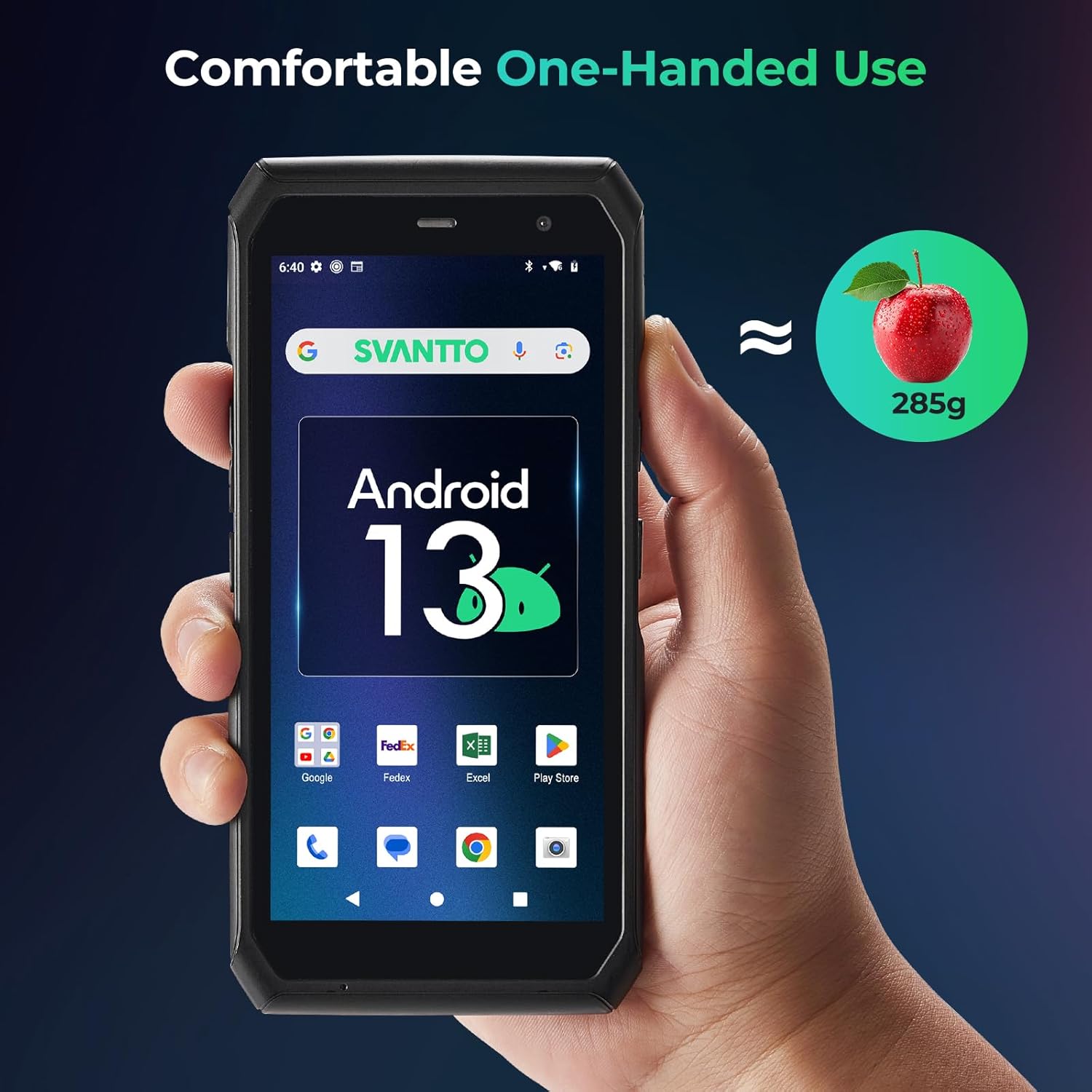
Figure 2.5: Image depicting the SVANTTO PDA comfortably held in one hand, emphasizing its lightweight (285g) and ergonomic design for extended use.
- سافٽ ويئر مطابقت: Compatible with popular inventory management applications such as Zoho Inventory, Ocra Scan, inFlow Inventory, and Finale Inventory.
- حسب ضرورت بٽڻ: Features customized buttons with API/SDK support for developing integrated software solutions.
3. سيٽ اپ گائيڊ
3.1 شروعاتي چارجنگ
Before first use, fully charge the device using the provided USB-C cable and power adapter, or by placing it in the optional charging dock. The charging indicator light will typically show red while charging and turn green when fully charged.
3.2 پاور آن/آف
- پاور آن ڪرڻ: Press and hold the Power button (usually located on the side) for a few seconds until the SVANTTO logo appears on the screen.
- پاور آف ڪرڻ: پاور بٽڻ کي دٻايو ۽ رکو جيستائين پاور آپشن مينيو ظاهر نه ٿئي. "پاور آف" چونڊيو ۽ تصديق ڪريو.
- ٻيهر شروع ڪرڻ لاء: From the power options menu, select "Restart".
3.3 SIM/SD Card Installation (if applicable)
Locate the SIM/SD card slot, typically under a protective cover on the side or back of the device. Insert your Nano-SIM card and/or microSD card into the designated trays, ensuring correct orientation. Close the cover securely.
3.4 نيٽورڪ ڪنيڪشن
- وائي فائي: ڏانهن وڃو سيٽنگون > نيٽ ورڪ ۽ انٽرنيٽ > وائي فائي. Turn Wi-Fi on, select your desired network, and enter the password if prompted.
- سيلولر ڊيٽا: Ensure a valid SIM card is installed. Go to سيٽنگون > نيٽ ورڪ ۽ انٽرنيٽ > موبائل نيٽ ورڪ and enable mobile data.
3.5 شروعاتي سافٽ ويئر سيٽ اپ
Upon first power-on, follow the on-screen prompts to complete the initial Android setup, including language selection, Google account login, and basic settings configuration. Install any necessary applications from the Google Play Store or via your organization's deployment method.
4. آپريٽنگ هدايتون
4.1 بنيادي نيويگيشن
- ٽچ اسڪرين: Navigate the device using standard Android touch gestures (tap, swipe, pinch-to-zoom).
- جسماني بٽڻ: Utilize the power button, volume buttons, and dedicated scan buttons for quick access to functions.
4.2 بارڪوڊ اسڪيننگ
The SVANTTO PDA is equipped with a high-performance Zebra SE4710 scanner engine for efficient barcode and QR code reading.
- Open the application that requires barcode input (e.g., inventory management app).
- Point the scanner window at the barcode or QR code you wish to scan.
- Press one of the dedicated scan buttons located on the sides of the device. A red laser or illumination will activate.
- Hold steady until the device registers the scan, usually indicated by a beep or vibration, and the data appears in the application.
Note: The camera and the scan engine cannot be running at the same time.

Figure 4.1: User holding the SVANTTO PDA and scanning a barcode, showing the red laser beam emitted from the device's scanner.
4.3 Data Entry and Application Usage
Utilize the on-screen keyboard for manual data entry. For specific application functionalities, refer to the respective application's user guide. The device is optimized for use with various business applications, including:
- زوهو انوینٽري
- اوڪرا اسڪين
- ان فلو انوینٽري
- فائنل انوینٽري
5. سار سنڀال
5.1 ڊوائيس کي صاف ڪرڻ
To clean the device, power it off and gently wipe the screen and body with a soft, lint-free cloth. For stubborn smudges, slightly dampen the cloth with water or a screen-safe cleaning solution. Avoid using harsh chemicals, abrasive materials, or excessive moisture.
5.2 بيٽري جي سنڀال
- ڊوائيس کي انتهائي گرمي پد تي ظاهر ڪرڻ کان بچاء.
- بيٽري کي بار بار مڪمل طور تي خارج ٿيڻ نه ڏيو.
- Use only SVANTTO-approved chargers and cables.
5.3 سافٽ ويئر اپڊيٽ
بهتر ڪارڪردگي، سيڪيورٽي، ۽ نون خاصيتن تائين رسائي کي يقيني بڻائڻ لاءِ باقاعدي طور تي سسٽم اپڊيٽس جي جانچ ڪريو ۽ انسٽال ڪريو. وڃو سيٽنگون> سسٽم> سسٽم اپڊيٽ دستياب اپڊيٽس جي جانچ ڪرڻ لاءِ.
5.4 اسٽوريج مينيجمينٽ
وقتي طور تي ٻيهرview and manage the device's internal storage. Uninstall unused applications, clear cache data, and transfer large files to external storage (microSD card) or cloud services to maintain performance.
6. مسئلا حل ڪرڻ
6.1 عام مسئلا ۽ حل
| مسئلو | ممڪن سبب | حل |
|---|---|---|
| ڊوائيس تي طاقت نه آهي | گهٽ بيٽري؛ سافٽ ويئر ڪريش | گهٽ ۾ گهٽ 30 منٽن لاءِ ڊوائيس کي چارج ڪريو. 10-15 سيڪنڊن لاءِ پاور بٽڻ کي دٻائي زبردستي ري اسٽارٽ ڪريو. |
| Barcode scanner not working | Scanner disabled; poor lighting; damaged barcode; camera app running | Ensure scanner is enabled in settings. Check lighting conditions. Clean scanner window. Ensure no other app is using the camera. Restart the device. |
| Wi-Fi/Cellular connectivity issues | Incorrect password; out of range; network problem; SIM card issue | Verify Wi-Fi password. Move closer to router. Restart router/modem. Reinsert SIM card. Contact network provider. |
| ڊوائيس سست يا غير جوابده آهي | تمام گهڻيون ايپس هلندڙ آهن؛ گهٽ اسٽوريج؛ پراڻو سافٽ ويئر | Close background apps. Clear app caches. Free up storage space. Check for and install system updates. Restart the device. |
If the issue persists after attempting these solutions, please contact SVANTTO customer support for further assistance.
7. وضاحتون
- آپريٽنگ سسٽم: Android 11 (061) / Android 13 (IPDA063)
- سي پي يو: Mediatek MT8781V/CA (8-Core)
- ياداشت: 4GB رام + 64GB روم
- ڏيکاريو: 5.5 انچ ٽچ اسڪرين
- Scanner Engine: Zebra SE4710 (Supports 1D/2D Barcodes, QR Codes)
- وزن: تقريبن 285 گرام
- رابطي: Wi-Fi, 4G LTE, Bluetooth (assumed)
- بندرگاهن: USB-C (for charging and data transfer)
- ASIN: B0DNK224ML
- پهريون دستياب: نومبر 19، 2024
8. وارنٽي ۽ سپورٽ
8.1 محدود وارنٽي
SVANTTO products typically come with a limited warranty covering manufacturing defects. Please refer to the warranty card included with your product or visit the official SVANTTO webتفصيلي وارنٽي شرطن ۽ ضابطن لاءِ سائيٽ.
8.2 ٽيڪنيڪل سپورٽ
For technical assistance, troubleshooting, or inquiries regarding API/SDK for software integration, SVANTTO offers comprehensive support services. This includes 24/6/365 technical advisory services.

Figure 8.1: Graphic illustrating the comprehensive assistance provided by SVANTTO, including SDK development kits and 24/6/365 technical advisory services.
Please visit the official SVANTTO website or contact their customer service for contact information and support channels.
توھان جو دورو ڪري سگھو ٿا SVANTTO Store on Amazon وڌيڪ معلومات لاءِ.


