1. تعارف
This manual provides comprehensive instructions for the installation, operation, maintenance, and troubleshooting of your Sapphire Pulse AMD Radeon RX 9070 Gaming graphics card. Please read this manual thoroughly before installing and using your new graphics card to ensure proper functionality and to maximize its performance and lifespan.
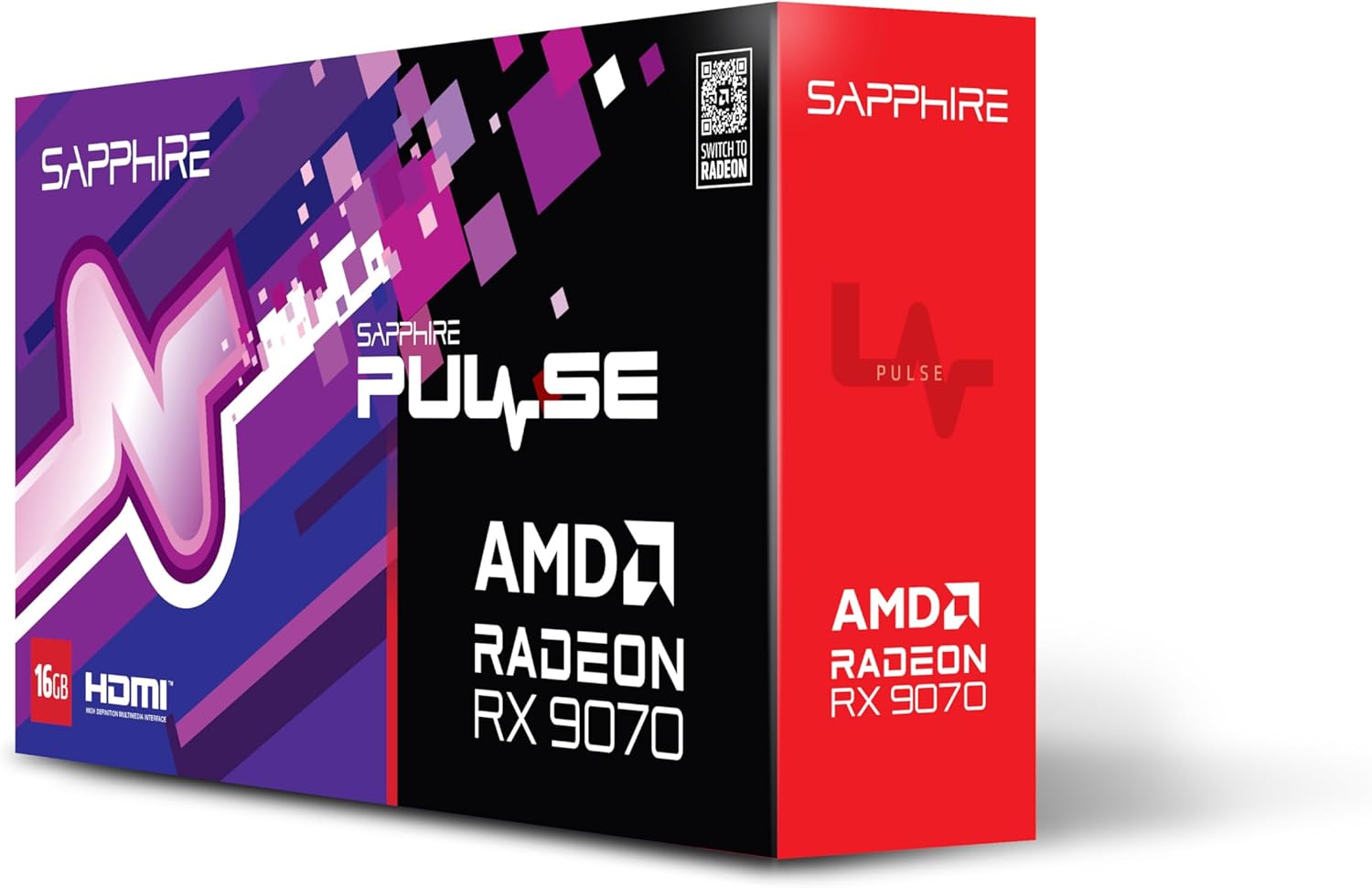
تصوير 1.1: سامهون view of the Sapphire Pulse AMD Radeon RX 9070 Gaming graphics card packaging, showcasing the product branding and model.
2. پيڪيج مواد
Verify that all items are present in your package. If any items are missing or damaged, please contact your retailer or Sapphire support.
- Sapphire Pulse AMD Radeon RX 9070 Gaming Graphics Card
- Quick Installation Guide or Documentation
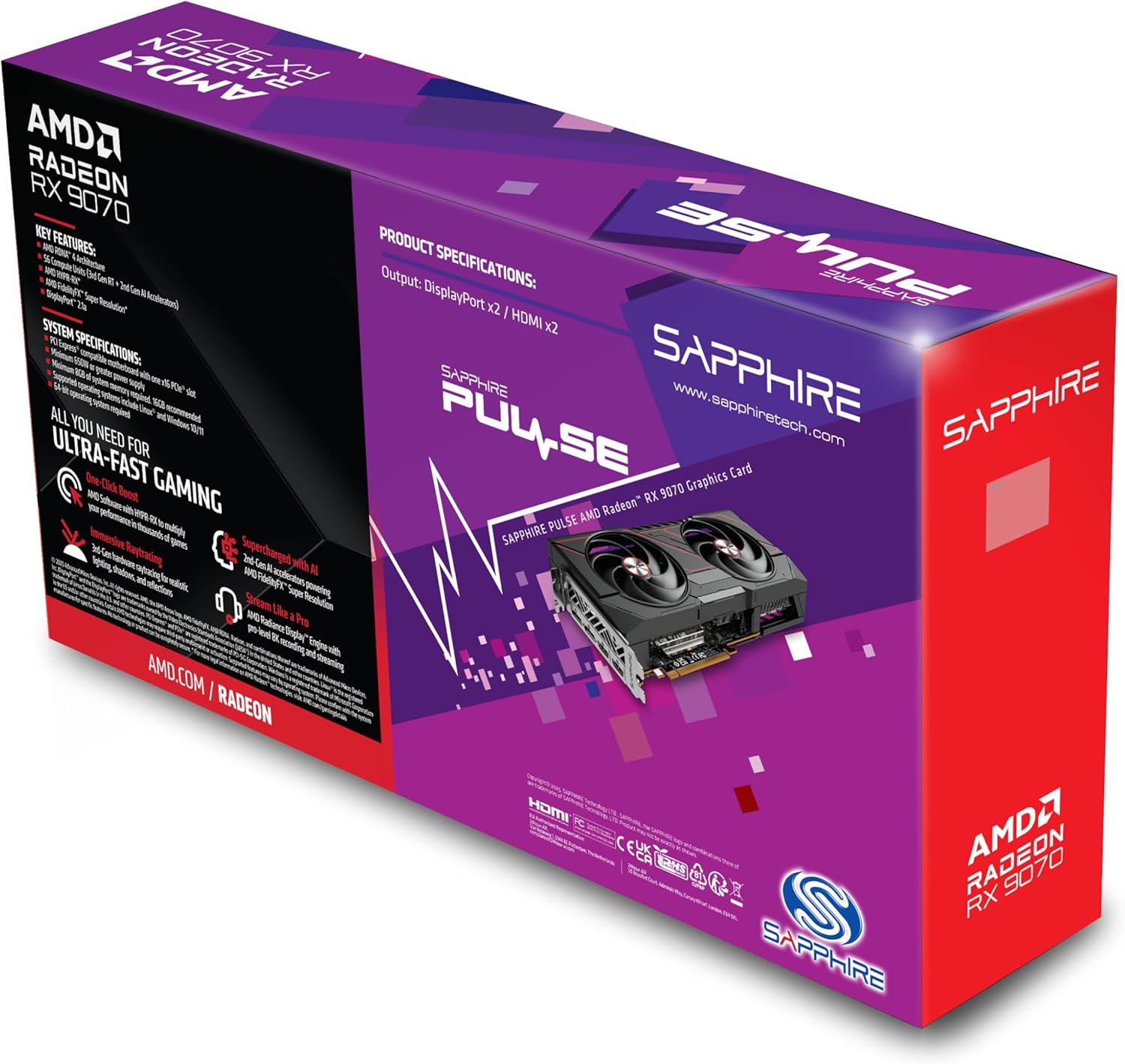
تصوير 2.1: ريئر view of the Sapphire Pulse AMD Radeon RX 9070 Gaming graphics card packaging, displaying key features and specifications.
3. سسٽم گهرجون
گرافڪس ڪارڊ انسٽال ڪرڻ کان اڳ، پڪ ڪريو ته توهان جو سسٽم هيٺين گهٽ ۾ گهٽ گهرجن کي پورو ڪري ٿو:
- PCI Express-compliant motherboard with one X16 graphics slot.
- Minimum 650W Power Supply Unit (PSU) with appropriate PCIe power connectors (e.g., 8-pin + 6-pin or dual 8-pin, depending on specific model). Refer to your PSU manual for details.
- Minimum 8GB System Memory (RAM); 16GB or more recommended for optimal performance.
- آپريٽنگ سسٽم: ونڊوز 10/11 64-bit يا لينڪس 64-bit.
- انٽرنيٽ ڪنيڪشن for driver installation and updates.
- ڊسپلي مانيٽر with DisplayPort or HDMI input.
4. تنصيب
Follow these steps to install your Sapphire Pulse AMD Radeon RX 9070 Gaming graphics card:
- پنهنجو نظام تيار ڪريو:
- پنهنجو ڪمپيوٽر بند ڪريو ۽ پاور ڪيبل کي وال آئوٽليٽ کان ڌار ڪريو.
- توهان جي ڪمپيوٽر ڪيس کوليو.
- Ground yourself by touching a metal part of the case to discharge static electricity.
- Remove Existing Graphics Card (if applicable):
- Disconnect any power cables from the old graphics card.
- Unscrew the retaining screw(s) holding the card to the case.
- Carefully unlatch the PCIe slot retention clip and gently pull the old card straight out of the slot.
- Install the New Graphics Card:
- پنهنجي مدر بورڊ تي موجود PCI ايڪسپريس x16 سلاٽ ڳوليو.
- Remove the metal bracket cover(s) from the back of your computer case corresponding to the slot.
- Align the graphics card with the PCIe slot and press it firmly until it is fully seated and the retention clip locks into place.
- Secure the graphics card to the case with the retaining screw(s).
- اهم: This graphics card is substantial in weight. It is highly recommended to use a GPU support bracket to prevent sag and potential damage to the PCIe slot over time.
- پاور ڪيبل ڳنڍيو:
- Connect the appropriate PCIe power cables from your power supply to the power connectors on the graphics card. Ensure all connectors are securely attached.
- ڪيس بند ڪريو ۽ پيري فيرلز کي ڳنڍيو:
- پنهنجو ڪمپيوٽر ڪيس بند ڪيو.
- Connect your monitor(s) to the DisplayPort or HDMI outputs on the graphics card.
- Reconnect the power cable to your computer and turn it on.
5. ڊرائيور لڳائڻ
After physical installation, you need to install the latest drivers for your graphics card:
- ڊرائيورز ڊائون لوڊ ڪريو:
- سرڪاري AMD جو دورو ڪريو webسائيٽ (www.amd.com/en/support) or the Sapphire support page (www.sapphiretech.com/en/support).
- Navigate to the driver download section and select your graphics card model (AMD Radeon RX 9070).
- Download the latest recommended drivers for your operating system.
- انسٽال ڪريو ڊرائيور:
- Run the downloaded driver installer.
- Follow the on-screen prompts to complete the installation. It is generally recommended to perform a "Clean Installation" to remove any previous driver remnants.
- Your screen may flicker or go black temporarily during the installation process. This is normal.
- سسٽم ٻيهر شروع ڪريو:
- انسٽاليشن مڪمل ٿيڻ کان پوء، توهان جي ڪمپيوٽر کي ٻيهر شروع ڪريو.
- After restarting, your graphics card should be fully functional.
6. گرافڪس ڪارڊ هلائڻ
Once installed and drivers are updated, your graphics card will automatically handle graphics processing for your system. You can further optimize its performance and settings using the AMD Radeon Software.
- AMD Radeon Software: This utility allows you to monitor performance, adjust game settings, manage display configurations (including FreeSync), and update drivers. Access it via the system tray icon or by right-clicking on your desktop.
- Display Connections: The card supports Dual HDMI and Dual DisplayPort outputs. Connect your monitors to the available ports. For multi-monitor setups, configure display arrangements within Windows Display Settings or AMD Radeon Software.
- قرارداد: The card supports a maximum screen resolution of 7680x4320. Ensure your monitor and cables support the desired resolution and refresh rate.
7. سار سنڀال
Proper maintenance helps ensure the longevity and optimal performance of your graphics card.
- مٽي هٽائڻ: Periodically clean dust from the graphics card heatsink and fans using compressed air. Ensure the computer is powered off and unplugged before cleaning. Hold the fan blades gently to prevent over-spinning during cleaning.
- هوا جو وهڪرو: Ensure your computer case has adequate airflow to prevent overheating. Keep cables tidy and ensure intake and exhaust fans are clear.
- ڊرائيور اپڊيٽ: Regularly check for and install the latest graphics drivers from AMD or Sapphire to benefit from performance improvements, bug fixes, and new features.
8. مسئلا حل ڪرڻ
جيڪڏهن توهان کي پنهنجي گرافڪس ڪارڊ سان مسئلا درپيش اچن ٿا، ته هيٺ ڏنل عام مسئلا حل ڪرڻ واري قدمن جو حوالو ڏيو:
- ڪابه ڊسپلي آئوٽ پٽ ناهي:
- پڪ ڪريو ته مانيٽر گرافڪس ڪارڊ سان ڳنڍيل آهي، نه ته مدر بورڊ جي انٽيگريٽڊ گرافڪس پورٽ سان.
- Verify all power cables are securely connected to the graphics card and power supply.
- گرافڪس ڪارڊ کي ان جي PCIe سلاٽ ۾ ٻيهر سيٽ ڪريو.
- جيڪڏهن ممڪن هجي ته مختلف ڊسپلي ڪيبل يا مانيٽر سان ٽيسٽ ڪريو.
- سسٽم جي عدم استحڪام يا ڪريشز:
- پڪ ڪريو ته توهان جو پاور سپلائي يونٽ (PSU) گهٽ ۾ گهٽ واٽ کي پورو ڪري ٿوtage جي گهرج.
- Perform a clean installation of the latest graphics drivers.
- Monitor GPU temperatures using AMD Radeon Software to check for overheating.
- پنهنجي مدر بورڊ لاءِ BIOS/UEFI اپڊيٽس جي جانچ ڪريو.
- راندين/ايپليڪيشنن ۾ خراب ڪارڪردگي:
- پڪ ڪريو ته جديد گرافڪس ڊرائيور انسٽال ٿيل آهن.
- Verify that the game/application is using the dedicated graphics card and not integrated graphics (if applicable).
- راند ۾ سيٽنگون چيڪ ڪريو؛ جيڪڏهن ضروري هجي ته ريزوليوشن يا گرافڪس جي معيار کي گهٽايو.
- Monitor GPU utilization and temperatures to identify bottlenecks or thermal throttling.
- پرستار جو شور:
- High fan speeds are normal under heavy load to maintain optimal temperatures.
- If fans are excessively loud at idle, check fan profiles in AMD Radeon Software.
- Ensure no cables or obstructions are interfering with fan rotation.
9. وضاحتون
Key technical specifications for the Sapphire Pulse AMD Radeon RX 9070 Gaming graphics card:
| خاصيت | تفصيل |
|---|---|
| ماڊل نمبر | 11349-03-20 جي |
| گرافڪس ڪوپروسيسر | AMD Radeon RX 9070 |
| Video Memory (RAM) | 16 GB GDDR6 |
| ياداشت جي رفتار | 950 MHz |
| گھڙي جي فريڪوئنسي | 2520 MHz (as per card description) |
| وڌ ۾ وڌ اسڪرين ريزوليوشن | 7680x4320 |
| وڊيو آئوٽ پٽ انٽرفيس | Dual DisplayPort, Dual HDMI |
| شيون طول و عرض (LxWxH) | 11.81 x 11.81 x 0.04 انچ |
| شيءِ جو وزن | 2.99 پائونڊ |
| ٺاهيندڙ | سفيد |
10. وارنٽي ۽ سپورٽ
For warranty information, technical support, or service inquiries, please refer to the official Sapphire webسائيٽ تي وڃو يا سڌو سنئون انهن جي گراهڪ سپورٽ سان رابطو ڪريو.
- Sapphire Official Webسائيٽ: www.sapphiretech.com
- سپورٽ صفحو: www.sapphiretech.com/en/support
- وارنٽي دعويٰ لاءِ خريداري جو ثبوت رکو.


