1. تعارف
This manual provides detailed instructions for the setup, operation, maintenance, and troubleshooting of your Keychron Q6 HE QMK Wireless Custom Mechanical Keyboard. Please read this guide thoroughly to ensure optimal performance and longevity of your device.
The Keychron Q6 HE is a full-size layout wireless QMK custom keyboard featuring Hall Effect Gateron 2.0 magnetic switches, offering advanced customization and a premium typing experience.
2. پيڪيج مواد
پڪ ڪريو ته سڀئي شيون توهان جي پيڪيج ۾ موجود آهن:
- Keychron Q6 HE Keyboard
- Keyboard PCB
- ڪيس
- المونيم پليٽ
- Keycaps (Mac & Windows compatible)
- USB-C کان USB-C ڪيبل
- USB-A کان USB-C ايڊاپٽر
- مٽائڻ وارو
- ڪيپ ڪيپيندڙ
- استعمال ڪندڙ دستي

Image: Keychron Q6 HE keyboard with included accessories, showcasing the full package contents.
3. سيٽ اپ
3.1 شروعاتي ڪنيڪشن
The Keychron Q6 HE supports three connection modes: 2.4 GHz Wireless, Bluetooth 5.1, and Wired (USB-C).
3.1.1 وائرڊ ڪنيڪشن
- مهيا ڪيل USB-C ڪيبل کي ڪيبورڊ جي USB-C پورٽ سان ڳنڍيو.
- ڪيبل جي ٻئي ڇيڙي کي پنهنجي ڪمپيوٽر جي USB پورٽ سان ڳنڍيو.
- Ensure the mode switch on the back of the keyboard is set to 'Cable' mode.
- توهان جو آپريٽنگ سسٽم ڪيبورڊ پاڻمرادو سڃاڻي وٺندو.
3.1.2 2.4 GHz Wireless Connection
- Locate the 2.4 GHz receiver (dongle) included with your keyboard.
- Plug the 2.4 GHz receiver into an available USB port on your computer.
- Set the mode switch on the back of the keyboard to '2.4G' mode.
- The keyboard should automatically connect to the receiver. If not, press and hold the 'Fn' + '4' keys for 4 seconds to initiate pairing.
3.1.3 بلوٽوٿ ڪنيڪشن
- Set the mode switch on the back of the keyboard to 'Bluetooth' mode.
- To enter pairing mode, press and hold 'Fn' + '1' (for device 1), 'Fn' + '2' (for device 2), or 'Fn' + '3' (for device 3) for 4 seconds until the indicator light flashes rapidly.
- On your computer, smartphone, or tablet, enable Bluetooth and search for 'Keychron Q6 HE'.
- Select the keyboard to pair. The indicator light will stop flashing once connected.
- You can switch between paired Bluetooth devices by pressing 'Fn' + '1', 'Fn' + '2', or 'Fn' + '3' briefly.
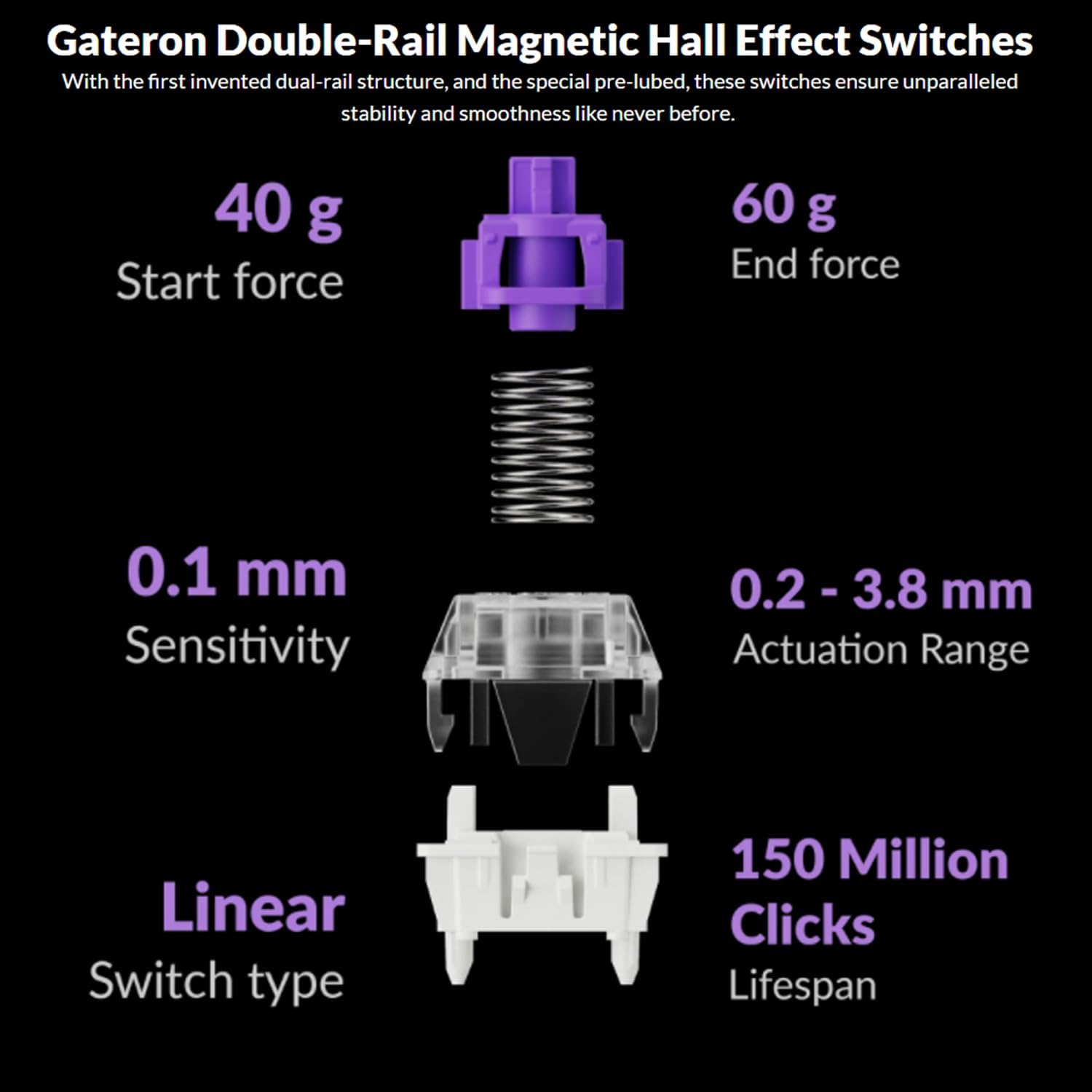
Image: The Keychron Q6 HE keyboard connected to a computer and a tablet, demonstrating its multi-device connectivity.
3.2 آپريٽنگ سسٽم سوئچ
The keyboard has a switch to toggle between Mac and Windows layouts. Ensure this switch, located on the back of the keyboard, is set to your current operating system for correct key mapping.
3.3 بيٽري کي چارج ڪرڻ
The keyboard is equipped with a 4000 mAh Lithium Ion battery. Connect the USB-C cable to the keyboard and a power source (computer USB port or USB wall adapter) to charge. The charging indicator light will show the charging status.
4. آپريٽنگ هدايتون
4.1 بنيادي اهم ڪم
The Q6 HE features a standard 100% layout. All keys function as labeled. Use the 'Fn' key in combination with other keys for secondary functions (e.g., media controls, backlight adjustments).
4.2 Programmable Knob
The rotary knob on the top right of the keyboard is programmable. By default, it controls volume (rotate) and media play/pause (press). Its functions can be customized using the Keychron Launcher web ايپ.
4.3 Gateron Magnetic Hall Effect Switches
The Q6 HE utilizes Gateron Double-Rail Magnetic Hall Effect Switches, which allow for dynamic customization of key behavior.

Image: Diagram illustrating the adjustable actuation points of the magnetic switches, ranging from 0.5mm to 3.5mm.
4.3.1 Adjustable Actuation Points
The actuation point (the distance a key needs to travel to register a press) can be adjusted from 0.1 mm to 3.8 mm using the Keychron Launcher web app. This allows for personalized typing and gaming sensitivity.
4.3.2 تيز ٽرگر
Rapid Trigger functionality allows a key to reactivate instantly upon reset, without needing to return to its original position. This feature is highly beneficial for competitive gaming and can be configured via the Keychron Launcher.

Image: Detailed breakdown of Gateron Double-Rail Magnetic Hall Effect Switches, showing components and specifications like start force, end force, sensitivity, actuation range, switch type, and lifespan.
4.4 آر بي جي بائيٽ لائٽنگ
The keyboard features south-facing RGB LED lights. You can cycle through various lighting effects and adjust brightness using 'Fn' key combinations or through the Keychron Launcher web ايپ.
4.5 Keychron Launcher Web ايپ
The Keychron Launcher is a web-based application for advanced customization. It allows you to:
- چاٻين کي ٻيهر ٺاهيو
- Adjust actuation points for magnetic switches
- Create personalized macro commands
- Set shortcuts and key combinations
- Customize RGB lighting effects

Image: Screenshot of the Keychron Launcher web app interface, showing options for key remapping, actuation point adjustment, and macro creation.
5. سار سنڀال
5.1 ڪي بورڊ صاف ڪرڻ
پنهنجو ڪيبورڊ صاف ڪرڻ لاءِ
- Disconnect the keyboard from all power sources and devices.
- نرم، لِنٽ کان خالي ڪپڙو استعمال ڪريو ٿورڙو ڊيampڪي ڪيپس ۽ ڪيس کي صاف ڪرڻ لاءِ پاڻي يا هلڪي صفائي واري محلول سان صاف ڪريو.
- وڌيڪ گهري صفائي لاءِ، مهيا ڪيل ڪي ڪيپ پلر استعمال ڪندي ڪي ڪيپس کي هٽايو ۽ هيٺان دٻيل هوا يا ننڍڙي برش سان صاف ڪريو.
- ڪيبورڊ تي سڌو سنئون مائع اسپري ڪرڻ کان پاسو ڪريو.
5.2 گرم مٽائڻ وارا سوئچ
The Q6 HE features hot-swappable magnetic switches, allowing you to replace individual switches without soldering.

تصوير: ويجهو تصوير view of the Keychron Q6 HE keyboard with several keycaps and switches removed, highlighting the hot-swappable magnetic switch design.
5.2.1 سوئچز کي تبديل ڪرڻ
- Use the switch puller to carefully remove the desired switch. Grip the switch firmly and pull straight up.
- نئين سوئچ جي پنن کي پي سي بي تي سوراخن سان ترتيب ڏيو.
- Gently press the new switch into place until it clicks. Ensure it is seated correctly and not bent.
5.3 بيٽري جي سنڀال
بيٽري جي زندگي کي وڌائڻ لاء:
- بيٽري کي بار بار مڪمل طور تي چارج ڪرڻ کان پاسو ڪريو.
- جڏهن گهڻي عرصي تائين استعمال ۾ نه هجي ته ڪيبورڊ کي ٿڌي، سڪل جاءِ تي رکو.
- ڪيبورڊ کي انتهائي گرمي پد تي نه لڳايو.
6. مسئلا حل ڪرڻ
6.1 ڪي بورڊ جواب نه ڏئي رهيو آهي
- وائرڊ موڊ پڪ ڪريو ته USB-C ڪيبل ڪيبورڊ ۽ ڪمپيوٽر ٻنهي سان محفوظ طور تي ڳنڍيل آهي. هڪ مختلف USB پورٽ يا ڪيبل آزمايو.
- 2.4 GHz موڊ: Verify the 2.4 GHz receiver is plugged in and the keyboard is set to '2.4G' mode. Re-pair by holding 'Fn' + '4' for 4 seconds.
- بلوٽوٽ موڊ: Check if Bluetooth is enabled on your device and the keyboard is paired. Re-pair if necessary by holding 'Fn' + '1/2/3' for 4 seconds.
- بيٽري: Ensure the keyboard battery is charged. Connect it to a power source.
6.2 ڪيز رجسٽر نه ٿي رهيون آهن يا ٻٽي ٽائيپنگ
- عمل جو نقطو: Adjust the actuation point for the affected keys using the Keychron Launcher. A higher actuation point (e.g., 2.0mm or 3.0mm) can help prevent accidental presses or double typing.
- Switch Issue: If a specific key consistently malfunctions, the magnetic switch might be faulty. Consider replacing the hot-swappable switch.
- فرم ویئر: Ensure your keyboard firmware is up to date via the Keychron Launcher.
6.3 آر جي بي بيڪ لائيٽ جا مسئلا
- روشني: Adjust backlight brightness using 'Fn' key combinations.
- اثر: Cycle through different RGB effects using 'Fn' key combinations.
- سافٽ ويئر: Use the Keychron Launcher to customize and troubleshoot RGB settings.
7. وضاحتون
| ماڊل نمبر | Q6H-P1 |
| برانڊ | ڪيڪرون |
| رابطي ٽيڪنالاجي | 2.4 GHz Wireless, Bluetooth 5.1, USB-C Wired |
| ڪي بورڊ جي وضاحت | Full-size, Ergonomic |
| خاص خاصيتون | Hall Effect Magnetic Switches, Programmable Knob, Large Battery Capacity, Hot-Swappable |
| مطابقت رکندڙ ڊوائيسز | PC, Mac, Smartphone, Tablet, Gaming Console |
| ڪي بورڊ Backlighting | آر جي بي (ڏکڻ طرف مُنهن ڪندڙ) |
| مواد | 6063 Aluminum (Case) |
| بيٽري | 4000 mAh ليٿيم آئن (شامل) |
| شيءِ جو وزن | 6.49 پائونڊ (تقريبن 2.94 ڪلوگرام) |
| پيڪيج جي ماپ | 19 x 8.5 x 3 انچ |

Image: An exploded diagram showing the internal layers and components of the Keychron Q6 HE keyboard, including keycaps, knob, magnetic switches, top case, sound absorbing foam, gaskets, plate, PCB, latex bottom pad, bottom case PET film, bottom case acoustic foam, battery, and silicone gaskets.
8. وارنٽي ڄاڻ
Keychron products typically come with a limited manufacturer's warranty. For specific warranty terms, conditions, and duration, please refer to the official Keychron webسائيٽ يا توهان جي پراڊڪٽ سان گڏ وارنٽي ڪارڊ. وارنٽي دعوائن لاءِ خريداري جو ثبوت رکو.
9. سپورٽ
For further assistance, technical support, or to download the latest firmware and software, please visit the official Keychron webسائيٽ:
You can also visit the Keychron store on Amazon for product information and customer service:


