تعارف
The STRONG Leap-UNA TV Streaming Stick is a compact and powerful device designed to transform your television into a smart TV, providing instant access to a vast array of streaming content. Powered by Android TV 11, it offers seamless 2K resolution streaming with Wi-Fi 5 connectivity. This manual provides detailed instructions for setting up, operating, and maintaining your Leap-UNA streaming stick to ensure an optimal entertainment experience.
حفاظت جي ڄاڻ
- ڊوائيس استعمال ڪرڻ کان پهريان سڀئي هدايتون پڙهو.
- ڊوائيس کي مينهن، نمي، يا انتهائي گرمي پد جي سامهون نه رکو.
- وڌيڪ گرم ٿيڻ کان بچڻ لاءِ ڊوائيس جي چوڌاري مناسب وائيٽليشن کي يقيني بڻايو وڃي.
- صرف ڊوائيس سان فراهم ڪيل پاور اڊاپٽر استعمال ڪريو.
- پاڻ ڊوائيس کي ڌار ڪرڻ يا مرمت ڪرڻ جي ڪوشش نه ڪريو. سڀني سروسنگ کي قابل اهلڪارن جي حوالي ڪريو.
- ڊوائيس کي سڌو سورج جي روشني ۽ گرمي ذريعن کان پري رکو.
پيڪيج مواد
مھرباني ڪري چيڪ ڪريو ته سڀ شيون موجود آھن ۽ سٺي حالت ۾ آھن:
- STRONG Leap-UNA 2K Android TV Streaming Stick
- ريموٽ ڪنٽرول
- Power Adapter (or USB cable for power)
- HDMI Extender (if included)
- استعمال ڪندڙ جو دستياب (ھي دستاويز)
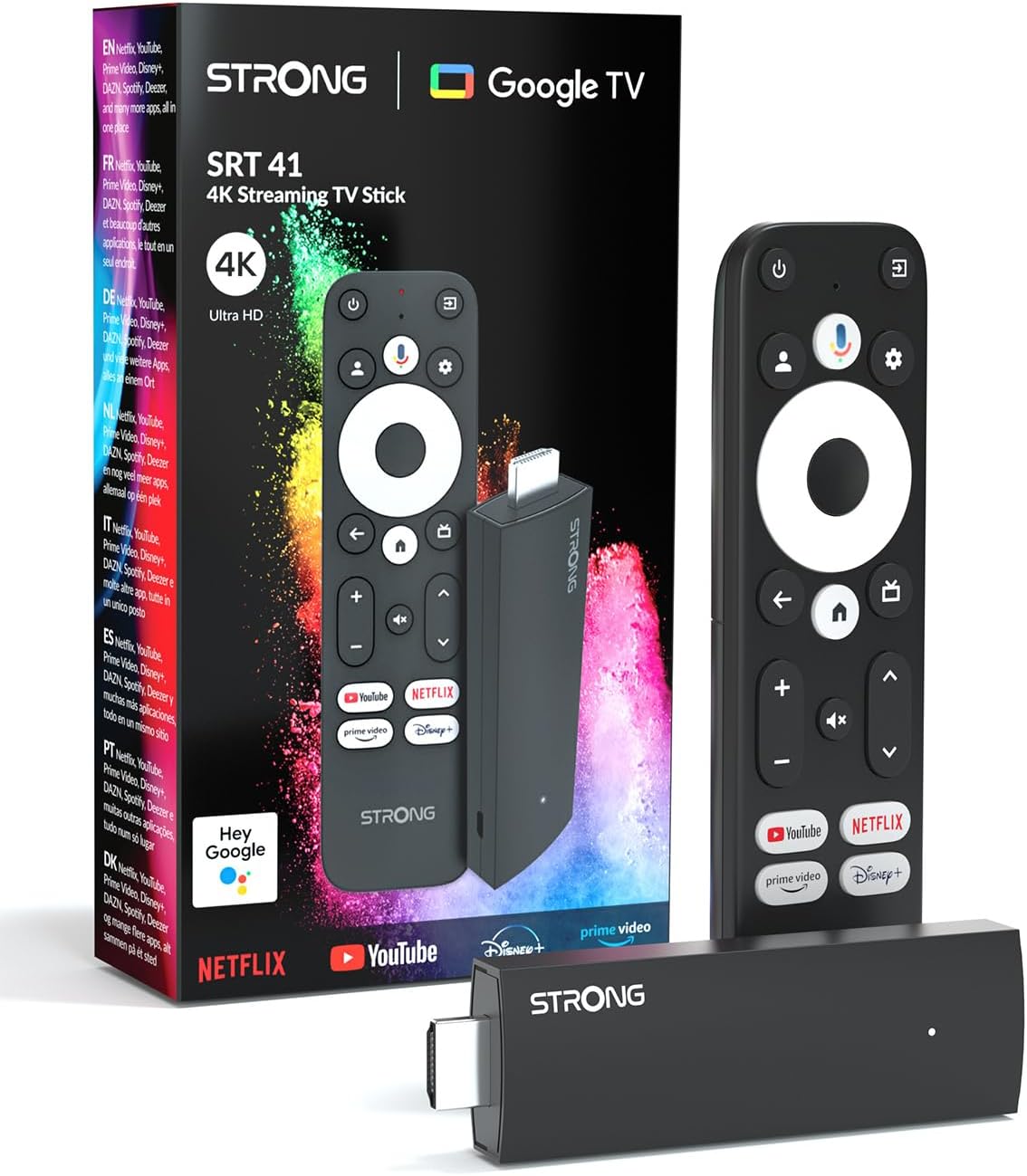
Image: The STRONG Leap-UNA streaming stick, its remote control, and the product packaging. This shows the main components included in the box.
پيداوار ختمview
The Leap-UNA stick is designed for ease of use and portability. It connects directly to your TV's HDMI port.
ڊوائيس جا اجزاء:
- Streaming Stick: Compact device with an HDMI connector for TV and a Micro USB port for power.
- ريموٽ ڪنٽرول: Features dedicated buttons for power, navigation, volume, Google Assistant, and quick access to popular streaming services like Netflix and YouTube.

Image: A close-up of the STRONG Leap-UNA streaming stick, highlighting its compact design and connectivity options including HDMI and Micro USB ports.
سيٽ اپ ڪريو
Follow these steps to set up your STRONG Leap-UNA streaming stick:
- ٽي وي سان ڳنڍيو: Plug the STRONG Leap-UNA streaming stick directly into an available HDMI port on your television. If space is limited, use an HDMI extender (if provided).
- پاور آن: Connect the power adapter to the Micro USB port on the streaming stick and then plug the adapter into a power outlet. The device will power on automatically.
- HDMI ان پٽ چونڊيو: Use your TV's remote control to select the correct HDMI input source to which the Leap-UNA stick is connected.
- جوڙو ريموٽ ڪنٽرول: Follow the on-screen instructions to pair your remote control. This usually involves pressing and holding specific buttons on the remote close to the stick.
- وائي فائي سان ڳنڍيو: On the screen, select your Wi-Fi network from the list and enter the password. Ensure you have a stable internet connection for optimal streaming.
- گوگل اڪائونٽ سيٽ اپ: Sign in with your Google account. This is necessary to access the Google Play Store, Google Assistant, and other Google services. If you don't have one, you can create one.
- ائپس انسٽال ڪريو: After initial setup, you can download and install your favorite streaming applications like Netflix, Amazon Prime Video, YouTube, and Disney+ from the Google Play Store.

Image: Visual representation of the simple setup process: 1. Connect the stick to your TV. 2. Connect to your internet box (Wi-Fi). 3. Start streaming your content.
آپريٽنگ هدايتون
ريموٽ ڪنٽرول استعمال ڪندي:
The included remote control allows you to navigate the Android TV interface and control your streaming experience.
- نيويگيشن پيڊ: مينيو مان گذرڻ ۽ شيون چونڊڻ لاءِ گول پيڊ استعمال ڪريو.
- پوئتي بٽڻ: پوئين اسڪرين ڏانهن واپسي.
- هوم بٽڻ: Android ٽي وي هوم اسڪرين ڏانهن واپس اچي ٿو.
- گوگل اسسٽنٽ بٽڻ: وائس ڪمانڊز کي چالو ڪرڻ لاءِ دٻايو.
- حجم بٽڻ: ٽي وي جي مقدار کي ترتيب ڏيو.
- وقف ٿيل ايپ بٽڻ: Quickly launch Netflix, YouTube, Prime Video, and Disney+ (if available).

Image: The remote control for the STRONG Leap-UNA, highlighting its dedicated app buttons and the wide range of applications available through Google Play.
Voice Control with Google Assistant:
The integrated Google Assistant allows you to control your device and search for content using your voice. Press the Google Assistant button on your remote and speak your command. Examples شامل آهن:
- "نيٽ فلڪس کوليو"
- "ايڪشن فلمون ڳوليو"
- "Play [Film Title]" حقيقتون
- "موسم ڪيئن آهي؟"

Image: The STRONG Leap-UNA remote control positioned in front of a TV screen, illustrating the use of Google Assistant for voice commands, such as "Avvia Netflix" (Start Netflix).
Chromecast بلٽ ان:
With Chromecast built-in, you can cast content directly from your smartphone, tablet, or computer to your TV. Simply open a compatible app on your mobile device and tap the Cast icon ▶ to send the content to your TV.

Image: A TV screen displaying content being cast via Google Cast, with a smartphone in the foreground demonstrating the casting functionality.
سار سنڀال
To ensure the longevity and optimal performance of your STRONG Leap-UNA streaming stick, follow these maintenance guidelines:
- صفائي: ڊوائيس کي صاف ڪرڻ لاءِ نرم، سڪل ڪپڙو استعمال ڪريو. مائع صاف ڪندڙ يا ايروسول استعمال نه ڪريو.
- وينٽيليشن: Ensure the device is placed in a well-ventilated area and that its vents are not blocked.
- سافٽ ويئر اپڊيٽ: The device may receive automatic software updates. Ensure it is connected to the internet to receive these updates, which improve performance and add new features.
- اسٽوريج: جڏهن گهڻي عرصي تائين استعمال ۾ نه هجي، ته ڊوائيس کي ٿڌي، سڪل جاءِ تي ذخيرو ڪريو.
مشڪلاتون
If you encounter issues with your STRONG Leap-UNA streaming stick, refer to the following common problems and solutions:
| مسئلو | ممڪن سبب | حل |
|---|---|---|
| ڪابه بجلي ناهي / ڊوائيس آن نه ٿي رهي آهي | Power cable not connected properly; Faulty power adapter; Power outlet issue. | Check all power connections. Try a different power outlet. Ensure the power adapter is working. |
| ٽي وي تي ڪا به تصوير ناهي | Incorrect HDMI input selected; Loose HDMI connection; TV compatibility issue. | Ensure your TV is on the correct HDMI input. Reconnect the HDMI cable. Try a different HDMI port on your TV. |
| ريموٽ ڪنٽرول جواب نه ڏئي رهيو آهي | Batteries are low or dead; Remote not paired; Obstruction between remote and stick. | Replace batteries. Re-pair the remote control (refer to Setup section). Ensure no obstructions. |
| بفرنگ يا خراب اسٽريمنگ معيار | Weak Wi-Fi signal; Internet speed issues; Network congestion. | Move the stick closer to your Wi-Fi router. Restart your router. Check your internet speed. Reduce other network activity. |
| ايپس جو ڪريش ٿيڻ يا منجمد ٿيڻ | App error; Insufficient memory; Software glitch. | Restart the app. Clear the app's cache (Settings > Apps > [App Name] > Clear cache). Restart the streaming stick. |
وضاحتون
| خاصيت | تفصيل |
|---|---|
| برانڊ | مضبوط |
| ماڊل نالو | Leap-UNA |
| آپريٽنگ سسٽم | Android ٽي وي 11 |
| قرارداد | 2K |
| رابطي ٽيڪنالاجي | Bluetooth, HDMI, IR, Wi-Fi (Wi-Fi 5) |
| سپورٽ انٽرنيٽ سروسز | Netflix, Amazon Prime Video, Disney+, YouTube |
| رام جي ماپ | 1 جي بي |
| طول و عرض | 9L x 3W x 1.5H سينٽي ميٽر |
| مطابقت رکندڙ ڊوائيسز | TV, smartphone, tablet, personal computer, laptop |
| رنگ | ڪارو |
وارنٽي ۽ سپورٽ
STRONG products are designed for reliability and performance. For warranty information and technical support, please refer to the warranty card included with your product or visit the official STRONG website. You can also contact customer support through the details provided on the packaging or website for assistance with any issues not covered in this manual.
تازي معلومات ۽ مدد لاءِ، مهرباني ڪري دورو ڪريو: www.strong.tv


