1. تعارف
This manual provides essential instructions for the proper installation, operation, and maintenance of the Teltonika RUT241 Industrial 4G LTE Router. The RUT241 is a compact and rugged cellular router designed for industrial, IoT, and remote applications, offering reliable 4G LTE connectivity, dual Ethernet ports, and Wi-Fi capabilities.
اهم خاصيتون شامل آهن:
- Reliable 4G LTE Cat 4 connectivity for fast and stable internet access.
- One LAN and one WAN Ethernet port, plus a 2.4GHz Wi-Fi hotspot.
- Compatibility with Teltonika's Remote Management System (RMS) for remote monitoring and configuration.
- Advanced security features including firewall, OpenVPN, IPsec, PPTP, and WireGuard VPN support.
- Industrial-grade durability for harsh environments.
- Wide power input range (9-30V) with digital I/O.

2. سيٽ اپ
2.1. دٻي ۾ ڇا آهي
Before proceeding with the installation, verify that all components are present:
- RUT241 روٽر
- بجلي جي فراهمي
- Ethernet ڪيبل
- 2 x Mobile Antennas
- 1 x وائي فائي اينٽينا
- سم اڊاپٽر ڪٽ

2.2. ھارڊويئر ختمview
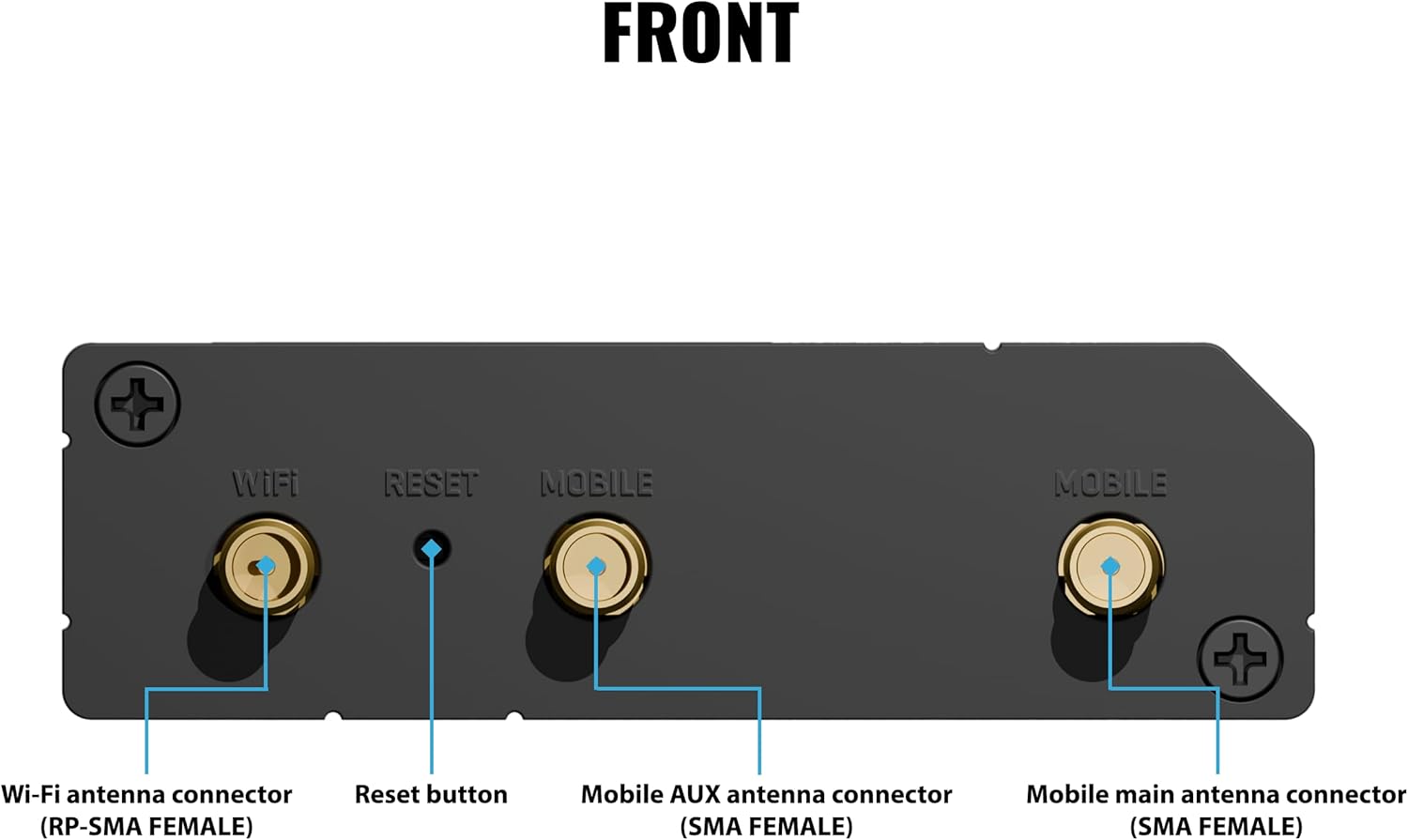
روٽر جي پورٽن ۽ اشارن سان پاڻ کي واقف ڪريو.

2.3. سم ڪارڊ لڳائڻ
- پڪ ڪريو ته روٽر بند ٿيل آهي.
- Locate the SIM card slot on the back panel (refer to Figure 4).
- Insert your activated Mini-SIM card into the slot until it clicks into place. Use the provided SIM adapter if necessary.
2.4. اينٽينا ڪنيڪشن
- Attach the two mobile antennas to the 'MOBILE' connectors on the front panel (refer to Figure 3).
- Attach the Wi-Fi antenna to the 'WIFI' connector on the front panel.
- پڪ ڪريو ته سڀئي اينٽينا محفوظ طور تي مضبوط ٿيل آهن.
2.5. پاور ڪنيڪشن
- Connect the power adapter to the 'POWER' socket on the back panel (refer to Figure 4).
- Plug the power adapter into a suitable power outlet. The Power LED should illuminate.
2.6. شروعاتي نيٽ ورڪ ڪنيڪشن
You can connect to the router via Ethernet or Wi-Fi.
- Ethernet: Connect one end of the Ethernet cable to the 'LAN' port on the router and the other end to your computer's Ethernet port.
- وائي فائي: The router broadcasts a default Wi-Fi network. The SSID and password are typically found on a label on the device or packaging.
3. آپريٽنگ هدايتون
3.1. تائين رسائي Web انٽرفيس
- کوليو a web توهان جي ڳنڍيل ڪمپيوٽر تي برائوزر.
- ڊفالٽ IP پتو داخل ڪريو 192.168.1.1 ۾ پتو بار ۽ داخل ڪريو پريس ڪريو.
- Log in using the default username and password (usually 'admin' for both, check device label for specifics). You will be prompted to change the password upon first login for security.
3.2. بنيادي ترتيب
جي اندر web انٽرفيس، توهان مختلف سيٽنگون ترتيب ڏئي سگهو ٿا:
- WAN سيٽنگون: Configure your cellular connection (APN, authentication) and Ethernet WAN settings.
- LAN سيٽنگون: Adjust the router's internal IP address and DHCP server settings.
- وائي فائي سيٽنگون: Change the Wi-Fi network name (SSID), password, and security protocols.
3.3. ريموٽ مئنيجمينٽ سسٽم (RMS)
The RUT241 supports Teltonika's Remote Management System (RMS), allowing for centralized monitoring and management of your devices.

To use RMS:
- Register your device on the Teltonika RMS portal.
- Enable RMS connectivity in the router's web انٽرفيس.
- Manage your router from any web browser via the RMS platform.
3.4. وي پي اين ترتيب
The router supports various VPN protocols for secure communication, including OpenVPN, IPsec, PPTP, and WireGuard. Detailed configuration guides for each protocol are available in the router's web انٽرفيس دستاويز.
4. سار سنڀال
4.1. فرمائيندڙ تازه ڪاريون
Regularly update the router's firmware to ensure optimal performance, security, and access to new features. Firmware updates can be performed via the router's web interface or remotely through the Teltonika RMS platform.
4.2. صفائي
روٽر جي ٻاهرين حصي کي نرم، سڪل ڪپڙي سان صاف ڪريو. مائع ڪلينر يا ايروسول استعمال نه ڪريو. پڪ ڪريو ته وينٽيليشن جا سوراخ مٽي ۽ رڪاوٽن کان پاڪ آهن.
4.3. ماحولياتي خيالات
The RUT241 is designed for industrial environments. It can withstand temperatures up to 167°F (75°C) and down to -40°F (-40°C), and humidity levels between 10-90% (non-condensing). Ensure the router is installed in an environment within these specifications to maintain optimal performance and longevity.

5. مسئلا حل ڪرڻ
5.1. عام مسئلا ۽ حل
- انٽرنيٽ ڪنيڪشن ناهي:
- Check SIM card insertion and activation status.
- Verify antenna connections.
- ۾ APN سيٽنگن جي تصديق ڪريو web انٽرفيس.
- Check mobile network type and signal strength LEDs (refer to Figure 4).
- Wi-Fi Not Working:
- Ensure the Wi-Fi antenna is connected.
- Check Wi-Fi settings (SSID broadcast, password) in the web انٽرفيس.
- روٽر کي ٻيهر شروع ڪريو.
- رسائي نه ٿي سگهي Web انٽرفيس:
- پڪ ڪريو ته توهان جو ڪمپيوٽر روٽر سان ايٿرنيٽ يا وائي فائي ذريعي ڳنڍيل آهي.
- پنهنجي ڪمپيوٽر جي IP سيٽنگن جي تصديق ڪريو (اهو خودڪار طريقي سان IP حاصل ڪرڻ لاءِ مقرر ڪيو وڃي).
- هڪ مختلف ڪوشش ڪريو web برائوزر.
5.2. ري سيٽ بٽڻ
The reset button (refer to Figure 3) can be used for two functions:
- نرم ري سيٽ: Press and hold for approximately 5 seconds to restart the router.
- فيڪٽري ريسٽ: Press and hold for approximately 30 seconds until all LEDs flash, then release. This will restore the router to its factory default settings. خبردار: فيڪٽري ري سيٽ ڪرڻ سان سڀئي ڪسٽم ترتيبون ختم ٿي وينديون.
6. وضاحتون
| خاصيت | تفصيل |
|---|---|
| ماڊل نالو | ريٽ 241 |
| پيداوار جي ماپ | 3.26 x 2.91 x 0.98 انچ |
| شيءِ جو وزن | 4.3 اونس |
| رابطي ٽيڪنالاجي | Ethernet, LTE, Wi-Fi |
| وائرليس ڪميونيڪيشن معياري | 802.11n |
| فريڪوئنسي بينڊ ڪلاس | Dual-Band (2.4GHz Wi-Fi) |
| خاص خاصيتون | 4G LTE, Wi-Fi, Auto Failover, RMS, VPN |
| پاور ان پٽ رينج | 9-30V ڊي سي |
| Antenna جو قسم | Fixed (External) |
| آپريٽنگ جي درجه حرارت | -40°F کان 167°F (-40°C کان 75°C) |
| آپريٽنگ نمي | 10٪ کان 90٪ غير ڪنڊينسنگ |
7. وارنٽي ۽ سپورٽ
7.1. وارنٽي ڄاڻ
Warranty terms and conditions for the Teltonika RUT241 router are provided by the manufacturer, Teltonika, or your authorized reseller. Please refer to the warranty card included with your product or visit the official Teltonika webتفصيلي ڄاڻ لاء سائيٽ.
7.2. ٽيڪنيڪل سپورٽ
For technical assistance, firmware downloads, or additional documentation, please visit the official Teltonika Networks website or contact your product reseller. Online resources often include FAQs, knowledge bases, and community forums.


