1. تعارف
This manual provides comprehensive instructions for the setup, operation, maintenance, and troubleshooting of your AOC U27G42 27" 4K UHD Gaming Monitor. Please read this manual thoroughly before using the product to ensure proper functionality and to prevent damage.
2. حفاظت جي ڄاڻ
Always observe the following safety precautions to ensure safe operation and to extend the lifespan of your monitor:
- مانيٽر کي مينهن يا نمي جي سامهون نه رکو.
- مانيٽر نه کوليو casinج. هاءِ وولٽtage components inside can cause electric shock.
- مانيٽر جي چوڌاري مناسب وائيٽليشن کي يقيني بڻائي.
- صرف مانيٽر سان فراهم ڪيل پاور اڊاپٽر استعمال ڪريو.
- اسڪرين کي نرم، لِنٽ فري ڪپڙي سان صاف ڪريو. سخت ڪيميڪل استعمال ڪرڻ کان پاسو ڪريو.
3. پيڪيج مواد
پڪ ڪريو ته سڀئي شيون پيڪيج ۾ موجود آهن:
- AOC U27G42 Monitor Display
- مانيٽر اسٽينڊ (بنياد ۽ گردن)
- پاور ڪيبل
- HDMI ڪيبل
- ڊسپلي پورٽ ڪيبل
- استعمال ڪندڙ جو دستياب (ھي دستاويز)
- تڪڙو شروع ھدايت
4. سيٽ اپ
4.1 اسٽينڊ کي گڏ ڪرڻ
- پيڪنگ مان مانيٽر ۽ اسٽينڊ جي حصن کي احتياط سان هٽايو.
- اسٽينڊ نيڪ کي مانيٽر پينل سان ڳنڍيو. پڪ ڪريو ته اهو محفوظ طور تي جاءِ تي ڪلڪ ڪري ٿو يا اسڪرو سان مضبوط ٿيل آهي جيئن تڪڙي شروعات گائيڊ ۾ ڏيکاريل آهي.
- Attach the stand base to the stand neck. Tighten the thumb screw or screws from the bottom of the base.
- گڏ ٿيل مانيٽر کي هڪ مستحڪم، هموار مٿاڇري تي رکو.
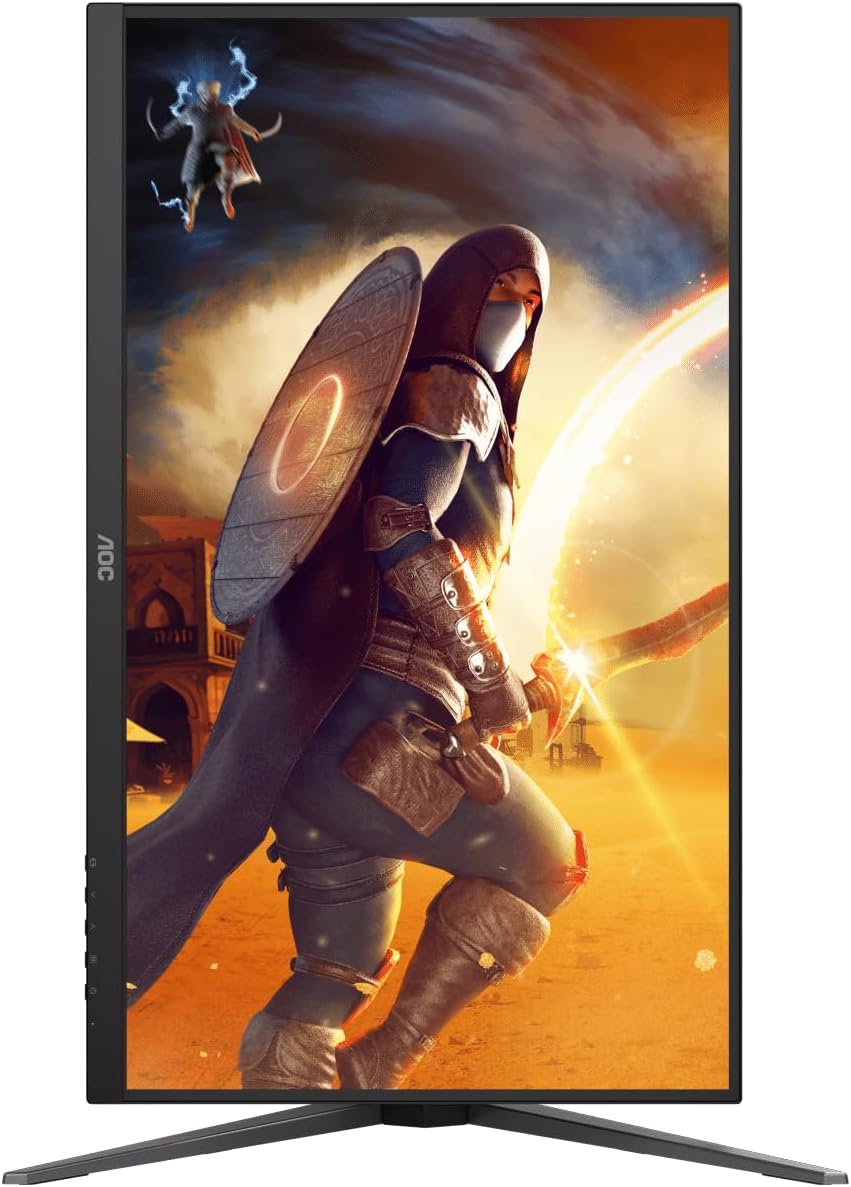
تصوير: پوئين پاسي view of the AOC U27G42 monitor with the stand fully assembled and attached.
4.2 مانيٽر کي ڳنڍڻ
ڳنڍڻ کان اڳ، پڪ ڪريو ته مانيٽر ۽ توهان جو ڪمپيوٽر ٻئي بند آهن.
- پاور ڪنيڪشن: پاور ڪيبل کي مانيٽر جي پاور ان پٽ سان ڳنڍيو، پوءِ ٻئي ڇيڙي کي گرائونڊ ٿيل اليڪٽريڪل آئوٽليٽ ۾ لڳايو.
- وڊيو ڪنيڪشن:
- ڊسپلي پورٽ: Connect one end of the DisplayPort cable to the monitor's DisplayPort input and the other end to your computer's DisplayPort output. This connection is recommended for optimal performance (160Hz refresh rate, 4K resolution).
- HDMI: Connect one end of the HDMI cable to the monitor's HDMI input and the other end to your computer's HDMI output. Note that HDMI 2.0 may limit refresh rates at 4K resolution.
- آڊيو آئوٽ: If you wish to use external speakers or headphones, connect them to the monitor's audio output jack. The monitor does not have built-in speakers.

Image: Close-up of the rear panel of the AOC U27G42 monitor, showing the various input ports including HDMI, DisplayPort, and audio out.
5. آپريٽنگ هدايتون
5.1 پاور آن/آف
مانيٽر کي آن يا آف ڪرڻ لاءِ ان جي ساڄي پاسي موجود پاور بٽڻ کي دٻايو. جڏهن مانيٽر آن هوندو ته پاور انڊيڪيٽر لائيٽ روشن ٿيندي.
5.2 آن اسڪرين ڊسپلي (OSD) مينيو
The OSD menu allows you to adjust various monitor settings. Use the joystick or buttons located on the bottom right of the monitor to navigate the menu.
عام او ايس ڊي مينيو آپشن:
- روشني: Adjust brightness, contrast, and gamma.
- Color Setup: Select color temperature, adjust RGB levels, or choose preset color modes.
- Picture Boost: Enhance specific areas of the screen.
- او ايس ڊي سيٽ اپ: Adjust OSD position, transparency, and timeout.
- راند جي جوڙجڪ: Access game mode presets, G-Menu, Low Input Lag, AdaptiveSync, and other gaming-specific features.
- اضافي: Input selection, reset settings, information.
5.3 Optimizing Display Settings
For the best experience, ensure your computer's display settings are configured correctly:
- قرارداد: Set to 3840 x 2160 (4K UHD).
- ريفريش جي شرح: Set to 160Hz (requires DisplayPort connection and compatible graphics card).
- Adaptive Sync: Enable AdaptiveSync in your graphics card control panel (e.g., NVIDIA Control Panel, AMD Radeon Software) and on the monitor's OSD menu for tear-free gaming.
- HDR: Enable HDR in Windows Display Settings and on the monitor's OSD menu to utilize DisplayHDR 400.
6. سار سنڀال
6.1 مانيٽر جي صفائي
- صفائي ڪرڻ کان اڳ هميشه مانيٽر کي پاور آئوٽليٽ مان ڪڍي ڇڏيو.
- نرم، لِنٽ کان خالي ڪپڙو استعمال ڪريو ٿورڙو ڊيampened with water to clean the screen. Do not spray liquid directly onto the screen.
- For stubborn marks, use a specialized screen cleaning solution, applied to the cloth, not directly to the screen.
- مانيٽر صاف ڪريو casing نرم، سڪل ڪپڙي سان. گھڙڻ واري صاف ڪندڙن کان پاسو ڪريو.
6.2 اسٽوريج
جيڪڏهن مانيٽر کي گهڻي عرصي تائين ذخيرو ڪري رهيا آهيو، ته سڀئي ڪيبل ڌار ڪريو ۽ ان کي ٿڌي، سڪل جاءِ تي ذخيرو ڪريو، ترجيحي طور تي ان جي اصل پيڪنگنگ ۾ ته جيئن ان کي مٽي ۽ جسماني نقصان کان بچائي سگهجي.
7. مسئلا حل ڪرڻ
| مسئلو | ممڪن سبب | حل |
|---|---|---|
| اسڪرين تي ڪوبه تصوير نه آهي | پاور ڪيبل ڪٽيل آهي؛ وڊيو ڪيبل ڪٽيل يا ڍلو آهي؛ غلط ان پٽ چونڊيو ويو آهي. | Check power and video cable connections; Press the OSD button to select the correct input source. |
| تصوير ڌنڌلي يا بگڙيل آهي. | Incorrect resolution; Graphics driver issue. | Set display resolution to 3840 x 2160; Update graphics card drivers. |
| اسڪرين جو ٽمٽار يا ڦاٽڻ | AdaptiveSync not enabled; Refresh rate mismatch. | Enable AdaptiveSync in OSD and graphics card settings; Ensure refresh rate is set to 160Hz (DisplayPort). |
| آڊيو آئوٽ پُٽ مان ڪو به آواز نه ٿو اچي. | External speakers/headphones not connected; Volume too low; Incorrect audio output selected on PC. | Verify audio device connection; Adjust volume; Select monitor's audio output in PC sound settings. |
| مانيٽر آن نٿو ٿئي | No power; Faulty power cable or adapter. | Check power outlet and cable connections; Try a different power outlet. |
8. وضاحتون
| خاصيت | تفصيل |
|---|---|
| ماڊل نالو | U27G42 |
| پينل جي ماپ | 27 انچ |
| پينل جو قسم | تيز رفتار IPS |
| قرارداد | 3840 x 2160 (4K UHD) |
| ريفريش جي شرح | 160Hz |
| جوابي وقت | 0.5ms (MPRT) |
| HDR سپورٽ | ڊسپلي ايڇ ڊي آر 400 |
| موافقت واري هم وقت سازي | ها |
| رابطي | HDMI, DisplayPort, Audio Out |
| طول و عرض (اسٽينڊ سان) | 61 x 41 x 25 سينٽي |
| وزن (اسٽينڊ سان) | 8.38 ڪلو |
9. وارنٽي ۽ سپورٽ
9.1 وارنٽي ڄاڻ
AOC monitors typically come with a limited warranty covering manufacturing defects. The specific warranty period and terms may vary by region. Please refer to the warranty card included with your product or visit the official AOC webتفصيلي وارنٽي معلومات لاءِ سائيٽ.
9.2 ٽيڪنيڪل سپورٽ
For technical assistance, driver downloads, or further support, please visit the official AOC support website or contact their customer service. You may need your monitor's serial number, which is usually located on a label on the back of the monitor.
Official AOC Webسائيٽ: www.aoc.com


