1. تعارف
This manual provides essential information for setting up, operating, maintaining, and troubleshooting your Acer Nitro V 15.6" Gaming Laptop. Please read this manual thoroughly to ensure proper use and to maximize the performance and longevity of your device.
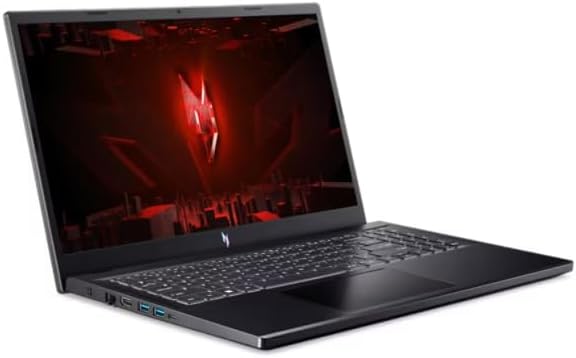
Figure 1.1: Acer Nitro V 15.6" Gaming Laptop
The Acer Nitro V 15.6" Gaming Laptop is designed for high-performance computing, featuring an Intel Core i5-13420H processor, NVIDIA GeForce RTX 4050 graphics, a 15.6" Full HD 144Hz display, 16GB DDR5 memory, and a 512GB SSD. It comes pre-installed with Windows 11 Home.
2. حفاظت جي ڄاڻ
Observe the following safety guidelines to prevent damage to your laptop and ensure personal safety:
- Use only the power adapter supplied with your laptop. Using unauthorized adapters may cause damage or fire.
- ليپ ٽاپ کي انتهائي گرمي پد، سڌي سج جي روشني، يا وڌيڪ نمي جي سامهون نه رکو.
- ليپ ٽاپ يا پاور اڊاپٽر تي ڳري شيون رکڻ کان پاسو ڪريو.
- Keep liquids away from the laptop. In case of accidental spills, disconnect power immediately and contact support.
- ليپ ٽاپ کي پاڻ ڌار ڪرڻ يا مرمت ڪرڻ جي ڪوشش نه ڪريو. سڀني سروسنگ کي قابل اهلڪارن جي حوالي ڪريو.
- Ensure proper ventilation. Do not block the ventilation openings on the laptop.
3. پيڪيج مواد
پڪ ڪريو ته سڀئي شيون پيڪيج ۾ موجود آهن:
- Acer Nitro V 15.6" Gaming Laptop
- اي سي پاور اڊاپٽر ۽ پاور ڪنڊ
- جلدي شروع ڪرڻ جي ھدايت (جيڪڏهن شامل هجي)
4. پراڊڪٽ ختمview
4.1. ليپ ٽاپ جا جزا
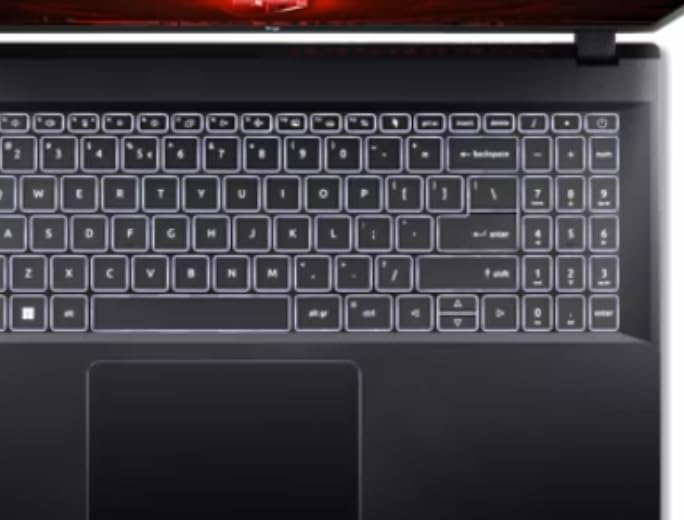
Figure 4.1: Keyboard and Touchpad
The laptop features a full-size keyboard, a precision touchpad, and a 15.6-inch Full HD display with a 144Hz refresh rate for smooth visuals.
4.2. کاٻي پاسي وارا بندرگاھ

شڪل 4.2: کاٻي پاسي وارا بندرگاھ
The left side of the laptop includes the following ports:
- پاور ان پٽ: هتي AC اڊاپٽر کي ڳنڍيو.
- Ethernet (RJ-45): وائرڊ نيٽ ورڪ ڪنيڪشن لاءِ.
- HDMI: ٻاهرين ڊسپلي يا ٽي وي سان ڳنڍيو.
- USB 3.0 بندرگاهن (x2): USB ڊوائيسز کي ڳنڍڻ لاءِ.
- USB-C پورٽ: مطابقت رکندڙ USB-C ڊوائيسز کي ڳنڍڻ لاءِ.
4.3. ساڄي پاسي وارا بندرگاھ

شڪل 4.3: ساڄي پاسي وارا بندرگاھ
The right side of the laptop includes the following ports:
- USB 3.0 پورٽ: USB ڊوائيسز کي ڳنڍڻ لاءِ.
- هيڊ فون/مائڪروفون ڪمبو جڪ: آڊيو ان پٽ/آئوٽ پٽ لاءِ.
- ڪينسنگٽن لاڪ سلاٽ: For securing your laptop with a compatible lock.
4.4. ٻاهرين ڊيزائن

Figure 4.4: Laptop Exterior (Top Lid)
The laptop features a sleek black design with distinctive accents on the top lid, reflecting its gaming-oriented aesthetic.
5. سيٽ اپ
5.1. پاور اڊاپٽر کي ڳنڍڻ
- Plug the AC adapter into the power input port on the left side of the laptop.
- پاور ڪنڊ کي AC اڊاپٽر سان نيو.
- پاور ڪنڊ جي ٻئي پڇاڙيءَ کي گرائونڊ ٿيل برقي آئوٽليٽ ۾ لڳايو.
- Allow the battery to charge for at least 30 minutes before initial use, or until the battery indicator shows a full charge.
5.2. شروعاتي پاور آن ۽ ونڊوز سيٽ اپ
- ليپ ٽاپ جي لڪير کي کوليو.
- پاور بٽڻ کي دٻايو، عام طور تي ڪيبورڊ جي مٿان يا پاسي تي هوندو آهي.
- Follow the on-screen instructions to complete the Windows 11 Home setup process. This includes selecting your region, language, connecting to a network, and creating a user account.
6. آپريٽنگ هدايتون
6.1. پاور آن/آف ۽ سليپ موڊ
- پاور آن: پاور بٽڻ کي دٻايو.
- بند ڪريو: Click the Windows Start button, then Power > Shut down.
- سمهڻ جو طريقو: Close the laptop lid or click the Windows Start button, then Power > Sleep.
6.2. ڪي بورڊ ۽ ٽچ پيڊ جو استعمال
- The keyboard features standard QWERTY layout with a numeric keypad.
- ٽچ پيڊ نيويگيشن لاءِ ملٽي ٽچ اشارن کي سپورٽ ڪري ٿو. ڪسٽمائيزيشن لاءِ ونڊوز سيٽنگون ڏسو.
- Function keys (Fn + F1-F12) provide quick access to system functions like volume, brightness, and wireless toggles.
6.3. نيٽ ورڪ سان ڳنڍڻ
- وائي فائي: Click the network icon in the taskbar, select your desired Wi-Fi network, and enter the password if required.
- Ethernet: پنهنجي روٽر يا موڊيم مان هڪ ايٿرنيٽ ڪيبل کي ليپ ٽاپ جي کاٻي پاسي ايٿرنيٽ پورٽ سان ڳنڍيو.
6.4. ٻاهرين ڊسپلي ڪنيڪشن
Use the HDMI port on the left side of the laptop to connect an external monitor or TV. You can configure display settings (duplicate, extend, second screen only) through Windows Display Settings.
7. سار سنڀال
7.1. ليپ ٽاپ کي صاف ڪرڻ
- اسڪرين: استعمال ڪريو نرم، lint-آزاد ڪپڙو روشنيءَ سان ڊيampپاڻي يا اسڪرين ڪلينر سان صاف ڪريو. اسڪرين تي سڌو سنئون مائع نه اسپري ڪريو.
- ڪي بورڊ ۽ چيسس: نرم ڪپڙو استعمال ڪريو. ضدي مٽيءَ لاءِ، ٿورو ڊيamp نرم صابڻ واري محلول سان ڪپڙو استعمال ڪري سگهجي ٿو، انهي ڳالهه کي يقيني بڻائي ته ڪو به مائع سوراخن ۾ داخل نه ٿئي.
- وينٽيليشن جو افتتاح: Use compressed air to clear dust from the vents to maintain optimal cooling.
7.2. بيٽري جي سنڀال
- بيٽري کي بار بار مڪمل طور تي چارج ڪرڻ کان پاسو ڪريو.
- جيڪڏهن ليپ ٽاپ کي گهڻي عرصي تائين استعمال نه ڪيو وڃي ته ان کي ٿڌي، سڪل جاءِ تي رکو.
- بيٽري جي بهترين صحت لاءِ، تمام گهڻي عرصي تائين 100٪ تي مسلسل چارج ڪرڻ کان پاسو ڪريو.
7.3. سافٽ ويئر اپڊيٽ
Regularly update your Windows operating system and device drivers to ensure optimal performance, security, and compatibility. Check for updates via Windows Update and Acer's official support webسائيٽ.
8. مسئلا حل ڪرڻ
8.1. عام مسئلا ۽ حل
- ليپ ٽاپ آن نٿو ٿئي: پڪ ڪريو ته AC اڊاپٽر محفوظ طور تي ڳنڍيل آهي ۽ پاور آئوٽليٽ ڪم ڪري رهيو آهي. هڪ مختلف آئوٽليٽ آزمايو.
- اسڪرين تي ڪابه ڊسپلي ناهي: Check if the laptop is powered on. If an external monitor is connected, ensure it is powered on and correctly configured in Windows Display Settings. Try pressing Fn + F5 (or similar function key) to cycle display outputs.
- وائي فائي ڳنڍجي نه رهيو آهي: Ensure Wi-Fi is enabled (check Fn key or Windows settings). Restart your router and modem.
- سست ڪارڪردگي: غير ضروري ايپليڪيشنون بند ڪريو. پس منظر جي تازه ڪارين لاءِ چيڪ ڪريو. ڪافي مفت اسٽوريج جي جڳهه کي يقيني بڻايو.
8.2. فيڪٽري سيٽنگون بحال ڪرڻ
If you encounter persistent software issues, you may need to restore your laptop to its factory settings. This process will erase all personal data. Back up important files ا proتي وڻ کان ا.
- Go to Windows Settings > System > Recovery.
- Under "Recovery options," select "Reset this PC."
- Choose whether to keep your personal files or remove everything, then follow the on-screen prompts.
9. وضاحتون
| خاصيت | تفصيل |
|---|---|
| ماڊل نالو | Nitro V |
| پروسيسر | Intel Core i5-13420H (Octa-Core) 2.10GHz |
| گرافڪس | NVIDIA GeForce RTX 4050 6GB GDDR6 |
| ڏيکاريو | 15.6" FHD (1920 x 1080) 144Hz IPS ConfyView (مٽي) |
| رام | 16GB DDR5 SDRAM |
| ذخيرو | 512GB PCIe NVMe M.2 SSD |
| آپريٽنگ سسٽم | ونڊوز 11 گهر |
| وائرليس ڪنيڪشن | IEEE 802.11 a/b/g/n/ac/ax (Wi-Fi 6/6E), Gigabit Ethernet |
| بندرگاهن | 4x USB 3.0, 1x USB-C, HDMI, Ethernet, Headphone/Mic Combo Jack, Power Input |
| بيٽري جي زندگي | 6 ڪلاڪ تائين |
| طول و عرض (LxWxH) | 14.3 x 1.06 x 9.4 انچ |
| رنگ | ڪارو |
10. وارنٽي ۽ سپورٽ
Your Acer Nitro V laptop comes with a standard manufacturer's warranty. Please refer to the warranty card included with your product or visit the official Acer support webتفصيلي وارنٽي شرطن ۽ ضابطن لاءِ سائيٽ.
For technical assistance, driver downloads, or further support, please visit the Acer support website or contact Acer customer service. Have your laptop's serial number ready when contacting support.
ايسر سپورٽ Webسائيٽ: www.acer.com/support