1. پراڊڪٽ ختمview
The Anycubic 3D Printer Camera provides remote and real-time video supervision for your 3D printing process. It features ultra-clear resolution and is compatible with Anycubic Kobra 3, Kobra 2 Series, and Klipper printers. This camera allows you to monitor printing progress and identify potential issues from anywhere using the Anycubic APP.
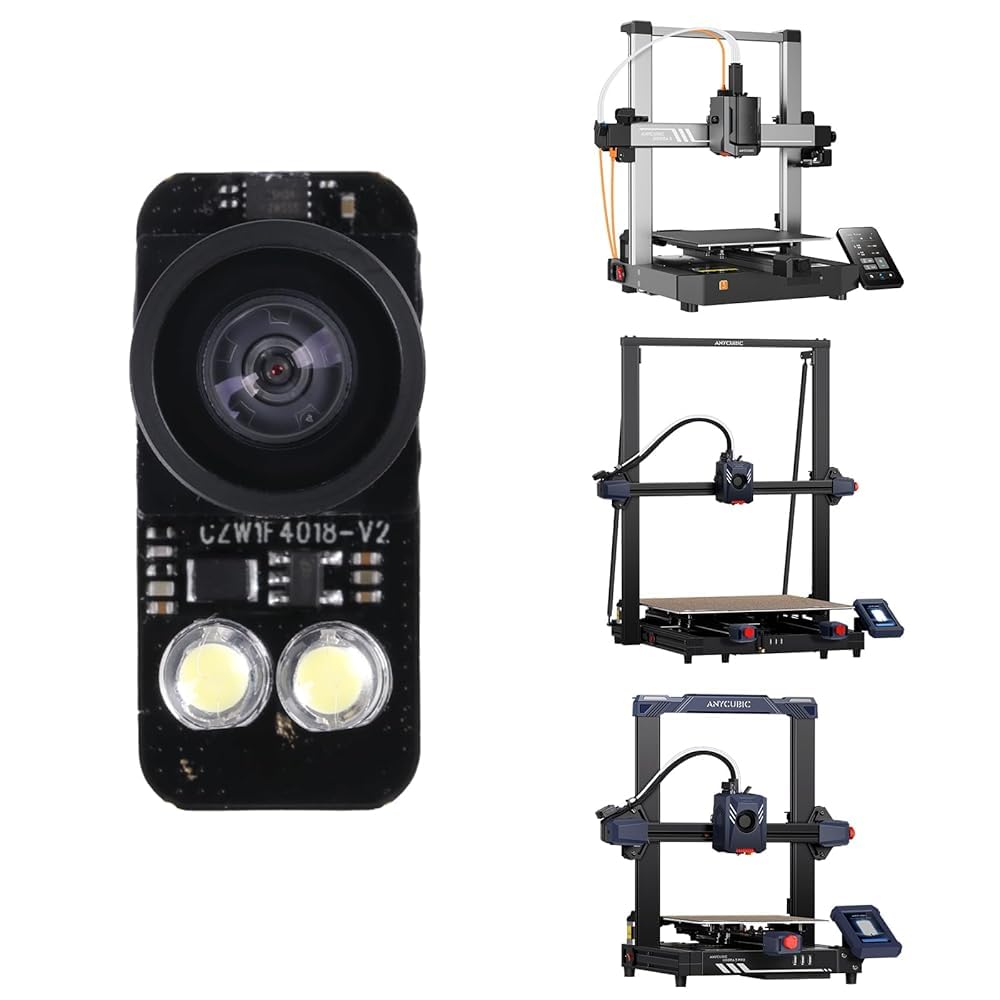
Image: The Anycubic 3D Printer Camera mounted on a 3D printer, with a smartphone showing the remote monitoring interface.
2. پيڪيج مواد
پڪ ڪريو ته سڀئي جزا پيڪيج ۾ موجود آهن:
- Anycubic 3D Printer Camera module
- USB ڪيبل
- چڙهڻ اسڪرو

Image: The camera module, USB cable, and a mounting screw, laid out next to the product packaging.
3. وضاحتون
| خاصيت | قدر |
|---|---|
| FOV (جو ميدان View) | 113° |
| قرارداد | 1920*1080 |
| وڊيو فارميٽ | MJPG/YUY2 |
| مرڪزي ڊگھائي | 300mm-∞ |
| ان پٽ Voltage | ڊي سي 5 وي |
| ڪنيڪشن جو طريقو | USB2.0 |
Note: Anycubic Kobra 2 series and Anycubic Kobra 3 products only display 480P resolution.

Image: A table detailing the technical specifications of the camera, including FOV, resolution, video format, focal length, input voltage, and connection method.
4. مطابقت
The Anycubic 3D Printer Camera is designed for broad compatibility with various Anycubic 3D printer models and systems:
- Anycubic Kobra 2 Pro
- Anycubic Kobra 2 Plus
- Anycubic Kobra 2 Max
- ڪوبڪ ڪوبرا 3
- Klipper Machine
- ڪمپيوٽر

Image: A visual representation of the camera's compatibility with different Anycubic Kobra 2 and Kobra 3 series printers, as well as Klipper machines and computers.
5. سيٽ اپ ۽ تنصيب
5.1 ڪئميرا ڳنڍڻ
Installation is straightforward. Simply connect the camera to the USB interface of your compatible 3D printer. Ensure the camera is inserted into the left USB port if your printer has multiple ports.

Image: A six-step visual guide demonstrating how to assemble the camera housing and connect the camera to the left USB port of an Anycubic Kobra 3 printer.
5.2 DIY Frame Customization
The camera's frame is replaceable, allowing for customization. You can create and install unique frames to personalize your camera setup.

Image: Six different colored camera frames, demonstrating the DIY customization option for the camera.
6. آپريٽنگ هدايتون
6.1 Real-Time and Remote Monitoring
Utilize the Anycubic APP to view the printing status of your models in real-time. This feature allows you to monitor printing progress from any location, enabling timely identification and resolution of potential issues such as layer adhesion problems or filament jams. This helps improve printing success rates and conserves filament material.

Image: A sequence of six images showing the real-time monitoring of a 3D print, illustrating the layer-by-layer progression of the model.
6.2 Video Supervision and Time-lapse Photography
The camera supports remote video supervision and time-lapse photography. This functionality allows you to capture the entire printing process, providing valuable insights and enabling you to create engaging time-lapse videos of your prints.
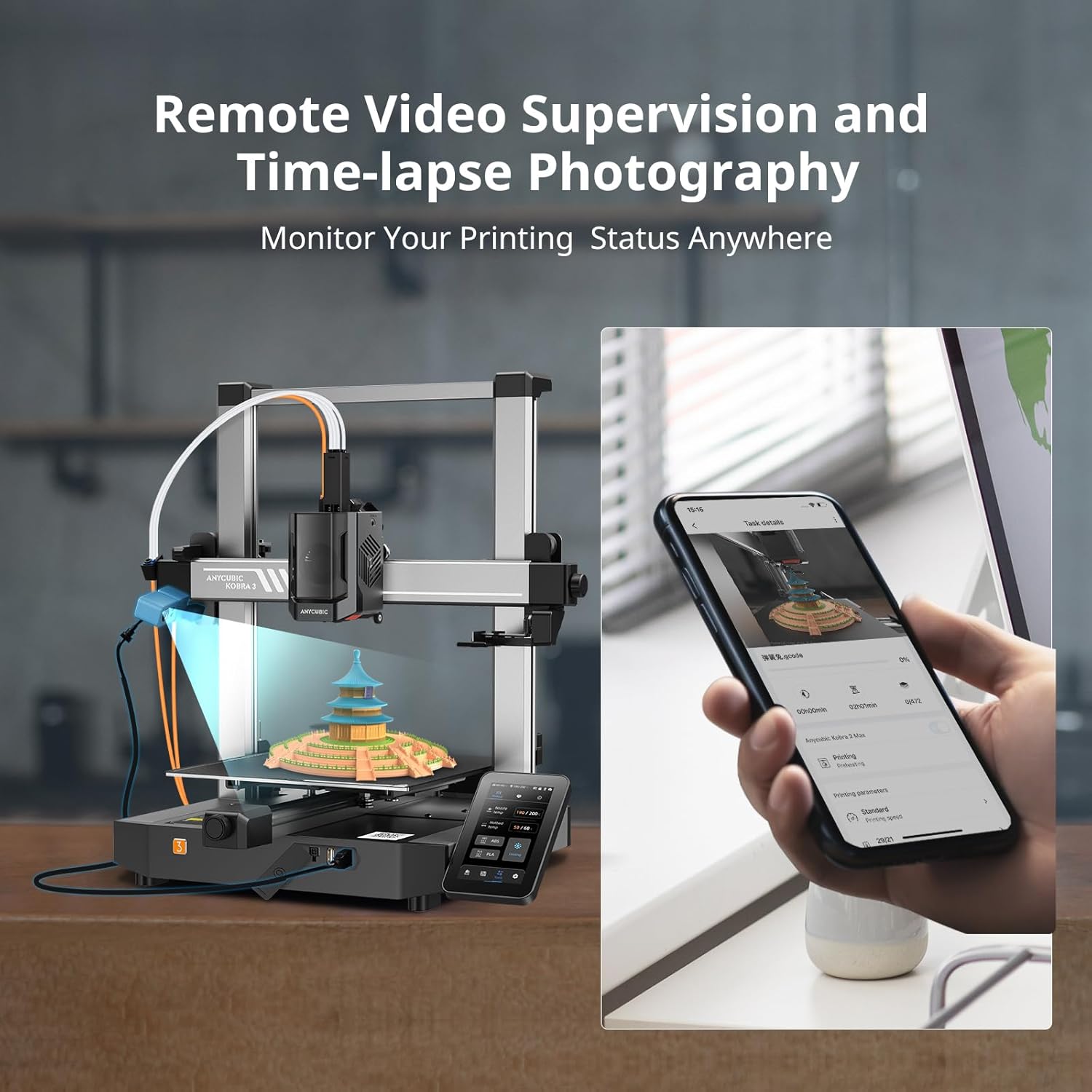
Image: The Anycubic 3D Printer Camera positioned above a 3D printer, with a smartphone displaying the remote monitoring and time-lapse photography options.
7. مسئلا حل ڪرڻ
If you encounter issues with your Anycubic 3D Printer Camera, consider the following common troubleshooting steps:
- No Image/Connection Issues: Ensure the USB cable is securely connected to both the camera and the correct USB port on the printer (left port if multiple are present). Verify that the printer and camera are powered on.
- خراب تصويري معيار: Check for any obstructions on the camera lens. Ensure adequate lighting in the printing area. Note that for Kobra 2 and Kobra 3 series, the display resolution is 480P.
- App Not Detecting Camera: Confirm that the Anycubic APP is updated to the latest version. Ensure your smartphone is connected to the internet and the printer is properly configured for network access.
- Laggy Video Feed: This can be due to network congestion or a weak Wi-Fi signal. Try moving your printer closer to your Wi-Fi router or reducing network traffic.
8. سار سنڀال
To ensure optimal performance and longevity of your Anycubic 3D Printer Camera, follow these maintenance guidelines:
- لينس جي صفائي: Gently wipe the camera lens with a soft, lint-free cloth to remove dust or smudges. Avoid using abrasive materials or harsh chemicals.
- ڪيبل جي چڪاس: Periodically inspect the USB cable for any signs of wear, damage, or kinks. Replace the cable if necessary to prevent connection issues.
- فرم ويئر اپڊيٽس: Regularly check the Anycubic official website or APP for any available firmware updates for your camera. Keeping the firmware updated can improve performance and add new features.
9. وارنٽي ۽ سپورٽ
Each Anycubic 3D Printer Camera undergoes strict testing and is provided with excellent packaging before delivery. It comes with 3 months of after-sale product service ۽ حياتياتي ٽيڪنيڪل سپورٽ. For any questions or assistance, please contact Anycubic customer support.