1. تعارف
This manual provides essential information for setting up, operating, and maintaining your HP OMEN 31.5 inch UHD 144Hz Smart Gaming Monitor. This monitor is designed to deliver an immersive visual experience with its 4K UHD display, high refresh rate, and smart features.
Key features include a 4K UHD (3840 x 2160) IPS panel, 144Hz refresh rate, VESA DisplayHDR 400, 1ms GtG response time with Overdrive, and NVIDIA G-SYNC compatibility. It also offers smart functionalities for streaming and multi-device connectivity.
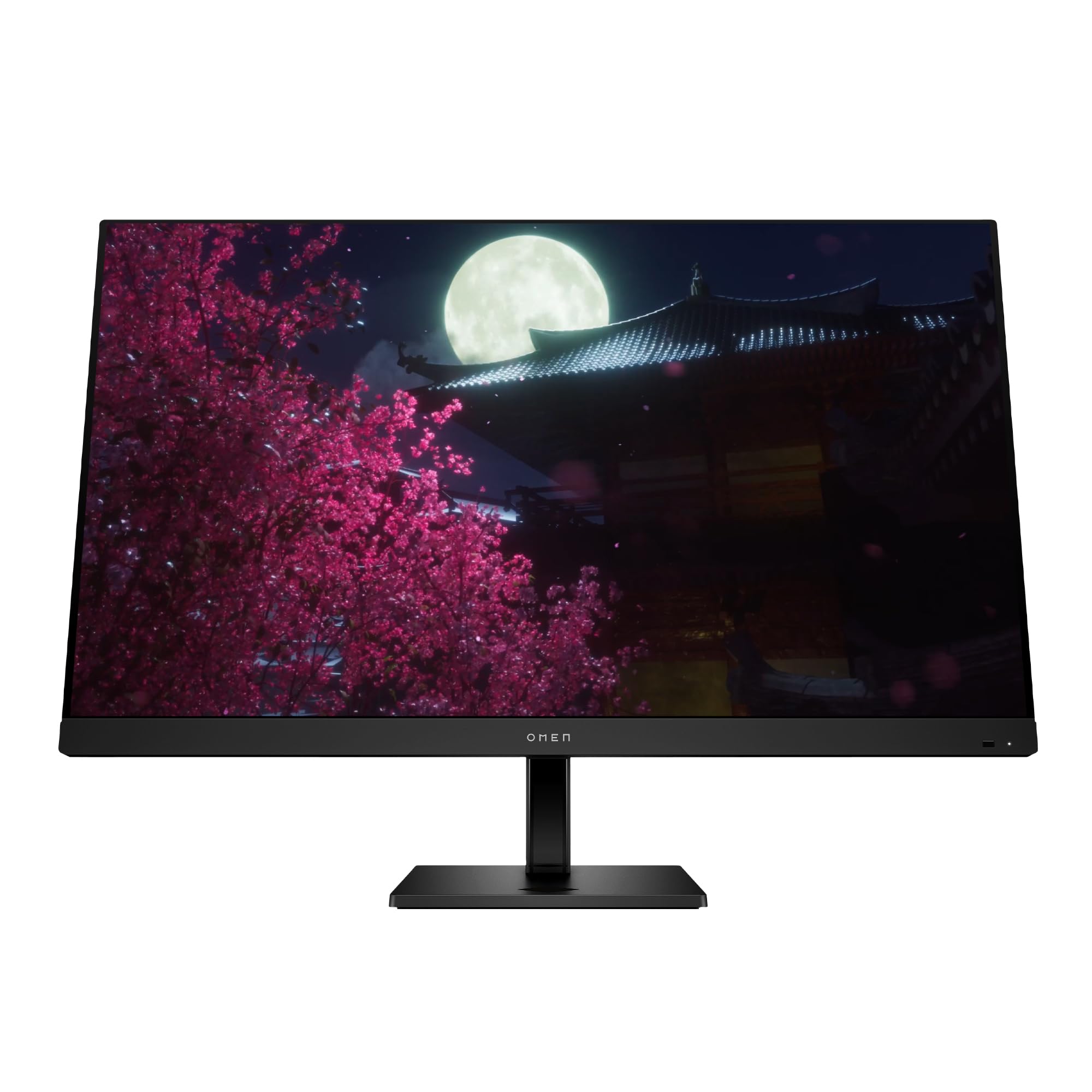
Image 1.1: The HP OMEN 31.5 inch UHD 144Hz Smart Gaming Monitor, highlighting its 4K UHD display, VESA DisplayHDR 400, integrated 3W speakers, and NVIDIA G-SYNC compatibility.
2. دٻي ۾ ڇا آهي
سيٽ اپ سان اڳتي وڌڻ کان اڳ پڪ ڪريو ته سڀئي جزا پيڪنگنگ ۾ موجود آهن.
- HP OMEN 31.5 inch UHD 144Hz Smart Gaming Monitor
- مانيٽر اسٽينڊ (بنياد ۽ گردن)
- ڊسپلي پورٽ ڪيبل
- HDMI ڪيبل
- USB قسم-سي کان قسم-سي ڪيبل
- اي سي پاور ڪيبل
- IR and Bluetooth remote control
- 2 x AAA batteries (for remote control)
- ڪيبل هولڊر
- تڪڙو سيٽ اپ پوسٽر
- Documentation (including Warranty card)

Image 2.1: Visual representation of the items included in the product packaging, such as the monitor, cables, remote, and documentation.
3. سيٽ اپ
3.1 مانيٽر اسٽينڊ کي گڏ ڪرڻ
- پيڪنگ مان مانيٽر ۽ اسٽينڊ جي حصن کي احتياط سان هٽايو.
- اسٽينڊ نيڪ کي مانيٽر پينل سان ڳنڍيو، پڪ ڪريو ته اهو محفوظ طور تي جاءِ تي ڪلڪ ڪري.
- اسٽينڊ بيس کي اسٽينڊ جي گردن سان ڳنڍيو، جيڪڏهن ضروري هجي ته ڪنهن به اسڪرو کي سخت ڪريو.
- گڏ ٿيل مانيٽر کي هڪ مستحڪم، هموار مٿاڇري تي رکو.
3.2 مانيٽر کي ڳنڍڻ
ضروري ڪيبلز کي مانيٽر ۽ پنهنجي ڪمپيوٽر يا ٻين ڊوائيسز سان ڳنڍيو.
- طاقت: AC پاور ڪيبل کي مانيٽر جي پاور ان پٽ سان ۽ پوءِ وال آئوٽليٽ سان ڳنڍيو.
- ويڊيو جو انٽرويو Connect either the DisplayPort cable, HDMI cable, or USB Type-C cable from your computer/device to the corresponding port on the monitor. The monitor supports 2 HDMI 2.1 ports, 1 DisplayPort 1.4, and 1 USB Type-C port.
- USB ڊوائيسز: Connect USB peripherals to the 2 USB 2.0 Type-A ports on the monitor.
- آڊيو آئوٽ: If desired, connect external speakers or headphones to the 3.5 mm Audio Jack (Audio Out).
- نيٽ ورڪ: For smart features, connect an Ethernet cable to the RJ-45 port (100 Mbps, for Android TV OS use only).

Image 3.1: The rear panel of the monitor, illustrating the location of the 2 HDMI 2.1 ports, USB Type-C port, 2 USB 2.0 Type-A ports, 3.5 mm Audio Jack, DisplayPort 1.4, and RJ-45 port.
3.3 شروعاتي پاور آن
- پڪ ڪريو ته سڀئي ڪيبل محفوظ طور تي ڳنڍيل آهن.
- Press the power button on the monitor or use the remote control to turn on the monitor.
- Follow any on-screen prompts for initial setup, such as language selection and network connection for smart features.
4. مانيٽر کي هلائڻ
4.1 Basic Controls and OSD Navigation
The monitor can be controlled using the physical buttons located on the monitor or the included IR and Bluetooth remote control. The On-Screen Display (OSD) menu allows you to adjust various settings.
- Use the remote control's directional buttons to navigate the OSD menu.
- Press the 'OK' or 'Enter' button to select an option.
- Use the 'Back' or 'Exit' button to return to the previous menu or exit the OSD.
4.2 ڊسپلي سيٽنگون ۽ خاصيتون
توهان جي اصلاح ڪريو viewهيٺ ڏنل سيٽنگون ترتيب ڏيڻ سان تجربو حاصل ڪري سگهجي ٿو:
- قرارداد: The monitor supports 4K UHD (3840 x 2160) resolution. Ensure your connected device is configured to output at this resolution for optimal clarity.
- ريفريش جي شرح: Set your device's display settings to 144Hz for smooth motion and responsive gameplay.
- ويسا ڊسپلي ايڇ ڊي آر 400: Enable HDR settings on your device and in the monitor's OSD for enhanced contrast and color depth in compatible content.
- NVIDIA G-SYNC مطابقت رکندڙ: For NVIDIA graphics card users, enable G-SYNC in your NVIDIA Control Panel to synchronize the monitor's refresh rate with your GPU's frame rate, reducing screen tearing and stuttering.
- Dolby Vision and Dolby Atmos: Experience enhanced visuals and immersive audio with Dolby support. Ensure your content and connected devices are compatible.
- ايڇ پي آئي ايز آئي سيف سرٽيفڪيشن سان: This feature reduces blue light emissions to help minimize eye strain during extended use, without compromising color accuracy.

Image 4.1: The monitor features HP Eye Ease with Eyesafe Certification, designed to provide comfortable viewing by reducing blue light while maintaining color quality.
4.3 سمارٽ خاصيتون ۽ ڪنيڪٽوٽي
The OMEN 32x monitor offers advanced smart functionalities:
- گهڻ-View: Split your screen to display content from two different sources simultaneously. For example, use a wired connection on one side and wireless casting on the other.
- Multi-Platform Streamer Honors: Stream content directly from your screen to multiple platforms. Refer to the monitor's smart OS interface for configuration.
- Shared Keyboard/Mouse (KB/M): Easily switch your keyboard and mouse control between multiple connected devices, simplifying your setup.
- Home Panel Integration: Control smart home devices like lights and thermostats, view doorbell notifications, and full-screen camera feeds directly from the monitor's home panel.

Image 4.2: The monitor's capability to live stream to multiple platforms and utilize a split-screen Multi-View feature for enhanced multitasking.

Image 4.3: The monitor's smart home panel, allowing control of lights, temperature, and displaying doorbell notifications and full-screen camera views.
4.4 ايرگونومڪ ترتيبون
بهتر لاء مانيٽر کي ترتيب ڏيو viewآرام ڪرڻ:
- اونچائي جي ترتيب: The stand allows for a 100mm height adjustment range.
- جھلڻ: The monitor can be tilted from -5° to +20° to find your preferred viewزاويه.

Image 4.4: Illustration of the monitor's ergonomic adjustments, including its tilt range (-5° to +20°) and 100mm height adjustable range.
5. سار سنڀال
5.1 مانيٽر جي صفائي
- صاف ڪرڻ کان اڳ هميشه مانيٽر کي بند ڪريو ۽ پاور ڪنڊ کي ان پلگ ڪريو.
- استعمال ڪريو نرم، lint-آزاد ڪپڙو روشنيءَ سان ڊيampپاڻي يا غير رگڙيندڙ اسڪرين ڪلينر سان صاف ڪيو وڃي.
- صاف ڪندڙ کي سڌو سنئون اسڪرين تي نه اسپري ڪريو.
- سخت ڪيميڪلز، محلولن، يا رگڙيندڙ مواد استعمال ڪرڻ کان پاسو ڪريو، ڇاڪاڻ ته اهي اسڪرين يا سي کي نقصان پهچائي سگهن ٿا.asing.
5.2 عام سنڀال
- مانيٽر يا ان جي ڪيبل تي ڳري شيون رکڻ کان پاسو ڪريو.
- مانيٽر تي وينٽيليشن جي سوراخن کي نه روڪيو.
- مانيٽر کي سڌي سج جي روشني، گرمي جي ذريعن، ۽ گهڻي نمي کان پري رکو.
6. مسئلا حل ڪرڻ
جيڪڏهن توهان کي پنهنجي مانيٽر سان مسئلا درپيش اچن ٿا، ته هيٺ ڏنل عام حلن جو حوالو ڏيو:
| مسئلو | ممڪن حل |
|---|---|
| طاقت نه آهي | Ensure the power cable is securely connected to both the monitor and a working power outlet. Check if the power button is pressed. |
| ڪوبه سگنل ناهي / خالي اسڪرين | Verify that the video cable (DisplayPort, HDMI, or USB-C) is correctly connected to both the monitor and your computer. Ensure the correct input source is selected in the monitor's OSD menu. Try restarting your computer. |
| تصوير جو ٽمٽار يا بگاڙ | Check the video cable for damage. Ensure your graphics drivers are up to date. Adjust the refresh rate in your computer's display settings. Disable G-SYNC temporarily to see if the issue persists. |
| رنگ غلط نظر اچن ٿا | Adjust color settings in the OSD menu. Perform a factory reset of the monitor settings. Ensure your graphics card color settings are correctly configured. |
| ريموٽ ڪنٽرول ڪم نه ڪري رهيو آهي | Check and replace the AAA batteries. Ensure there are no obstructions between the remote and the monitor's IR receiver. Re-pair the Bluetooth remote if necessary. |
If the problem persists after trying these solutions, contact HP customer support.
7. وضاحتون
| خاصيت | تفصيل |
|---|---|
| ماڊل نمبر | 99Z68AA#ABA |
| اسڪرين جي ماپ | 31.5 انچ |
| پينل جو قسم | آئي پي ايس |
| قرارداد | 4K يو ايڇ ڊي (3840 X 2160) |
| ريفريش جي شرح | 144Hz |
| جوابي وقت | 1 ايم ايس جي ٽي جي (اوور ڊرائيو سان) |
| HDR سپورٽ | ويسا ڊسپلي ايڇ ڊي آر 400 |
| جي-سي اين سي مطابقت | NVIDIA G-SYNC مطابقت رکندڙ |
| مقابلي جي نسبت | 1000:1 |
| روشني | 400 نِٽ (چوٽي) |
| Viewاننگز | 178° (H) / 178° (V) |
| ڳالهائيندڙ | Four integrated 3W speakers |
| ويڊيو ان پٽ پورٽس | 2 x HDMI 2.1, 1 x DisplayPort 1.4, 1 x USB Type-C |
| USB بندرگاهن | 2 x USB 2.0 Type-A (Battery Charging 1.2) |
| آڊيو آئوٽ | 3.5 ملي ايم او جئڪ |
| نيٽ ورڪ پورٽ | 1 x RJ-45 (100 Mbps, for Android TV OS only) |
| ايرگونومڪس | Height adjustable (100mm), Tilt (-5° to +20°) |
| طول و عرض (WxDxH) | 28.11 x 9.58 x 16.93 انچ (اسٽينڊ سان) |
| وزن | 23.3 پائونڊ (اسٽينڊ سان) |
| رنگ | ڪارو |
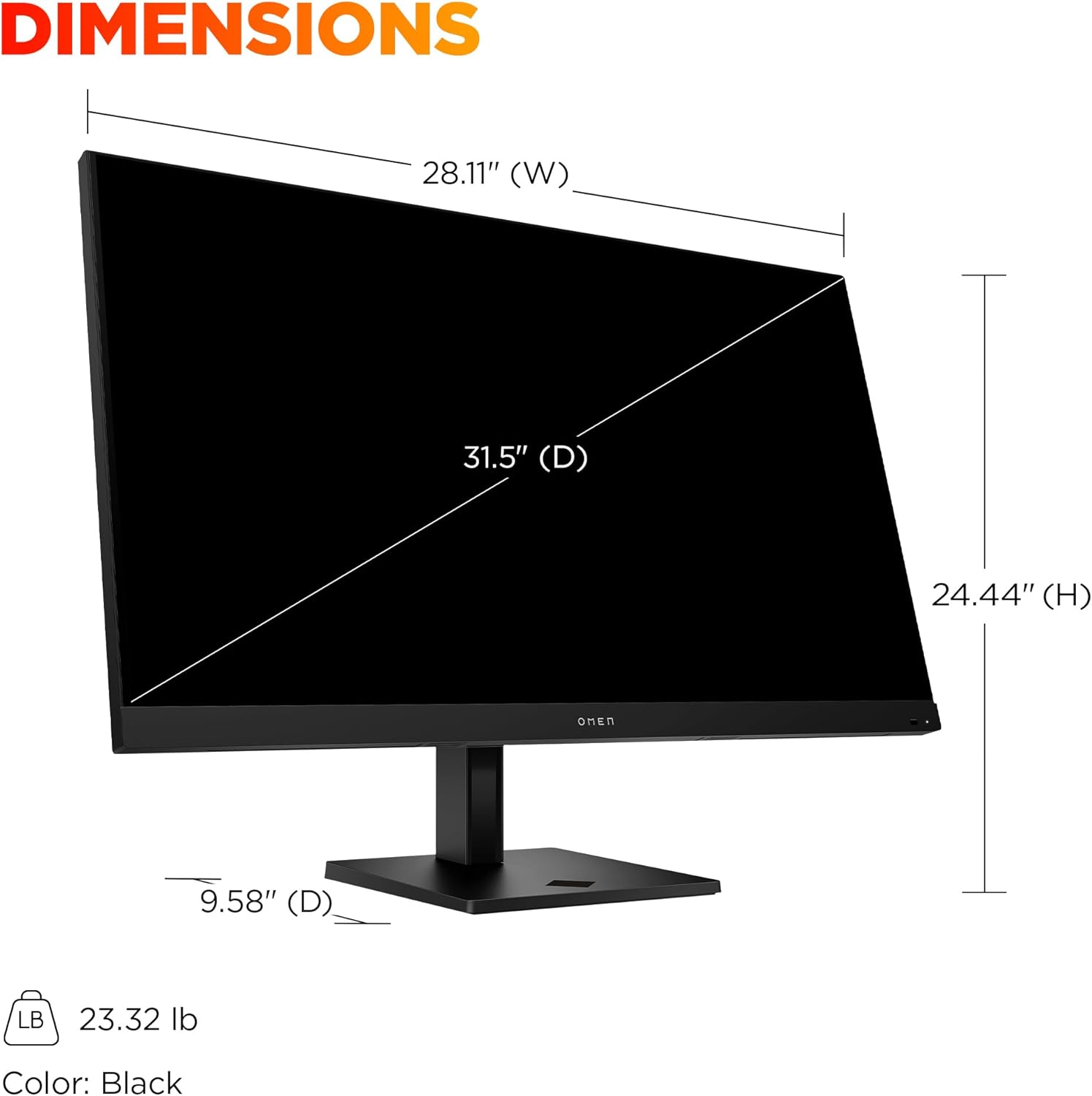
Image 7.1: Detailed dimensions of the HP OMEN 31.5 inch monitor, including width, height, and depth, along with its weight.
8. وارنٽي ۽ سپورٽ
8.1 وارنٽي ڄاڻ
This HP OMEN monitor comes with a HP 3-year limited warranty. مڪمل شرطن ۽ ضابطن لاءِ مھرباني ڪري پنھنجي پراڊڪٽ پيڪنگنگ ۾ شامل وارنٽي ڪارڊ ڏسو. وارنٽي دعوائن لاءِ خريداري جو ثبوت پاڻ وٽ رکو.
8.2 ڪسٽمر سپورٽ
For technical assistance, troubleshooting beyond this manual, or warranty service, please contact HP customer support. You can find support contact information on the official HP website or through the documentation provided with your monitor.
Online resources, drivers, and FAQs may also be available on the HP سپورٽ webسائيٽ.