تعارف
This manual provides detailed instructions for the setup, operation, maintenance, and troubleshooting of your AOC Gaming U27G4R 27-inch 4K UHD Monitor. Please read this manual thoroughly before using the product to ensure proper functionality and to prevent damage.

شڪل 1: سامهون view of the AOC Gaming U27G4R Monitor.
1. سيٽ اپ
1.1 انباڪسنگ ۽ پيڪيج جو مواد
پيڪنگ مان سڀئي جزا احتياط سان هٽايو. پڪ ڪريو ته هيٺ ڏنل سڀئي شيون موجود آهن:
- AOC Gaming U27G4R Monitor
- مانيٽر اسٽينڊ (بنياد ۽ گردن)
- پاور ڪيبل
- HDMI ڪيبل
- ڊسپلي پورٽ ڪيبل
- USB-B کان USB-A ڪيبل (USB حب جي ڪارڪردگي لاءِ)
- تڪڙو شروع ھدايت
- وارنٽي ڪارڊ
1.2 اسٽينڊ کي گڏ ڪرڻ
- ڇڪڻ کان بچڻ لاءِ مانيٽر جو مُنهن نرم، صاف مٿاڇري تي هيٺ رکو.
- اسٽينڊ نيڪ کي مانيٽر جي VESA ماؤنٽ ايريا سان ڳنڍيو. جيڪڏهن مهيا ڪيل هجي ته اسڪرو سان محفوظ ڪريو.
- Attach the stand base to the neck. Tighten the thumb screw or screws at the bottom of the base.

شڪل 2: پوئتي view illustrating the stand attachment point.
1.3 ڳنڍيندڙ ڪيبل
Connect the necessary cables to the monitor and your computer/device:
- پاور ڪيبل: هڪ ڇيڙو مانيٽر جي پاور ان پٽ سان ۽ ٻيو ڇيڙو پاور آئوٽليٽ سان ڳنڍيو.
- وڊيو ڪيبل: Connect either an HDMI cable (2x HDMI 2.1 ports available) or a DisplayPort cable (1x DisplayPort 1.4 available) from your computer's graphics card to the corresponding input on the monitor.
- USB اپ اسٽريم ڪيبل: To enable the monitor's USB hub (4x USB 2.0, 1x USB 3.0), connect the USB-B end of the provided cable to the monitor's USB upstream port and the USB-A end to your computer.
- آڊيو آئوٽ: If using external speakers or headphones, connect them to the 3.5mm headphone out port on the monitor.
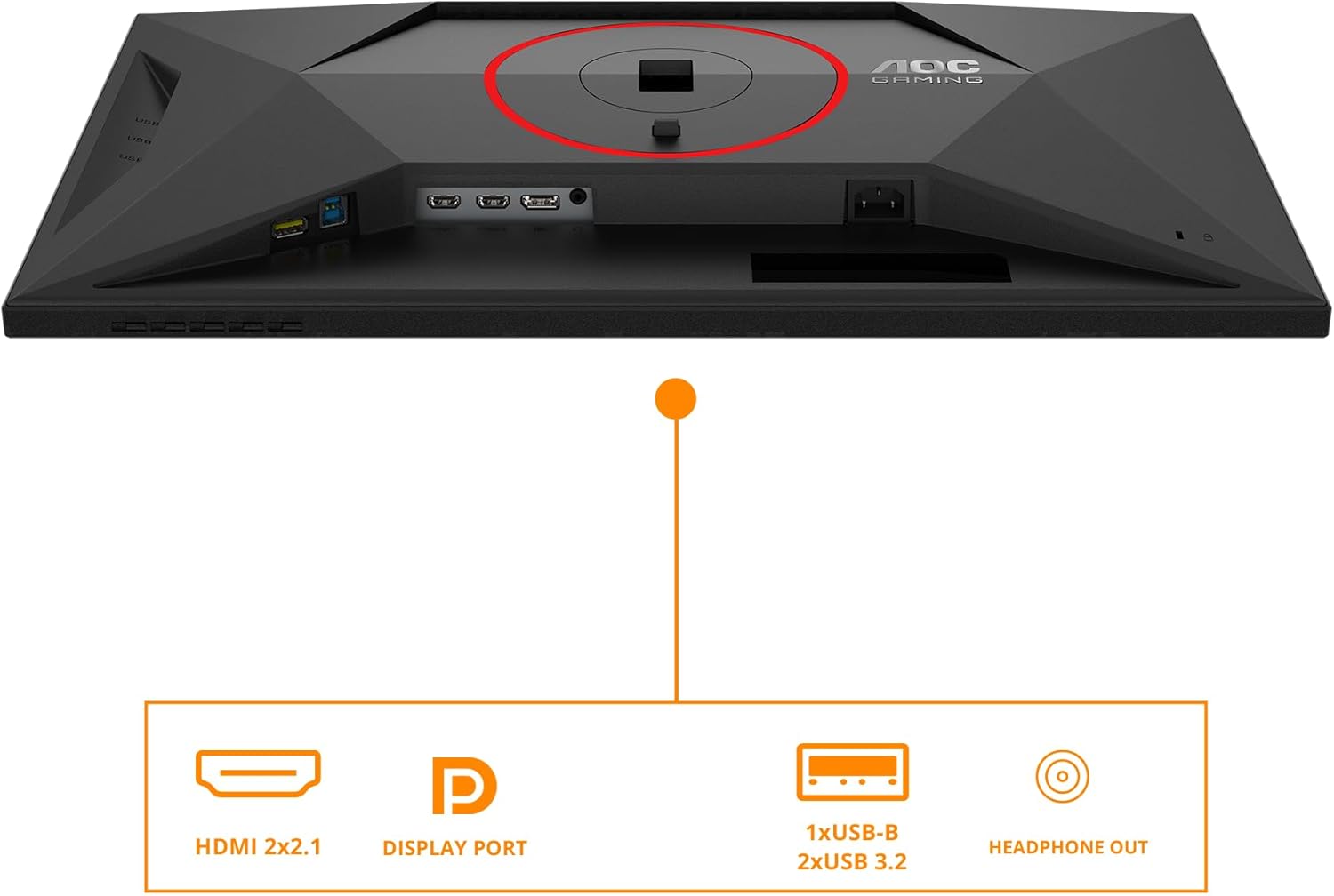
شڪل 3: ختمview of the monitor's input and output ports, including HDMI, DisplayPort, USB hub, and headphone out.
1.4 پاور آن
Press the power button located on the monitor to turn it on. The power indicator light will illuminate.
2. مانيٽر کي هلائڻ
2.1 آن-اسڪرين ڊسپلي (OSD) مينيو نيويگيشن
The monitor features an intuitive OSD menu for adjusting various settings. Use the joystick or buttons located on the bottom right of the monitor to navigate.
- Joystick/Buttons: Press to open the OSD menu. Move up/down/left/right to navigate options. Press again to select.
- پاور بٽڻ: مانيٽر کي آن / بند ڪري ٿو.
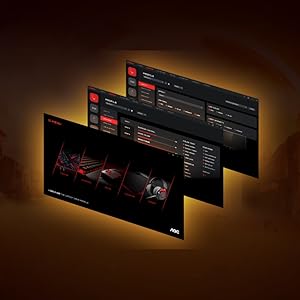
شڪل 4: مثالample of the On-Screen Display (OSD) menu for configuration.
2.2 ڊسپلي سيٽنگون
Adjust picture quality and performance settings through the OSD menu:
- قرارداد: The native resolution is 3840x2160 (4K UHD). Ensure your operating system is set to this resolution for optimal clarity.
- ريفريش جي شرح: Supports up to 160Hz for UHD and 320Hz for FHD. Adjust this in your graphics card control panel or display settings for smoother visuals.
- موافقت واري هم وقت سازي: This monitor is G-Sync compatible. Enable Adaptive Sync in the OSD menu and your graphics card settings to synchronize the display's refresh rate with your GPU's frame rate, reducing screen tearing and stuttering.
- HDR400: The monitor supports VESA DisplayHDR 400 for enhanced contrast and color vibrancy. Enable HDR in your operating system's display settings for compatible content.
- جواب ڏيڻ جو وقت: Features a rapid 1ms (GtG) and 0.5ms (MPRT) response time for crisp images and reduced motion blur, ideal for fast-paced gaming.
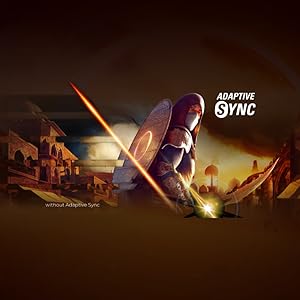
Figure 5: Visual representation of Adaptive Sync technology in action.
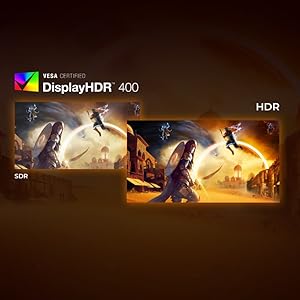
Figure 6: Comparison illustrating the visual difference between HDR and SDR content.
2.3 ايرگونومڪ ترتيبون
The monitor stand allows for height adjustment to optimize your viewآرام ۾.
- اونچائي جي ترتيب: Gently push or pull the monitor up or down along the stand's vertical axis to find your preferred height. The monitor offers up to 130mm of height adjustment.
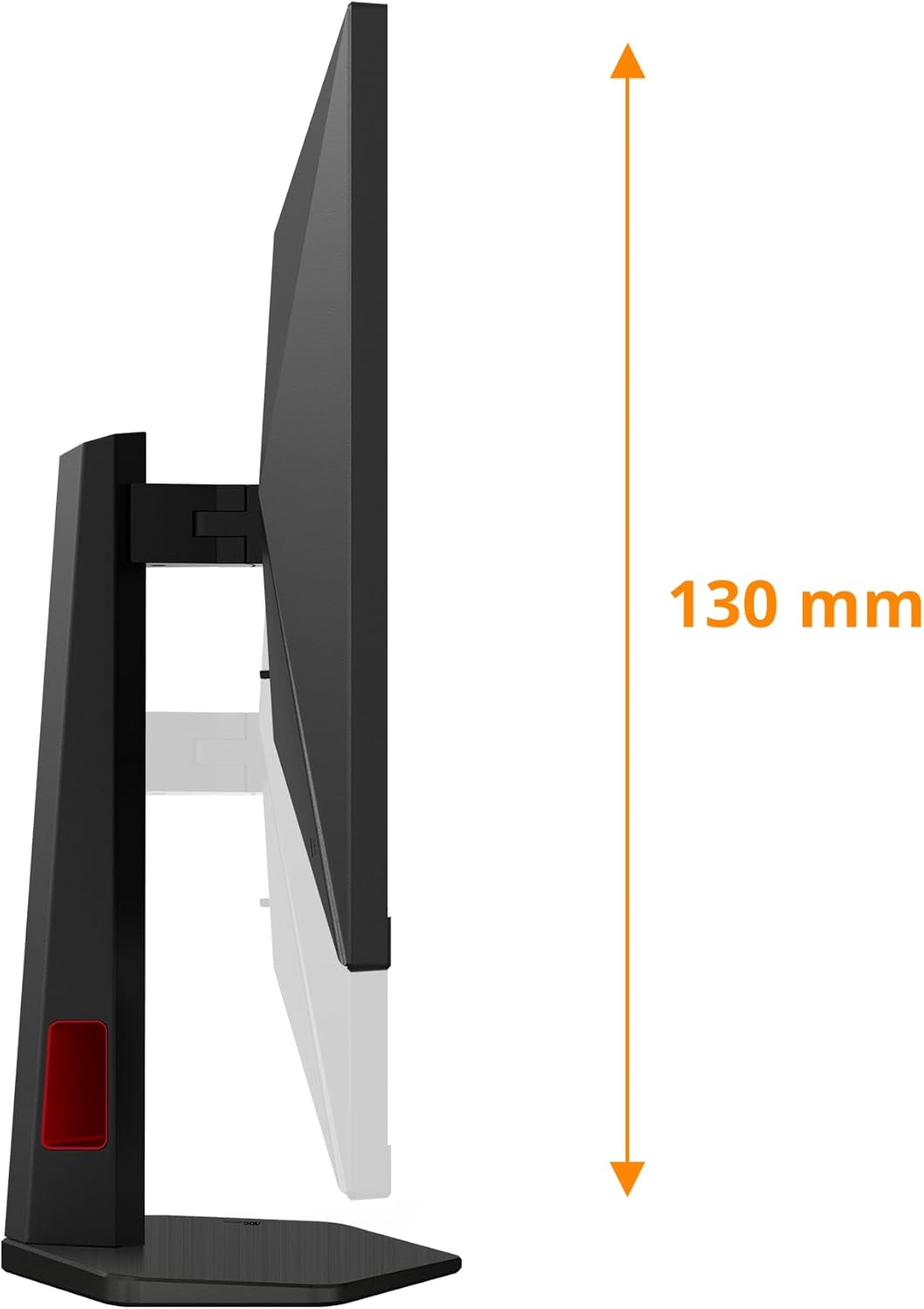
شڪل 7: پاسي view demonstrating the monitor's height adjustment capability.
3. سار سنڀال
3.1 مانيٽر جي صفائي
مانيٽر جي ظاهر ۽ ڪارڪردگي کي برقرار رکڻ لاءِ:
- صفائي ڪرڻ کان اڳ هميشه مانيٽر کي پاور آئوٽليٽ مان ڪڍي ڇڏيو.
- نرم، لِنٽ کان خالي ڪپڙو استعمال ڪريو ٿورڙو ڊيampپاڻي يا غير رگڙيندڙ اسڪرين ڪلينر سان صاف ڪيو وڃي.
- صاف ڪندڙ کي سڌو سنئون اسڪرين تي نه اسپري ڪريو.
- بينزين، ٿنڀا، امونيا تي ٻڌل ڪلينر، يا رگڙيندڙ مواد استعمال ڪرڻ کان پاسو ڪريو، ڇاڪاڻ ته اهي اسڪرين يا سي کي نقصان پهچائي سگهن ٿا.asing.
3.2 اسٽوريج
When storing the monitor for extended periods, ensure it is:
- Stored in a cool, dry place away from direct sunlight and extreme temperatures.
- Protected from dust and moisture.
- Preferably stored in its original packaging to prevent damage.
4. مسئلا حل ڪرڻ
جيڪڏهن توهان کي پنهنجي مانيٽر سان مسئلا درپيش اچن ٿا، ته هيٺ ڏنل عام مسئلن ۽ حلن جو حوالو ڏيو:
| مسئلو | ممڪن سبب | حل |
|---|---|---|
| اسڪرين تي ڪوبه تصوير نه آهي | Power cable disconnected; Video cable disconnected or incorrect input selected. | Ensure power cable is securely connected. Check video cable connection (HDMI/DisplayPort). Press the OSD button to select the correct input source. |
| تصوير ڌنڌلي يا بگڙيل آهي. | غلط ريزوليوشن يا ريفريش ريٽ سيٽنگون. | Set display resolution to 3840x2160 and refresh rate to 160Hz (or lower compatible rates) in your computer's display settings. |
| اسڪرين چمڪندڙ | Adaptive Sync not enabled or compatibility issue; Cable issue. | Ensure Adaptive Sync is enabled on both the monitor and your graphics card. Try a different video cable. |
| No audio from headphone out | Audio settings incorrect; External device issue. | Check audio output settings on your computer (select AOC monitor as output). Ensure headphones/speakers are working correctly. |
| USB بندرگاهن ڪم نه ڪري رهيا آهن | USB اپ اسٽريم ڪيبل ڳنڍيل نه آهي. | Connect the USB-B to USB-A upstream cable from the monitor to your computer. |
If the problem persists after trying these solutions, please contact AOC customer support.
5. وضاحتون
| خاصيت | تفصيل |
|---|---|
| برانڊ | AOC |
| ماڊل نمبر | يو 27 جي 4 آر |
| اسڪرين جي ماپ | 27 انچ |
| قرارداد | 3840 x 2160 (4K UHD) |
| ريفريش جي شرح | 160Hz (UHD), 320Hz (FHD) |
| جوابي وقت | 0.5 ايم ايس (ايم پي آر ٽي) / 1 ايم ايس (جي ٽي جي) |
| پينل جو قسم | آئي پي ايس |
| HDR سپورٽ | ويسا ڊسپلي ايڇ ڊي آر 400 |
| موافقت واري هم وقت سازي | G- هم وقت سازي |
| وڊيو انپٽس | 2x HDMI 2.1, 1x DisplayPort 1.4 |
| USB حب | 4x USB 2.0, 1x USB 3.0 (with upstream port) |
| آڊيو آئوٽ | 1x Headphone Out (3.5mm) |
| ايرگونومڪس | Height Adjustable (up to 130mm) |
| طول و عرض (اسٽينڊ سان) | 22.76 x 61.39 x 51.6 سينٽي |
| وزن (اسٽينڊ سان) | 8.2 ڪلو |
6. وارنٽي ۽ سپورٽ
6.1 وارنٽي ڄاڻ
Your AOC Gaming U27G4R Monitor comes with a manufacturer's warranty. Please refer to the warranty card included in your product packaging for specific terms, conditions, and duration of the warranty. Keep your proof of purchase for warranty claims.
6.2 ڪسٽمر سپورٽ
For technical assistance, product inquiries, or warranty service, please visit the official AOC support website or contact their customer service department. Contact details can typically be found on the AOC webسائيٽ يا توهان جي پراڊڪٽ دستاويزن ۾.
آن لائن سپورٽ: www.aoc.com


