تعارف
This manual provides detailed instructions for the OWC Gemini Thunderbolt (USB-C) Docking Station and External RAID Storage Solution. It covers setup, operation, maintenance, troubleshooting, and technical specifications to ensure optimal performance and longevity of your device.
حفاظت جي ڄاڻ
- ڊوائيس استعمال ڪرڻ کان پهريان سڀ هدايتون احتياط سان پڙهو.
- ڊوائيس کي نمي يا انتهائي گرمي پد تي ظاهر نه ڪريو.
- صرف ڊوائيس سان فراهم ڪيل پاور اڊاپٽر استعمال ڪريو.
- پاڻ ڊوائيس کي کولڻ يا مرمت ڪرڻ جي ڪوشش نه ڪريو. سڀني سروسنگ کي قابل اهلڪارن جي حوالي ڪريو.
- وڌيڪ گرم ٿيڻ کان بچڻ لاءِ ڊوائيس جي چوڌاري مناسب وائيٽليشن کي يقيني بڻايو وڃي.
پيڪيج مواد
پڪ ڪريو ته سڀئي شيون توهان جي پيڪيج ۾ موجود آهن:
- OWC Gemini Thunderbolt (USB-C) Docking Station
- پاور اڊاپٽر
- Thunderbolt (USB-C) Cable
- استعمال ڪندڙ جو دستياب (ھي دستاويز)
- Drives (pre-installed for 32TB model)
پيداوار ختمview
The OWC Gemini is a versatile docking station and external storage solution designed for high-performance data management and expanded connectivity.

تصوير: سامهون view of the OWC Gemini Thunderbolt Docking Station, showcasing its sleek black design and OWC branding.
اهم خاصيتون
- Dual Drive Bays: Supports 2.5-inch and 3.5-inch SATA drives for flexible storage configurations.
- Hardware RAID: Offers RAID 0, RAID 1, SPAN, and JBOD modes for optimized performance or data redundancy.
- Thunderbolt (USB-C) Connectivity: Two Thunderbolt 3 (USB-C) ports for host connection, daisy-chaining, and power delivery (up to 27W).
- وڌايل رابطي: Includes two USB 3.2 Gen 2 Type-A ports, one HDMI port, one 2.5 Gigabit Ethernet port, and one SD 4.0/UHS-II media slot.
- High-Resolution Display Support: HDMI 2.1 supports up to 8K @ 120Hz, and Thunderbolt 3 supports up to 8K @ 60Hz or 4K @ 120Hz.
پورٽ جي ترتيب
The OWC Gemini provides a comprehensive set of ports for various connectivity needs.

تصوير: پوئين پاسي view of the OWC Gemini Docking Station, highlighting the 7 ports of connectivity including Thunderbolt, USB, HDMI, and Ethernet.
- Thunderbolt 3 (USB-C) Host Port: Connects to your computer.
- Thunderbolt 3 (USB-C) Downstream Port: For daisy-chaining, additional displays, or charging USB-C devices.
- USB 3.2 Gen 2 ٽائپ-اي پورٽس (x2): USB پردي کي ڳنڍڻ لاءِ.
- HDMI 2.1 پورٽ: ٻاهرين ڊسپلي کي ڳنڍڻ لاءِ.
- 2.5 گيگاابٽ ايٿرنيٽ پورٽ: For high-speed network connectivity.
- SD 4.0/UHS-II Media Slot: Located on the front panel for convenient access.
- ڊي سي 12V پاور ان پٽ: پاور اڊاپٽر سان ڳنڍي ٿو.

Image: Close-up of the front panel of the OWC Gemini, showing the easily accessible SD card slot.
سيٽ اپ ڪريو
1. Drive Installation (if applicable)
For models without pre-installed drives, follow these steps to install 2.5-inch or 3.5-inch SATA drives.

Image: The OWC Gemini unit illustrating its two flexible drive bays, compatible with both 2.5-inch and 3.5-inch drives.
- Ensure the device is powered off and disconnected from your computer.
- Open the drive bay door(s) according to the product's physical design.
- Insert your 2.5-inch or 3.5-inch SATA drives into the bays, ensuring they are securely seated.
- Close the drive bay door(s).
2. RAID ترتيب
The OWC Gemini supports hardware RAID. Refer to the specific RAID configuration utility or physical switches on the device (if present) to set your desired RAID level (RAID 0, RAID 1, SPAN, or JBOD).
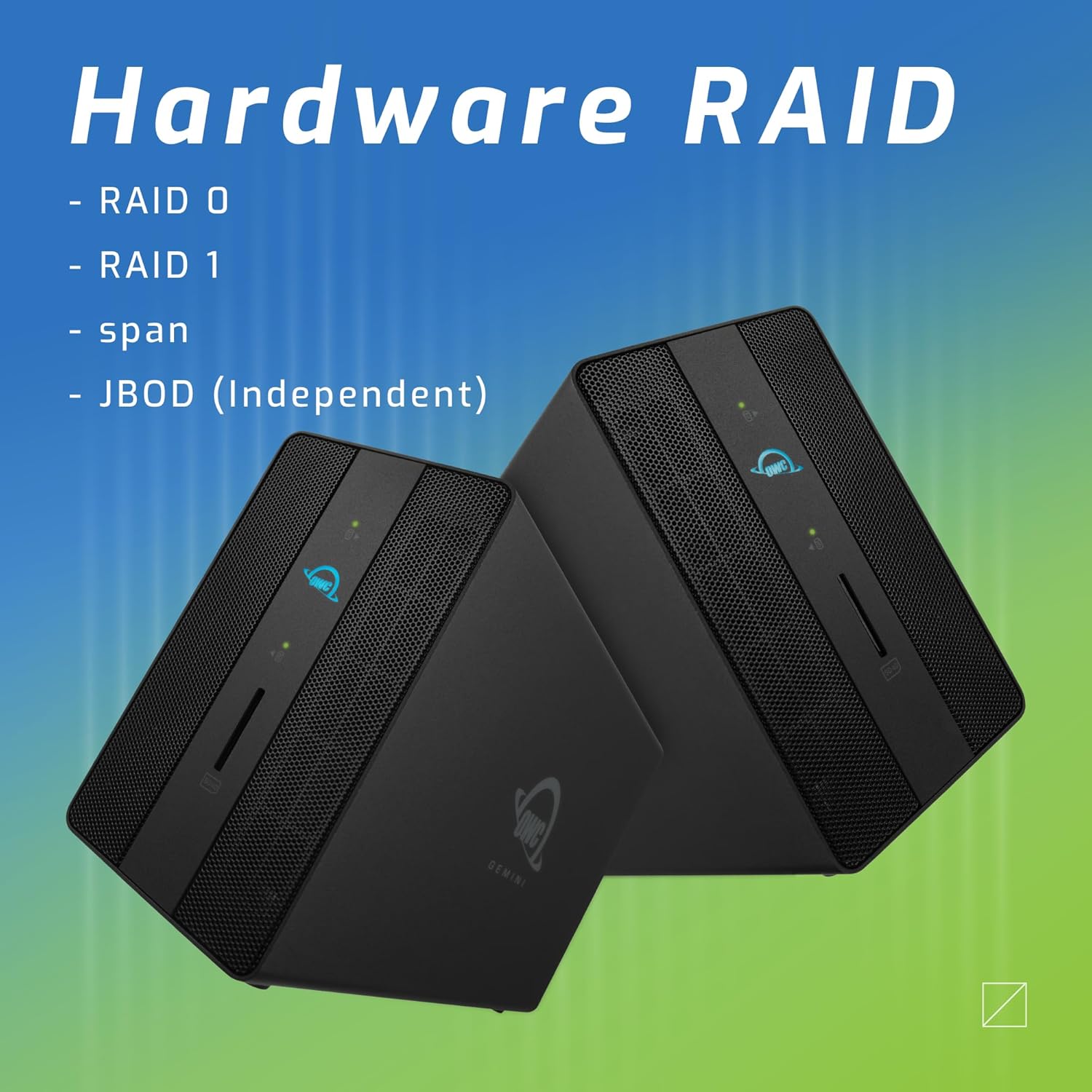
Image: Two OWC Gemini units, emphasizing the hardware RAID capabilities for configurations like RAID 0, RAID 1, SPAN, and JBOD.
RAID Levels Explained:
- RAID 0 (اسٽرائپنگ): وڌ ۾ وڌ رفتار ۽ گنجائش لاءِ ڊرائيو کي گڏ ڪري ٿو، پر ڊيٽا جي ڪا به اضافي گنجائش پيش نٿو ڪري.
- RAID 1 (عڪس ڪرڻ): Duplicates data across drives for redundancy, sacrificing half the total capacity for data protection.
- اسپين (ڳنڍ): ڊرائيو کي هڪ وڏي مقدار ۾ گڏ ڪري ٿو بغير پٽي يا آئيني جي.
- JBOD (صرف ڊسڪن جو هڪ ٽولو): Treats each drive as an independent volume.
3. توهان جي ڪمپيوٽر سان ڳنڍڻ
- Connect the power adapter to the DC 12V power input on the OWC Gemini and then to a power outlet.
- Connect one end of the Thunderbolt (USB-C) cable to the host port on the OWC Gemini.
- Connect the other end of the Thunderbolt (USB-C) cable to a Thunderbolt (USB-C) port on your computer.
- The device should power on automatically.
4. Initializing Drives
After connecting, your operating system may prompt you to initialize and format the new drives. Follow the on-screen instructions. For macOS, use Disk Utility. For Windows, use Disk Management.
آپريٽنگ هدايتون
ڊيٽا جي منتقلي
Once the drives are initialized and formatted, they will appear as accessible volumes on your computer. You can drag and drop files to and from these volumes as you would with any other storage device.
USB بندرگاهن کي استعمال ڪندي
Connect USB peripherals such as external drives, keyboards, or mice to the two USB 3.2 Gen 2 Type-A ports. These ports support data transfer speeds up to 10 Gb/s.
هڪ خارجي ڊسپلي سان ڳنڍڻ
Use the HDMI 2.1 port to connect an external monitor. The Gemini supports resolutions up to 8K @ 120Hz via HDMI.
نيٽ ورڪ ڪنيڪشن
Connect an Ethernet cable from your network router or switch to the 2.5 Gigabit Ethernet port on the Gemini for high-speed wired network access.
Using the SD Card Slot
Insert an SD 4.0/UHS-II compatible SD card into the front-facing slot for quick data transfer from cameras or other devices.
Daisy-Chaining and Power Delivery

Image: A close-up of the OWC Gemini's Thunderbolt ports, illustrating their use for daisy-chaining, connecting additional displays, and charging USB-C devices.
The second Thunderbolt 3 (USB-C) port allows you to:
- Daisy- زنجير additional Thunderbolt devices.
- ڳنڍيو additional display (up to 8K @ 60Hz or 4K @ 120Hz).
- Charge USB-C devices with up to 27 watts of power.
سار سنڀال
- صفائي: ڊوائيس جي ٻاهرين حصي کي صاف ڪرڻ لاءِ نرم، سڪل ڪپڙو استعمال ڪريو. مائع صاف ڪندڙ يا ايروسول استعمال نه ڪريو.
- وينٽيليشن: Ensure that the ventilation grilles are not obstructed to prevent overheating.
- فرم ويئر اپڊيٽس: Periodically check the OWC webبهترين ڪارڪردگي ۽ مطابقت کي يقيني بڻائڻ لاءِ فرم ويئر اپڊيٽس لاءِ سائيٽ.
- محفوظ خارج ٿيڻ: Always safely eject the OWC Gemini from your operating system before disconnecting it or powering it off to prevent data corruption.
مشڪلاتون
ڊوائيس نه سڃاڻي
- Ensure all cables are securely connected, especially the Thunderbolt cable to both the Gemini and your computer.
- Verify the power adapter is correctly connected and the device is receiving power.
- Try connecting the Gemini to a different Thunderbolt port on your computer.
- پنهنجي ڪمپيوٽر کي ٻيهر شروع ڪريو.
- Check your operating system's Disk Utility (macOS) or Disk Management (Windows) to see if the drives are detected but uninitialized or unformatted.
سست ڊيٽا منتقلي جي رفتار
- Ensure you are using a Thunderbolt 3 compatible cable and port.
- Check the RAID configuration. RAID 1 (mirroring) will have slower write speeds than RAID 0 (striping).
- Close any unnecessary applications that might be consuming system resources.
- پڪ ڪريو ته توهان جي ڪمپيوٽر جا ڊرائيور اپ ٽو ڊيٽ آهن.
ڊسپلي مسئلا
- Verify the HDMI cable is securely connected to both the Gemini and your monitor.
- Check your display settings in your operating system.
- Ensure your monitor supports the resolution and refresh rate you are attempting to use.
- جيڪڏهن موجود هجي ته ٻي HDMI ڪيبل يا مانيٽر آزمايو.
نيٽ ورڪ ڪنيڪشن جا مسئلا
- Ensure the Ethernet cable is securely connected to both the Gemini and your network device.
- پنهنجي ڪمپيوٽر جي نيٽ ورڪ سيٽنگون چيڪ ڪريو.
- پنهنجو روٽر/موڊيم ٻيهر شروع ڪريو.
وضاحتون
| خاصيت | تفصيل |
|---|---|
| برانڊ | او سي |
| ماڊل نمبر | OWCTB3GM000H32 |
| رکڻ جي گنجائش | 32.0TB (as configured) |
| ڊرائيو بيز | 2 (supports 2.5" and 3.5" SATA drives) |
| RAID سطحون | SPAN, RAID 0, RAID 1, JBOD (Hardware RAID) |
| ميزبان انٽرنيٽ | Thunderbolt 3 (USB-C) |
| ڊيٽا جي منتقلي جي شرح | Up to 40 Gb/s (Thunderbolt 3), Up to 10 Gb/s (USB 3.2 Gen 2) |
| بندرگاهن | (1) Thunderbolt 3 (USB-C) Host, (1) Thunderbolt 3 (USB-C) Downstream, (2) USB 3.2 Gen 2 Type-A, (1) HDMI 2.1, (1) 2.5 Gigabit Ethernet, (1) SD 4.0/UHS-II |
| ڊسپلي سپورٽ | HDMI 2.1: Up to 8K @ 120Hz; Thunderbolt 3: Up to 8K @ 60Hz or 4K @ 120Hz |
| پاور پهچائڻ | ٿنڊربولٽ 3 ذريعي 27W تائين |
| مطابقت رکندڙ ڊوائيسز | Desktop, Laptop, Tablet (with Thunderbolt/USB-C port) |
| رنگ | ڪارو |
| وزن | 9.35 پائونڊ (تقريبن) |
| يو پي سي | 810100983697 |
وارنٽي ۽ سپورٽ
وارنٽي ڄاڻ
OWC products are covered by a limited warranty. Please refer to the official OWC website or your purchase documentation for specific warranty terms and conditions. Keep your proof of purchase for warranty claims.
ٽيڪنيڪل سپورٽ
For technical assistance, troubleshooting, or further inquiries, please visit the official OWC support webسائيٽ يا انهن جي ڪسٽمر سروس سان رابطو ڪريو.


