1. تعارف
This manual provides comprehensive instructions for the ICY BOX M.2 NVMe & SATA SSD/HDD Docking Station. This device is designed for efficient data transfer and offline cloning of various storage drives, including M.2 NVMe, M.2 SATA, 2.5-inch, and 3.5-inch SSDs and HDDs. Please read this manual carefully before use to ensure proper operation and to maximize the lifespan of your device.
2. دٻي ۾ ڇا آهي
مھرباني ڪري تصديق ڪريو ته سڀ شيون پيڪيج ۾ موجود آھن:
- M.2 NVMe & SATA SSD/HDD Docking Station
- 2-in-1 Cable (USB-C to USB-C & USB-C to USB-A)
- پاور اڊاپٽر
- 3x M.2 Rubber Fixations
- استعمال ڪندڙ دستي

Image: The ICY BOX docking station shown with its power adapter, USB cables, and a 2.5-inch SATA HDD and M.2 NVMe SSD inserted.
3. مصنوعات جون خاصيتون
- اوزار کان سواءِ انسٽاليشن: Easily insert 2.5-inch, 3.5-inch HDDs/SSDs, or M.2 SSDs without tools.
- One-Touch Offline Cloning: Copy data from NVMe/SATA to NVMe or SSD/HDD to NVMe without a computer. Progress is indicated by LED lights.
- وسيع مطابقت: Supports 2.5-inch/3.5-inch SATA HDDs/SSDs, M.2 SATA SSDs, and M.2 PCIe NVMe SSDs (2230 / 2242 / 2260 / 2280 sizes). Compatible with Windows, Mac, and Linux.
- اعلي ڊيٽا جي منتقلي جي شرح: USB 3.2 Gen 2 provides transfer speeds up to 10 Gbit/s.
- Advanced Open-Frame Cooling: Design maximizes airflow for efficient heat dissipation during operation.
4. سيٽ اپ گائيڊ
4.1. Inserting Drives
The docking station supports various drive types and sizes. Ensure the device is powered off before inserting or removing drives.
4.1.1. Inserting M.2 SSDs
- Locate the M.2 slots on the docking station.
- Gently insert your M.2 NVMe or SATA SSD into the appropriate slot at an angle.
- Push down the M.2 SSD and secure it with the provided rubber fixation.
4.1.2. Inserting 2.5-inch/3.5-inch SATA Drives
- Locate the 2.5-inch/3.5-inch SATA bay.
- Slide your 2.5-inch or 3.5-inch SATA HDD/SSD vertically into the bay until it connects firmly with the SATA connector.

Image: Visual guide demonstrating the correct insertion of M.2 NVMe/SATA SSDs and 2.5-inch/3.5-inch SATA drives into their respective slots.
4.2. Connecting to Power and Host
- Connect the power adapter to the DC 12V port on the docking station and then plug it into a power outlet.
- For online data transfer, connect the docking station to your computer using the provided USB-C to USB-C or USB-C to USB-A cable.

Image: The docking station connected to a laptop, highlighting its USB 3.2 Gen 2 capability for rapid data transfer.
5. آپريٽنگ هدايتون
5.1. Online Data Transfer
When connected to a computer via USB, the inserted drives will appear as external storage devices. You can drag and drop files, copy, paste, and manage data as you would with any other external drive.
5.2. Offline Cloning
The docking station supports offline cloning, allowing you to duplicate a source drive to a target drive without needing a computer connection. Ensure the target drive has equal or larger capacity than the source drive.

Image: The docking station configured for offline cloning, showing two M.2 SSDs in the source and target slots.
- ڊرائيو تيار ڪريو: Insert the source SSD/HDD into the 'SOURCE' bay and the target SSD/HDD into the 'TARGET' bay.
- پي سي کان ڊسڪنيڪٽ ڪريو: Ensure the USB-C cable is disconnected from your computer. The cloning process will not start if the docking station is connected to a device.
- پاور آن: Connect the power adapter and turn on the docking station.
- Select Cloning Direction: Use the switch to select the correct cloning direction (e.g., M.2 NVMe or M.2 SATA to M.2 NVMe, or 2.5-inch/3.5-inch SATA SSD/HDD to M.2 NVMe).
- Initiate Cloning: Press and hold the 'CLONE' button for 5 seconds until the LED indicators start flashing.
- Confirm Cloning: Release the button, then press the 'CLONE' button again to confirm and start the cloning process.
- مانيٽر ترقي: The LED indicators (25%, 50%, 75%, 100%) will illuminate sequentially to show cloning progress.
اهم نوٽس:
- The target drive must be equal to or larger than the source drive in capacity.
- All data on the target drive will be overwritten during the cloning process. Back up any important data on the target drive before proceeding.
- Cloning from M.2 NVMe to 2.5-inch/3.5-inch SATA or M.2 SATA is not supported.

تصوير: هڪ تفصيلي view of the status LEDs on the docking station, indicating the percentage completion of the cloning process.
6. مطابقت
6.1. Supported Drive Types
- 2.5-inch/3.5-inch SATA HDDs/SSDs
- M.2 SATA SSDs
- M.2 PCIe NVMe SSDs (sizes: 2230, 2242, 2260, 2280)
6.2. Supported M.2 Key Types
- B+M-key NVMe/PCIe
- B+M-key NGFF/SATA
- M-key NVMe/PCIe
- B-key NGFF/SATA
6.3. آپريٽنگ سسٽم مطابقت
- ونڊوز
- macOS
- لينڪس
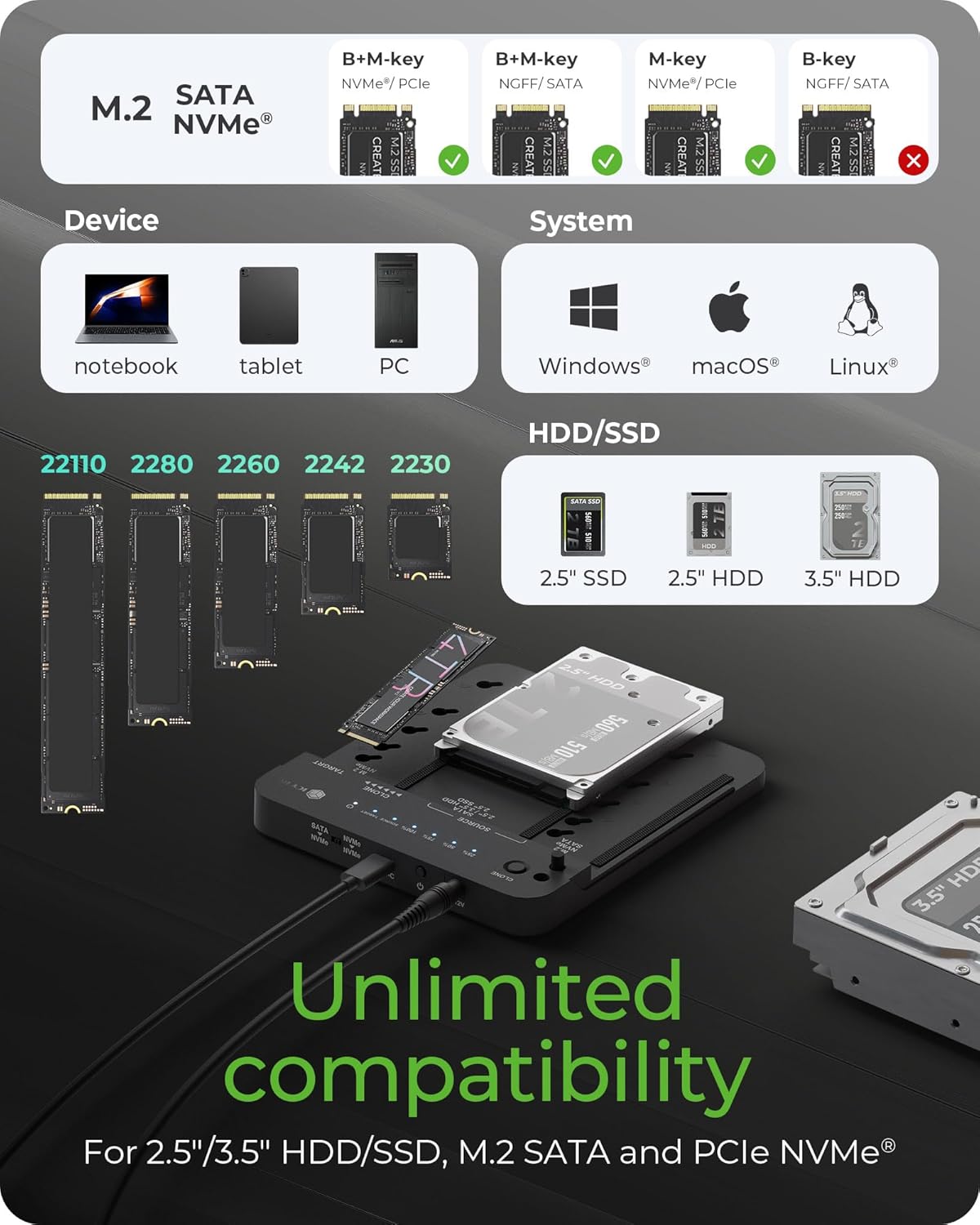
Image: A detailed chart illustrating the broad compatibility of the docking station with various M.2 key types, M.2 SSD sizes, 2.5-inch/3.5-inch HDDs/SSDs, and operating systems like Windows, macOS, and Linux.
7. سار سنڀال
The ICY BOX docking station features an open-frame design for efficient cooling. To ensure optimal performance and longevity:
- Keep the device in a clean, dust-free environment.
- Periodically inspect the drive slots and cooling areas for any dust buildup and gently clean if necessary.
- ڊوائيس کي انتهائي گرمي پد يا نمي کي ظاهر ڪرڻ کان بچاء.
8. مسئلا حل ڪرڻ
Q: Can this docking station read multiple SSDs simultaneously?
A: Yes, it can simultaneously read two SSDs/HDDs, allowing for easy storage expansion and file management across both drives. It cannot read three drives simultaneously.
Q: What happens if the target drive is smaller than the source drive during cloning?
A: The cloning process will not start. To clone successfully, the target drive must be equal to or larger than the source drive in capacity.
Q: Why can't I start the cloning process?
A: Please ensure you are following these steps correctly:
- Insert both the source and target SSDs.
- Use the switch to select the correct cloning direction.
- Press and hold the "Clone" button for 5 seconds. This step is crucial.
- When all LEDs start flashing, press the "Clone" button again.
- The cloning process will begin.
نوٽ:
- Make sure the target drive is larger than the source drive.
- Ensure important data is backed up, as the target drive will be overwritten.
- Make sure to disconnect the USB-C cable from your computer. The cloning process will not start if the docking station is still connected to a device.
9. وضاحتون
| خاصيت | تفصيل |
|---|---|
| پيداوار جي ماپ | 6.45 x 1.57 x 0.71 انچ |
| شيءِ جو وزن | 5.5 اونس (0.16 ڪلوگرام) |
| برانڊ | برفاني باڪس |
| رنگ | ڪارو |
| ھارڊويئر انٽرفيس | USB 3.2 Gen 2 |
| ڊيٽا جي منتقلي جي شرح | 10 Gbit/s تائين |
| مطابقت رکندڙ ڊوائيسز | PC, Phone, Game console |
| بندرگاهن جو تعداد | 2 (for drives) |
| ٺاهيندڙ | TECHDRIP COMPANY LIMITED |
10. وارنٽي ۽ سپورٽ
The ICY BOX M.2 NVMe & SATA SSD/HDD Docking Station comes with a 24-مهيني وارنٽي خريداري جي تاريخ کان. هي وارنٽي پيداوار جي خرابين کي ڍڪيندي آهي ۽ عام استعمال هيٺ قابل اعتماد آپريشن کي يقيني بڻائي ٿي.
For technical assistance, troubleshooting, or warranty claims, please contact our customer service. Our friendly support team is available to help solve your problems timely.
You can find contact information on the official ICY BOX webسائيٽ تي يا پنهنجي پرچون ڪندڙ جي سپورٽ چينلز ذريعي.


